How to Remove or Erase Text from a PDF for Free

Summary :
Need to delete or redact text from a PDF? Learn step-by-step methods using PDFgear. Protect sensitive data and edit PDFs for free!
Table of Contents
Sometimes, we all need to erase something from a PDF, such as an accidental typo or confidential info that shouldn’t be on the page.
Erasing text in a PDF requires the right tools to ensure it’s gone for good, not just covered up. And that’s when PDFgear comes to the rescue.
Remove Text from a PDF on Windows for Free
PDFgear is a free and powerful PDF editor that offers a unique PDF text editor feature for you to edit/erase/replace PDF text in simple clicks.
Simply select the text as you would in Microsoft Word, press the backspace on the keyboard, and the job is done!
The best part? PDFgear is free to use.
Step 1. Download and install PDFgear on your computer. Click on Open File to open the PDF file that you want to edit.
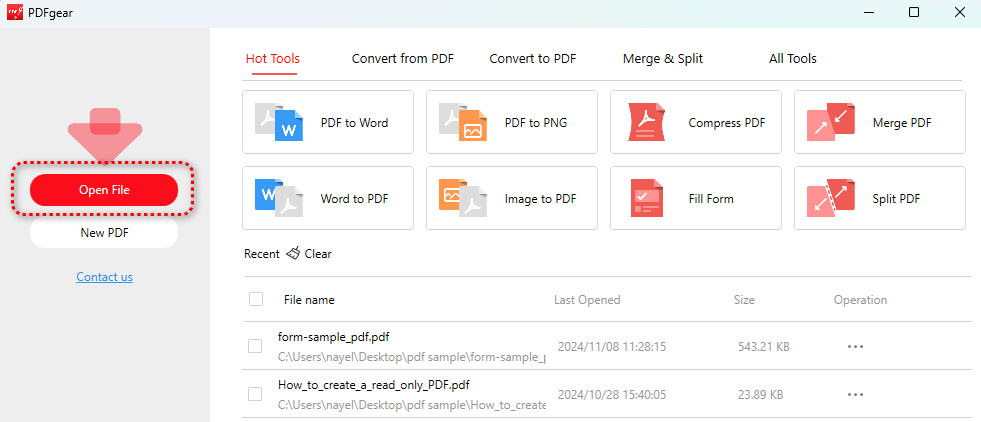
Open File
Step 2. Once your PDF file is opened, click on Edit on the top menu and then select the Edit Text tool.
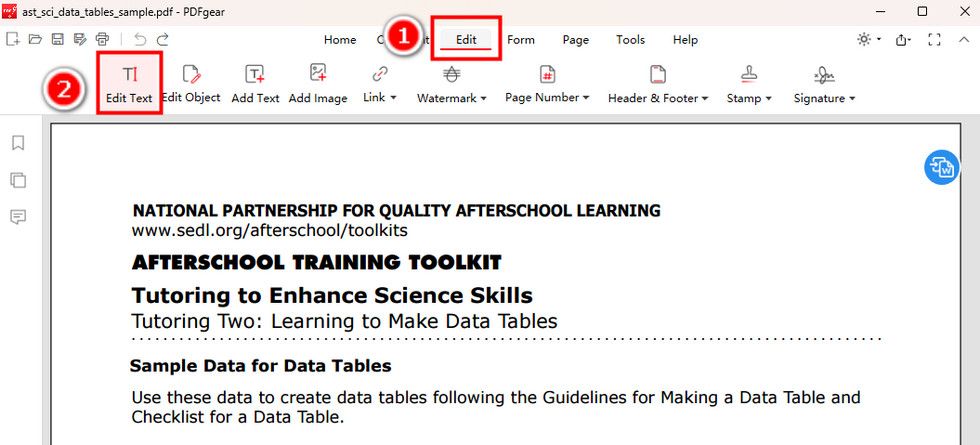
Select the Edit Text Option
Step 3. Then you’ll be led to the text editing mode. Select the text that you want to remove and press Backspace on the keyboard.
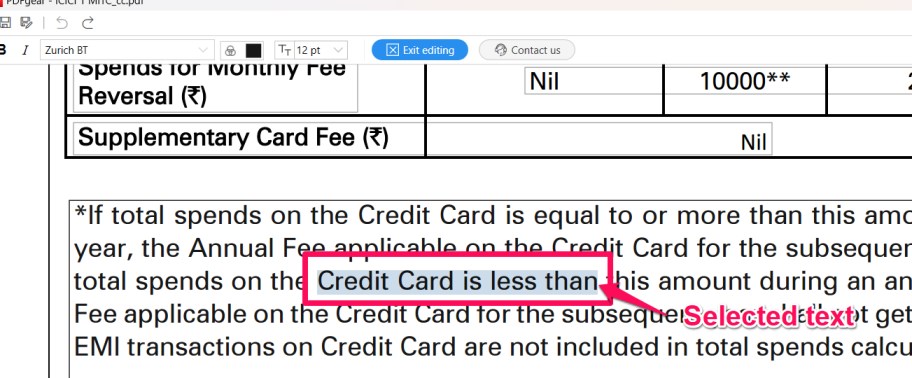
Select the Text to Delete
Step 4. If it looks good to you, click Exit editing to save changes and exit the text editing mode.
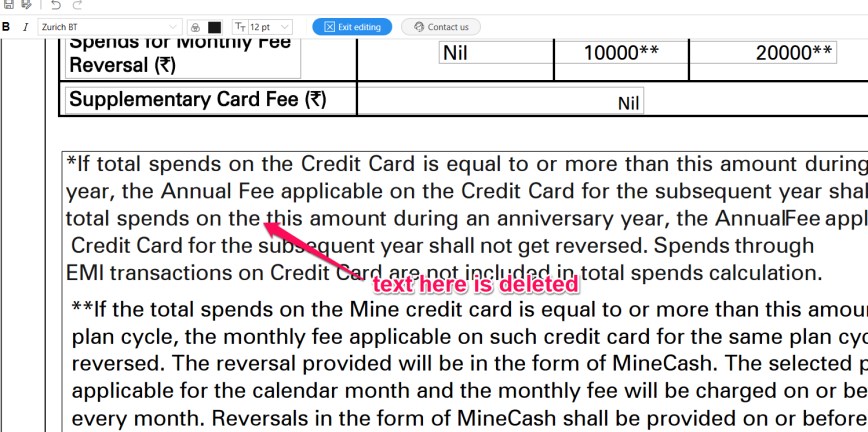
Text Erased
Step 5. Lastly, click the upper-left Save as button to save the PDF with the text removed. It’s simple as that!
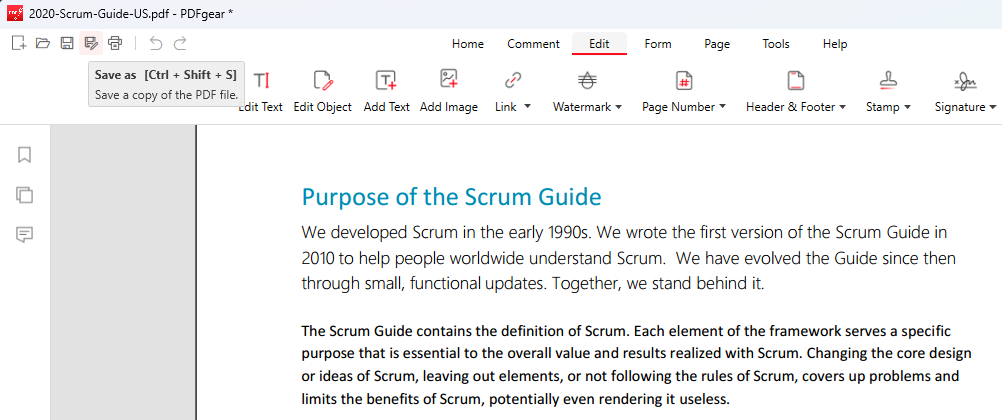
Click Save as
Remove Text from a PDF on Mac for Free
PDFgear also offers a powerful Mac app version for you to erase text in PDF on macOS.
Compared with the Windows version, PDFgear for Mac even offers a PDF redaction feature for you to redact sensitive information.
PDFgear for Mac is also free to use, now get it from the Mac App Store!

Step 1. Open the PDFgear app on your Mac, and click the Open File button to open the PDF you need to edit.
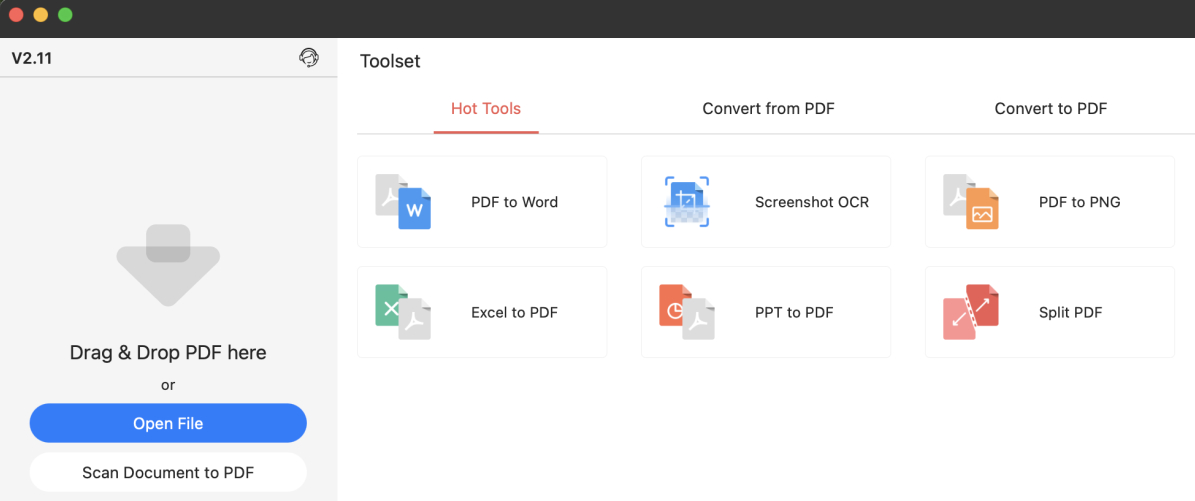
Open File
Step 2. In the Home section, click on the Edit Text button.
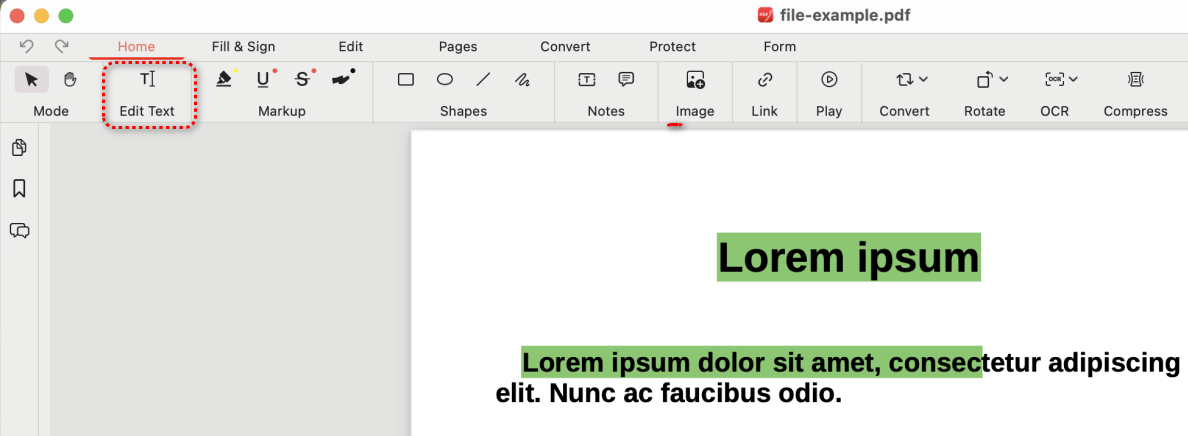
Edit Text
Step 3. Select the unwanted text and press the Delete button on the keyboard to remove it.
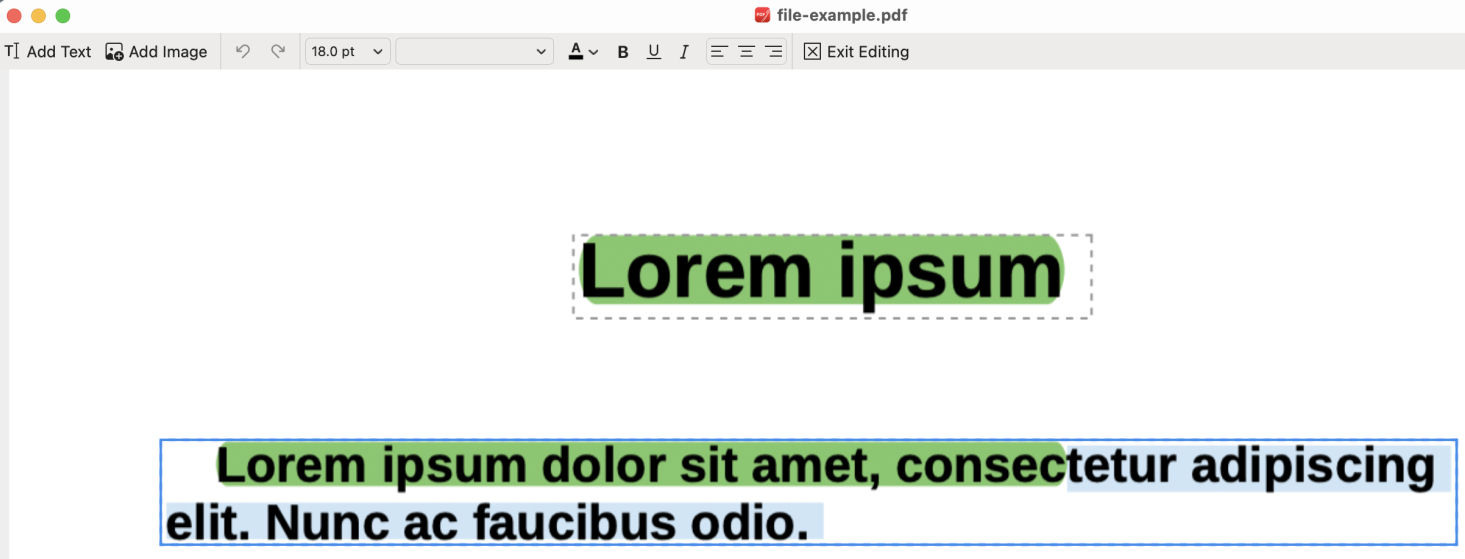
Select and Delete
Step 4. When you’re done editing PDF text, click Exit Editing.
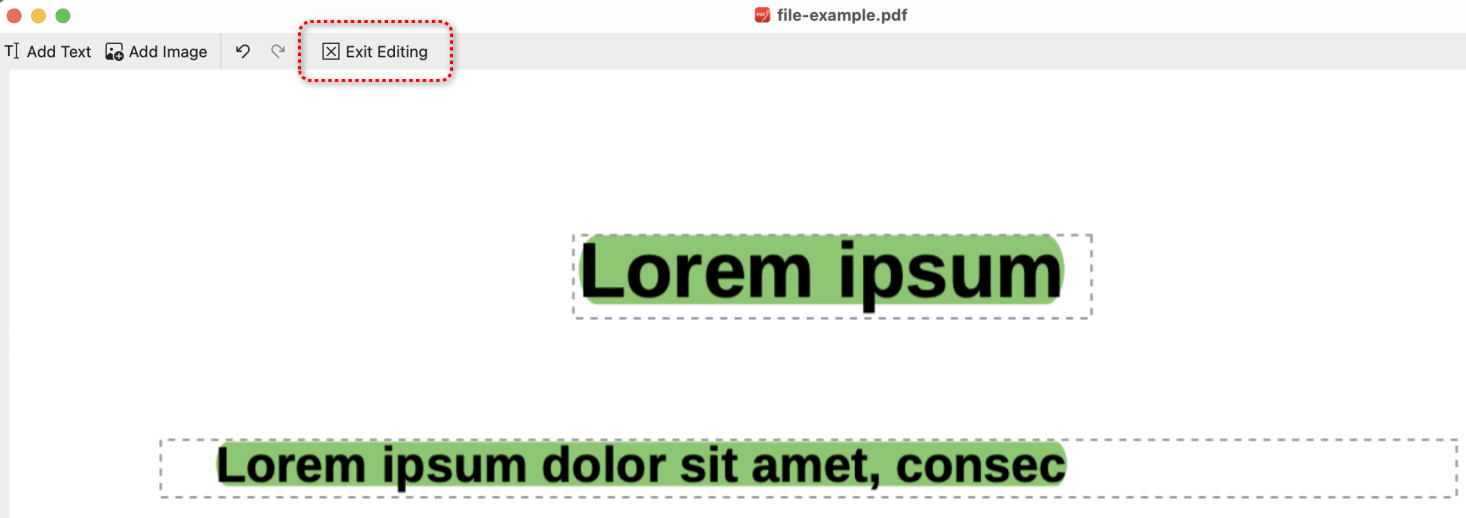
Exit Editing
Step 5. You can also choose to redact PDF text, go to the Protect section, and click on the Redact button.
Then select the text you need to hide and click on it to redact it.
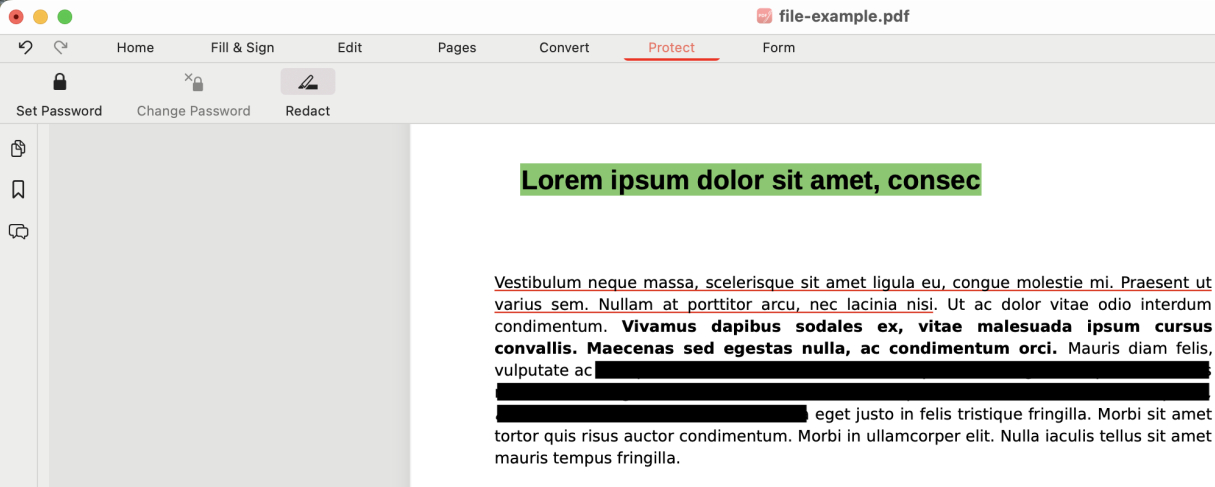
Redact Text
Step 6. When everything is done, go to the upper-left corner and click File > Save As to save the modified PDF.
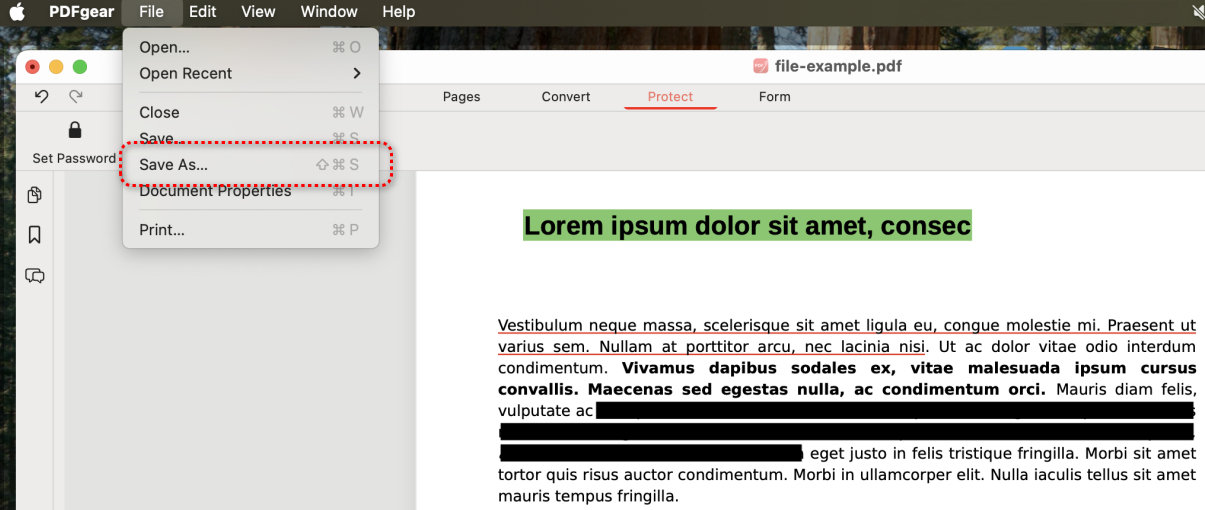
Save PDF
Remove Text from a PDF on Mobile for Free
For those working with PDF on a mobile phone, PDFgear’s versatile mobile app lets you easily remove unwanted text from PDFs directly on your iPhone or Android phone.
It allows you to delete an entire paragraph in one click, or select and delete part of the PDF text.
Now get the PDFgear mobile app to get started, it’s free to use!


Step 1. Open the PDFgear app on your phone, tap the Plus icon to add the PDF file to PDFgear, and tap on it in the Files list to open it.
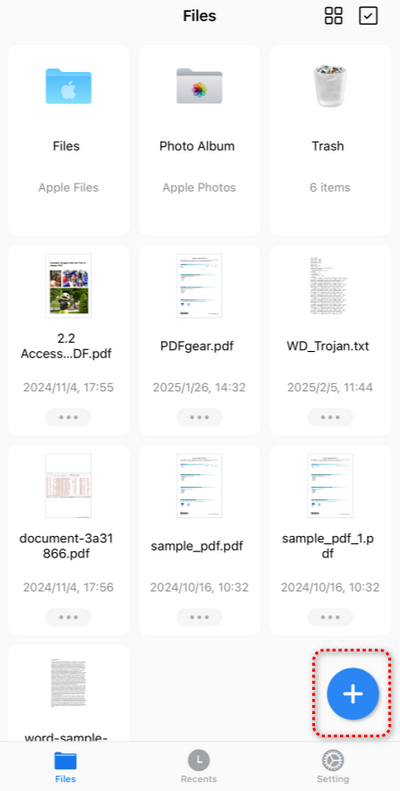
Tap Plus
Step 2. Tap the upper-right Edit button, and then switch to the Edit Text mode with the button that says “Annotate”.
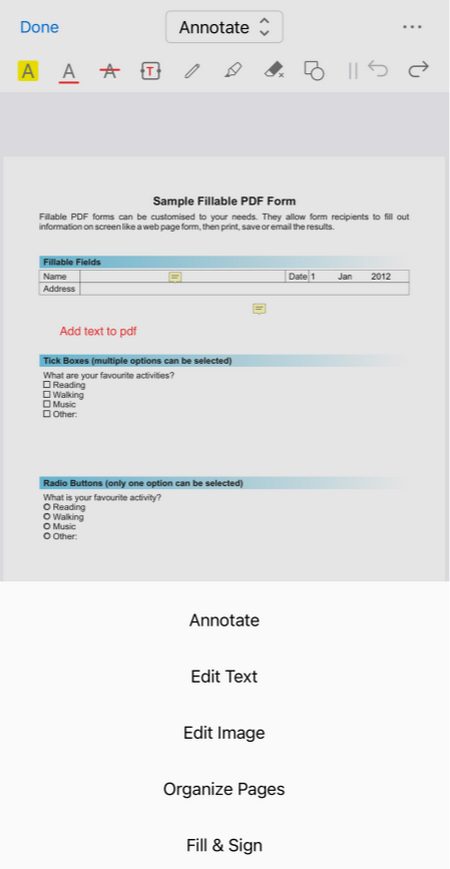
Go to Edit Text
Step 3. In the Edit Text mode, the PDF text will show as text blocks, tap on a text block and select Delete to erase the entire paragraph.
To delete only a part of the text in a paragraph, tap Edit.
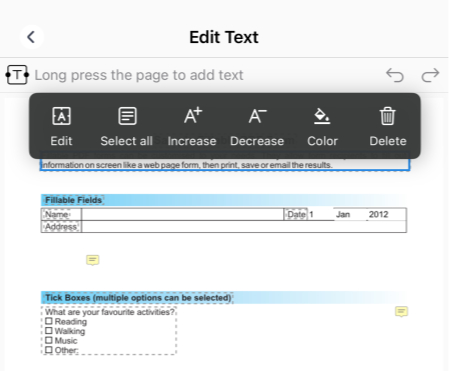
Delete Paragraph
Step 4. Tap and hold your finger to move the start and end text cursors, and choose Delete to remove the text in between.
When ready, tap the upper-left < button to exit the Edit Text mode.
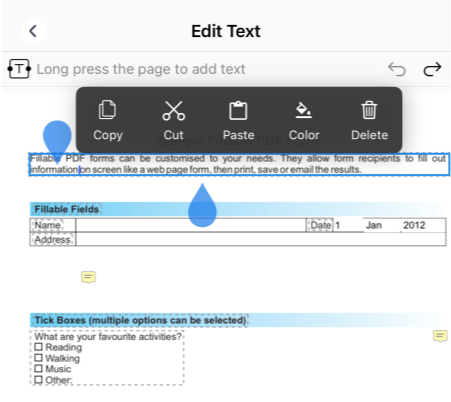
Delete Partial Text
Step 5. Lastly, tap the upper-right triple dots button ⋯ to save or share the modified PDF.
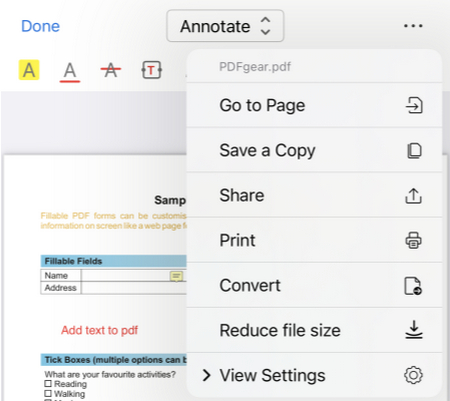
Save a Copy
FAQs
Is there a way to redact sensitive text in a PDF to hide it?
PDFgear for Mac includes a Redaction tool that allows you to hide sensitive text by placing black bars over it. Once you apply redaction, the text is permanently deleted from the document.
Can I undo changes if I accidentally remove the wrong text in PDFgear?
Yes, PDFgear has an Undo feature. If you accidentally remove the wrong text, you can use the undo shortcut Ctrl+Z on Windows or Command + Z on Mac to revert the changes.
Does removing text affect the layout of my document?
No, when you remove or edit text, it treats words as connected blocks, ensuring that any edits do not disrupt the overall layout of your document. This means that you can safely delete or replace words without creating gaps or overlaps in your formatting.
Does removing text from a PDF affect the file size?
Generally, deleting text itself won’t make a big difference in file size unless you also delete images or other embedded objects.
Can I permanently delete text from a PDF, or does it remain in the file history?
Once you remove text using PDFgear and save the file, the text is permanently deleted.
If you use the Redaction feature, the redacted text is permanently removed and cannot be recovered after saving.
