How to Remove Metadata from PDF Quickly with 3 Methods

Summary :
Explore the top three PDF metadata removers. Discover the easiest way to terminate metadata from PDFs for free. This post will show you step-by-step how to remove metadata from PDFs.
Table of Contents
Remove Metadata from a PDF
The metadata is part of a PDF document to indicate the creation date, author, title, and more. It’s essential to remove this information when sharing a PDF with the public to protect your privacy and enhance the security of your PDFs.
What’s more, cleaning meta information from PDFs helps to reduce the PDF size, making it easy to store and share PDFs with others.
This article will explore the top 3 efficient PDF metadata terminators to hide the metadata from PDF files effortlessly.
Remove Metadata from PDFs with a Free Remover
1. PDFgear – The Best Free PDF Software
PDF metadata removal is no longer a complex task with the latest version of the free PDF metadata remover PDFgear software.
PDFgear stands out as a completely free PDF editor that allows you to experience seamless working with PDFs, such as easily editing PDFs, quickly organizing PDFs, and digitally signing PDFs to protect your privacy.
With only a few clicks on the user-friendly interface, you can clean the meta information from a PDF file with PDFgear.
Step 1. Download the Latest PDF Metadata Remover
Head to the PDFgear official website > Download the latest version of PDFgear desktop > Install and launch the software on your device.
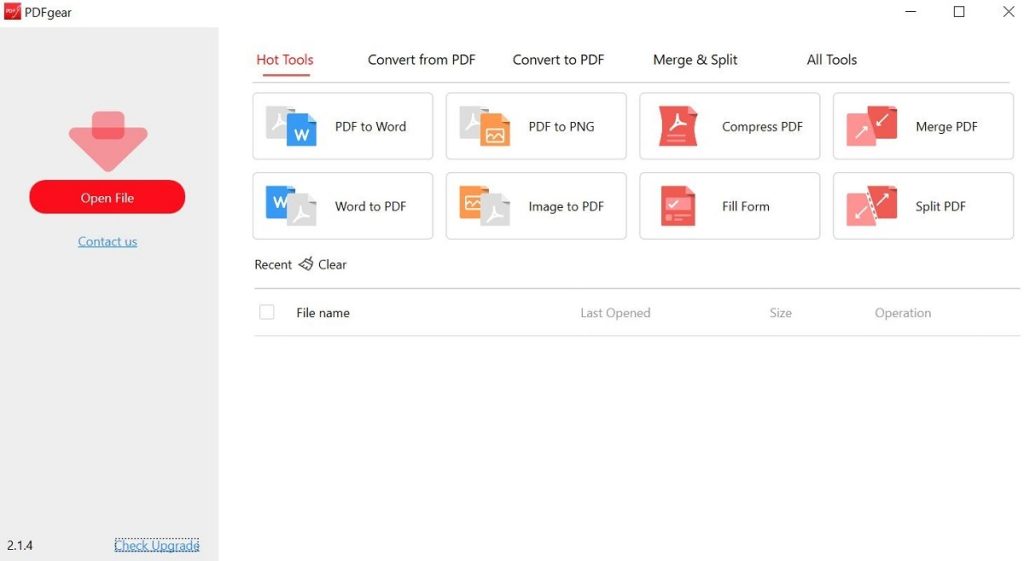
Launch PDFgear Software on Your Device
Step 2. Remove Metadata from a PDF File
Open a PDF file with metadata with PDFgear > Right-click on the PDF file > Choose Document Properties.
In the Document Properties window, you will see the metadata information including title, author, subject, and keywords.
Locate the metadata information that you want to remove in each column > Hit the “Delete” or “Backspace” key on the keyboard, the metadata will be deleted from the PDF effortlessly > Hit the “OK” button to continue.
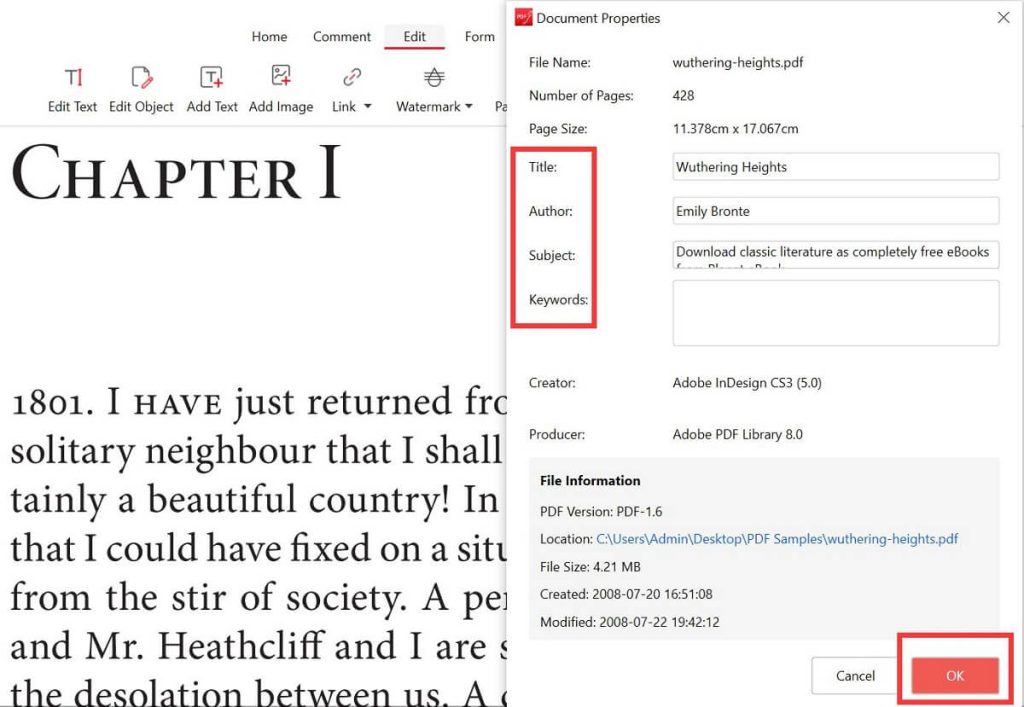
Remove Metadata from a PDF with PDFgear
Step 3. Save the Metadata-Free PDF Document
Once you remove the metadata, navigate to the “Save” icon to save the PDF file directly. You can also choose the “Save As” icon to save the PDF as a new file.
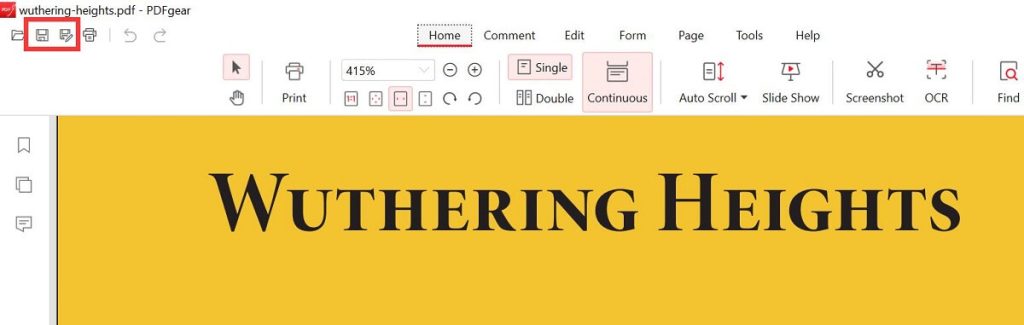
Save the Metadata-free PDF in PDFgear
2. LibreOffice – An Open-Source PDF Tool
As a free open-source PDF editor, LibreOffice offers a basic editing feature for PDFs, such as managing pages, digitally signing PDFs, and adding images to PDFs. It supports various platforms and is safe to use.
However, the current PDF editing features are extremely limited. LibreOffice does work well on large-sized PDF files and the interface design is somewhat outdated.
Step 1. Download and Launch the Free Office Suite
Head to the LibreOffice official website > Choose your operating system and Download the software accordingly > Launch the desktop > Open a PDF file with it.
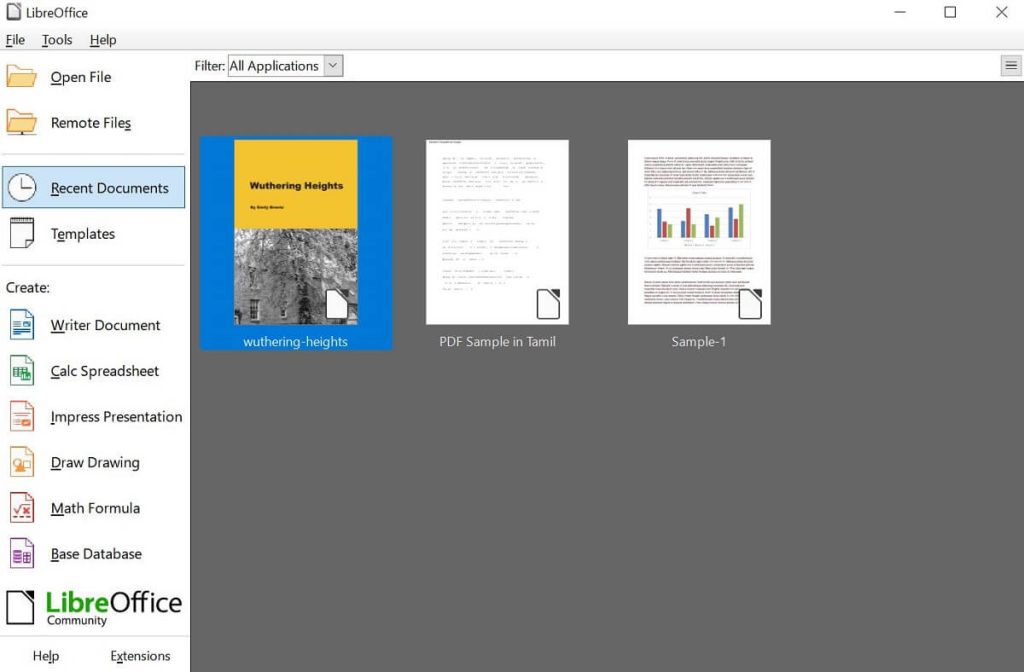
Launch LibreOffice Software on Your Device
Step 2. Remove Meta Information with LibreOffice
Once open the PDF file > Navigate to File > Click Properties.
In the popup window, the metadata will be displayed automatically under the “Description” section. You can clean the information in the title, subjects, keywords, etc. Click the “OK” button to continue.
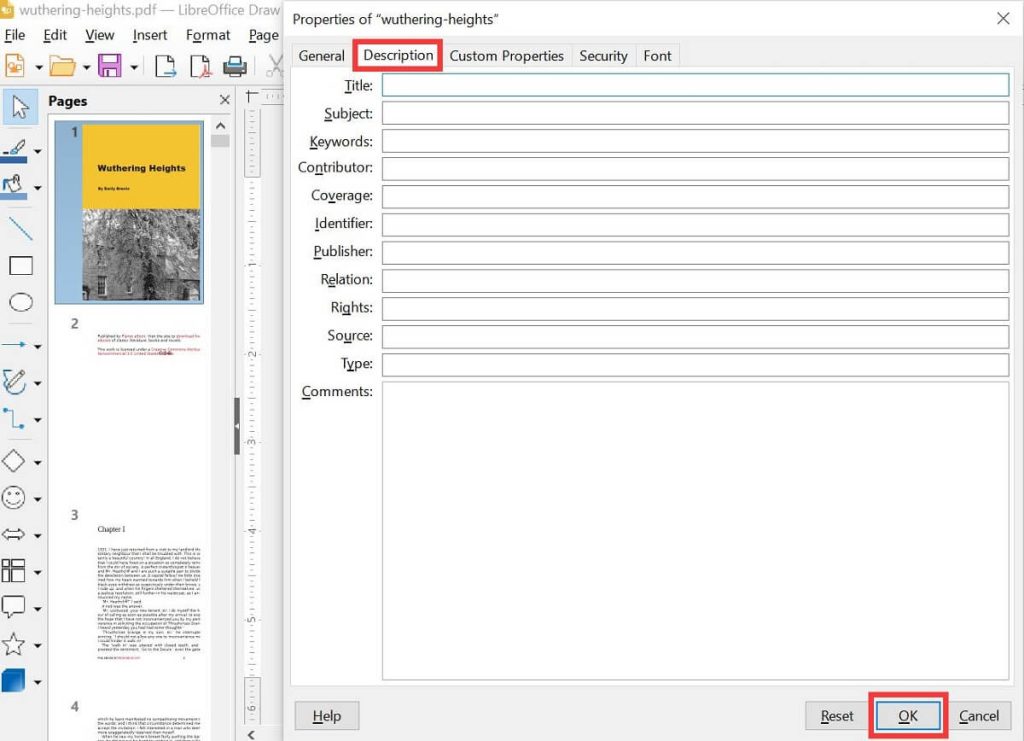
Get the Metadata Removed from PDF with LibreOffice
Step 3. Export the New File as PDF
Navigate to File > Chosen Export As > Export as PDF to generate a new PDF file without metadata > Or Export Directly as PDF to cover the original document.
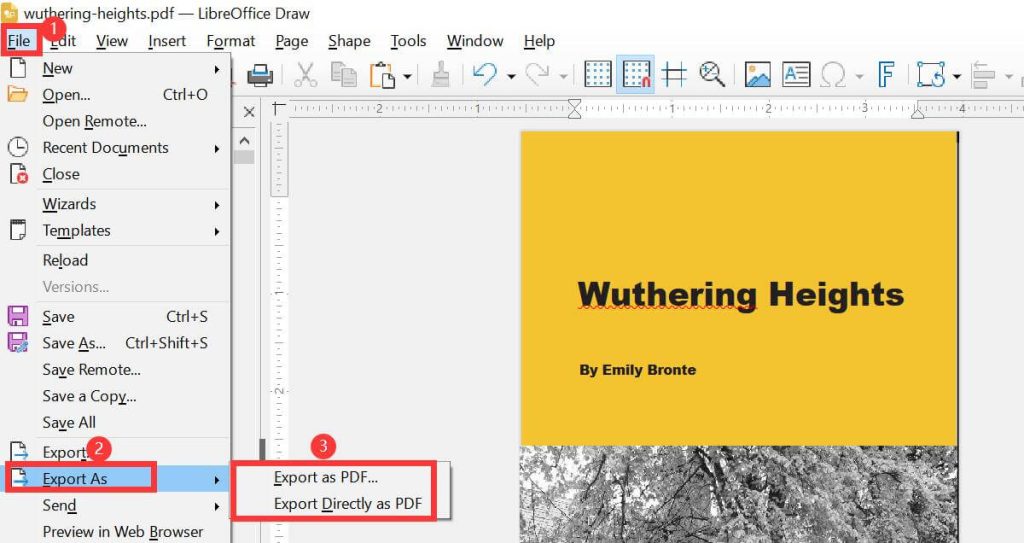
Save the New File in LibreOffice
How to Remove Metadata from PDFs with Adobe Acrobat Pro
As one of the most functional PDF editors, Adobe Acrobat Pro enables users to clean metadata from PDF files straightforwardly.
It provides a renowned software that provides a various set of tools for working with PDFs.
However, only the Pro version offers the most comprehensive set of features and capabilities for professional-level PDF modification.
Step 1. Open a PDF Document in Adobe Acrobat
Launch Adobe Acrobat on your device > Open a PDF file with metadata > Navigate to “File” > Choose “Properties” in the dropdown section.
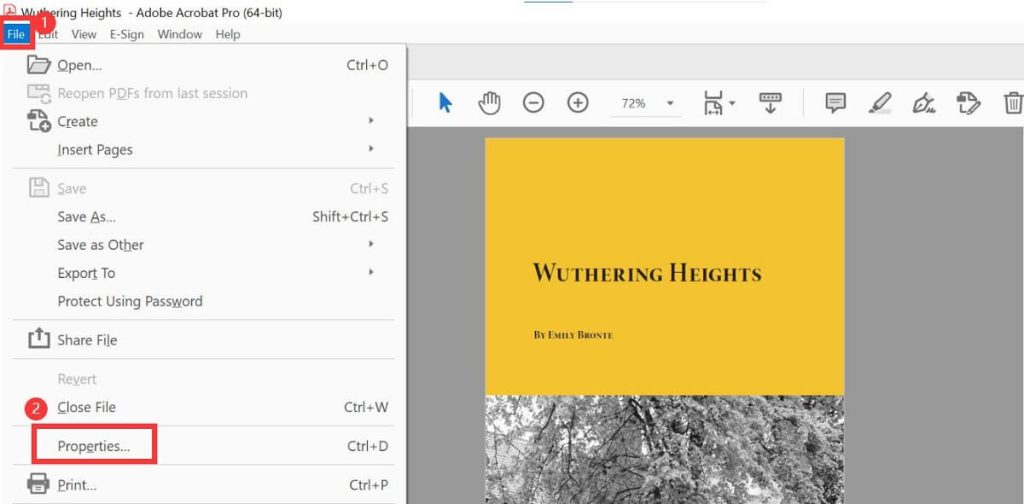
Open a PDF File in Adobe Acrobat
Step 2. Delete Metadata from a PDF Document
Select the meta content and use the “Backspace” or “Delete” key to get the information terminated. Click the “OK” button to continue.
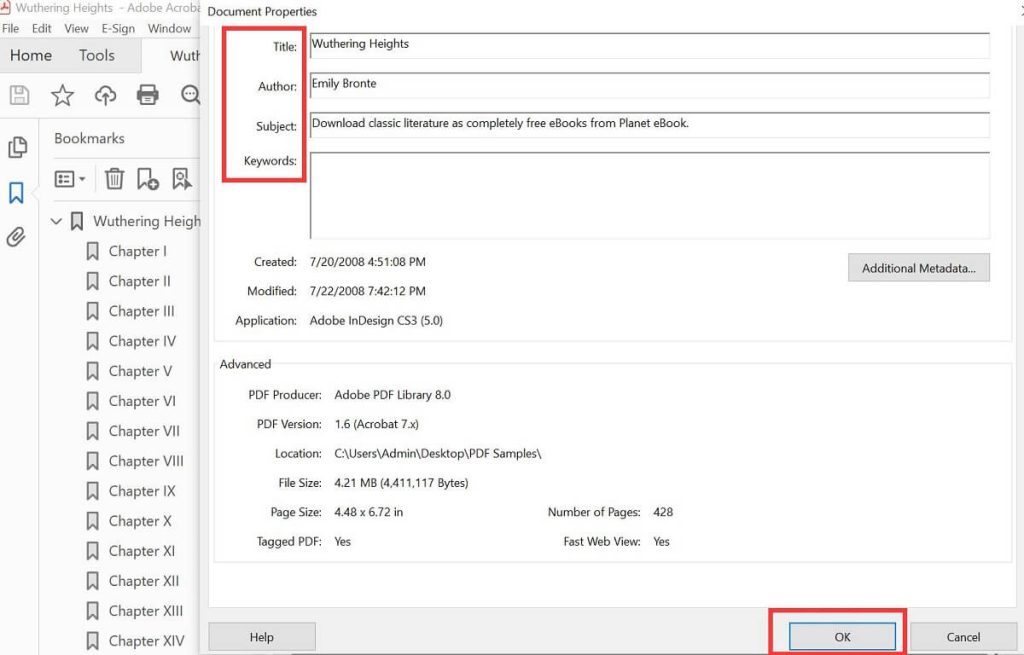
Remove Metadata from a PDF File with Adobe Acrobat
Step 3. Remove Additional Metadata in PDFs(Optional)
Any chance you want to delete all the meta information from a PDF file, continue to click on the “Additional Metadata” button > Choose Advanced > Select the information to be deleted > Click “Delete All”.
However, this function is a paid feature and can only be used by those who have purchased a membership.
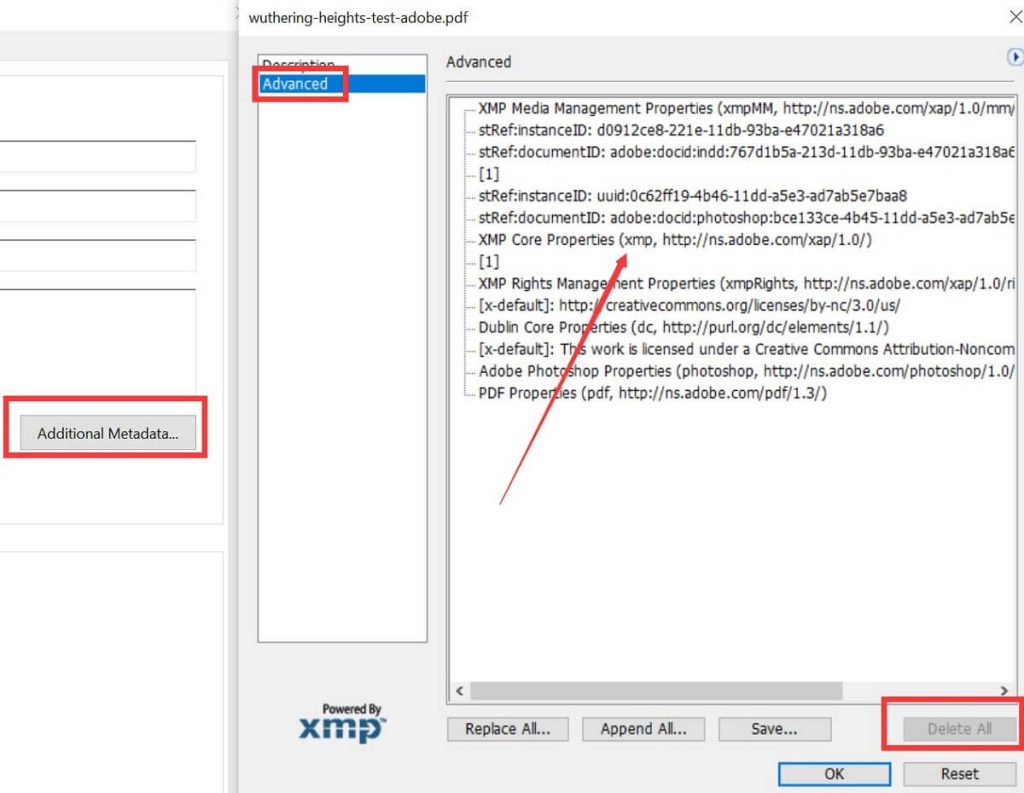
Remove Additional Metadata from a PDF with Adobe Acrobat
Step 4. Save Your New PDF File
Once you terminate the meta information, navigate to File, and you can save your PDF in various ways catering to your specific requirements.
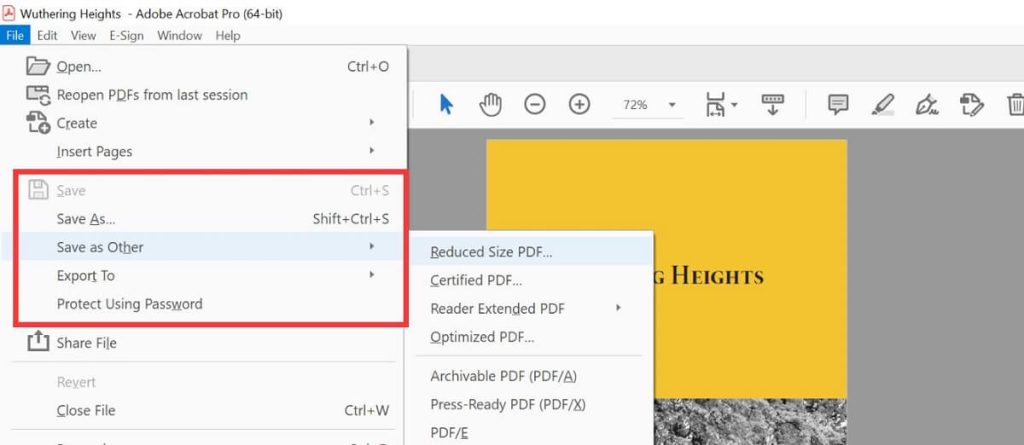
Save the Metadata-free PDF in Adobe Acrobat
FAQs
Can I remove metadata from PDF on Mac with Preview?
Nope. Currently, Preview does not offer a way to delete metadata from a PDF file. For a cost-free alternative to Adobe Acrobat Pro, PDFgear enables you to efficiently remove metadata from your PDF documents.
Is it possible to view and edit the metadata in a PDF file?
Absolutely YES. It is easy to view and edit the PDF metadata with the right metadata editor. PDFgear offers a smooth way to address this issue and it is a full-featured PDF editor that allows you to work with PDFs effectively.
What is the free tool to remove metadata?
Many free online and offline tools allow you to edit metadata. Online tools like Metacleaner are free to use but lack a security guarantee.
PDFgear software is a completely free PDF metadata remover that will ensure your privacy and security for PDF files.
Can I remove metadata from PDF with Chrome extension?
Add the “Metadate Remover” extension to your Chrome, open the extension, and upload a PDF file, click the “Remove” button and Chrome will automatically remove the metadata from the PDF file. Once complete, a metadata-free PDF will be saved directly to your device.
Bottom Line
To sum up, terminating metadata from PDF files is as easy as pie with a proper PDF metadata remover.
This post listed the top three PDF metadata viewers, editors, and removers that enable you to modify your PDF metadata effortlessly.
Among these PDF metadata removers, PDFgear software stands out as a 100% free PDF manager with a simple and easy-to-use interface.
Try PDFgear to enjoy a hassle-free workflow with your PDFs now.
