How to Remove Highlights from PDF for Free

Summary :
This article shows you how to use PDFgear’s free online service, desktop software, and mobile app to unhighlight PDF documents for free.
Table of Contents
Removing highlights in a PDF can feel like erasing a bad memory, satisfying yet oddly nostalgic. With the right tool, it can be a breeze.
Now learn how to use PDFgear to remove highlights in PDFs on computers and mobile phones!
Remove Highlights in PDF Online for Free
PDFgear offers a free and web-based online editor for you to remove highlights in text or images in PDF.
PDFgear is free to use, there’s no signup, there’s no watermark, and it supports highlights applied by many modern PDF editors like Adobe Acrobat.
Step 1. Go to the PDFgear online PDF editor. Click the Select PDF File button to open the PDF you need to work with.
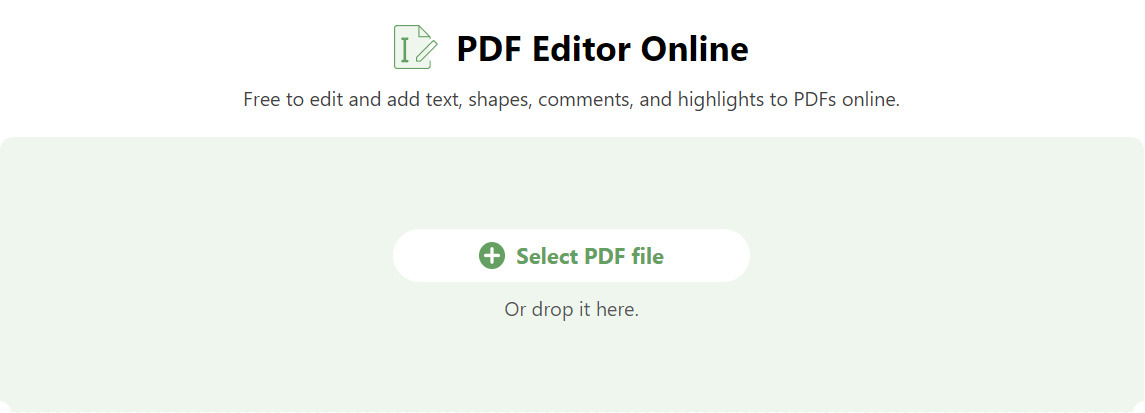
Select PDF file
Step 2. Once the PDF is loaded, right-click on a highlight and click Delete to remove the highlight.
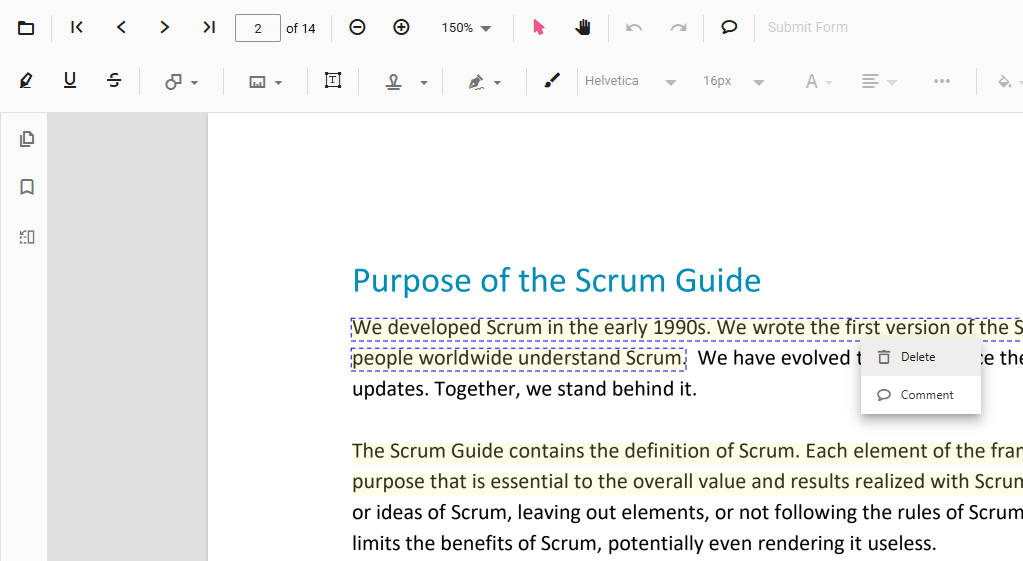
Right Click
Step 3. To check and manage all highlights, go to the upper-right side and click on the Comment Panel button, this will show you all the annotations in the PDF, including the highlights.
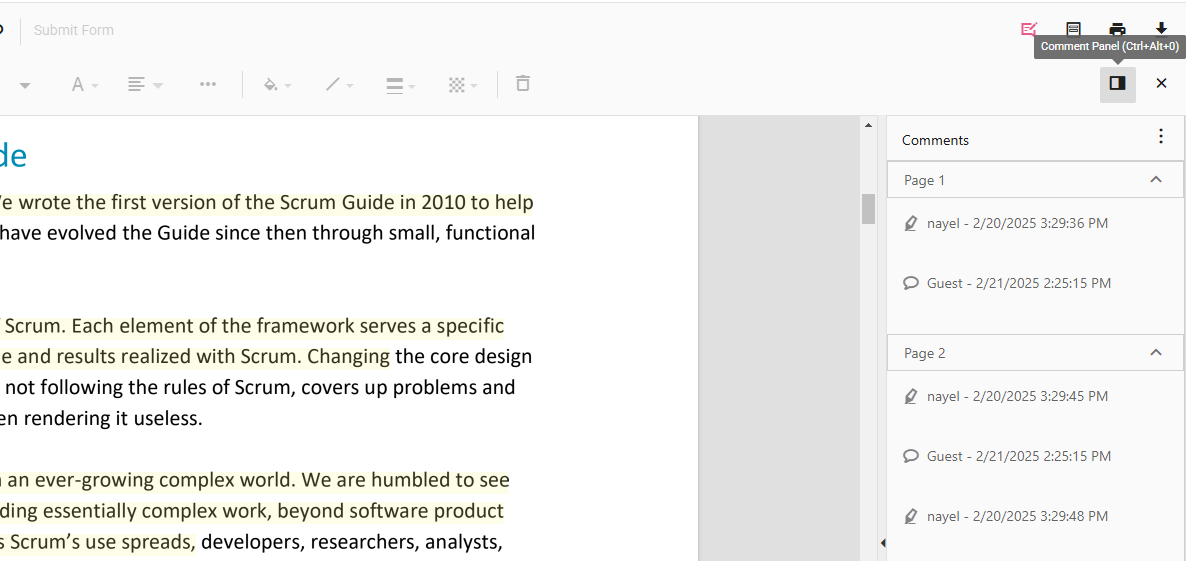
Comment Panel
Step 4. Click on a list item that represents a highlight and you’ll be led to the instance, click on the triple dots button on it, and click Delete to remove the highlight.
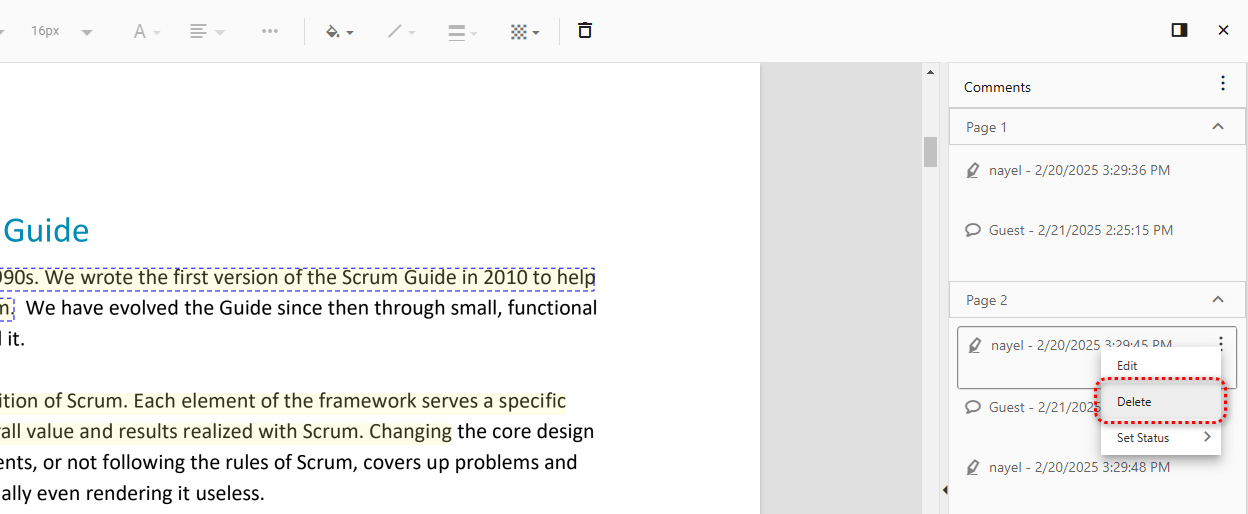
Delete Highlight
Step 5. When all the unwanted PDF highlights are gone, click the upper-right Download file button to save the clean PDF.
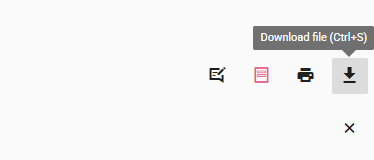
Click Download File
Batch Remove All Highlights in PDF for Free
PDFgear’s free PDF editor software for Windows and Mac is a more robust option to manage PDF highlights.
It includes a batch annotation removal feature, so you can remove all PDF annotations, including all the highlights, in one simple click.
Just like the online service, PDFgear software is also free to use, now get it to get started!
Free to remove highlights and other annotations on Windows and Mac in bulk.
Step 1. Download PDFgear on your computer, then install and open it. Click Open File to select the PDF you want to unhighlight.
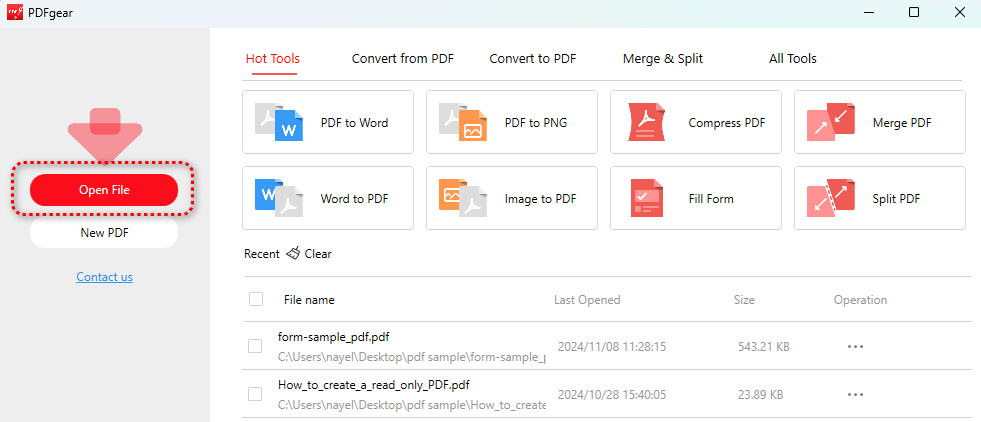
Open File
Step 2. Head to the leftmost panel and click on Comments, this will show all the PDF comments, including all PDF highlights.
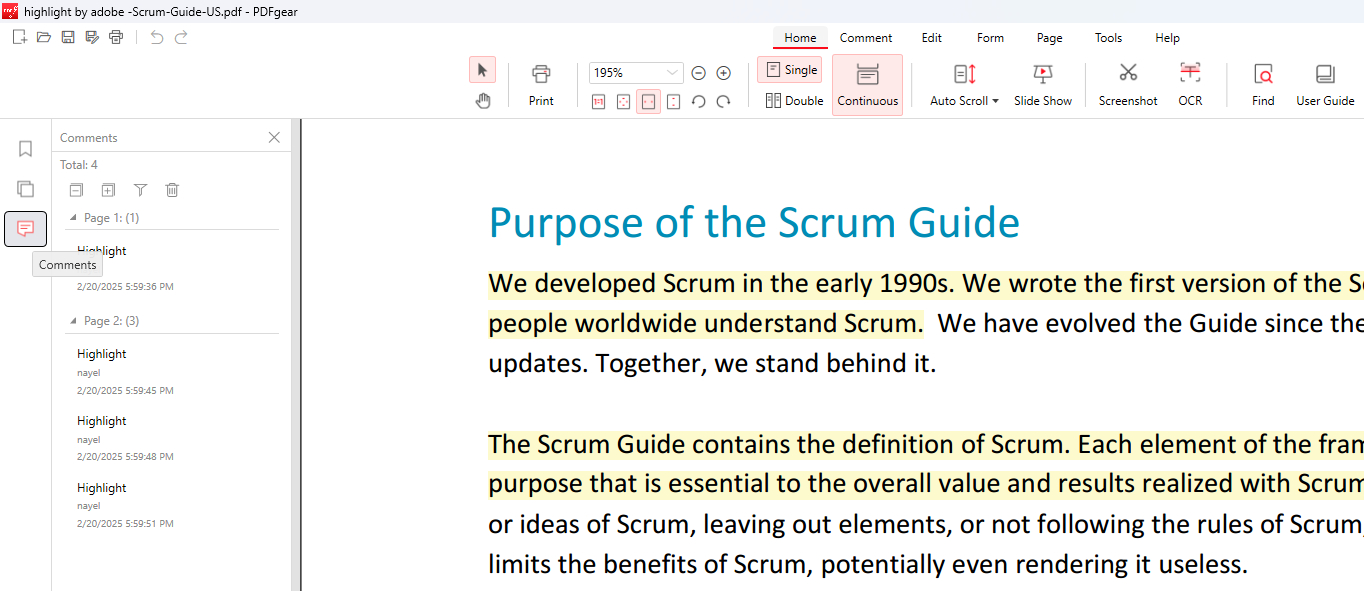
Click Comments
Step 3. Click on the trash can button, tick on Select All, and click Delete to delete all PDF highlights in bulk.
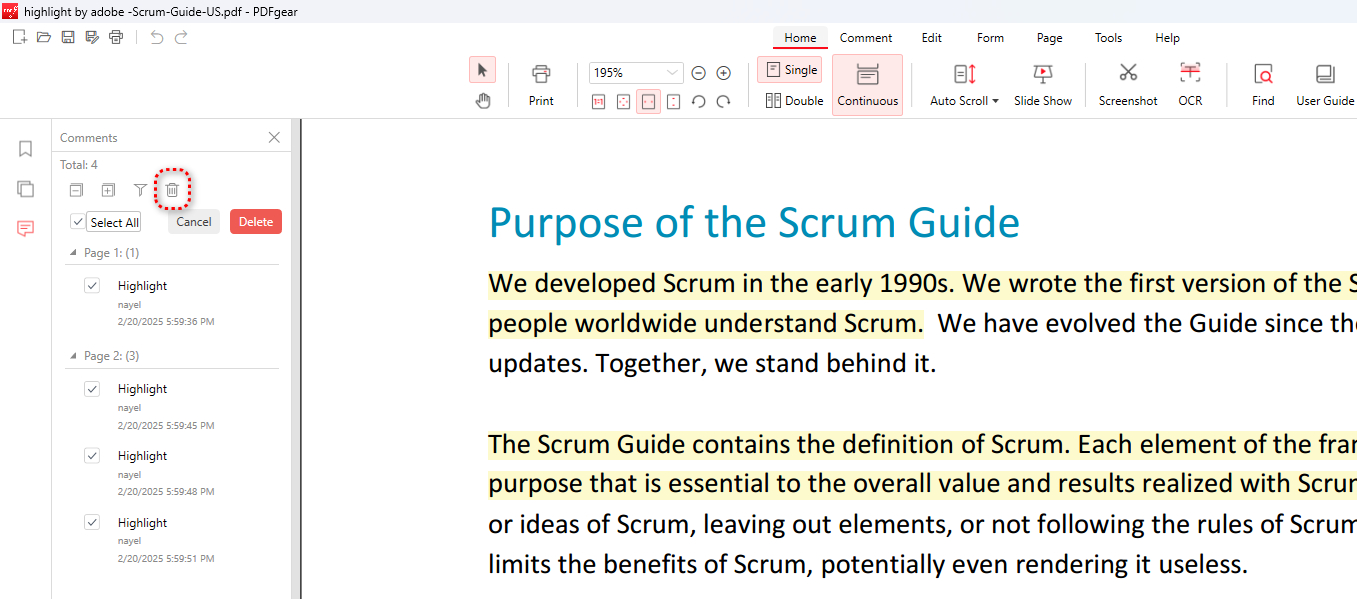
Batch Delete
Step 4. To save the new PDF, go to the upper-left corner and click Save as.
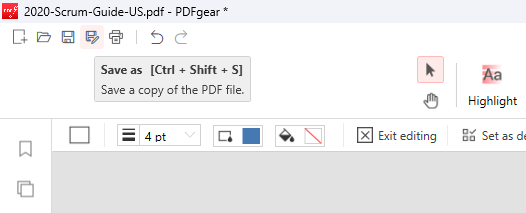
Click Save as
Remove Highlights in PDF on Mobile
If you’re trying to unhighlight a PDF on your iPhone or Android phone, PDFgear has also got you covered.
With PDFgear’s free mobile app, you can easily check and delete PDF highlights and annotations intuitively.
PDFgear app is free to use, now get it from Apple App Store or Google Play!


Step 1. Open PDFgear app, tap on the Plus icon to add the PDF into PDFgear, and tap on it in the Files list to open the PDF.
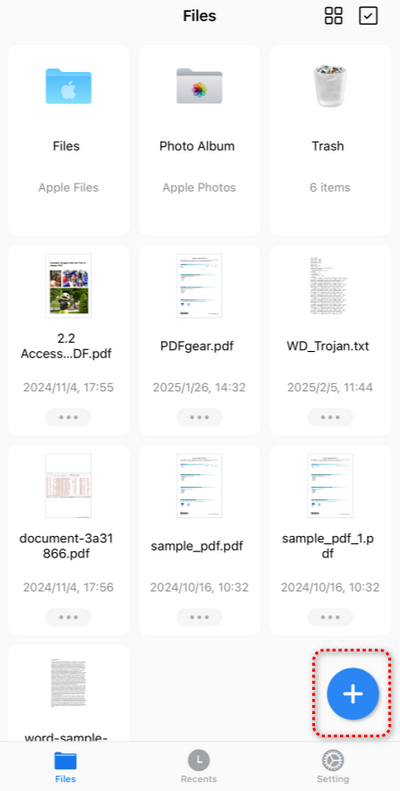
Tap Plus
Step 2. Tap the upper right Edit button.
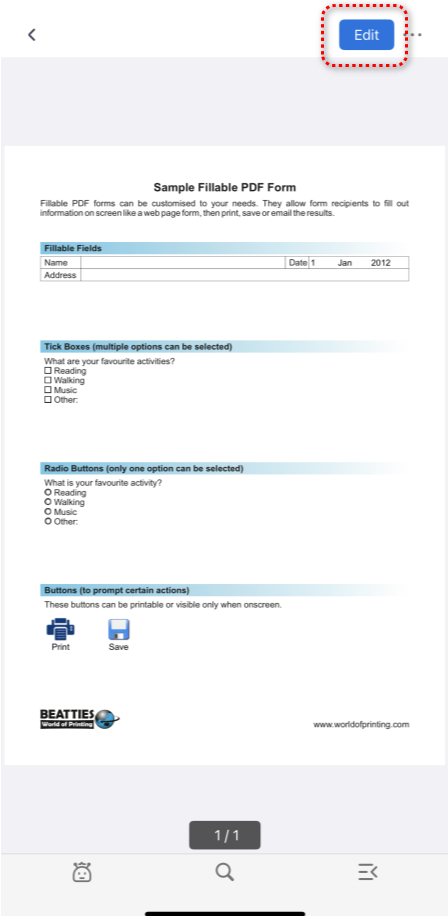
Tap Edit
Step 3. Tap the lower-right Bookmarks button.
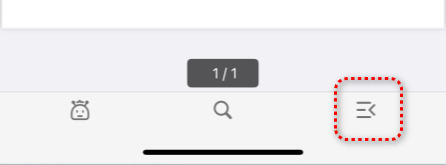
Tap Bookmark
Step 4. In the Bookmarks menu go to the Annotations tab that is marked by a letter A.
From there, you’ll see all existing highlights and annotations in the PDF. Tap Edit.
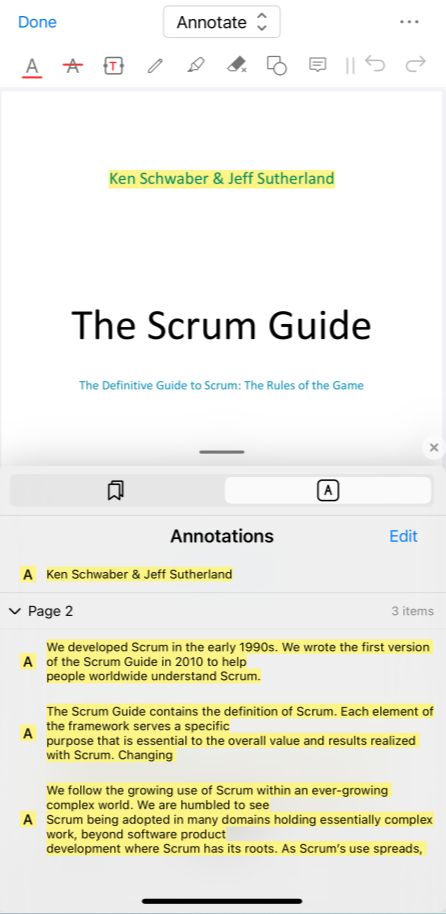
Check Highlights
Step 5. Select the highlights you don’t need and tap the trash can button to delete them. Then tap Done.
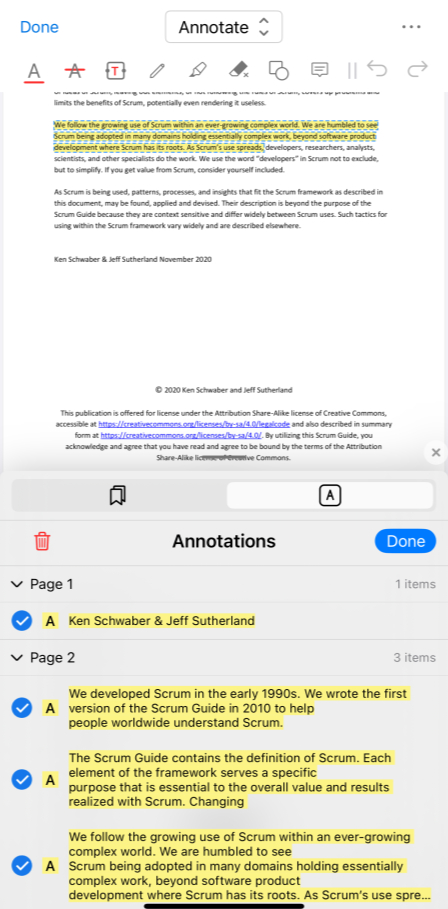
Delete All Highlights
Step 6. Lastly, tap the upper-right triple dots button to save or share your new PDF.
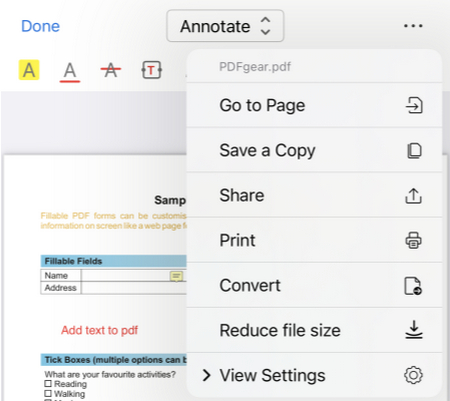
Save a Copy
FAQs
Why can’t I remove highlights in my PDF?
PDFgear only helps remove PDF highlights that are applied as annotations. If the PDF is locked or the highlights are part of an image (e.g., scanned documents), you may not be able to remove them.
Does removing highlights change the actual text in the PDF?
No, removing highlights only removes the visual marker and does not alter the underlying text. The content of the PDF remains unchanged.
What if I can’t find the highlighted text?
If you can’t find the highlighted text, go to the Comments Panel which includes all the existing highlights and annotations in the PDF.
Can I undo removing a highlight in PDFgear?
Yes, in PDFgear, if you accidentally remove a highlight, you can use the “Undo” button (or Ctrl + Z / Cmd + Z) to revert the action.
How to remove highlighted text in PDF using Preview on Mac?
Open PDF in Preview, Control-click the text or image with highlights, and click Remove [item] from the shortcut menu.
