How to Make a Fillable PDF on Mac for Free

Summary :
This article explains how to use PDFgear’s online service or offline software to make fillable PDFs that is editable by other people, or fill in PDF forms you’ve received, on macOS.
Table of Contents
Making PDFs fillable helps turn boring forms into interactive pieces, where users can easily write anything with a digital pen. Filling in PDF forms is just as smooth—you don’t need a pen, just a click and type.
There’s no built-in option to make fillable PDFs on Mac (No, Preview can’t do that). On this page, you’ll learn how to use PDFgear’s free online tools to make fillable PDFs or fill in PDF forms yourself.
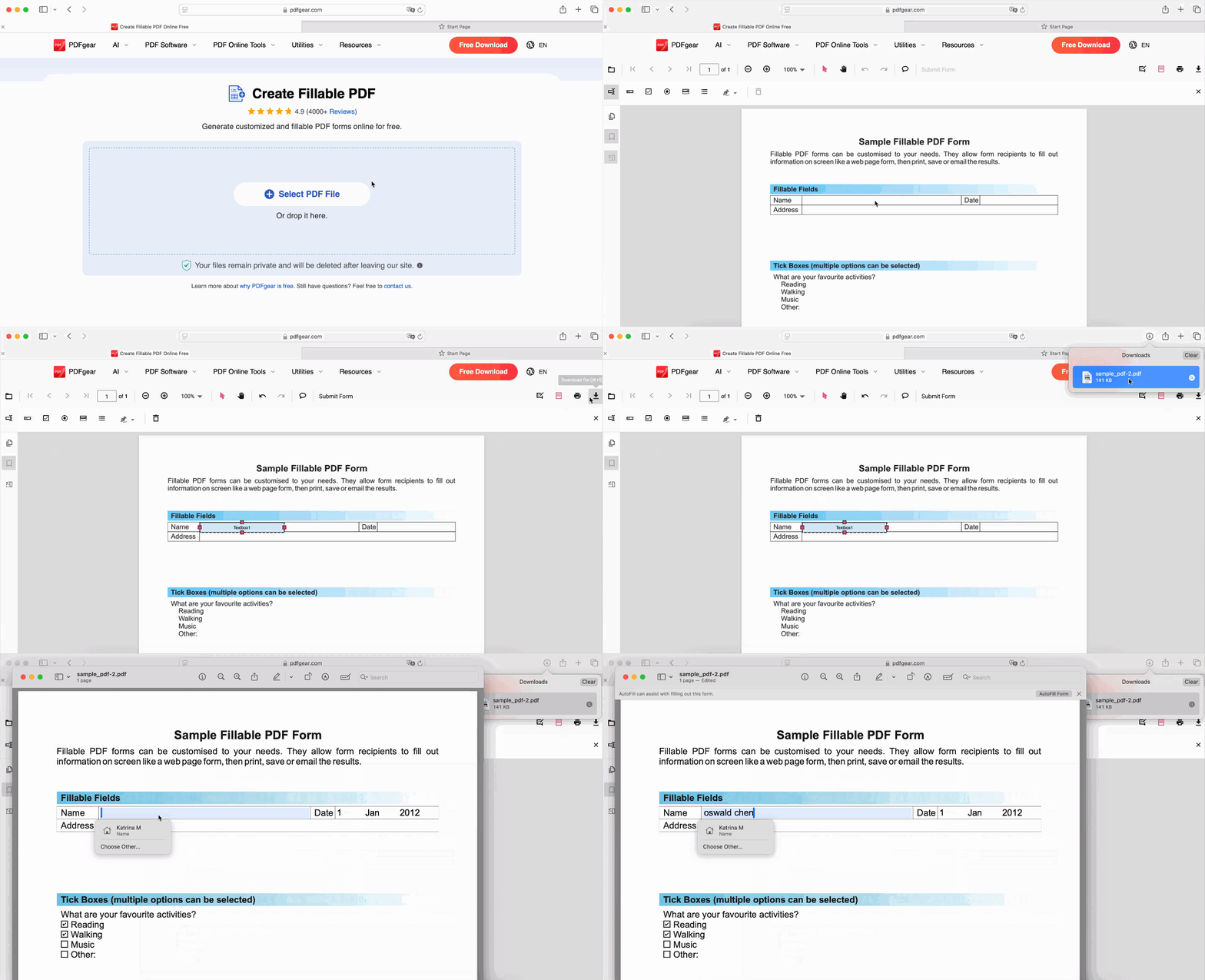
Create a Fillable PDF on Mac Online for Free
Creating fillable PDFs is like setting up a quiz: you create text boxes, checkboxes, or drop-down menus where others can type or select answers.
The most convenient way to make fillable PDFs on Mac is using PDFgear online fillable PDF maker, which allows you to create fillable PDFs online for free. There’s no watermark, and there’s no sign-up.
Video Tutorial

Step 1. Go to PDFgear online fillable PDF maker, and click Select PDF file to open a PDF.
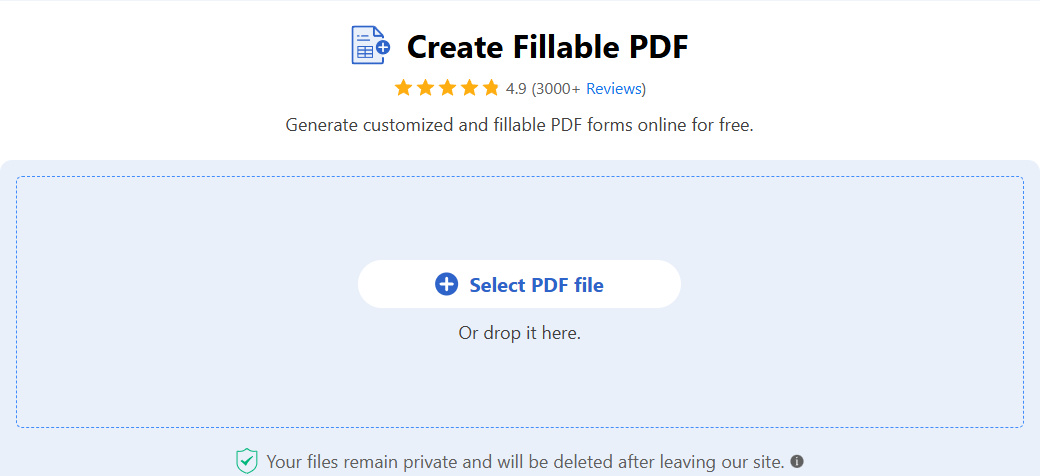
Select PDF File
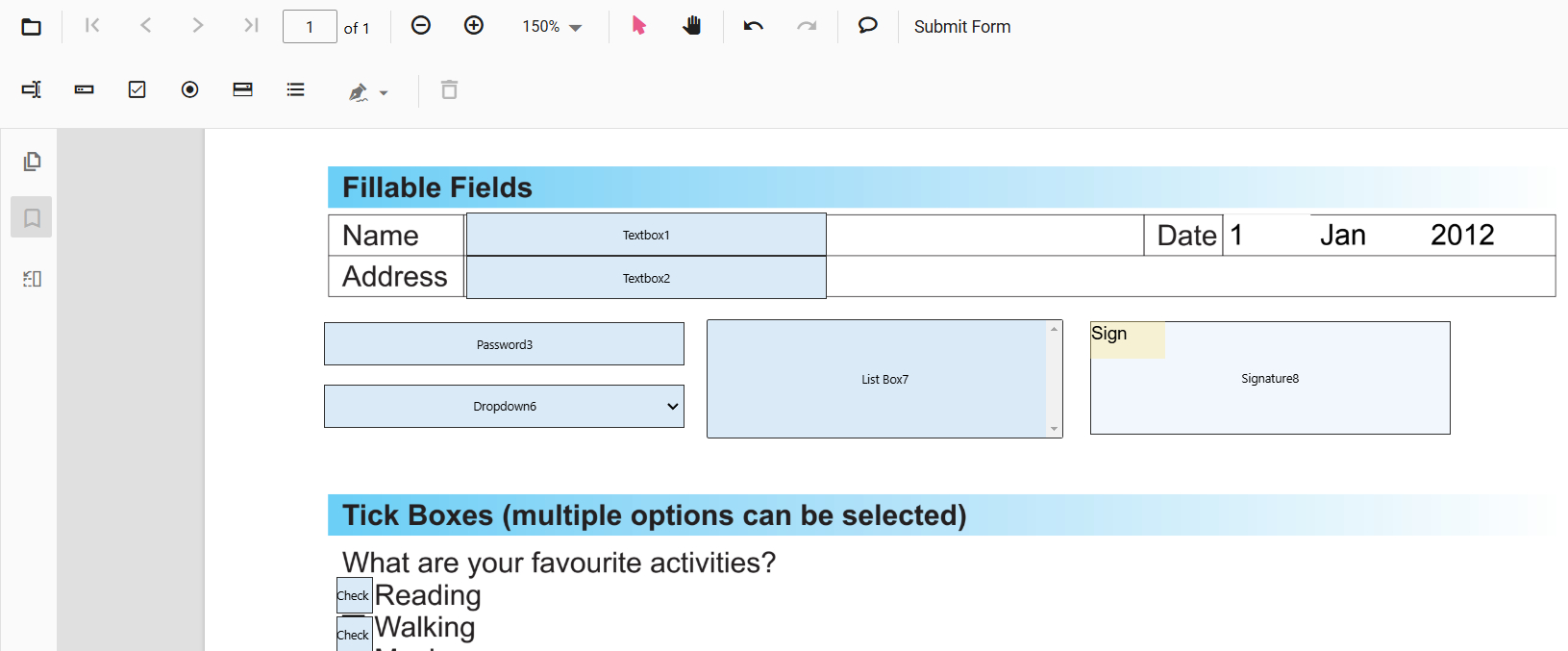
Step 2. From the upper menubar, you’ll find a variety of fillable form fields: textbox, password, checkbox, radio button, dropdown menu, list box, and signature field. They can be used to collect different types of data.
Taking the fillable Textbox field for instance, click Textbox, and click on where that needs to be filled to insert it there.
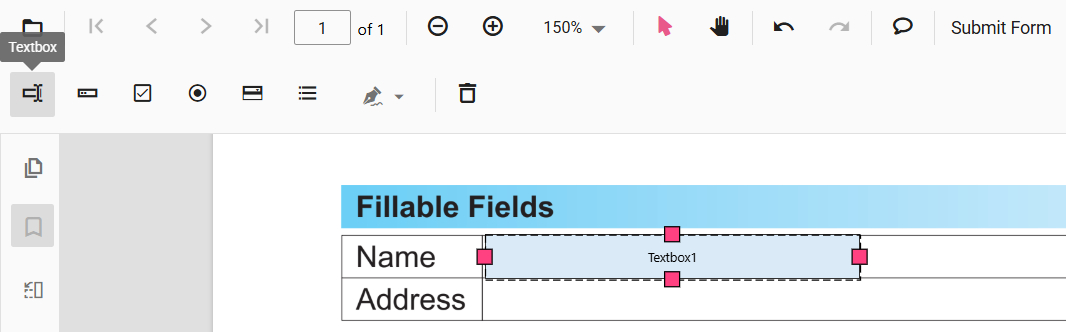
Textbox
Step 3. Drag and drop the inserted box to reposition it, or drag its handles to resize it.
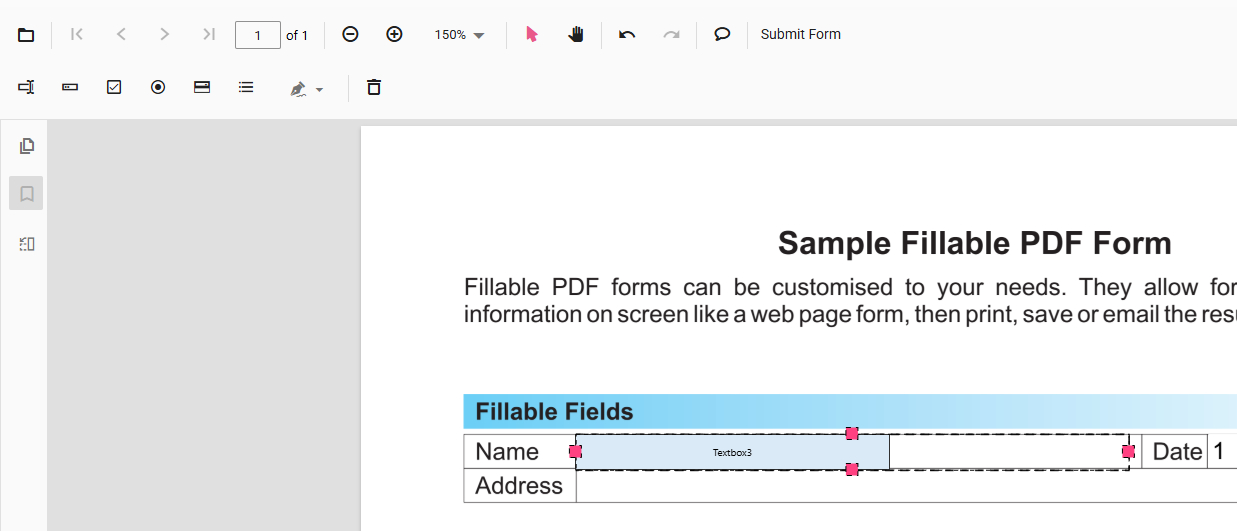
Resize Textbox
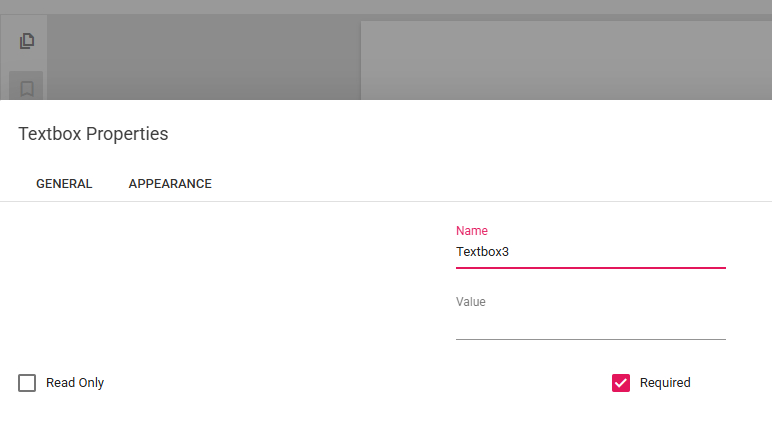
Step 4. For more controls over the inserted fillable fields, double-click on it, and its Property settings window will pop up.
For example, you can replace text in Name to change its public display Name (visible label) or tick on Required to set it as a required field.
Change Properties
Step 5. Repeat the steps until your PDF form has all the fillable fields you need.
Insert Need Fields
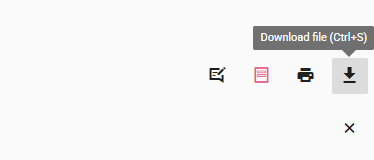
Step 6. Lastly, click the upper-right Download file button to get the fillable PDF form we created!
Click Download File
Make Fillable PDF Offline, Free and Securely
If you want to create a fillable PDF that contains private information, PDFgear’s desktop software for Mac is an ideal choice.
With it, you can securely process your PDF forms offline, without uploading to the internet. And in a much steadier way, even if you’re working with an extensively large PDF file.
Just like the online service, PDFgear for Mac is free to use, so don’t hesitate to give it a whirl!

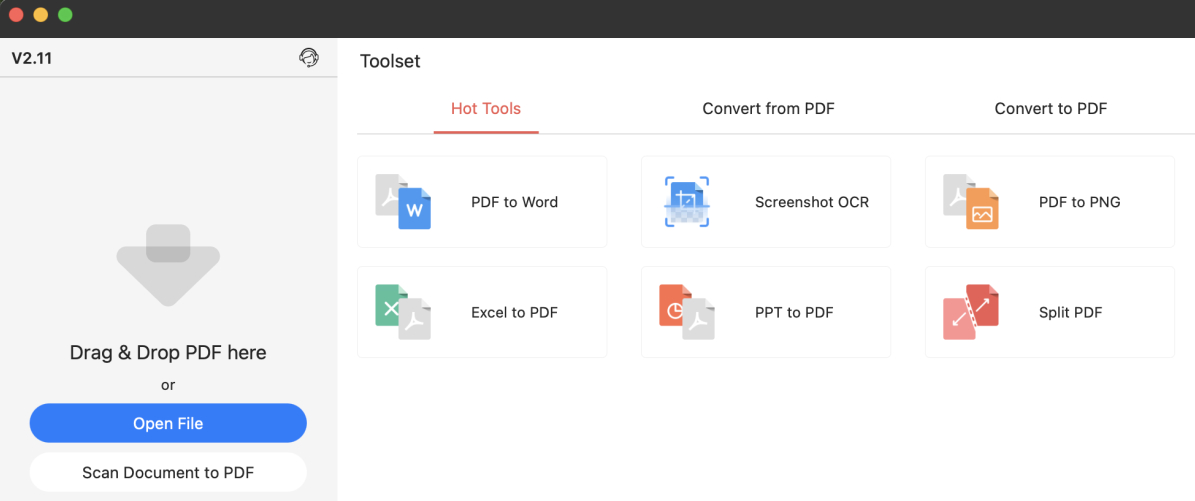
Step 1. Download and install PDFgear, and fire it up on your Mac device.
There are 2 ways to get started. Click Open File to open a PDF file on your device, or Scan Documents to PDF to turn your paper documents into digital fillable copies.
Open File
Step 2. Once the PDF form is loaded, go to the Form section, and you’ll find the following fillable form fields: Text Field, Check Box, Radio Button, Dropdown, and List Box.
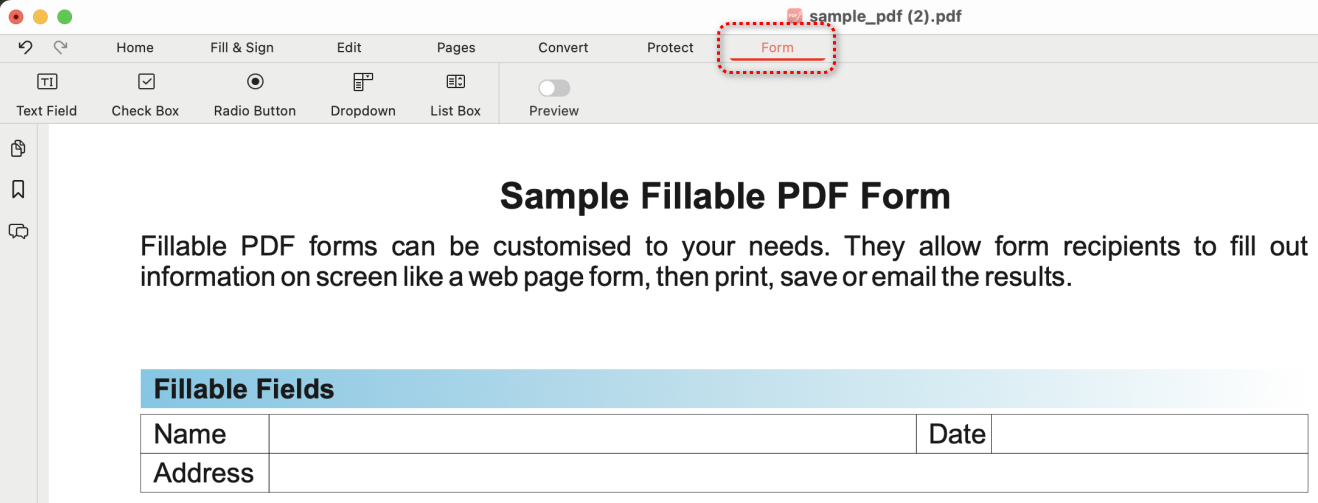
Go to Form
Step 3. Click on a needed form field, say Text Field, and click on the PDF page to insert it.
Drag on the inserted box or the border of which to reposition/resize it, so it’ll fit in the existing form boxes.
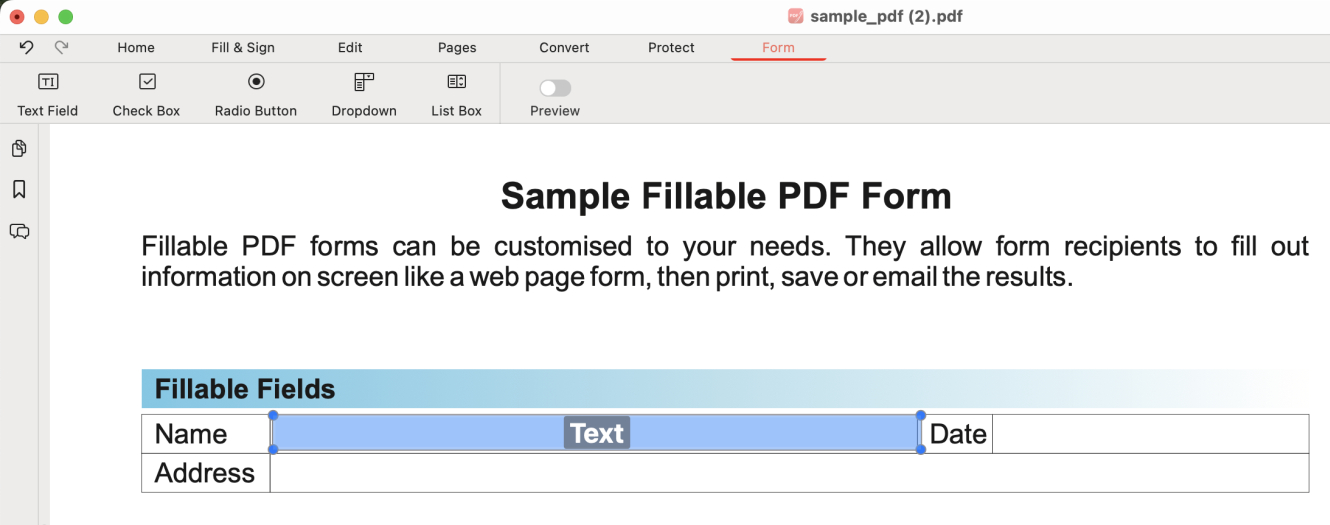
Insert Checkbox
Step 4. You need one kind of form field multiple times, right? If so, double-click on an inserted form field, click Copy Annotation, and use the keyboard shortcut Command + V to duplicate it.
Once a form field is selected, you’ll also find its Property Settings to the right, allowing for further customizations.
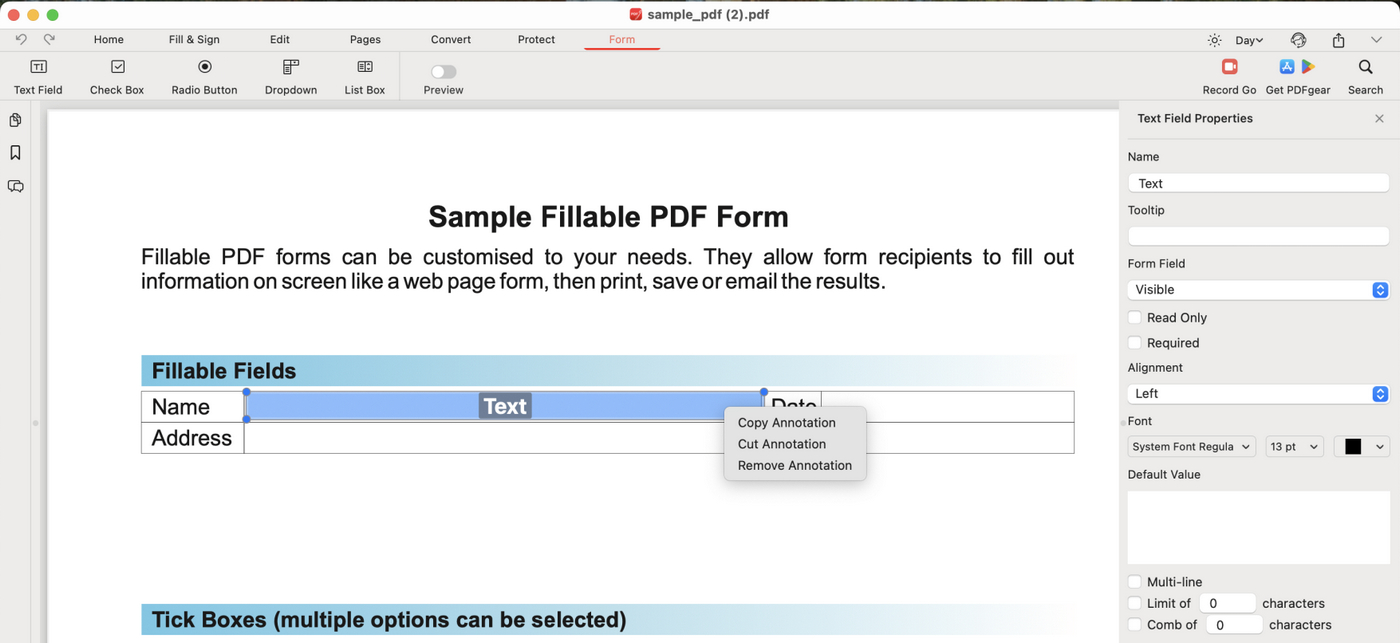
Duplicate Fields
Step 5. When you’ve done inserting all the fillable form fields you need, click the upper Preview button to check the form before saving.
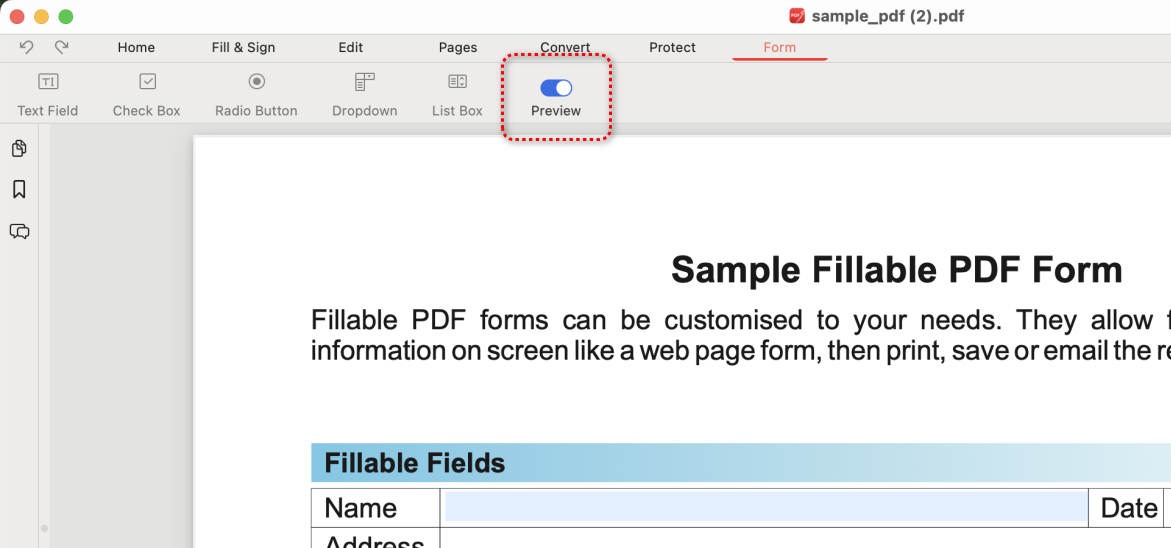
Preview Form
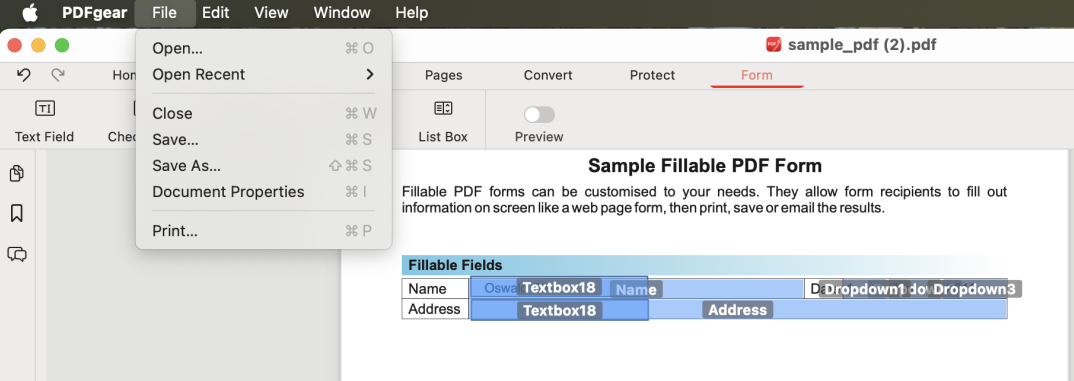
Step 6. If it looks good, go to the upper-left corner and click on File, then click Save As in the dropdown to save the fillable PDF on your Mac.
Save Fillable PDF
Fill Out a PDF on Mac Online for Free
Simply need to fill in the PDF form yourself, then there’s no need to follow the complicated steps to make the PDF fillable!
PDFgear’s online PDF form filler allows you to fill out and sign on any PDF files on Mac for free, in simple steps.
The following is a glance at how it works, for more detailed steps, please refer to our complete guide on how to fill in a PDF on Mac.
Step 1. Go to PDFgear online PDF form filler, and click the Select PDF File button to open the PDF you need to fill out.
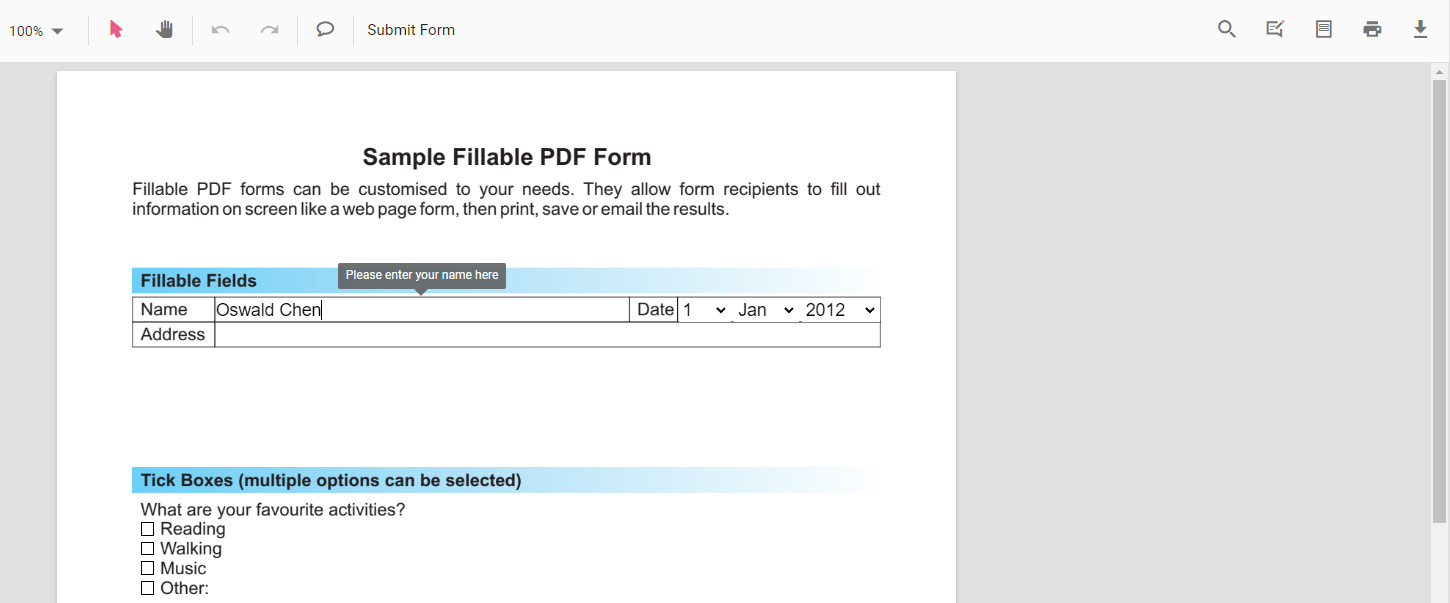
Step 2. Click on a form field, if a text cursor appears, that means the PDF is fillable and you can instantly type in text and fill in the area.
Fill Out PDF Online
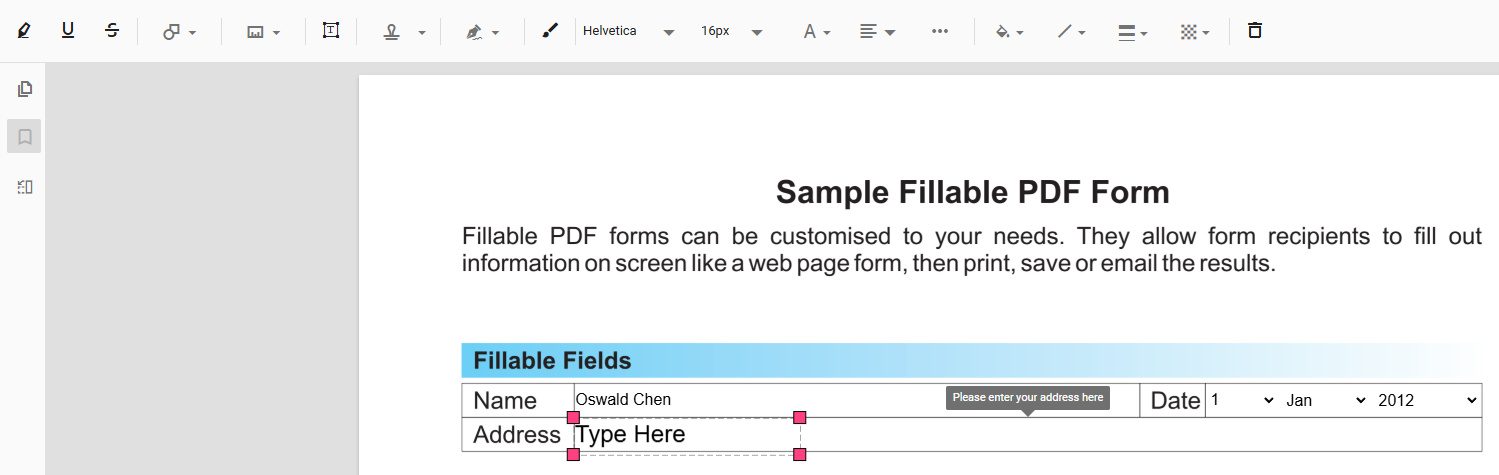
Step 3. If the PDF is not interactive, click on the Free Text button from the upper menubar, and click on the form field that you need to fill.
Double-click on the inserted textbox and then type in text into the inserted textbox. Repeat the steps until you’ve filled out all necessary fields.
Add Text Box
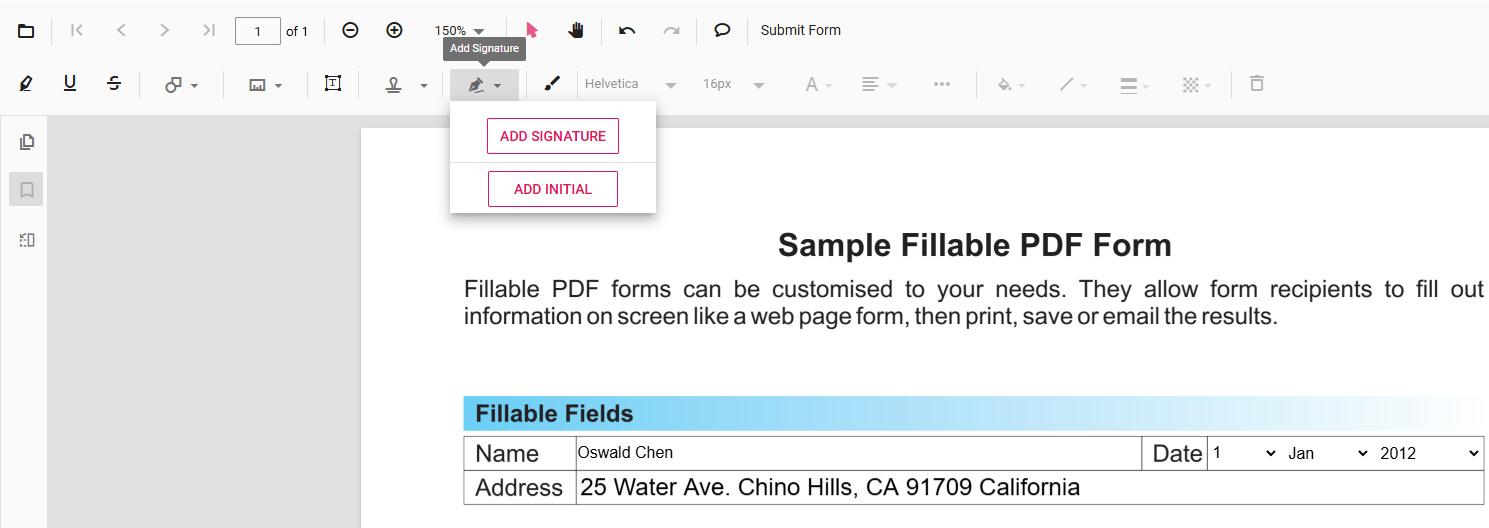
Step 4. If you need to sign on a completed form, click the Add Signature button in the upper menubar, which allows you to create and insert a SIGNATURE or INITIAL.
Add Signature
Step 5. The last step is to save the filled PDF on your Mac. Since the PDF file is signed, it’s recommended to use the Print file feature to prevent the PDF form from further editing.
If you still need the form to be filled out by other people, use the Download file feature next to it.
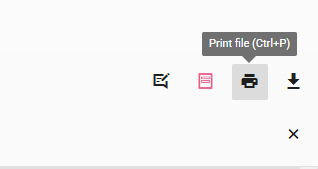
Print File
FAQs
Can I make a non-fillable PDF into a fillable one?
Yes, you can convert non-fillable PDFs into fillable forms using PDFgear. You can use PDFgear fillable PDF maker to insert required fillable form fields into non-editable PDFs to make it fillable.
Is it possible to create a fillable PDF using Mac’s Preview app?
No, while Preview allows you to fill out existing interactive PDFs, it does not support creating new fillable forms or converting non-fillable PDFs into fillable ones. You can use Preview for signing documents and basic text entry if the form is already interactive.
Can I add digital signatures to my fillable PDF?
Yes, PDFgear allows you to add digital signatures or fillable signature fields to your fillable PDFs.
What if I want to share my fillable PDF with others?
Once you’ve created your fillable PDF, you can easily share it via email or cloud services like Google Drive or Dropbox. Make sure to download the document instead of printing it to preserve its editability.
