How to Fill Out a PDF Form on Mac for Free

Summary :
Learn how to fill out and sign on any PDF forms on Mac, using PDFgear’s free tools or the inbuilt program Preview.
Table of Contents
Fill Out and Sign on PDF Forms Online for Free
PDFgear online PDF form filler allows you to fill out and sign on PDFs online, without software installation.
It’s free to use, there’s no watermark and no sign-up.
Video Tutorial

Step 1. Use a web browser like Safari and go to PDFgear online PDF form filler. Click Select PDF file to open the PDF form.

Select PDF File
Step 2. If the PDF is fillable, click on an existing form field, when the text cursor appears, type in the text to fill the area.
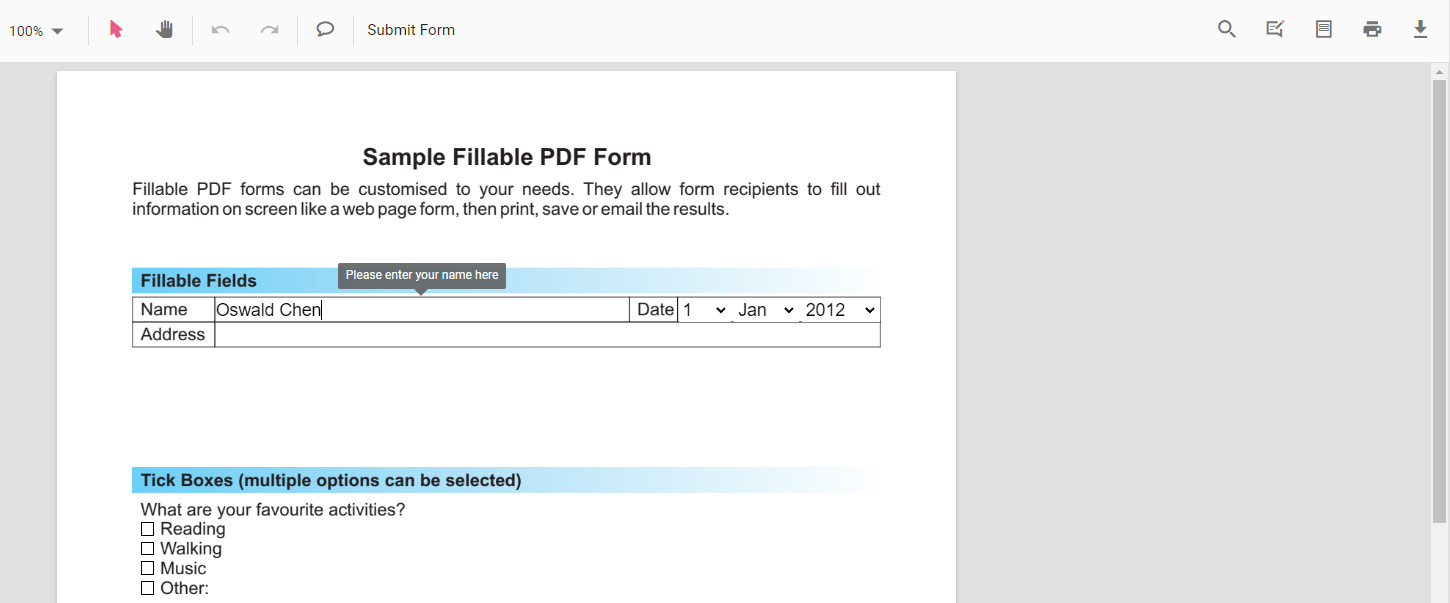
Fill Out PDF Online
Step 3. If your PDF is non-interactive, click Free Text from the upper menubar.
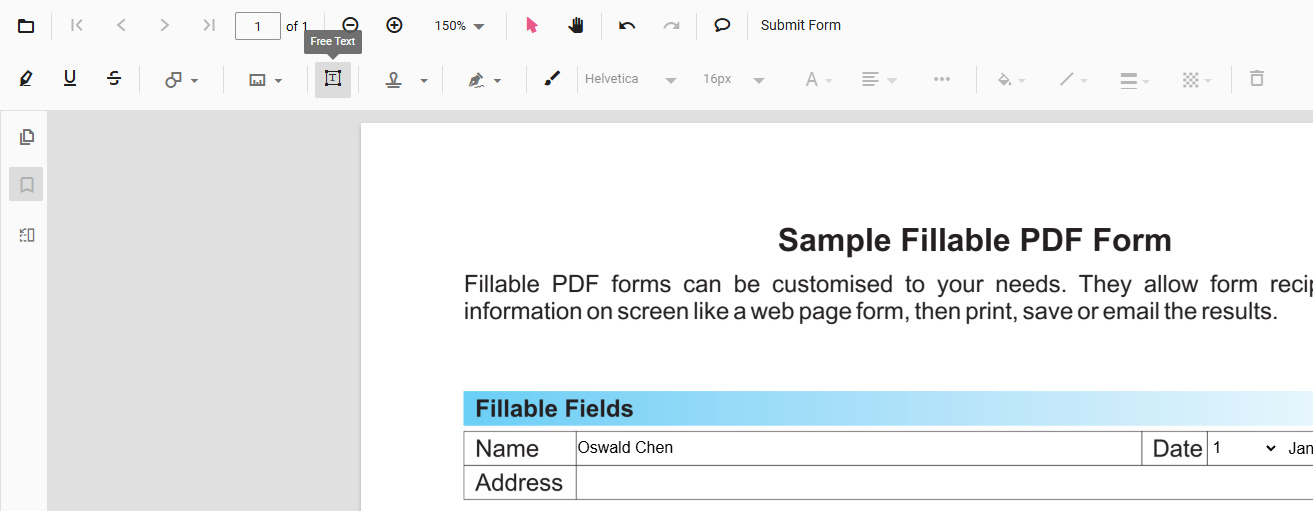
Click Free Text
Step 4. Click on the form area that you need to fill to insert a text box there.
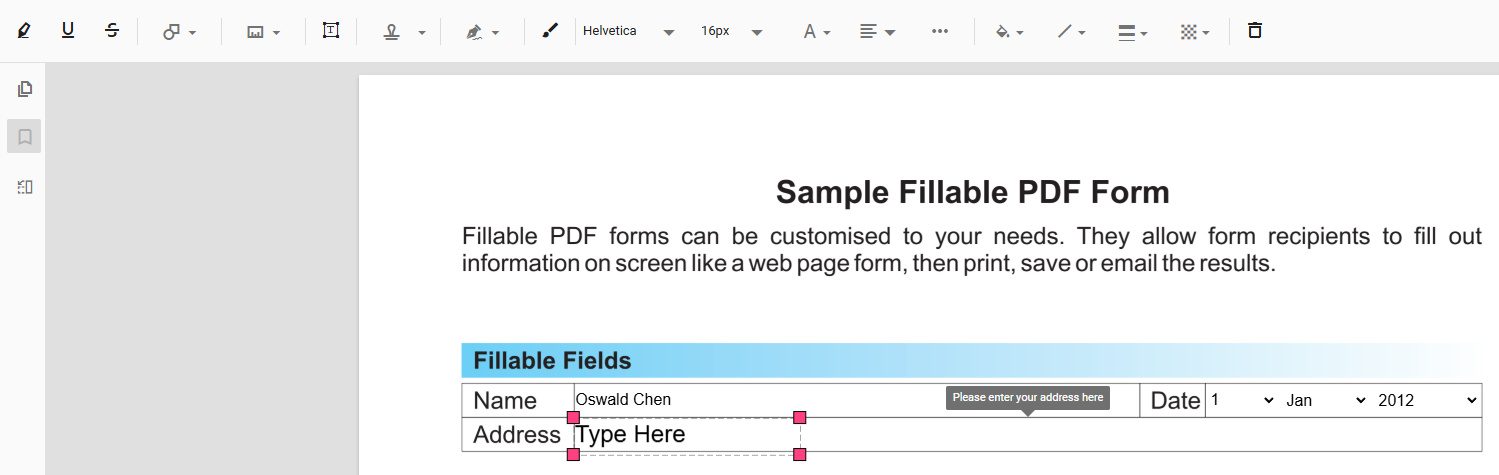
Add Text Box
Step 5. Double-click on the added textbox and type to fill out the box.
You may need to do that multiple times until you’ve finished all required form fields.
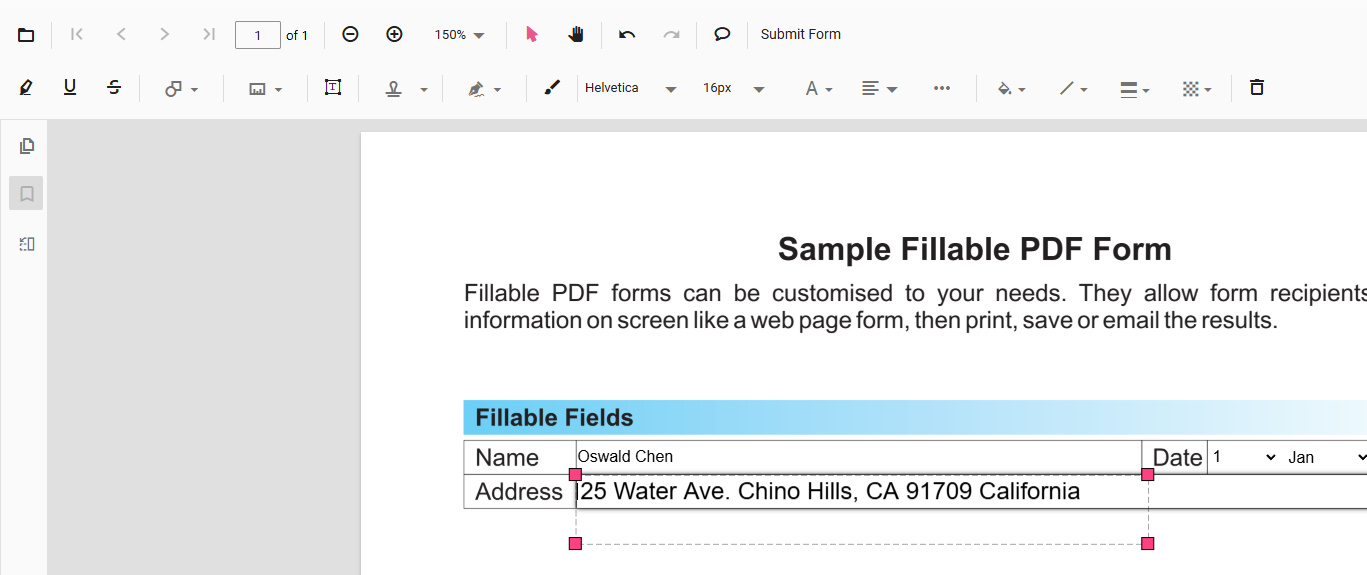
Fill in and Resize
Step 6. When you’re done filling out the form, click the upper Add Signature button, and choose to add a SIGNATURE or INITIAL.
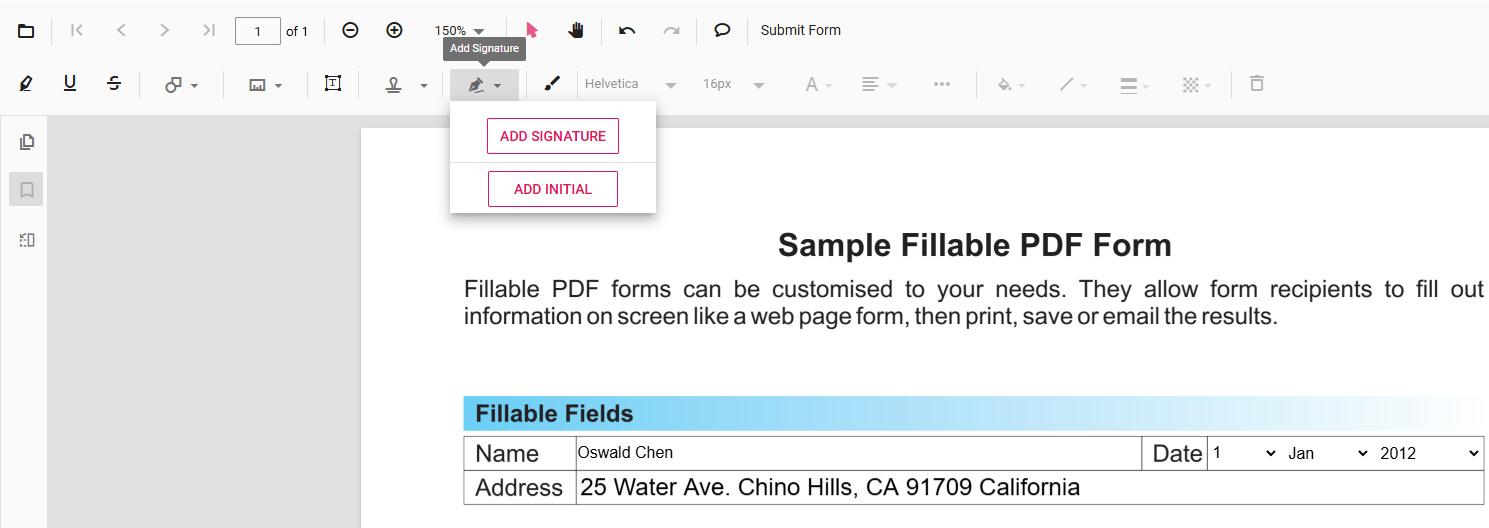
Add Signature
Step 7. Type, draw, or upload an image to create a signature, and click Create. Then click on the PDF page to sign on the PDF.
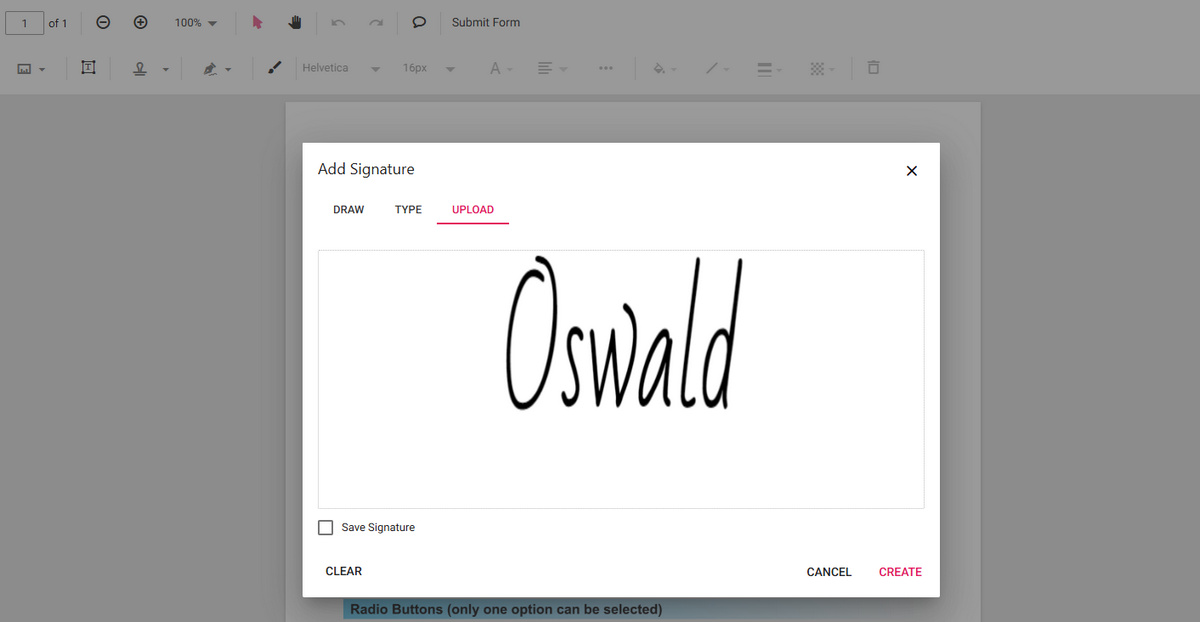
Create Signature
Step 8. Lastly, click the upper-right Download file button to download and save the filled & signed PDF form!
If you need to prevent further editing, use the Print file feature next to it.
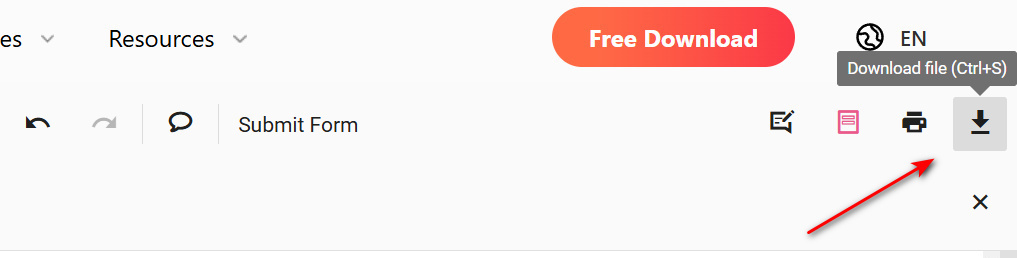
Download File
PDFgear online tool also allows you to insert fillable textboxes into PDF to make it fillable by other people.
Fill and Sign PDF Forms on Mac Using Free & Versatile Software
For more advanced PDF form filling, signing, and editing on macOS, PDFgear also offers a dedicated program.
Compared with the web-based version, PDFgear for Mac delivers more powerful features, such as signing with various text fonts, editing PDF text in the form, redacting unwanted information in the form, etc.
PDFgear for Mac is also free to use. So if you’re looking for more advanced working experience, don’t hesitate to give it a try!

Step 1. Download and install PDFgear for macOS, and launch the application. Click the Open File button to open the PDF form you need.
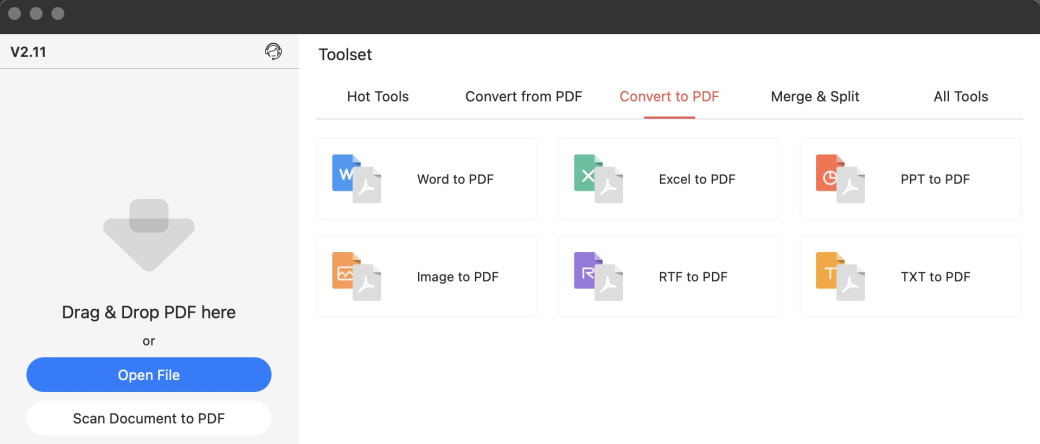
Open File
Step 2. When the PDF file is loaded, click on an interactive form field, if a text cursor appears, type on the keyboard to fill in the area.
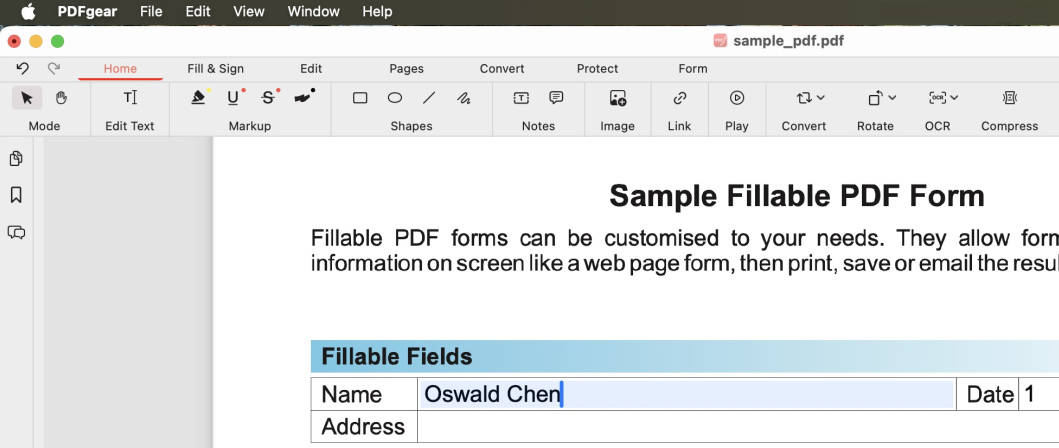
Click and Fill
Step 3. If the form fields aren’t interactive, go to the Fill & Sign section and click Insert, then click on a form field to insert a text box there, then type into the textbox to fill in the form field.
For better typography, change the font size, font type, and text color in the upper ribbon; and drag on the border of the textbox to adjust the size of it.
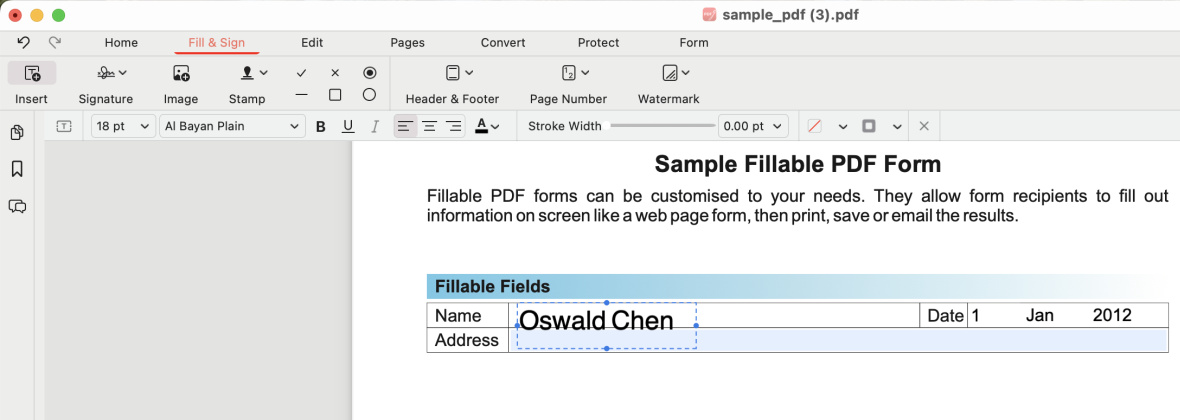
Fill with Textbox
Step 4 (Optional). Go to Edit > Edit text to identify the font type and font size of the PDF form, so as to fill in with the same font.
Here you can also modify the titles of the form field and the existing content.
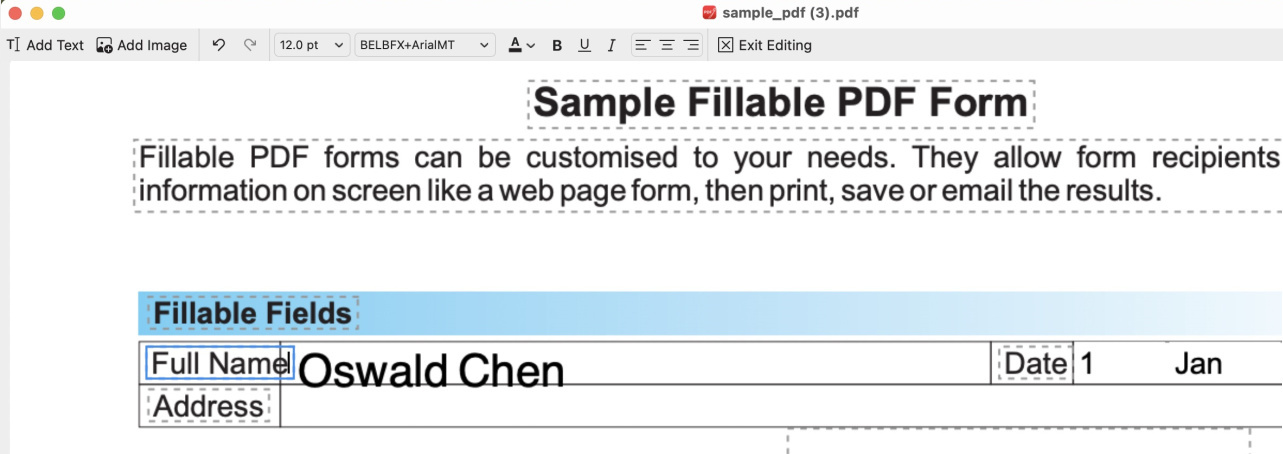
PDF Text Editor
Step 5. When you’re done filling out the form, click the Signature button above, and click Create Signature.
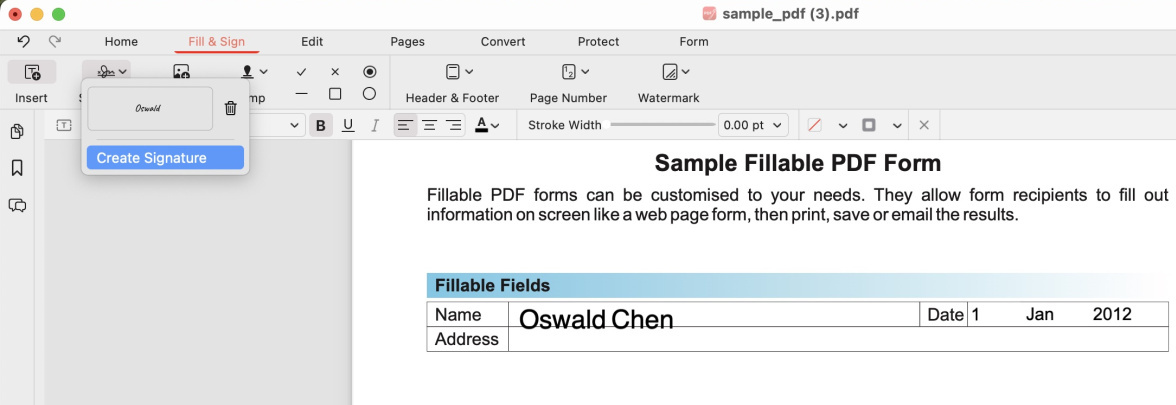
Create Signature
Step 6. To create a signature, you can type with hundreds of fonts, draw on the trackpad, or upload a signature image. Then click Done.
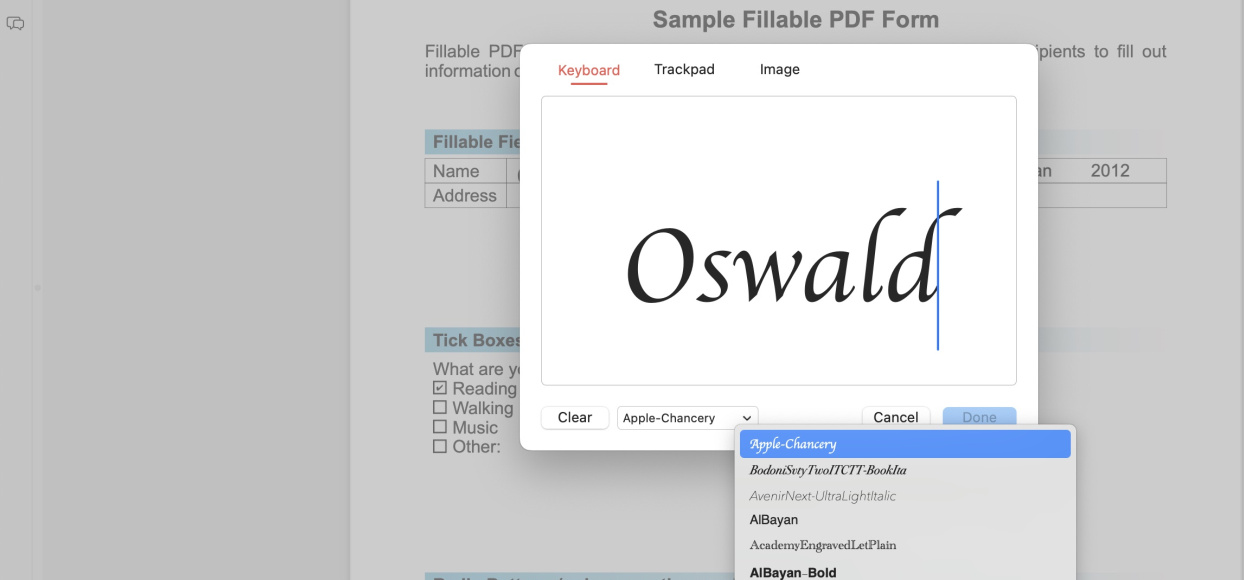
Customize Signature
Step 7. Click on the PDF page to insert the signature, then right-click on the signature to Apply Signaure or Apply to all pages.
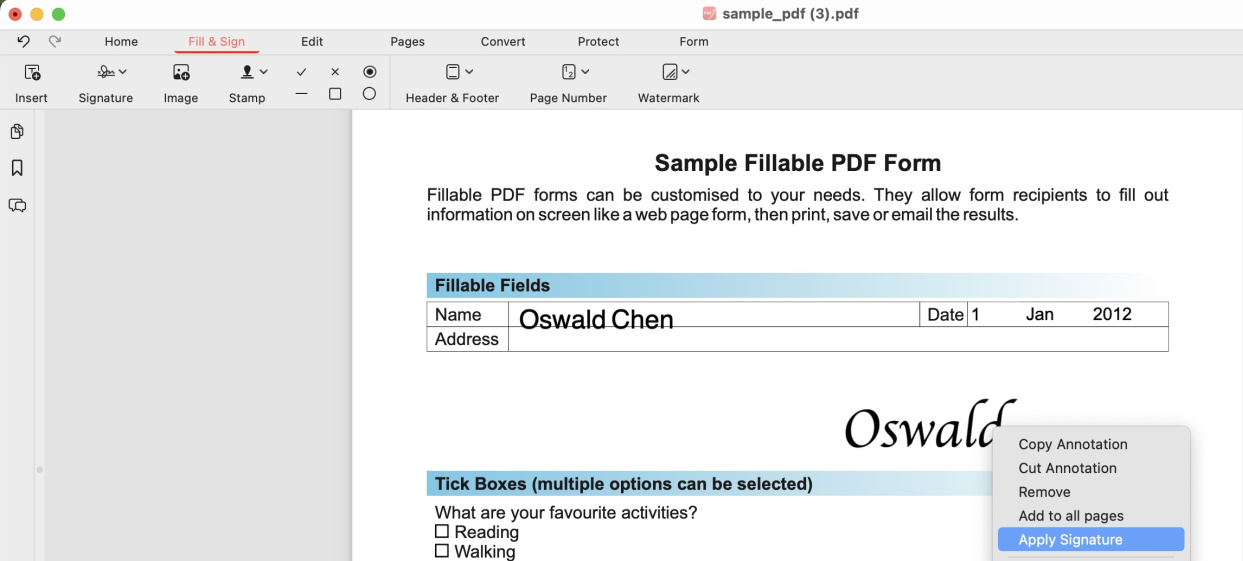
Apply Signature
Step 8. When everything is done, go to File > Save or Save As to save the filled form.
To prevent the form from further editing, you can also choose to Print the PDF form.
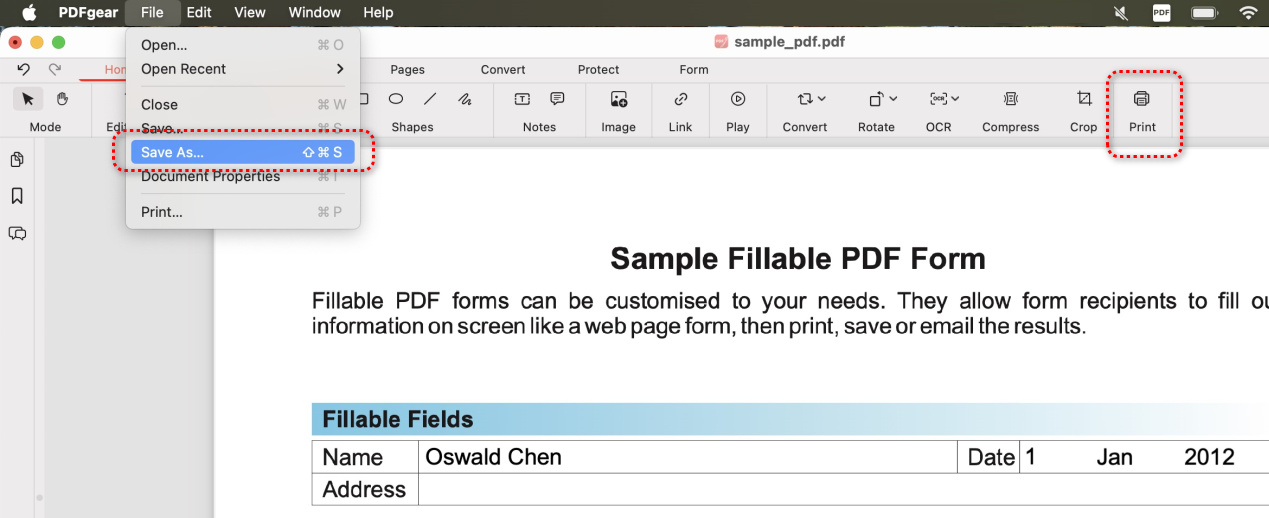
Save or Print
How to Fill Out and Sign a PDF Form in Preview
Preview is an inbuilt image & PDF viewer application on macOS, and it allows you to fill up PDF forms without downloading additional software.
Aside from directly filling out PDF forms with fillable form fields, Preview uses the insertion of textboxes to fill out PDF forms that are not fillable.
Step 1. Select a PDF form on your Mac, right-click on the file, click Open With, and select Preview.
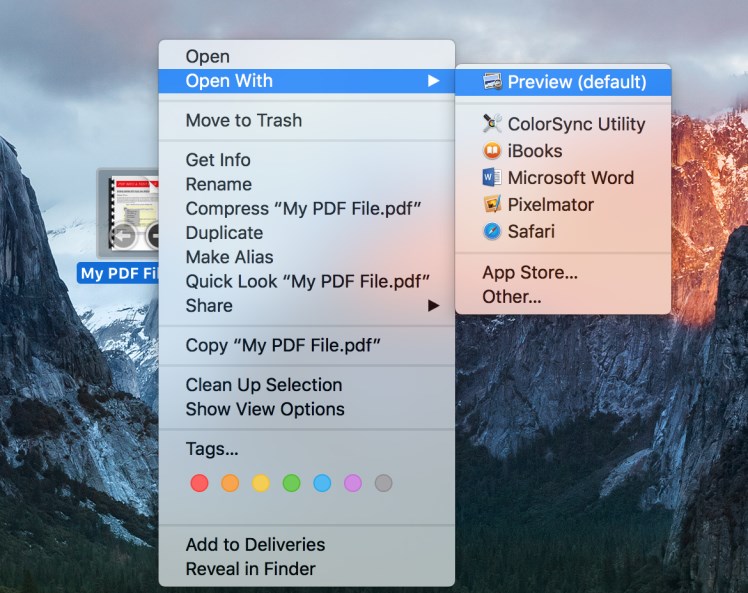
Open PDF with Preview Application
Step 2. If your PDF is editable/fillable, click on the existing form fields and type in text to fill out the form.
If it doesn’t allow you to type in text directly, then the PDF is non-fillable. In that case, you can insert text boxes to fill the form.
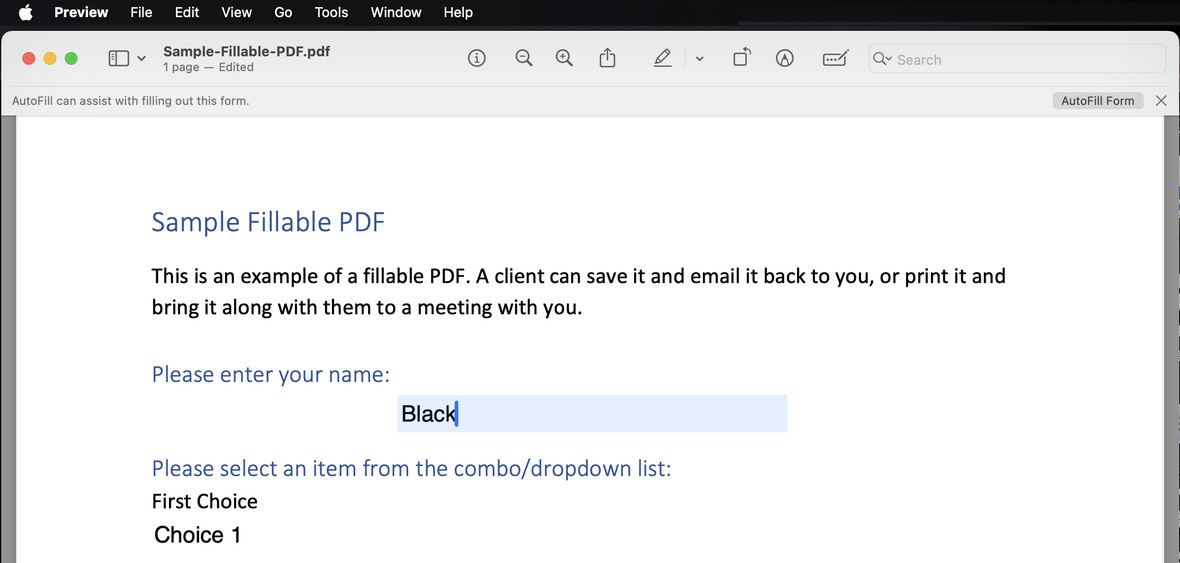
Type to Fill
Step 3. Click the upper  button to Show Form Filling Toolbar, and then click the lower
  button to use the text box tool.
Drag and drop to reposition the text box and type in text to fill out your form.
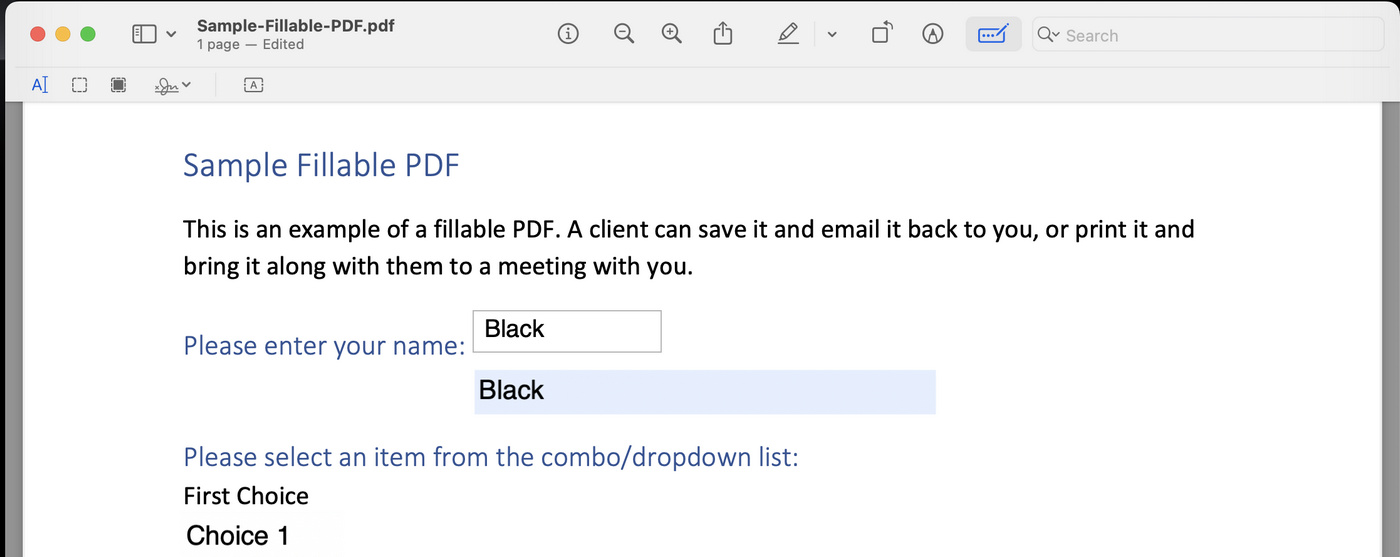
Insert Text Box
Step 4. After filling out all required form fields, you can also use Preview to sign on the PDF form if needed.
Click on the signature button from the form-filling toolbar, and you can sign with Trackpad, the Camera on your Mac, or your iPhone.
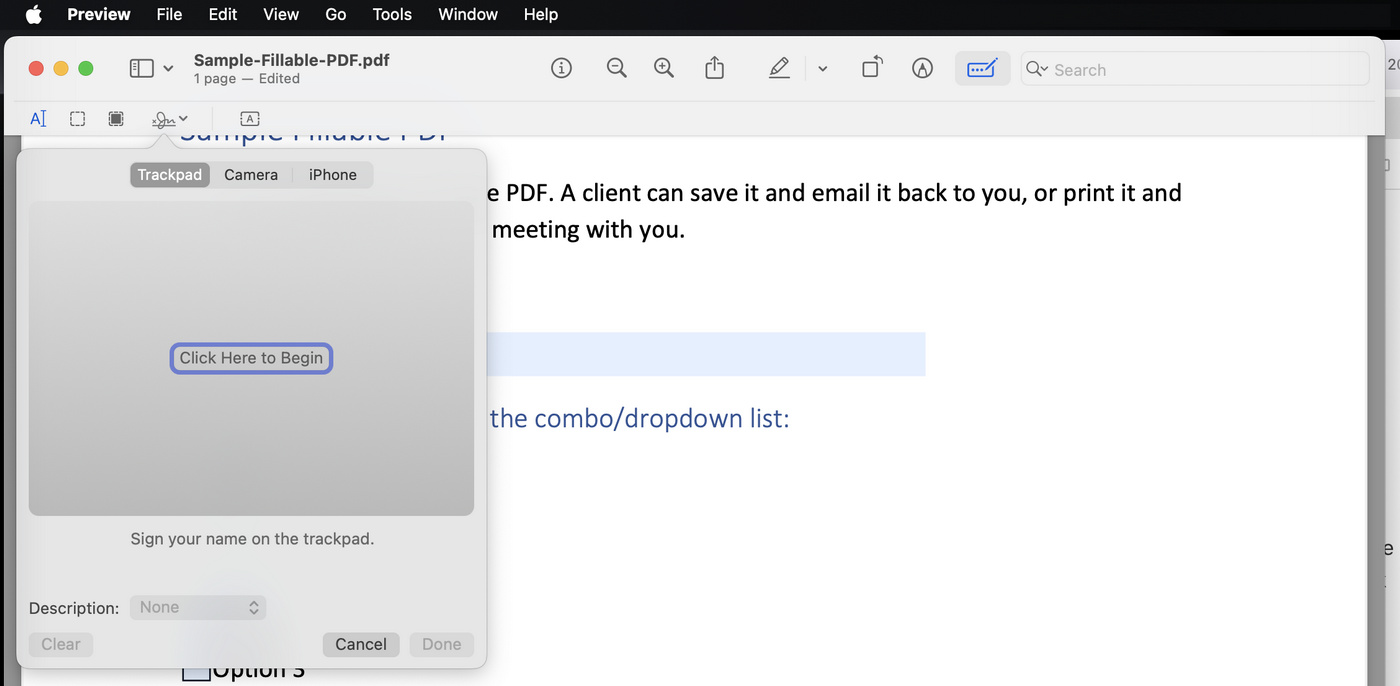
Sign with Trackpad
Step 5. Here we’ll use the trackpad for demonstration. Select Trackpad and click the middle screen to begin. Use your finger to draw your signature, and click Done.
Once you have created your signature, click on it in the signature menu to insert it into your PDF.
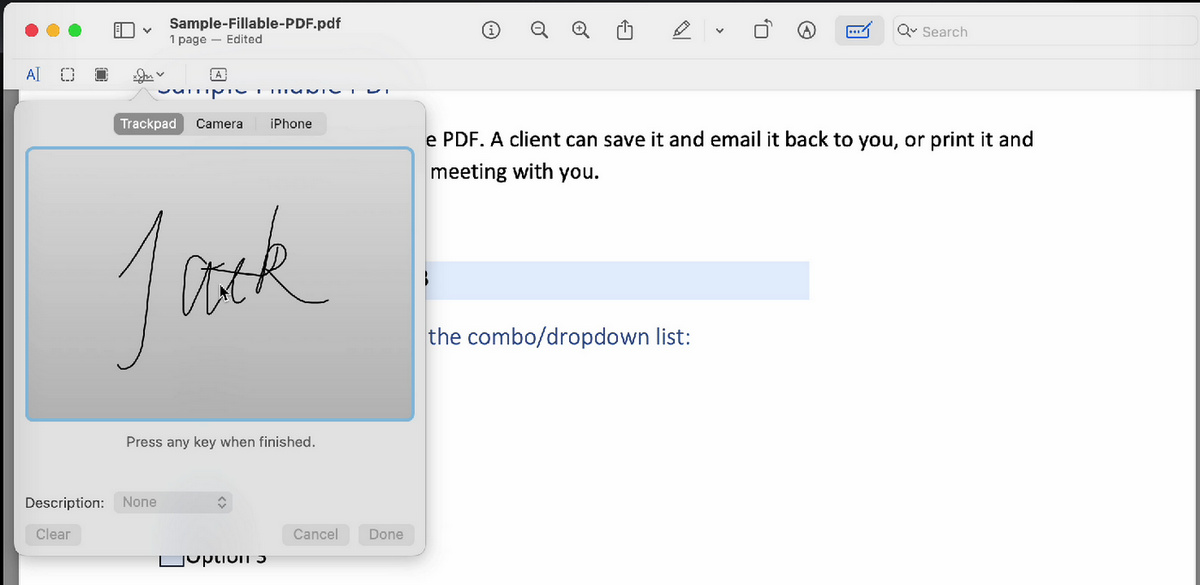
Sign the Form
Step 6. Once done, go to File > Save or Export to save your PDF form.
Alternatively, use the keyboard shortcut Command + P to print to form and make it non-editable.
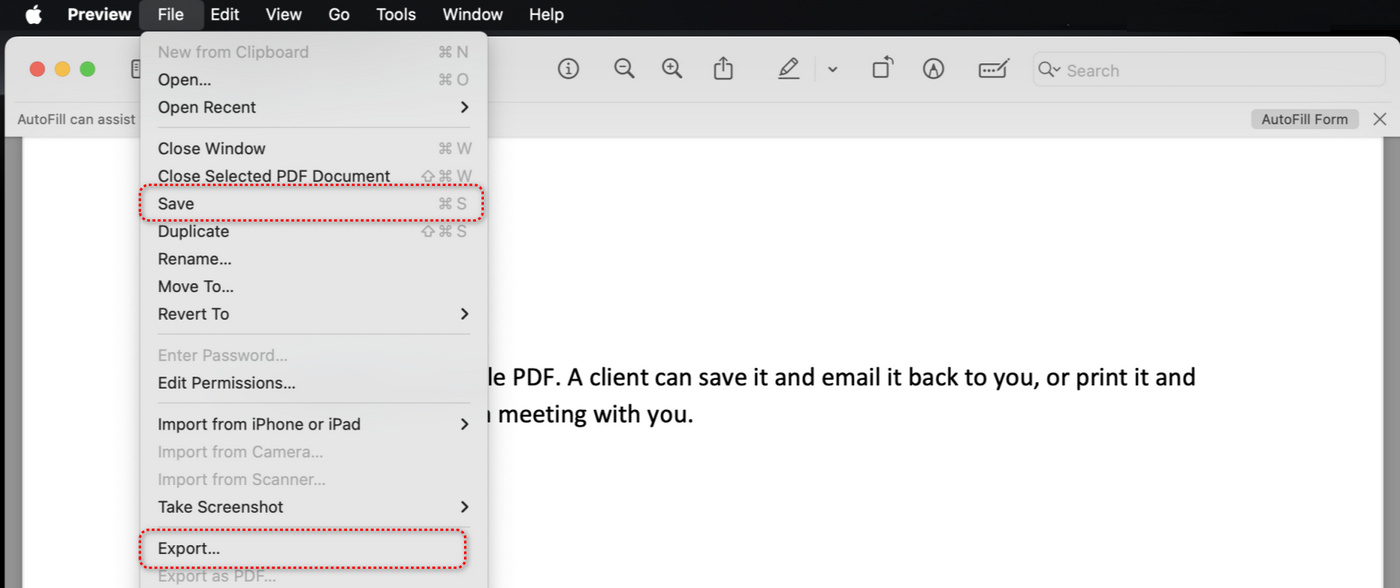
Save Filled Form
FAQs
How do I fill out a PDF form on my Mac?
To fill out a PDF form on a Mac, you can use the built-in Preview app. Open the PDF in Preview, click on the fillable fields, and type your information. If the form is not fillable, insert a textbox into the form fields and fill in the text box.
Can I fill out non-fillable PDF forms?
Yes, you can fill out non-fillable PDF forms by using software that allows you to add text. PDFgear has features that enable you to create fillable fields or simply add text over the existing form fields.
What if I can’t type in a PDF form field?
If you’re unable to type in a PDF form field, it may be due to the PDF being not an interactive form. Try opening the PDF in PDFgear online form filler, insert a textbox into the form field, and type to fill in the area.
Is there free software available for filling out PDFs on Mac?
Yes, several free options are available for filling out PDFs on Mac. The Preview app is built into macOS and allows basic filling and signing of forms. For more advanced form filling features, you can also use the free PDFgear software for Mac.
How to make a fillable PDF in Preview?
Mac Preview doesn’t allow you to make an interactive PDF that can is fillable by other people. However, it allows you to insert text boxes to fill out the PDF form on your own.
How do I create a fillable PDF form on my Mac?
To create a fillable PDF form, you can use PDFgear online form filler. Click Select PDF file to open the PDF > go to Add and Edit Form Fields > click “Text box” from the upper ribbon > click on the PDF to insert a fillable text box there > repeat for all necessary form fields.
Is Adobe Fill & Sign available on Mac?
Adobe Fill & Sign is a mobile app for iOS and Android and is not available on macOS. However, PDFgear for Mac serves as a great alternative to Adobe Fill & Sign on macOS, offering powerful PDF form filling and signature functions, as well as tons of practical PDF editing features.
