How to Edit Signed PDF Document without Restrictions

Summary :
Signed PDF files come with several limitations when it comes to editing your files. However, several options may help you get it done.
Table of Contents
How to Edit Signed PDF Document
Digitally signed PDF files have been one of the most widely used PDF file types. But can you edit a signed PDF file? Well, that can invalidate the signature on the PDF. However, you have a few PDF tools that may help you edit a signed PDF file.
In any case, editing a signed PDF can have its own implications- some legal and some ethical. In any case, we will try checking out a few options to help you edit a signed PDF.
Quick Answer
✅The editing of signed PDFs is not recommended as it invalidates the signatures, yet it’s doable.
PDFgear allows you to edit signed PDFs for free.
How to Edit Signed PDF Online
PDFgear online is one of the excellent options for editing your PDF files. It offers you a few simple and easy-to-use PDF editing options.
It has been the right pick for editing your PDFs without any legal or ethical implications. The tool can edit the form fields and a few other options within the signed PDF.
Step 1. Launch PDFgear online
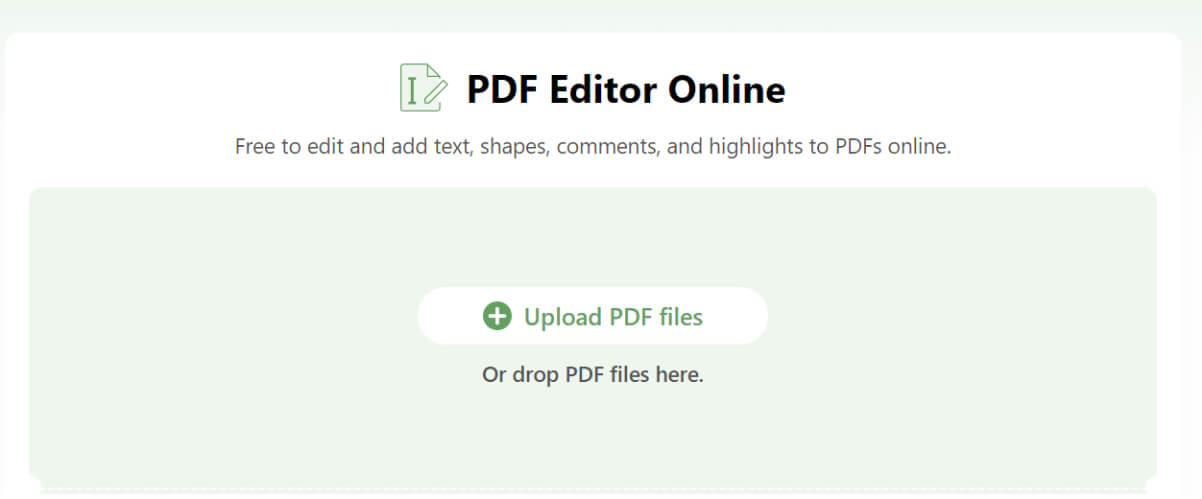
Visit the official PDFgear online editor through any of your preferred browsers. You should be able to use the web portal on any browser as most of the browsers are supported.
Go to Online PDF Editor
Step 2. Add your signed PDF file to the tool
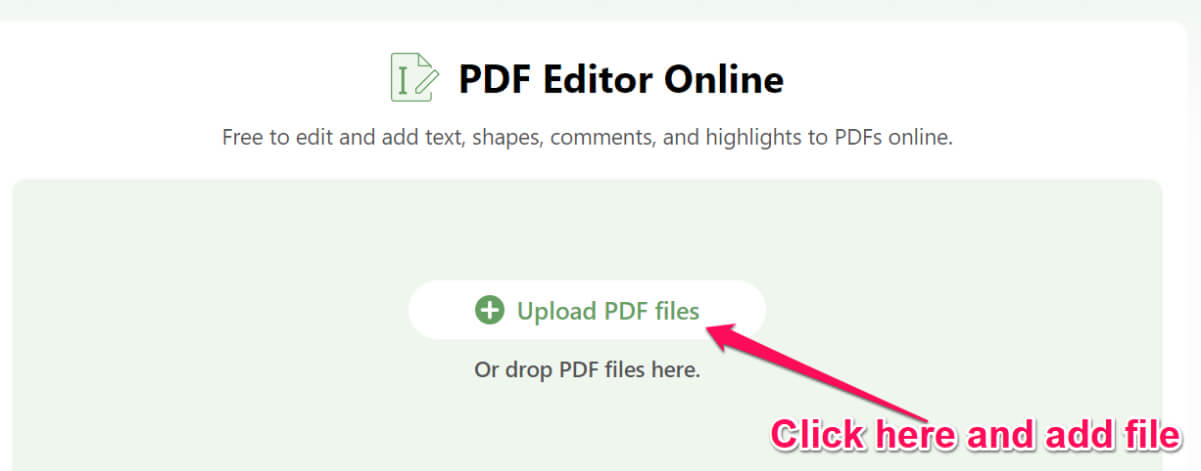
Click on Upload PDF files to help add your PDF file to the tool and browse your file. You may also drag and drop your PDF file.
Add Signed PDF to PDFgear
Step 3. Edit the file
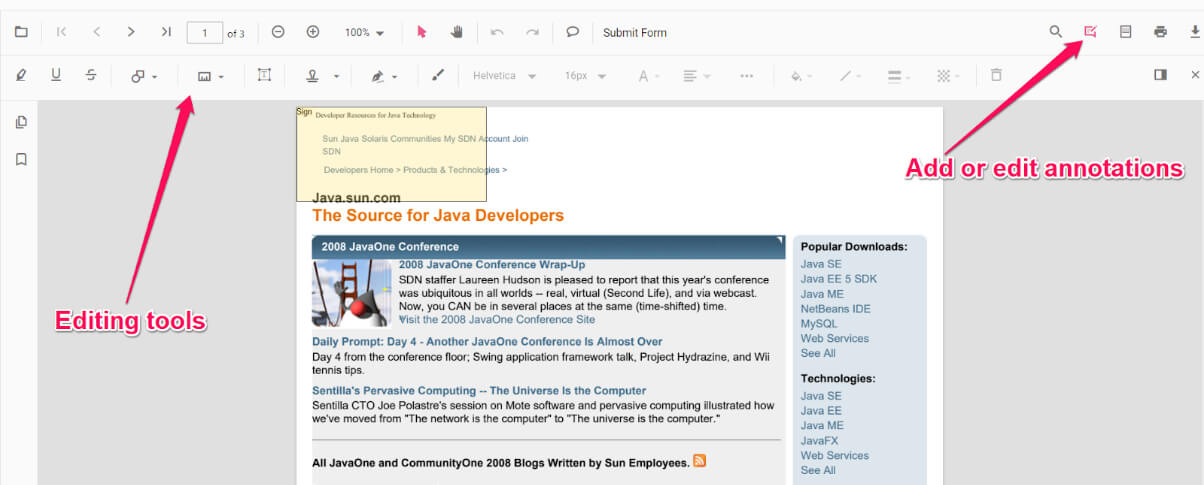
Click on Add or Edit annotations to edit the file as per your needs. You can edit text, add free text, or edit the other fields. Do note that if any of the fields are locked, they may not be possible to edit.
Edit Signed PDF Online
Step 4. Edit the PDF file
Apply any of your editing options as per your needs and requirements. You can add text to the file or perform a host of other tasks.
Various Editing Options
Please note that the above editing is done only as a means to show possible editing options. You can even edit form fields and other data as per your individual preferences.
Step 5. Save the file
Once you have edited the file, click on the Download icon to download the file. You may even print the file. You can also use the Print option to Save the file as PDF.
How to Edit PDF Text and Form Fields
You can use standalone software such as PDFgear to help you edit the file and even edit the form fields. PDFgear is a powerful PDF editor with advanced features.
What makes it stand out as the best choice is its ability to handle all the PDF editing tasks for free. It can even be used for editing a signed PDF file.
Edit PDF form fields, existing text, signatures, images, shapes and more for completely free.
Step 1. Add the PDF file to PDFgear
Assuming you have downloaded and installed the PDFgear app on your device, fire it up and add your PDF file. You can click on Open File and browse and add your PDF file.
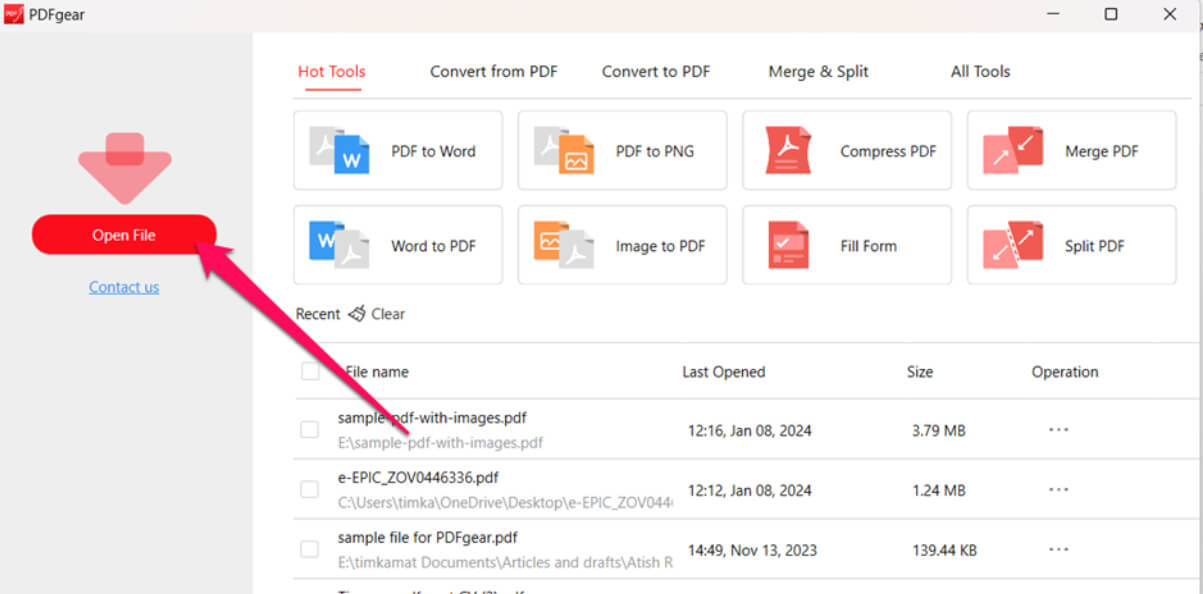
Open Signed PDF
Step 2. Edit the PDF file
Once the PDF file has been added, click on the Edit tab on the main menu and then choose the editing options you need.
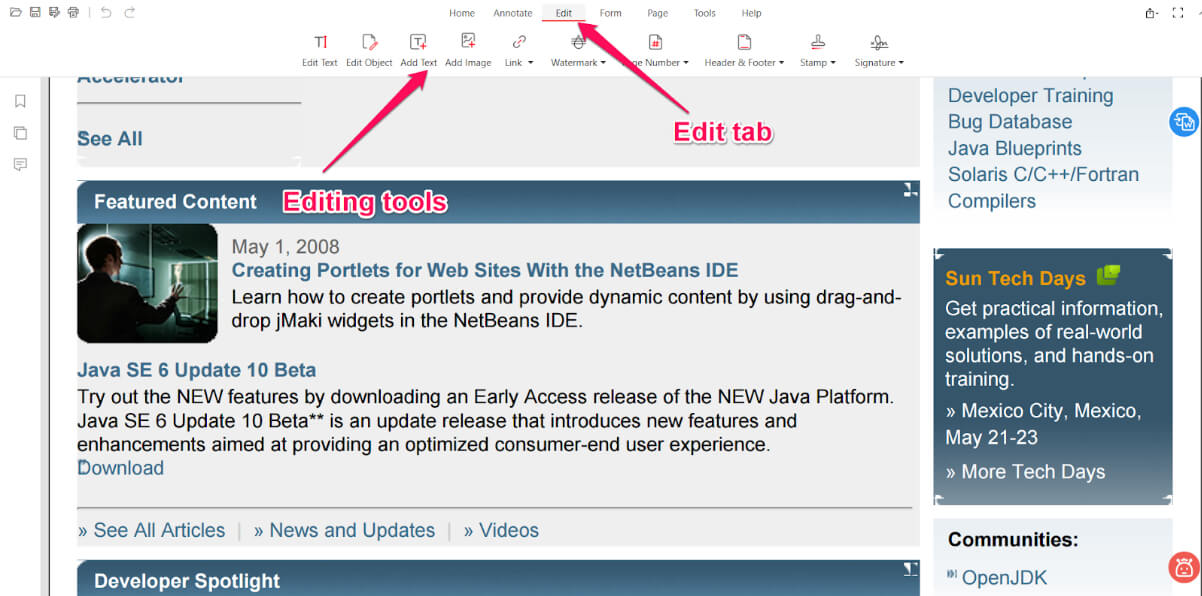
Editing PDF in PDFgear
Step 3. Perform the editing options as per your needs
Using the editing tools, apply the necessary editing on your PDF file. Some of the options include editing text, adding images, adding stamps, and many other editing options.
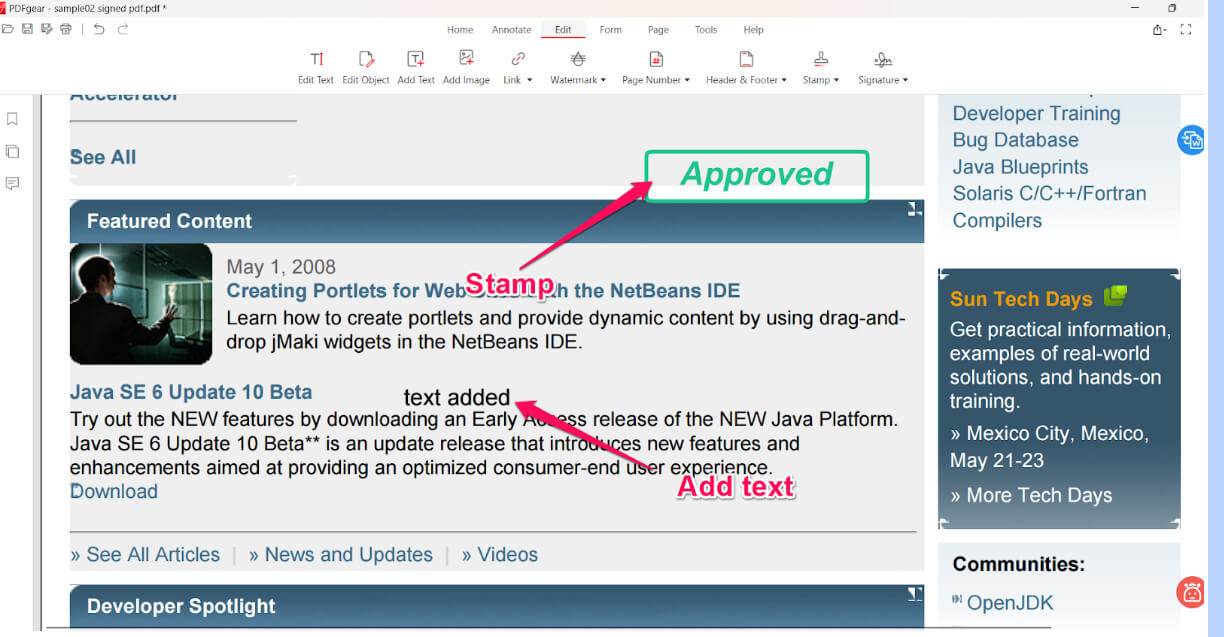
Editing Features in PDFgear
You can even edit the form fields by replacing the existing text with the new one. You can even draw a signature or any shape on the file.
How to Edit Signed PDF Using Adobe Reader
Adobe Reader can be yet another excellent option to edit a signed PDF document. It is one of the most powerful tools to help manage your PDF files and handle a host of other PDF editing options.
When you edit the PDF document that is signed by multiple users, it may saved as a separate file. However, this is the recommended method to edit signed PDF files.
To get started, download and install Adobe Reader from the official website, it’s free.
Step 1. Open the PDF file within Adobe Reader. You can do so by going to Your Computer and selecting the file you want to add.
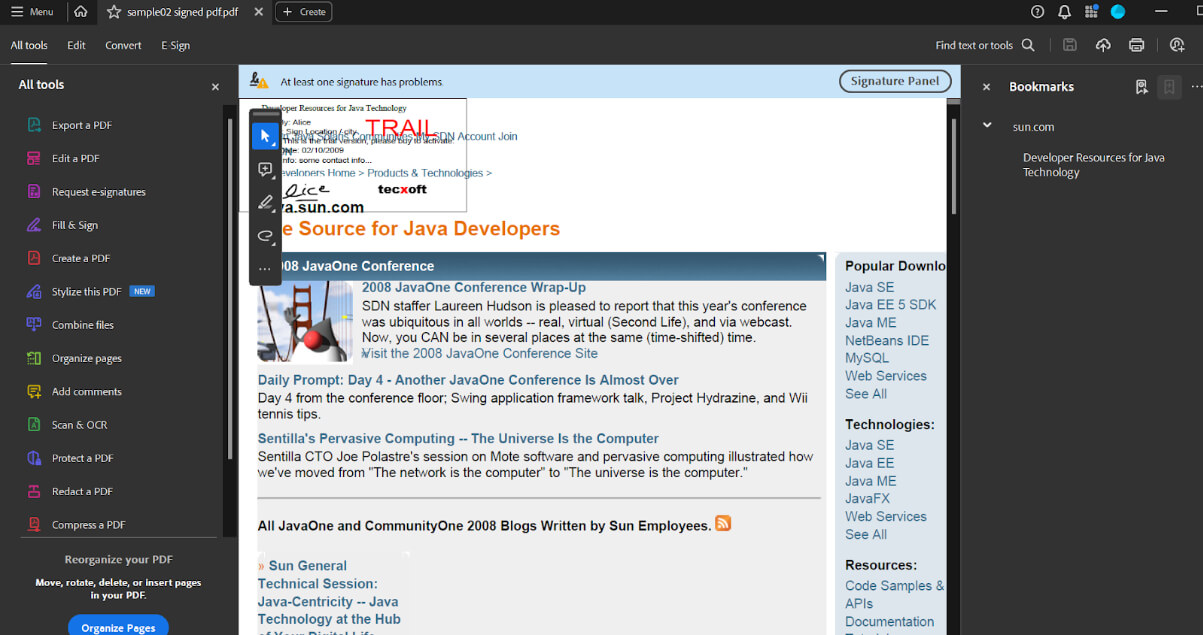
Open Signed PDF in Adobe
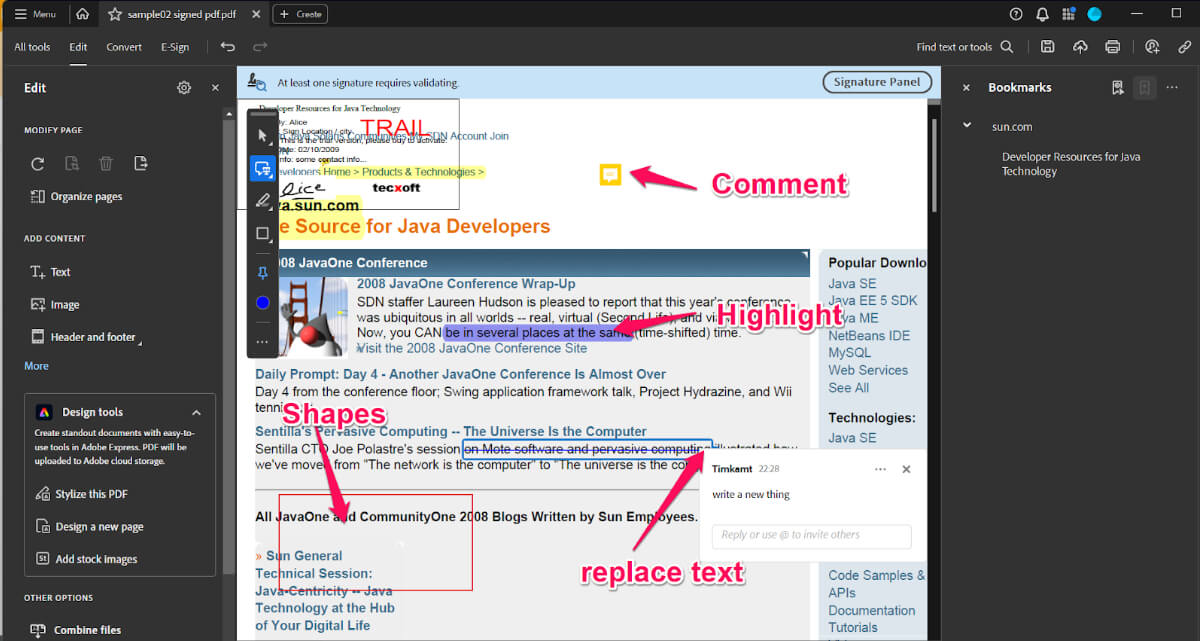
Step 2. Go to All Tools ->Edit a PDF. Apply the different editing options as per your preferences.
Various Editing Options
Step 3. Save the file by using the Save icon.
Legal and Ethical Considerations
Unlocking and editing signed PDF files is not recommended. If you are the only and sole signer, you can remove the signature and edit the file as per your preferences. However, if the document is signed by someone else or when it has multiple signatures, editing a file may not be recommended.
Copyright and Intellectual Property
Signed PDFs may contain material protected by intellectual property rights and copyrights. Unlocking them without the consent of the author of the document may infringe upon their rights.
Unauthorized Access
You may also violate laws related to unauthorized access to computer systems or data. Depending on where you are from, this may be a legal offense.
Privacy Concerns
Some signed and locked PDFs may contain sensitive privacy information. Unlocking them without consent can invite action under privacy laws and ethical standards.
FAQs
Can I edit a signed PDF?
Yes, you can edit a signed PDF, but it typically requires removing or invalidating the existing signature. This is because the signature is designed to ensure the integrity of the document. Once the document is altered, the original signature is no longer valid.
How do I remove a signature from a PDF?
To remove a signature, you need to open the PDF in software that supports editing PDFs, like Adobe Acrobat Pro DC. Look for the signatures panel or signature fields, and you should find an option to clear or delete the signature.
Will editing a signed PDF invalidate the signature?
Yes, any changes made to a PDF after it has been signed will invalidate the signature. This is to prevent unauthorized alterations after the document has been signed.
Can I re-sign the PDF after editing it?
Absolutely. Once you have made the necessary edits, you can re-sign the document. It’s important to note that this will be a new signature, and the document should ideally be reviewed again before re-signing.
Is it possible to edit a PDF without removing the signature?
Generally, no. Editing usually requires removing the signature. However, some PDFs have enabled certain fields to be filled in even after signing, but these are limited and predefined.
How can I protect the integrity of a PDF after editing it?
After editing and re-signing the PDF, it’s a good practice to use security features like password protection or encryption to maintain its integrity and prevent unauthorized access or alterations.
The Concluding Thoughts
Editing a signed PDF document is not always the right option. Unless strongly necessitated, we do not recommend it in most of the situations. However, if you really have specific reasons to edit a signed PDF file, you can follow any of the methods that we have outlined above.
Make sure that you are abiding by the legal and ethical standards when editing a signed PDF file.
