How to Make Interactive PDF with Forms Fields, Links, and Videos

Summary :
Learn from the step-by-step guide on creating interactive PDF documents with various interactive elements including form fields, links, videos, etc.
Table of Contents

How to Make Interactive PDF
Interactive PDFs can be used for a range of different purposes, such as application forms, presentations, electronic books, interactive reports, and marketing collateral.
Interactive PDFs are useful for any type of content that requires more engaging and interactive features than traditional PDFs.
On this page, you’ll learn about 3 free or paid methods to create your unique interactive PDF files with forms, links, videos, etc.
👉 Also get PDFgear, the best free PDF editor used to make and edit interactive PDF files.
Create an Interactive PDF in Adobe Acrobat
Acrobat Pro DC stands as a subscription-based paid tool that offers advanced features for those seeking to elevate their PDFs with interactive elements, including buttons, links, videos, and forms.
Step 1. Download Adobe Acrobat Pro DC and launch it on your computer. If you don’t have it, you can download a free trial or purchase a subscription.
Step 2. Click on “File” and select “Open” to open the PDF document you want to make interactive.

Open Your PDF File
Step 3. In the right pane, find and select the “Tools” tab. Under “Forms,” choose “Prepare Form.”
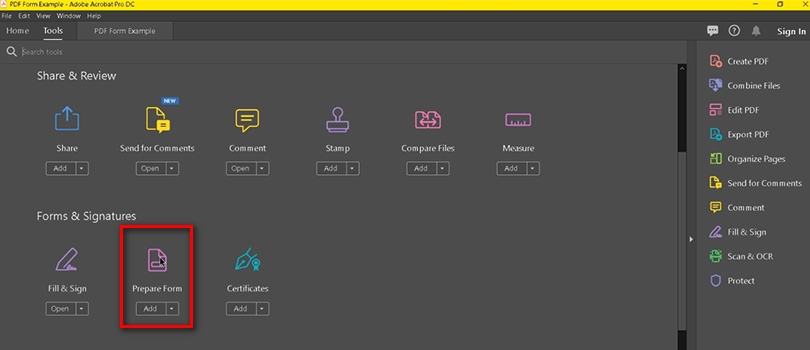
Access Form Creation Tools
Step 4. Acrobat will automatically detect potential form fields. Review and edit as needed. You can add text fields, checkboxes, and more.
Step 5. Click on the “Button” icon in the toolbar. Draw a button on your PDF, and a dialogue box will appear to set the button properties. You can link it to a web page or perform other actions.
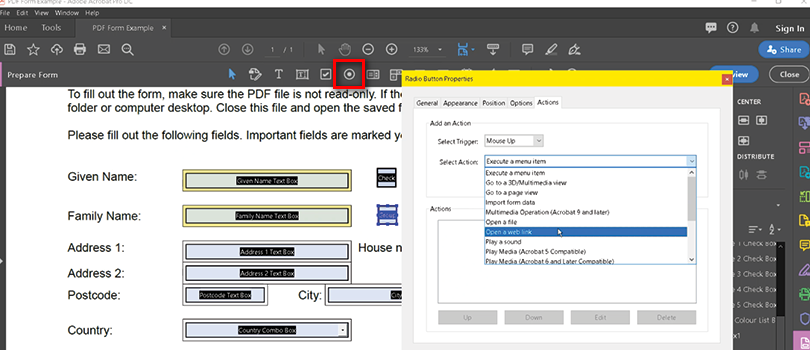
Add Buttons
Step 6. Choose the “Link” tool from the toolbar. Draw a rectangle around the text or image you want to link, and a dialogue box will appear. Enter the URL or choose a file.
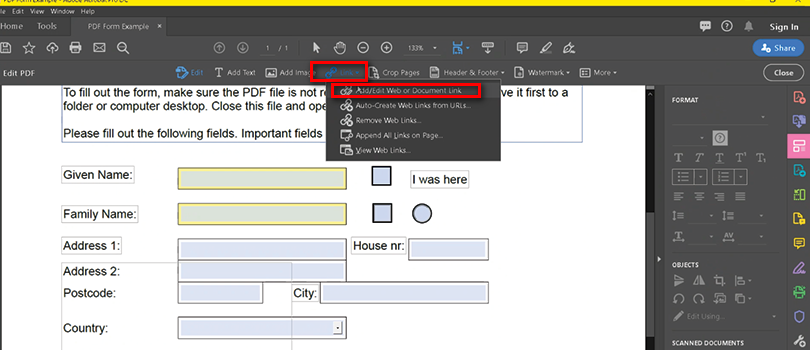
Insert Hyperlinks
Step 7. If you want to add a video, go to the “Tools” pane, select “Rich Media,” then “Add Video.” Draw a rectangle on your PDF, choose your video file, and adjust the settings.
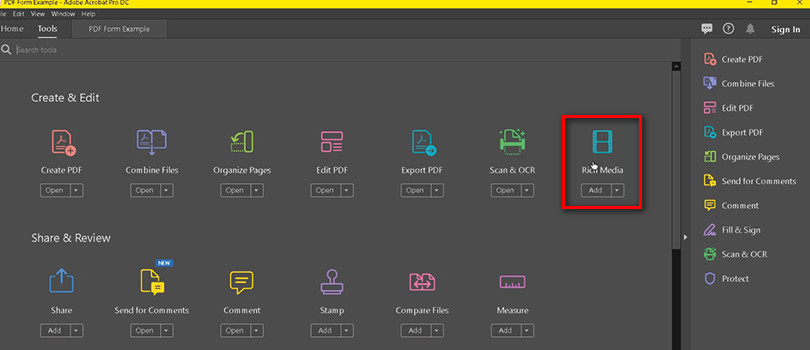
Embed Videos
Step 8. Once you’ve added all your interactive elements, save your document by clicking “File” and selecting “Save” or “Save As.”
Create an Interactive PDF Using InDesign
Adobe InDesign, a premier layout design software, helps craft stunning print and digital layouts, and it’s perfect for designing brochures, magazines, and interactive PDFs.
Step 1. Download Adobe InDesign and install it on your computer. If you don’t have it, you can download a free trial or purchase a subscription.
Step 2. Start a new document or open an existing one that you want to make interactive.
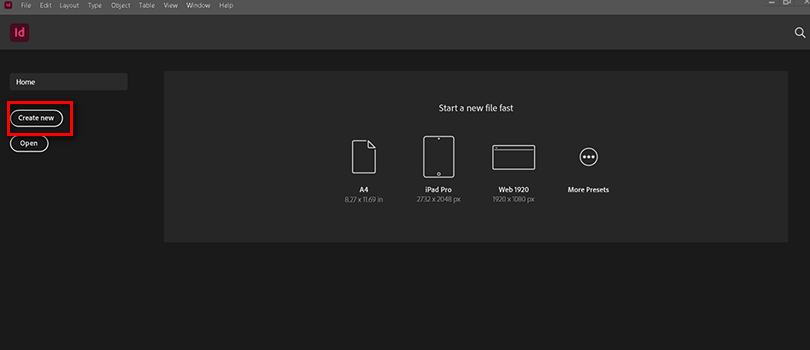
Create a New Document
Step 3. Design your layout as you normally would, keeping in mind where you want interactive elements to be placed.
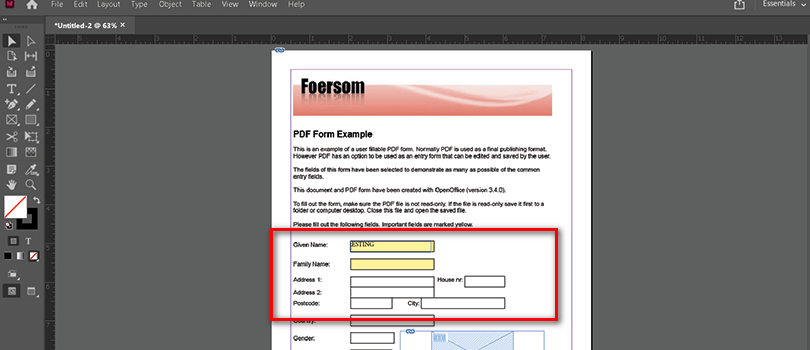
Design Your Layout
Step 4. Go to the “Window” menu and select “Interactive > Buttons and Forms” to open the Buttons and Forms panel.
Step 5. Select the “Button” tool in the Buttons and Forms panel. Click and drag to create a button on your layout. A dialog box will appear; customize the appearance and assign actions.
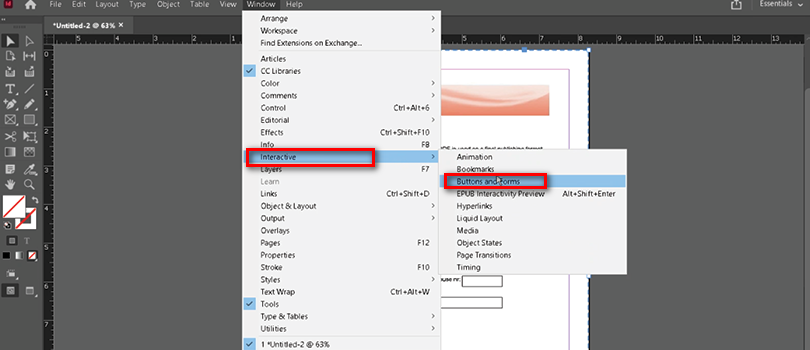
Add Buttons
Step 6. Choose the “Hyperlinks” panel from the “Window” menu. Select the text or object you want to hyperlink, click the “Create New Hyperlink” button, and enter the URL or choose a file.

Insert Hyperlinks
Step 7. If you want to add a video, go to the “Window” menu, select “Interactive > Media,” and choose “Video.” Drag a rectangle on your layout, select your video file, and adjust settings.
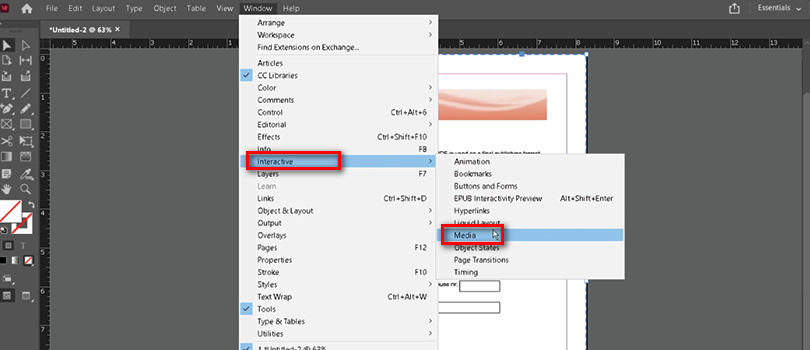
Embed Videos
Step 8. The “Preview” mode to test your interactive elements. Ensure buttons, links, and videos work as intended.
Step 9. When satisfied, go to “File > Export.” Choose “Adobe PDF (Interactive)” as the format. In the export options, make sure to select “Interactive Elements” to include your buttons and forms.
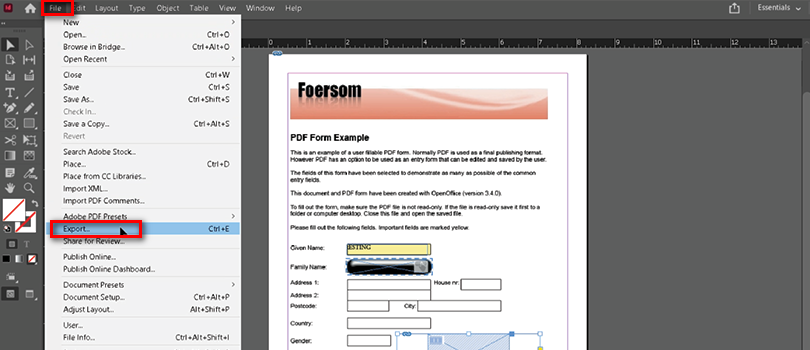
Export as Interactive PDF
Step 10. Enter a filename, choose a location, and click “Save.”
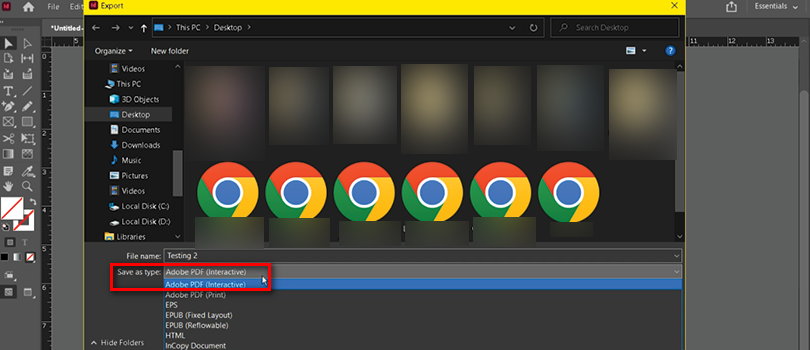
Save PDF
Create an Interactive Form Online with PDFgear for Free
PDFgear simplifies PDF form creation with its user-friendly interface. Ideal for crafting interactive PDF forms effortlessly, it focuses on enhancing your form-building experience with ease and efficiency. Check out how to do it:
Step 1. Go to PDFgear online fillable PDF maker, Click on “Choose File” and upload the PDF document you want to turn into an interactive form.
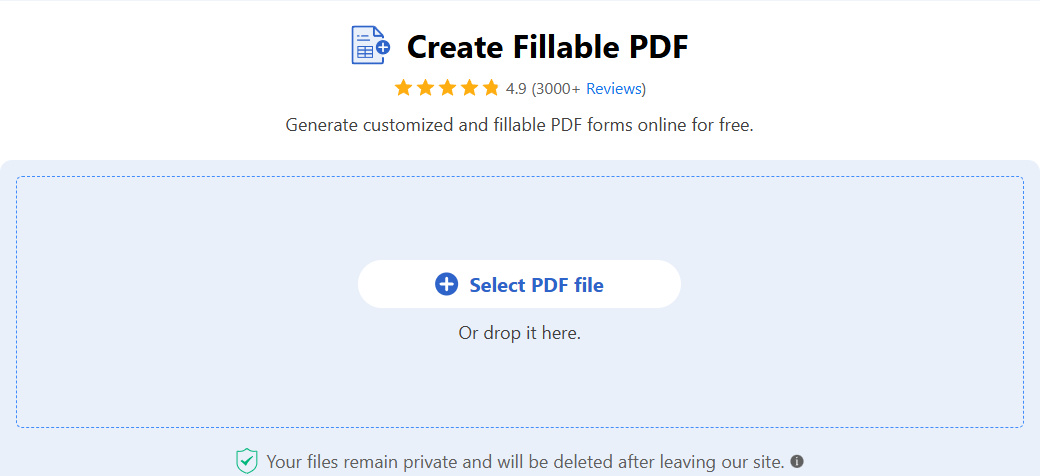
Select PDF File
Step 2. Add form fields by clicking on “Add or Edit Form Fields”. You can include text fields, checkboxes, radio buttons, and more.
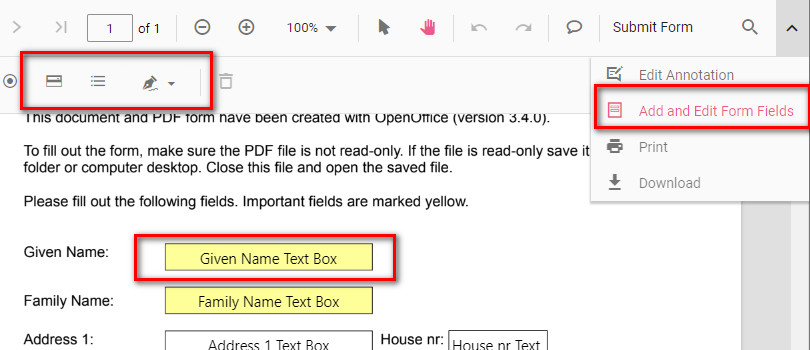
Add Form Fields
Step 3. Customize each form field by adjusting its size, position, and properties.
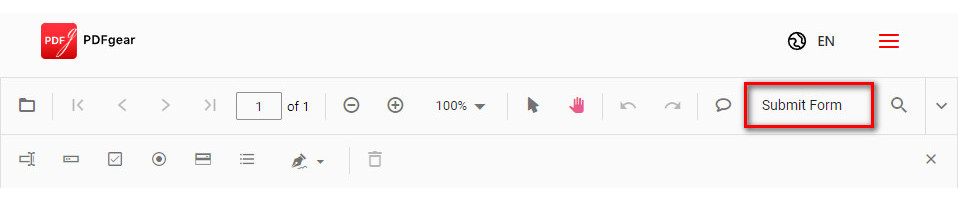
Step 4. After adding and customizing form fields, save and download your interactive form by clicking on the “Submit Form” button.
Save Form
What is an Interactive PDF?
An interactive PDF is like a smart document. Instead of just reading, you can click and change things! There are special features, like clickable links, editing and filling PDF forms, and you can even watch videos. Fill in details on your PDF form without going through the hassle of changing formats with just a few clicks. These interactive documents can include:
- Hyperlinks: In Adobe Acrobat, select the ‘Link’ tool, draw a rectangle around the text/image, and specify the URL or internal link.
- Buttons: In Adobe Acrobat, use the ‘Button’ tool to draw a button, customize its appearance, and assign actions like opening a web page or executing a script.
- Videos: In Adobe Acrobat, go to ‘Rich Media,’ select ‘Video,’ draw a rectangle on the page, and choose the video file to embed.
- Fillable Forms: In Adobe Acrobat, access ‘Prepare Form,’ use form tools to add text fields, checkboxes, and radio buttons for user input.
Conclusion
Creating interactive PDFs is no longer reserved for tech wizards. With the right tools and a bit of know-how, anyone can transform their static documents into captivating, interactive experiences.
