How to Create a PDF on Mac with/without Adobe Acrobat

Summary :
Follow this guide to discover the effective ways to make a PDF from a blank page or other existing documents on macOS, including Mac, MacBook, MacBook Pro, MacBook Air, etc.
Table of Contents
PDF(Portable Document Format) is a universal format that can contain rich text and image content in a relatively smaller size, which makes it a better way of printing, archiving, and sharing documents with others.
With files in PDF format, it is easy to ensure the security of the original documents by adding a signature or password to the PDFs.
This post introduces several methods to create a PDF on macOS devices, using macOS built-in apps or features, and some professional PDF creators and converters.
Create a Blank Page PDF on Mac Using Acrobat Acrobat Pro
Businesses or individuals may want to make a blank PDF as a template for forms, contracts, or other documents that require a consistent layout and formatting.
Adobe Acrobat is one of the best empty PDF creators that supports the direct creation of new blank PDF documents. While this application requires email registration and a credit card for payment, it may not be the most cost-effective solution for many people, especially students.
Step 1. Build the PDF-creating task
Launch the Adobe Acrobat Pro on your Mac, then click Tools and Create PDF.
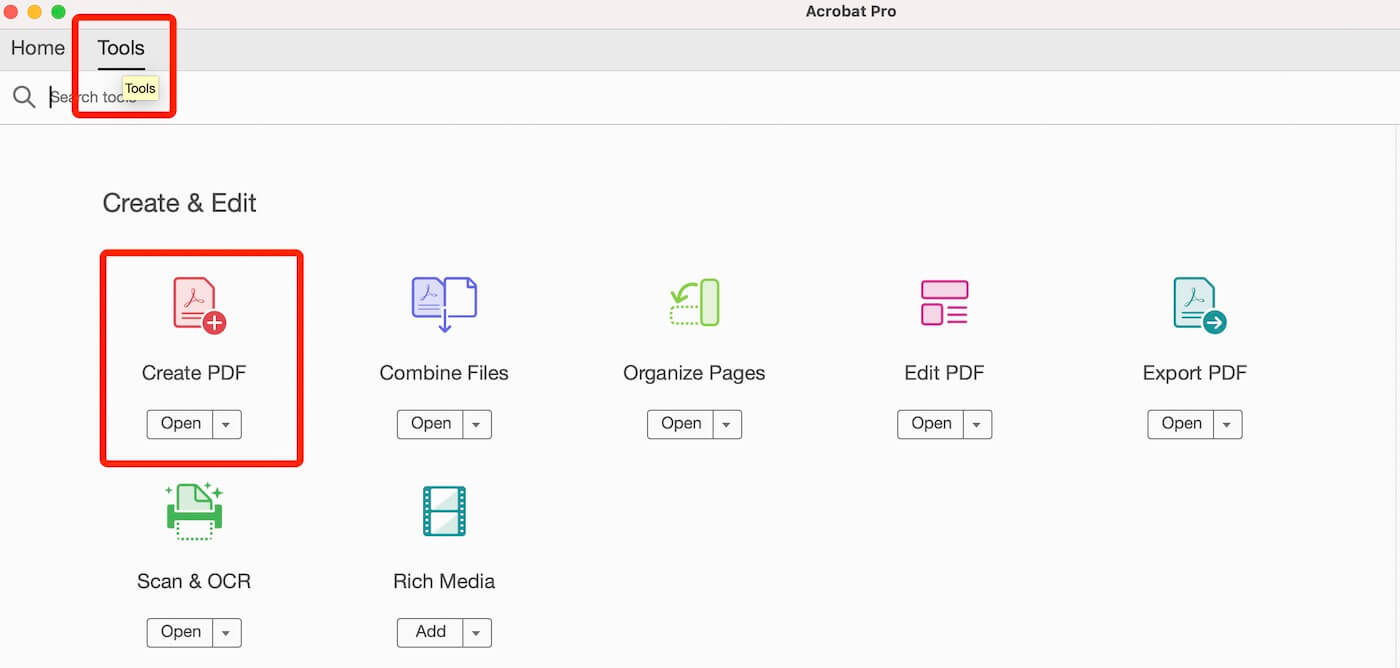
Create PDF in Adobe Acrobat Pro
Step 2. Create a new blank PDF document
In the new window, click Blank Page and Create to create a new blank PDF document on Mac, then you can edit the blank PDF document with its annotation and editing tool.
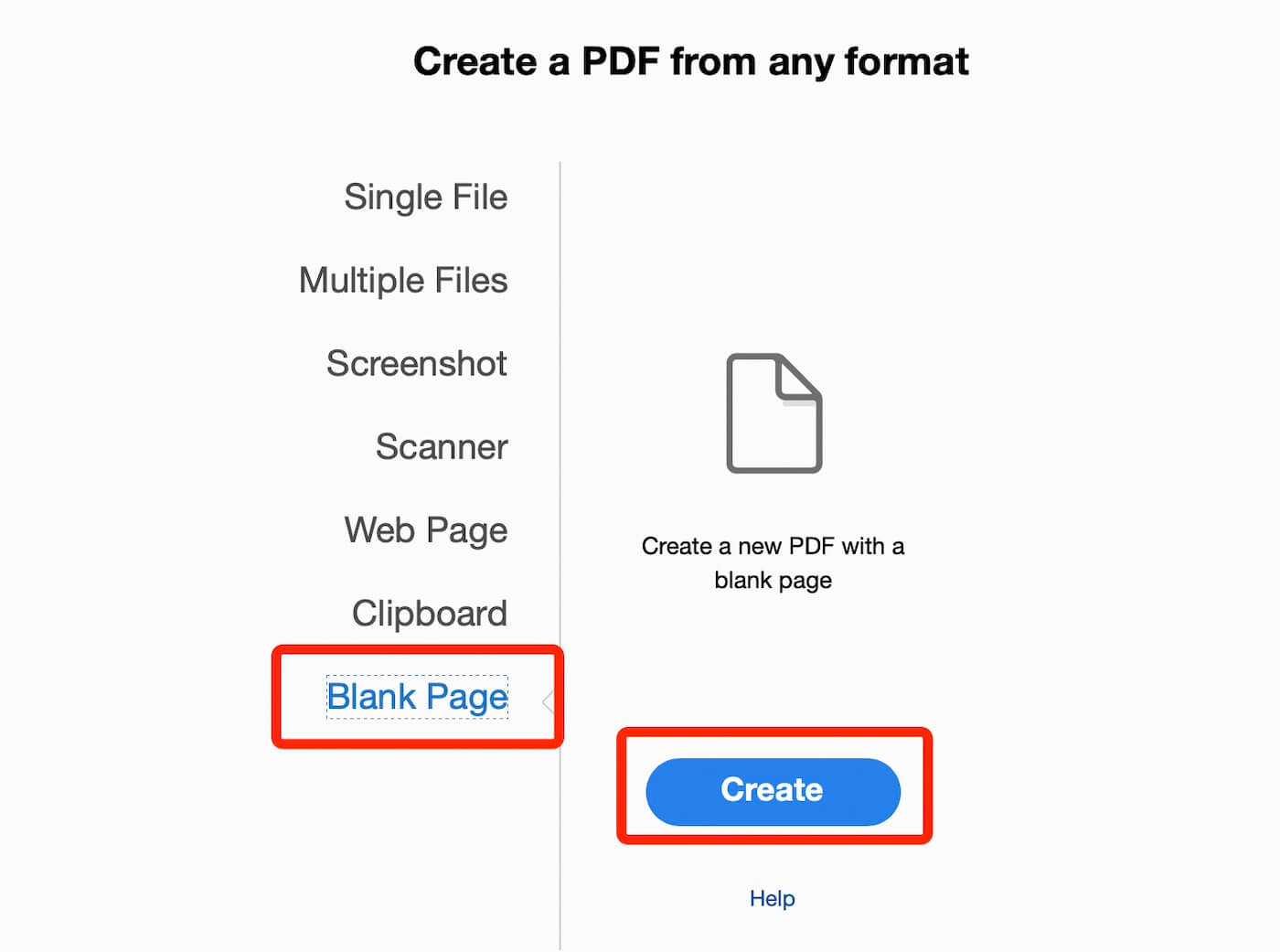
Create a Blank Page PDF in Acrobat
Export a PDF from an Image Document in Preview
As a pre-installed app on macOS devices, Preview allows you to mark up images or PDFs easily. It supports creating a PDF from an image on Mac, MacBook, and MacBook Air.
You can also add a signature to a PDF in Preview and combine several PDFs into one PDF by dragging the Thumbnails. The drawbacks include you can only make a picture a PDF one time, and you can not edit the combined PDF in Preview.
Step 1. Open the image you want to make a PDF with Preview.
Step 2. Navigate to File, and select Export as PDF from the drop-down list. Name the new PDF file and choose a place to save it on your Mac.
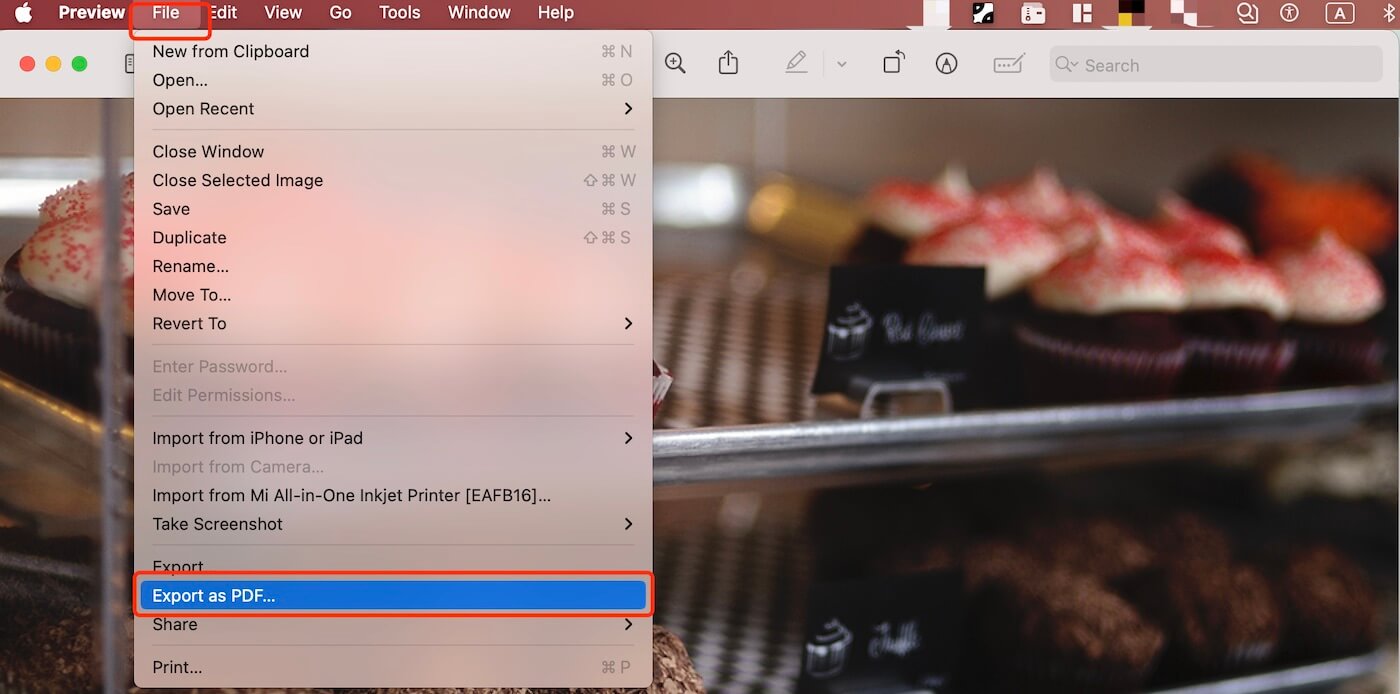
Export a PDF from an Image in Preview
Create a PDF by Combining Images or PDFs on Mac in Finder
As the default file manager application on macOS, Finder serves as the primary way for users to navigate, manage, and interact with files and folders on their Mac.
In Finder, you can easily create a PDF with its Quick Actions feature. It works both on a single picture or PDF, as well as multiple documents.
Step 1. Select a picture, to choose several pictures, hold the command key and use your mouse to click the images needed.
Step 2. Right-click and you can see the Quick Actions from the list. Then choose Create PDF to make a new PDF file from an image or multiple images or PDFs.
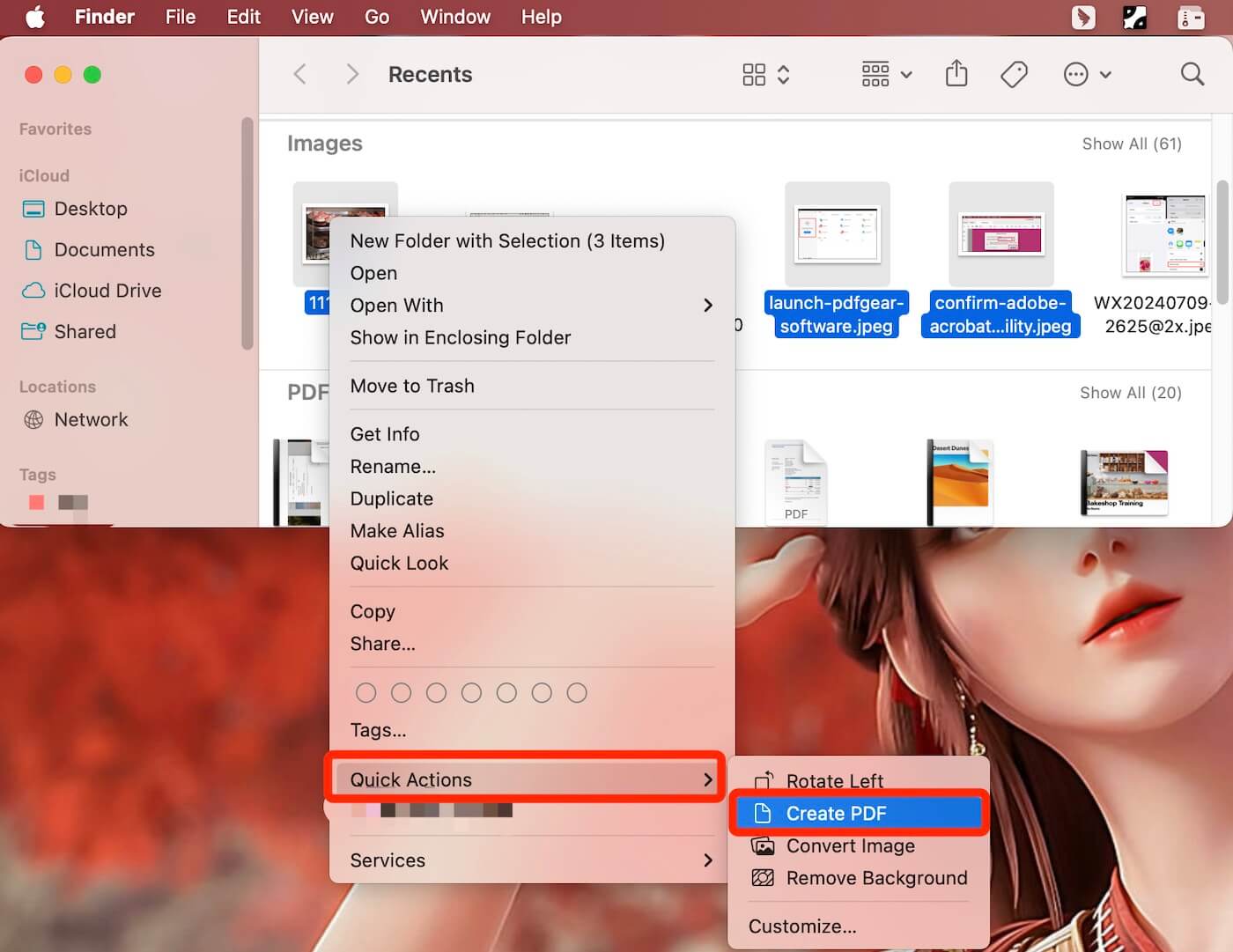
Create PDF in Finder
Create a New PDF from an Existing Document via Free PDF Maker
PDFgear is one of the best PDF solutions that enables you to create a new PDF from a current PDF document by deleting or adding pages to a PDF, and you can make changes to the PDF document with versatile PDF editing tools.
PDFgear for macOS works as a comprehensive PDF converter for mutual conversion between PDF and other files. You can create a PDF from multiple images effortlessly with its Image to PDF tool and share the PDF with ease.
This application is free to download and use, and you can access all of its advanced features without incurring any cost.
Step 1. Add the Existing PDF Document
Download PDFgear for macOS, launch the application on your Mac, and click the blue Open File button to import a PDF.
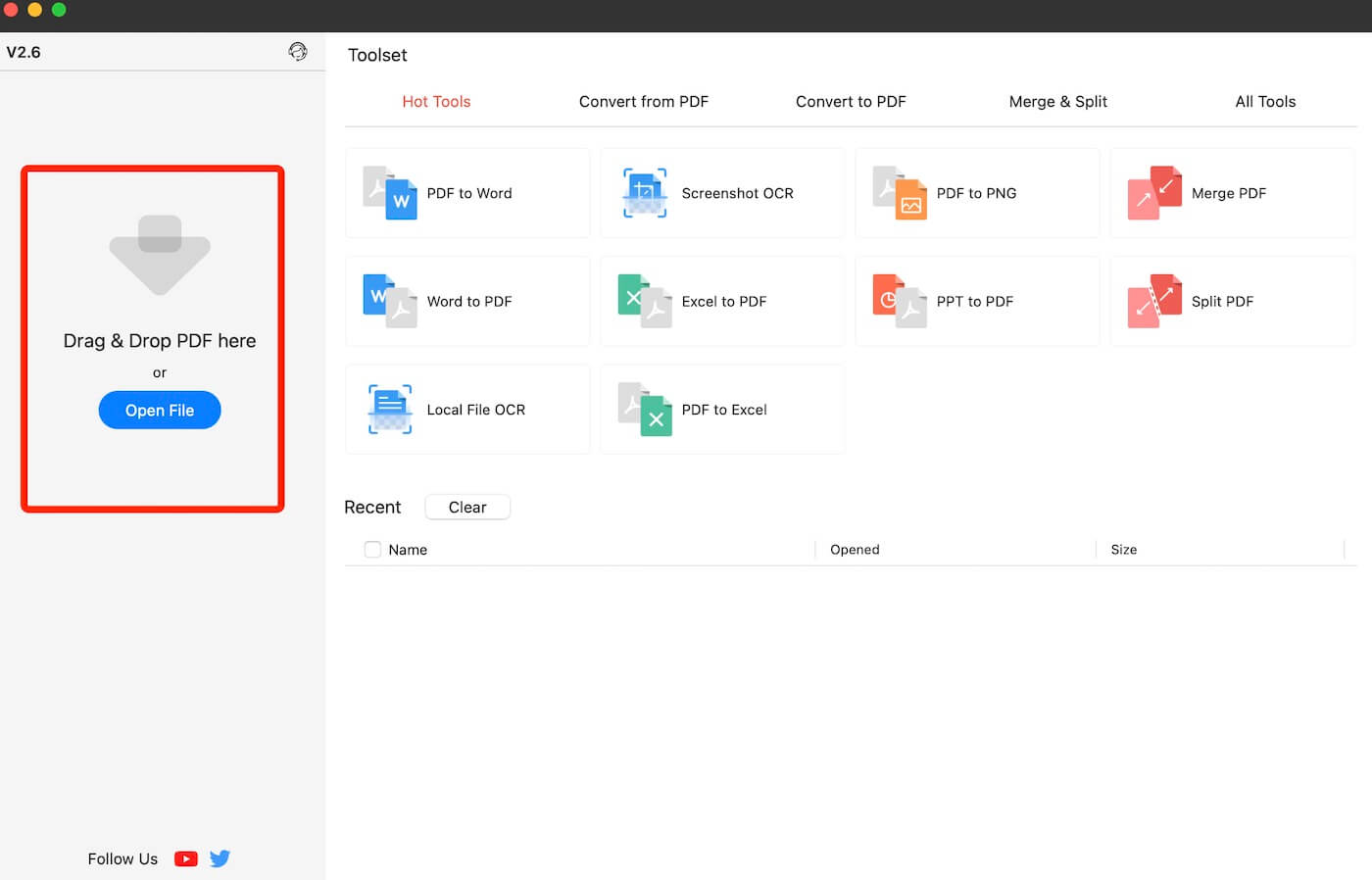
Open a PDF in PDFgear
Step 2. Insert Pages into the PDF
Add New Blank Pages: Click on the Pages tool, select New Blank Page, and a new blank page will be added to the original PDF. If you need more than one blank page, simply use your mouse to click the tool again.
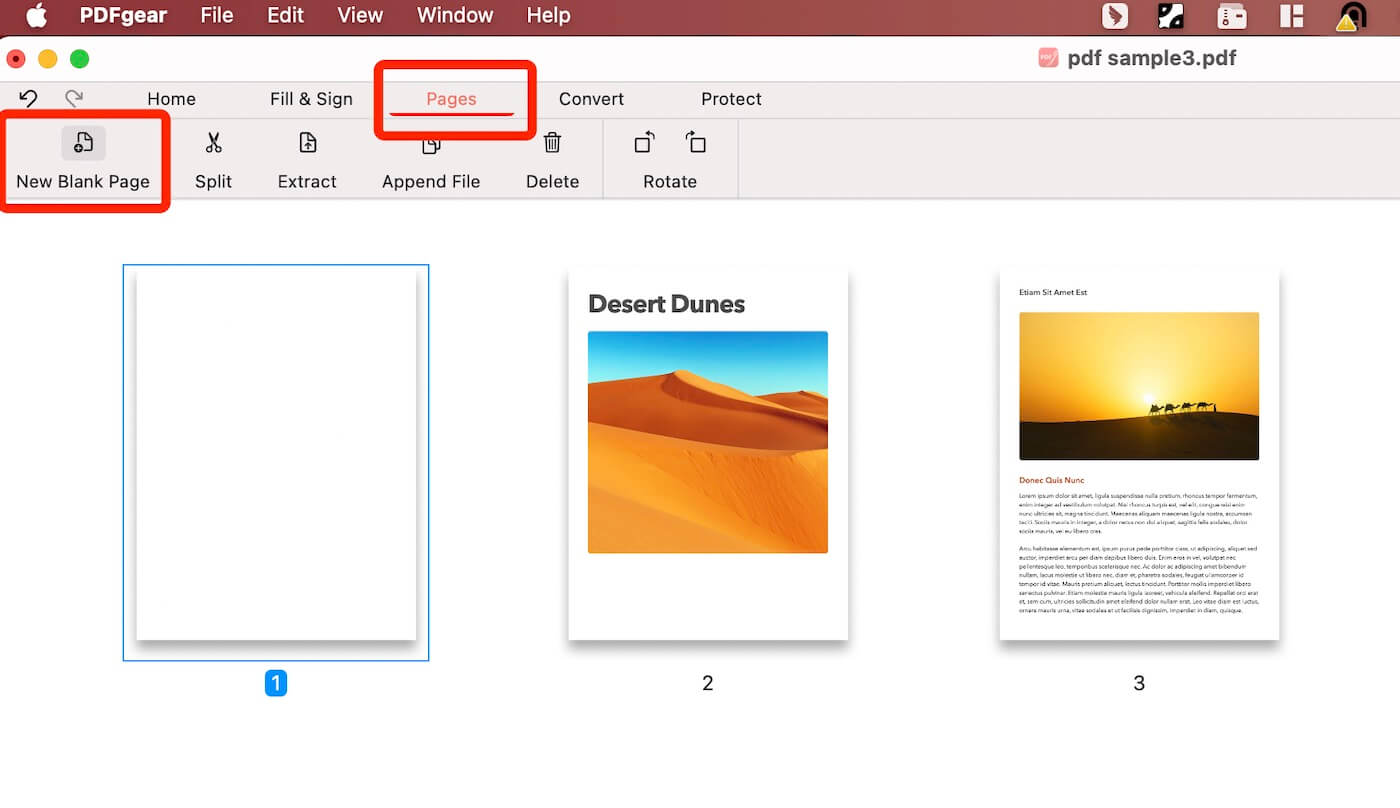
Add Blank Page to a PDF in PDFgear
Add Pages from New PDF Files: Hit Pages from the toolbar, and choose Append File. In the pop-up dialog, click Add Files to import the new PDFs you want to insert.
You can choose the places to insert the new PDF files. After that, click the Append button and a new PDF with added pages will automatically generated in PDFgear.
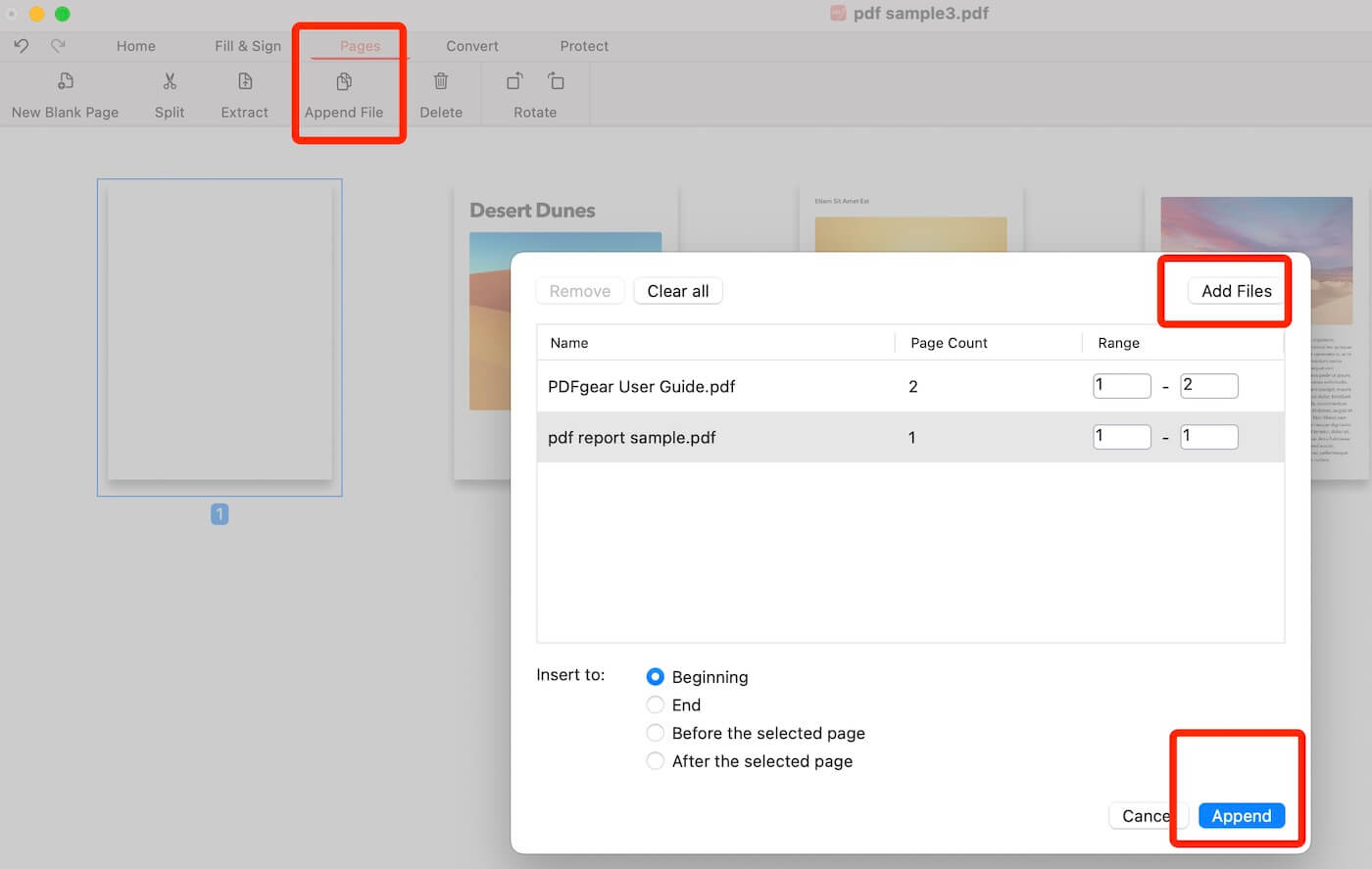
Insert New PDFs in PDFgear
Step 3. Edit and Save the New PDF File
After you combine the PDF files into one PDF, you can edit the text or modify the file as you want. Then head to File, and click Save As to save the document as a new PDF.
Make a PDF on Mac Using the Print Feature
For macOS devices, you can also use the Print menu to print files to PDF easily. With this built-in print feature, it is straightforward to save as a PDF from webpages, emails, images, and other file formats, then you can easily share or print them.
Step 1. Open the target file that you want to convert to PDF, click the top menu, and choose “Print”( or just press the keys “Control + P”).
Step 2. In the bottom-left of the Print Menu, choose the “Save as PDF” option and then name the new PDF, click “Print”.
Step 3. After naming the new document, you can assign the PDF location via the drop-down menu, then click “Save” to save it.
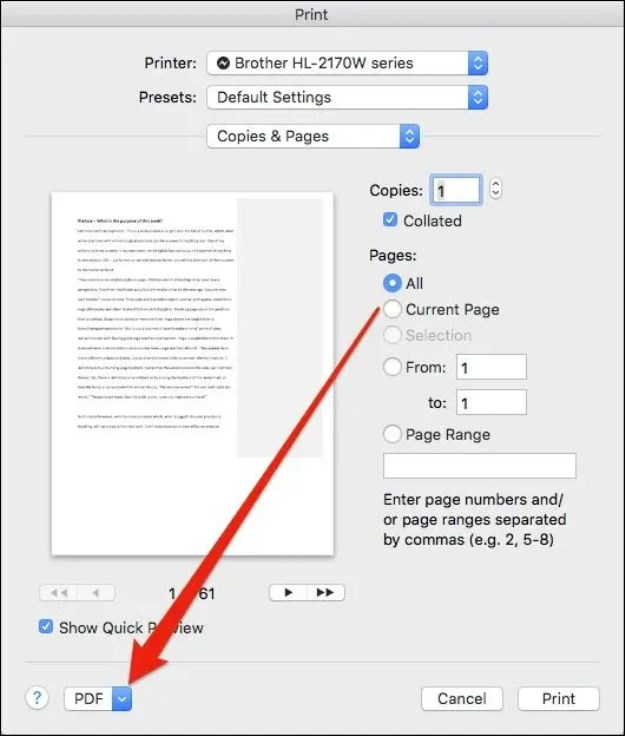
Create A PDF on Mac
FAQs
How do I create a PDF on Mac?
If you want to create a blank PDF, Adobe Acrobat would be the first choice. While PDFgear supports you make a PDF from other formats like images, documents, and more.
How to make a PDF fillable on MacBook Air?
PDFgear online features support you to add a textbox to a PDF file. You can access the online PDF editing tool, and modify your PDF accordingly.
How to make one PDF from multiple PDFs on Mac?
PDFgear for macOS enables you to combine multiple PDFs into one PDF with its Append File feature. You can use it for free and no watermarks for exported files.
Conclusion
In this post, we have shared 5 effective methods to create new PDF documents, including Adobe Acrobat, macOS built-in apps, Mac print menu, and the powerful PDFgear.
The powerful conversion and editing tools of PDFgear for macOS allow you to easily create a new PDF that includes images, Word files, spreadsheets, and other files, without losing the original formatting.
