How to Use Canva to Create Fillable PDF Form for Free

Summary :
Learn how to use Canva free docuement form templates and a free online PDF form maker to make stylish-looking, professional, and fillable PDF forms online.
Table of Contents
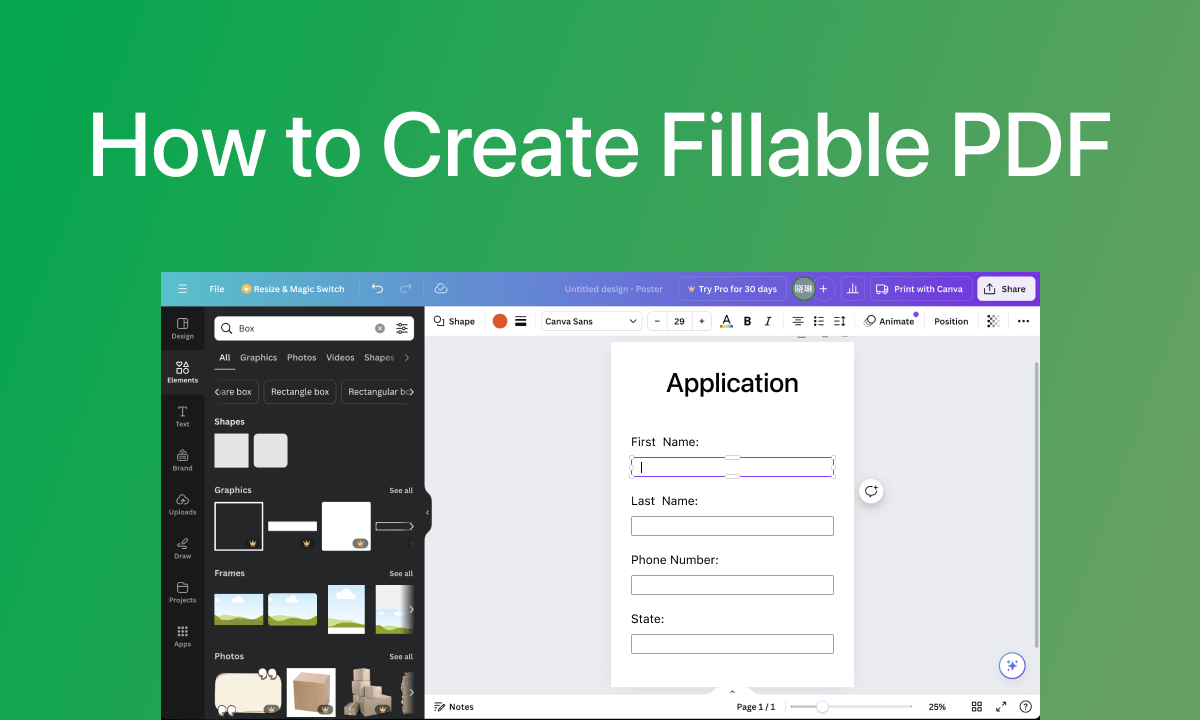
The popular web-based design tool Canva offers a practical online PDF editor for you to edit PDF text, but it doesn’t support making fillable PDFs.
That said, we can still leverage Canva’s impeccable design capability to prepare your PDF form before making it fillable.
And then you can use our free online form creator (which you can directly access below) to insert fillable form fields into the PDF form and make it fillable by other people.
Prepare PDF Form in Canva
The first step is to prepare a PDF form with Canva, you can customize a design here and input the fields and labels to indicate where needs to be filled.
⭐ Moreover, we also recommend using Canva document templates if you’re looking for a more stylish PDF form, this is what makes Canva better at making PDF forms compared with Excel and Google Docs.
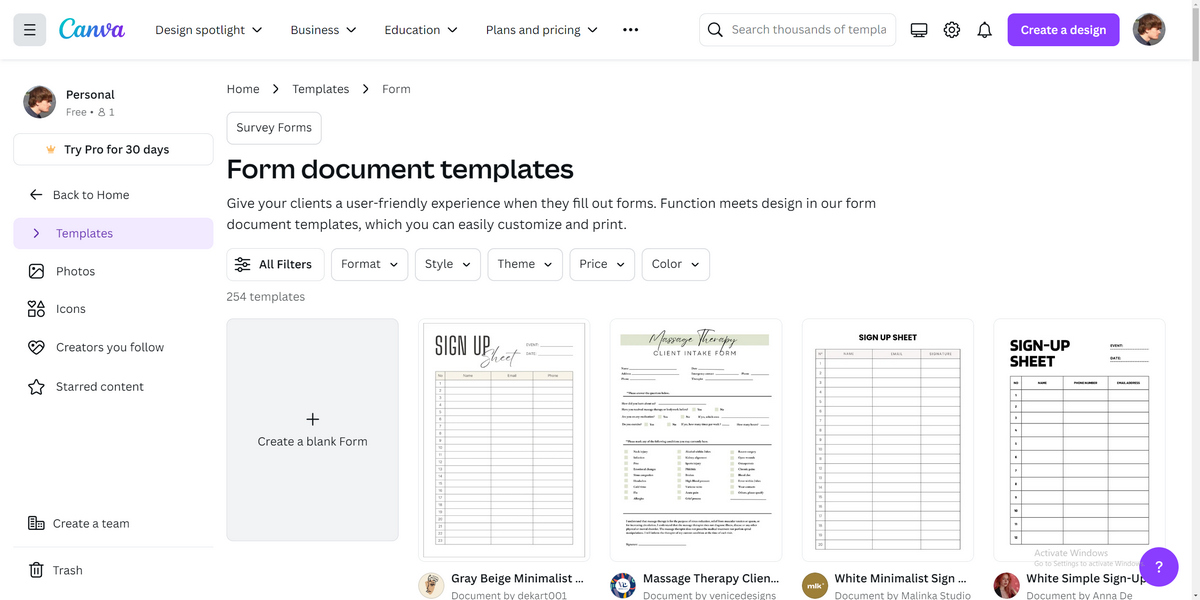
Step 1. Go to Canva document form templates, browse, and choose a preferred style for your fillable form, or create a blank form.
Choose a Form Template
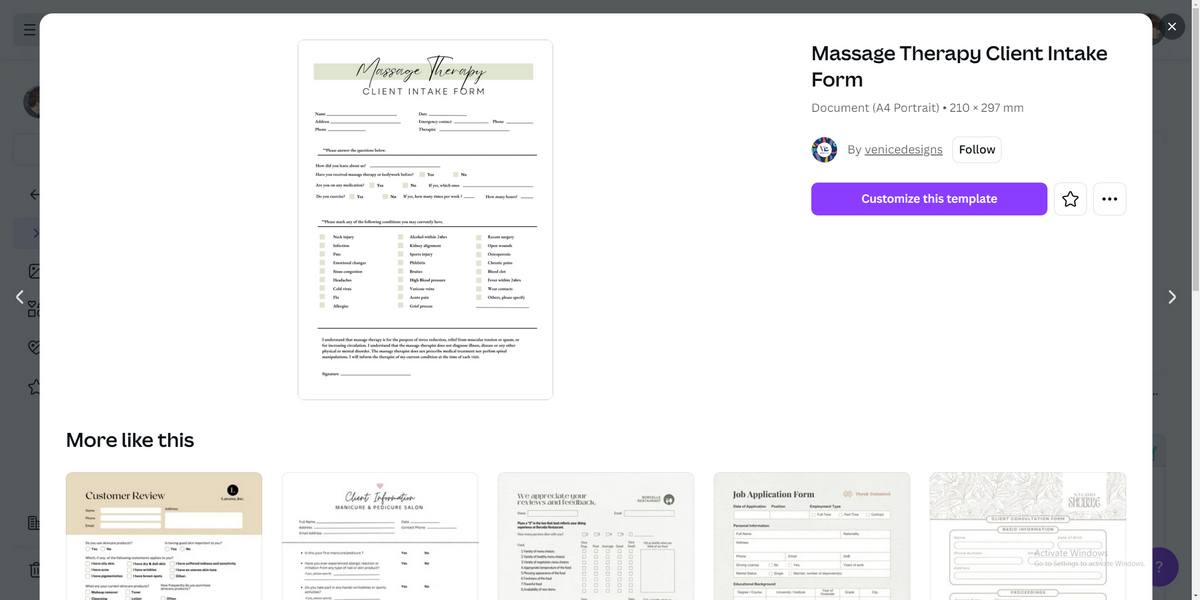
Step 2. For free templates, click Customize this template to continue. Premium templates require a Canva Pro account.
Continue with Template
Step 3. Double-click on the text fields to customize the labels and text fields. Or double-click on the elements and shapes to delete or replace them.
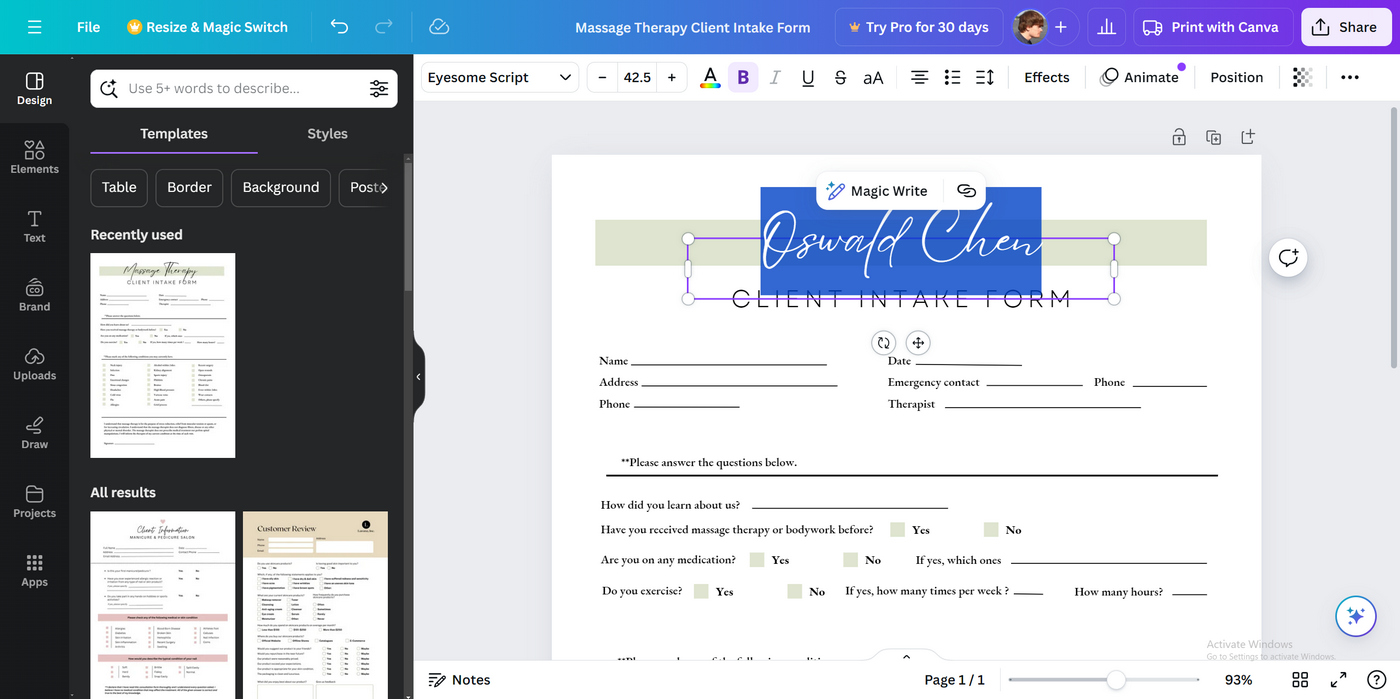
Customize and Design Form
Step 4. When you’re done designing, click the Share button in the upper-right corner.
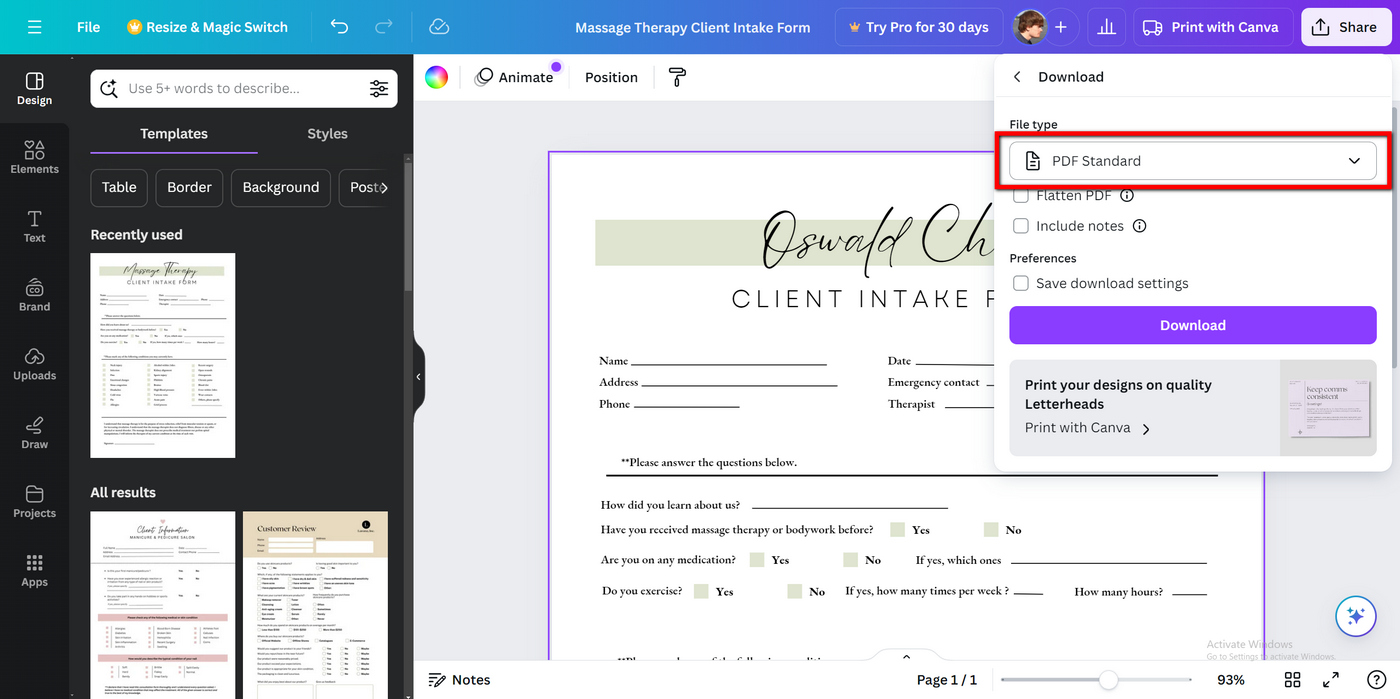
Download Canva Form
Step 5. In the File type section, choose PDF Standard, and cilick the Download button.
Make Canva PDF Form Fillable Online Free
The second step is to manually insert fillable form fields for all the places that are intended to be filled.
For this, we’ll be using PDFgear PDF form maker, a free-to-use online tool to insert fillable text boxes, password boxes, checkboxes, radio buttons, dropdowns, list boxes, etc.

Step 1. Use a web browser to go to PDFgear PDF form maker, and click Select PDF file to upload the Canva form we’ve just downloaded.
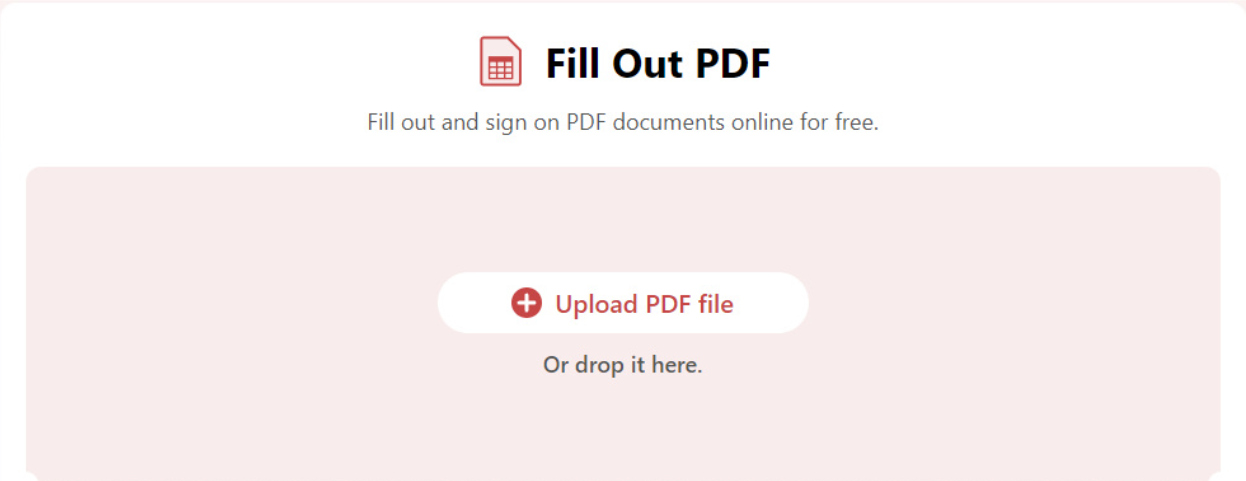
Create PDF Form Online
Step 2. Once the PDF is loaded in PDFgear, go to the upper-right corner, and click Add and Edit Form Fields.

Add and Edit Form Fields
Step 6. Go to the left side, and click to insert fillable fields like textbox, password, checkbox, radio button, dropdown, list box, etc.
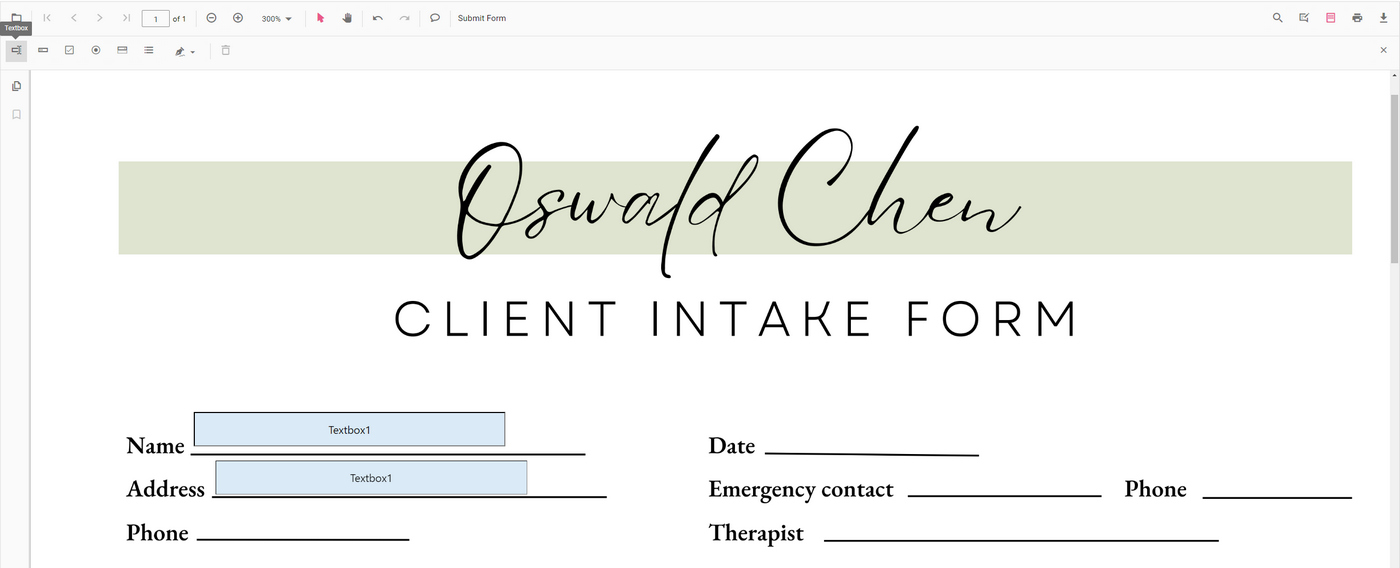
Insert Fillable Form Fields
Step 7. Whenever you’re ready, click the upper-right Download button to download and save the fillable form offline on your device.
Step 8. Voila! Now you’ve successfully made a nice-looking and fillable PDF form!
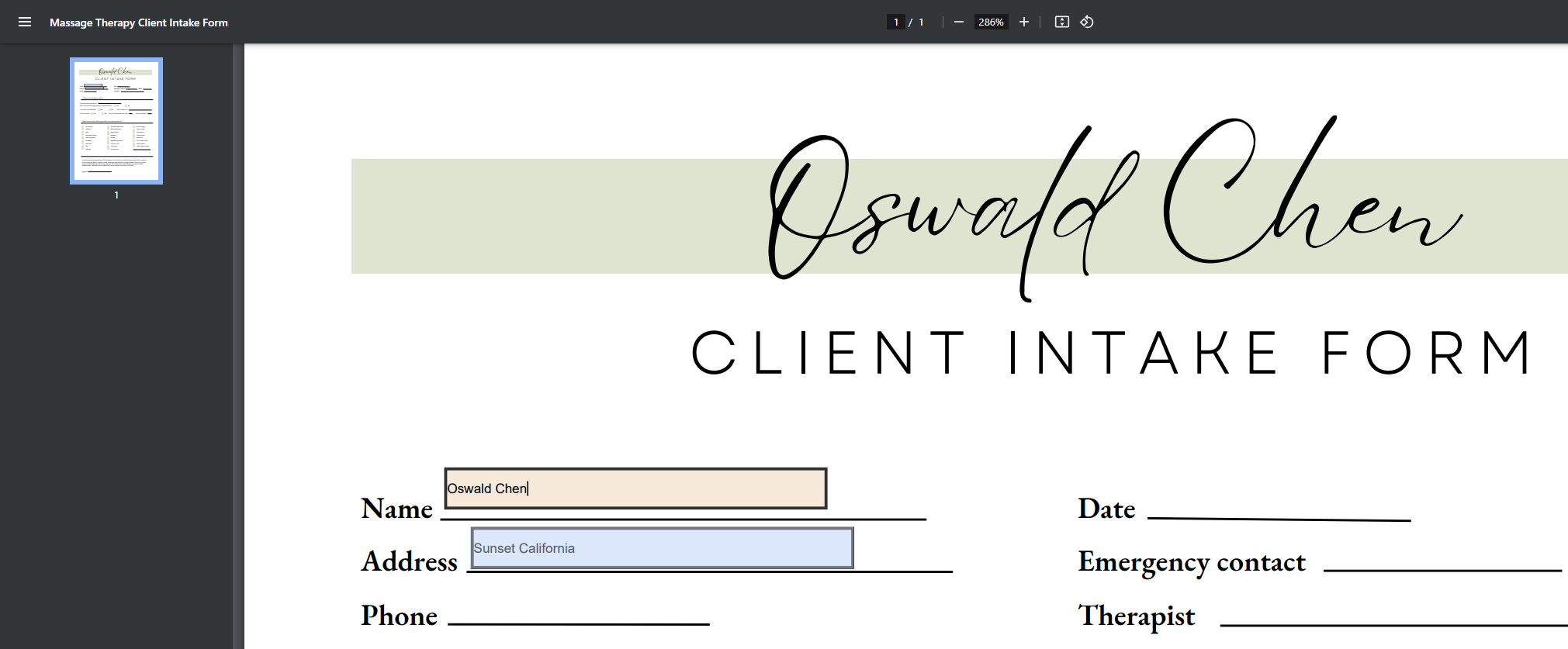
Stylish and Fillable Form Created
Choose a Proper Canva Document Form Template
Different Canva form templates serve for different purposes, you can refer to these standards to choose a fitting form template on Canva.
- Define Purpose: Identify what you need the form for (e.g., survey, registration, feedback).
- Search Templates: Use Canva’s search bar to find templates related to your purpose (e.g., “form,” “survey,” “registration”).
- Check Layout: Look for templates with a layout that suits your needs. Consider if it includes necessary fields and sections.
- Customization Options: Ensure the template is easily customizable to fit your branding or specific requirements.
- Aesthetics: Choose a template that matches the tone of your document (professional, casual, etc.).
FAQs
What’s the difference between Canva text boxes and fillable text boxes?
Canva text boxes are editable text boxes but are not fillable. Fillable text boxes are fillable form fields that can only be inserted using a dedicated PDF tool like PDFgear.
Can I directly create fillable forms in Canva?
No, Canva doesn’t support creating fillable PDF forms directly. However, you can design a form in Canva, download it as a PDF, and then use PDFgear PDF form maker to add fillable fields.
How do I design a form in Canva?
Use Canva’s templates or start from scratch. Add text boxes, lines, and other elements to design the layout. Keep space where the fillable fields will go.
What file format should I export from Canva to make a fillable form?
Export your design as a PDF. Use the “PDF Standard” or “PDF Print” option for the best quality.
Are there any limitations to using PDFgear?
No. PDFgear is free and without limitations. There are no registrations, costs, or watermarks.
Are there any limitations to using Canva for form design?
Canva is primarily a design tool, so it doesn’t support direct form functionality like auto-calculations or conditional fields. You’ll need to use another tool to add these features after designing.
Can I share my fillable Canva form with others?
Yes, after making the PDF fillable using a third-party tool, you can share it via email, upload it to a cloud service, or embed it on a website.
