How to Convert Word to PDF on iPhone & iPad for Free

Summary :
This post explains how to convert one or more Word files to PDFs on your iPad or iPhone, using the PDFgear app or the native File app.
Table of Contents
Want to convert your Word file to PDF on your iPhone or iPad? This is helpful when you need to submit documents online or send the final PDF to clients.
This article outlines some options for converting Word to PDF on iPhone and iPad. Let’s get started by checking how to use an online tool to turn Word into PDF.
Convert Word to PDF on iPhone/iPad Online for Free
No sign-up needed, no watermarks. PDFgear lets you quickly turn a Word document into a polished PDF. The formatting, fonts, and layout stay just like the original.
First, head to the Word to PDF converter page on your iPad or iPhone. From there, follow these quick steps to convert PDF to Word with just a few clicks:
Video Tutorial
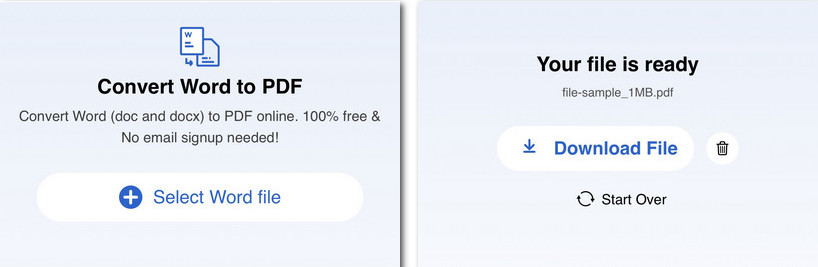
Step 1. Click the button labeled “Select Word file” to add a file to convert.
Step 2. PDFgear automatically converts the file from Word to PDF in a snap.
Step 3. Viola! download the converted PDF document.
Convert Word to PDF on iPhone/iPad Using PDFgear
If you don’t want to upload your private files online to convert, PDFgear also provides a mobile converter app. PDFgear for iOS requires iOS 14.0 or later and iPadOS 14.0 or later, and it’s completely free with no hidden charges.
Download PDFgear from the App Store and learn how to convert a Word doc to PDF without an Internet connection.

Convert Word to PDF on iPhone
Video Tutorial
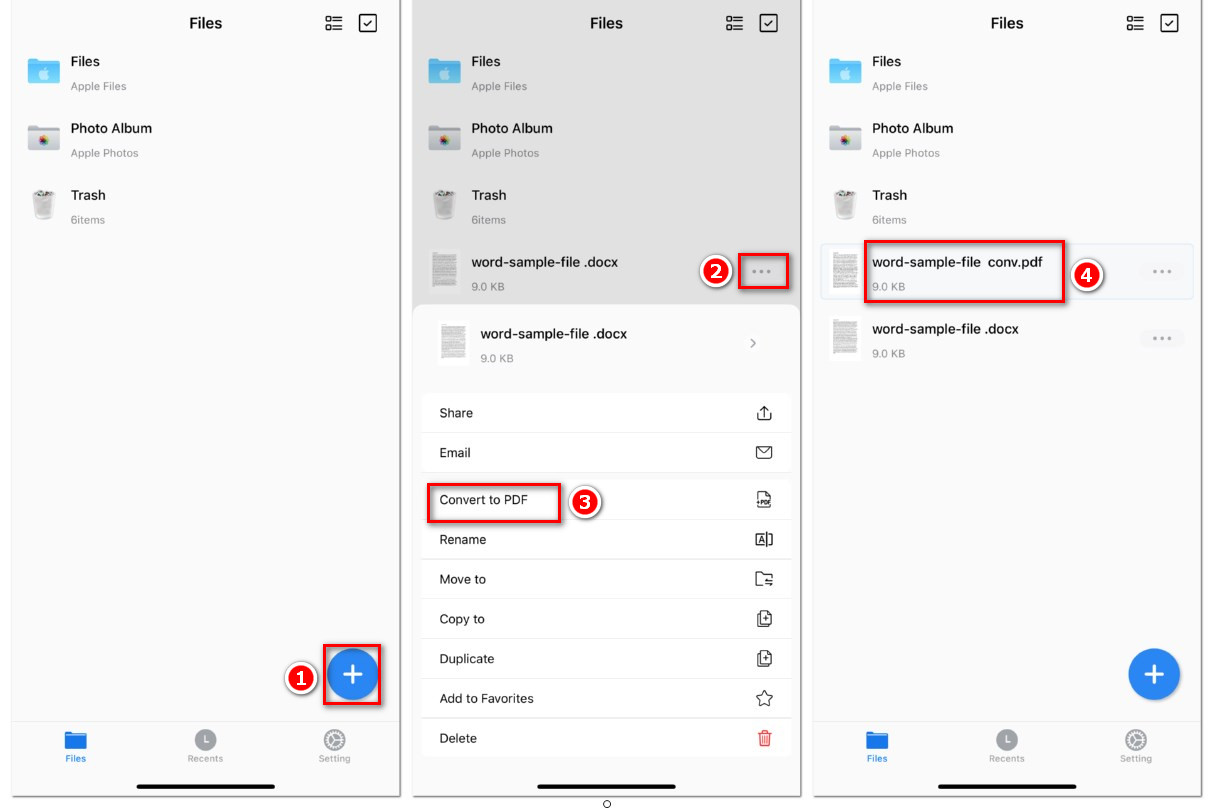
Step 1. Download and Install PDFgear on your iPhone or iPad, then launch the app.
Step 2. Tap the “+” icon to import the Word document you want to convert.
Step 3. Once the file is imported, find it on the screen and tap the three-dot button next to the file name. A menu will appear at the bottom. Tap “Convert to PDF.”
Step 4. PDFgear will automatically convert the Word file to PDF and display it in the Files section within the app.
PDFgear is more than just a converter. It also lets you add annotations to the converted PDF, or compress it for easy emailing.
Batch Convert Word to PDF on iPhone/iPad with a Free App
If you convert a lot of files every day, try the PDFgear PDF Converter Suite. It allows you to convert as many Word files to PDF in one go at zero cost.
You bet! This PDF converter works with Word, Excel, PowerPoint, JPG, and PNG. You can easily convert between any of these formats.
Batch Convert Word to PDF on iOS
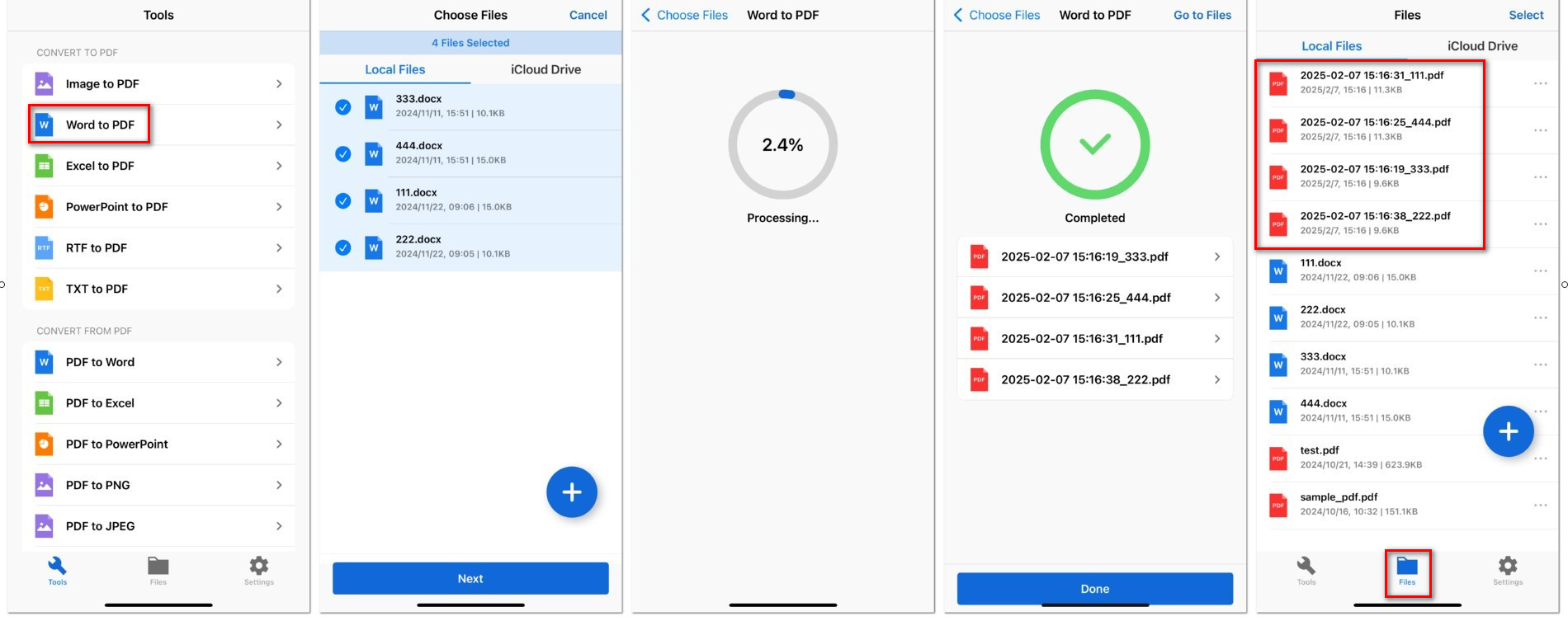
Step 1. Download the PDFgear PDF Converter Suite on your iPhone or iPad.
Step 2. Open the app and find “Word to PDF” in the toolbar.
Step 3. Tap the “+” icon to add your Word docs from iPhone storage or iCloud Drive.
Step 4. The app will automatically start batch converting DOCX files to PDF. Once completed, tap Done.
Step 5. You can find all converted PDFs in the Files section of the app.
Convert Word to PDF on iPhone/iPad Using the Built-in Files App
You can use the native Files app on your iPhone or iPad to easily manage and convert documents. No third-party apps are needed, and you can quickly save a Word Doc to PDF.
Before we get started, you should ensure the Word document is saved to the “Files” app from your email or messages.
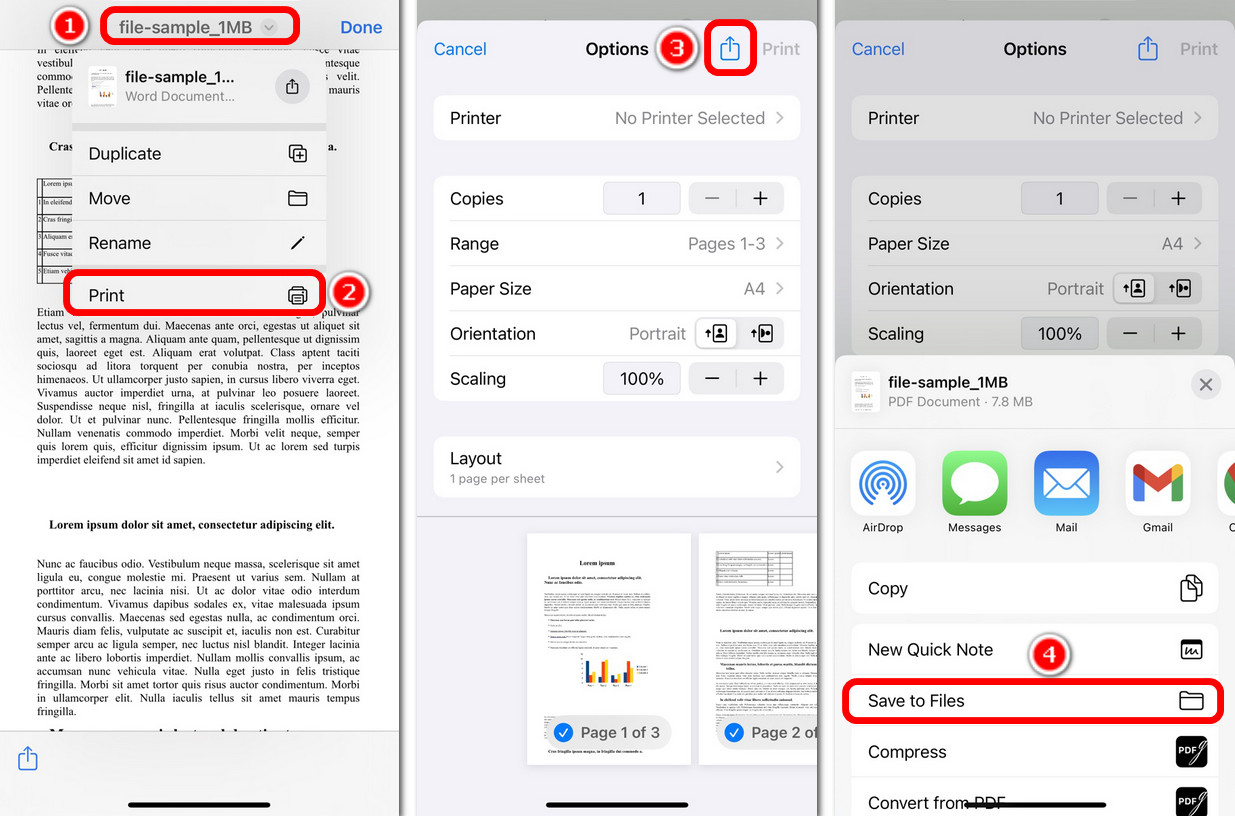
Print a Word File to PDF on iOS
Step 1. Navigate to the ‘Files‘ app to find your saved Word document by using ‘Recent’ or browsing folders.
Step 2. Tap the file name at the top, then choose “Print” from the menu.
Step 3. Tap the “Share” icon, then choose “Save to Files” and pick where to save the PDF.
Step 4. Once saved, the new PDF will keep the original file name, so it’s easy to find.
Long press the file, tap “Get Info,” and you’ll see the file now has a PDF extension, indicating successful conversion.
FAQs
Is there a free PDF converter app for iPhone?
Yes, PDFgear can work as a free PDF converter on your iPhone. It also offers tools for editing, compressing, merging, splitting PDFs, and more.
How to convert Word to PDF on an iPad without software?
The PDFgear online Word to PDF tool works in your browser, so you can convert files on your iPad or iPhone anytime, anywhere. Just upload your Word doc and download the PDF.
How do I convert a file to PDF on iPhone?
The PDFgear PDF Converter Suite lets you convert images (PNG, JPG, JPEG), Word, Excel, PPT, RTF, and TXT files to PDF in only a few steps. The best part is that it also supports batch conversion, saving you time and effort.
