How to Convert Scanned PDF to Word

Summary :
This article explains how to convert a scanned PDF to Word using the free OCR tool PDFgear, as well as paid options like Adobe Acrobat and Microsoft Word.
Table of Contents
Scanned PDFs are image-based, meaning the text is not directly editable. But thanks to OCR (Optical Character Recognition) technology, it’s now easy to convert scanned PDFs to Word.
This post shows you three easy ways to convert scanned PDFs to Word, with step-by-step instructions. Let’s get started with PDFgear.
How to Convert Scanned PDF to Word with PDFgear
PDFgear lets you convert scanned PDFs to editable Word documents with OCR. The OCR tool reads text from images and makes it editable. It also supports multiple languages for better text recognition.
Besides, PDFgear has an area OCR feature that lets you quickly scan part of a PDF to copy text. Just drag your mouse to select the area you need.
The OCR is usually a paid feature, but PDFgear offers it for free. It also lets you convert scanned PDF to Word in bulk for convenience.
Batch convert scanned PDF to Word for free with PDFgear.
Step 1. Download and install PDFgear on your PC. After it’s installed, open the app.
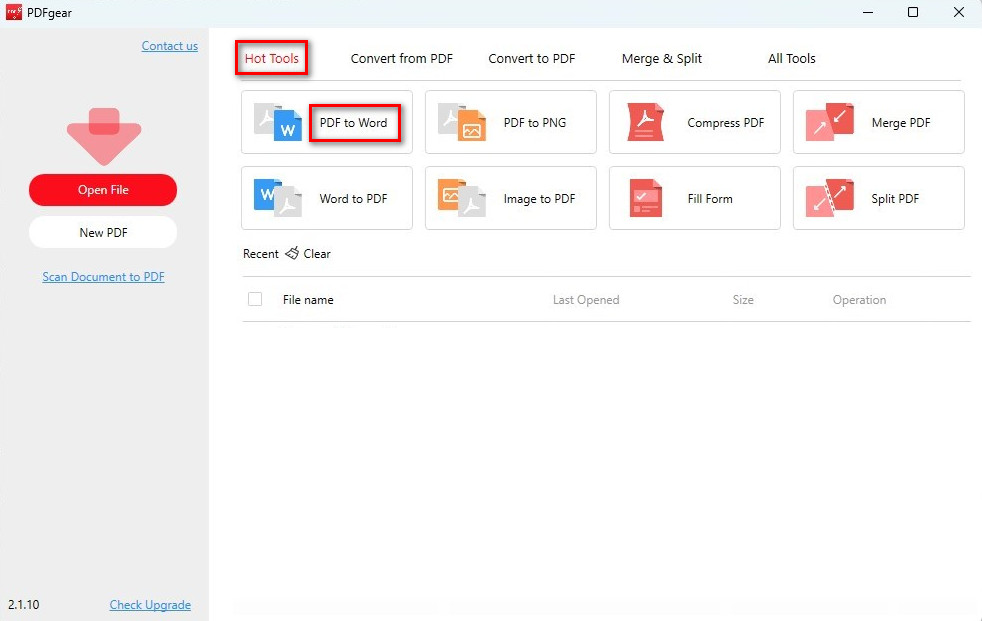
Open PDF to Word Converter
Step 2. Choose the PDF to Word converter tool from the Hot Tools section.
Step 3. Click the ‘Add File’ button to select your scanned PDF files, or drag and drop them into the converter.
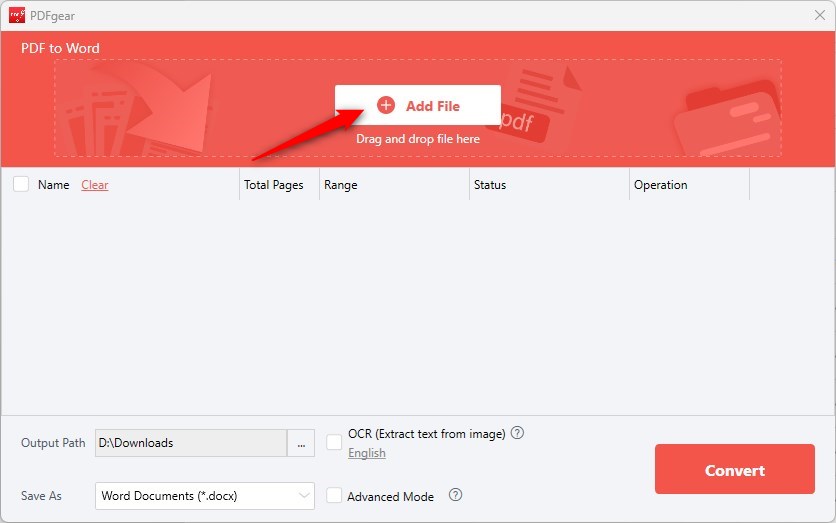
Add Scanned PDF Files to PDFgear
Step 4. Make sure to check the OCR box before starting the conversion, and select the document language for accurate results.
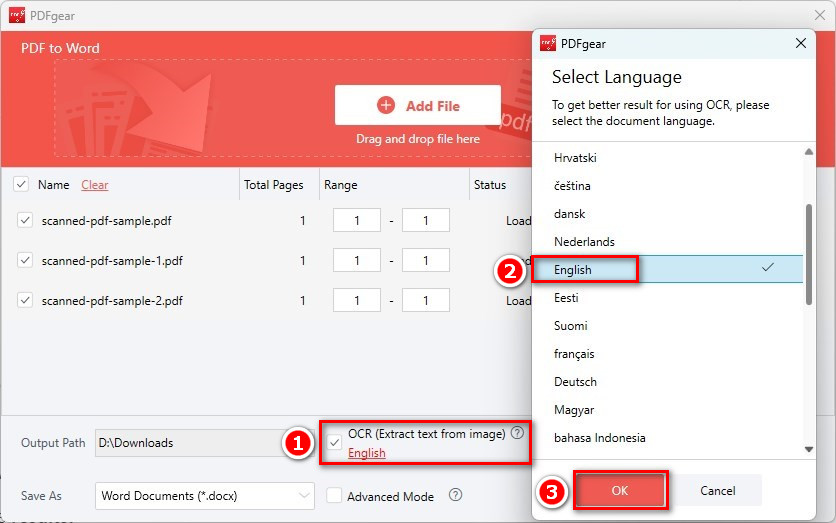
Check the OCR Button
Step 5. Choose where you want the converted Word file to be saved.
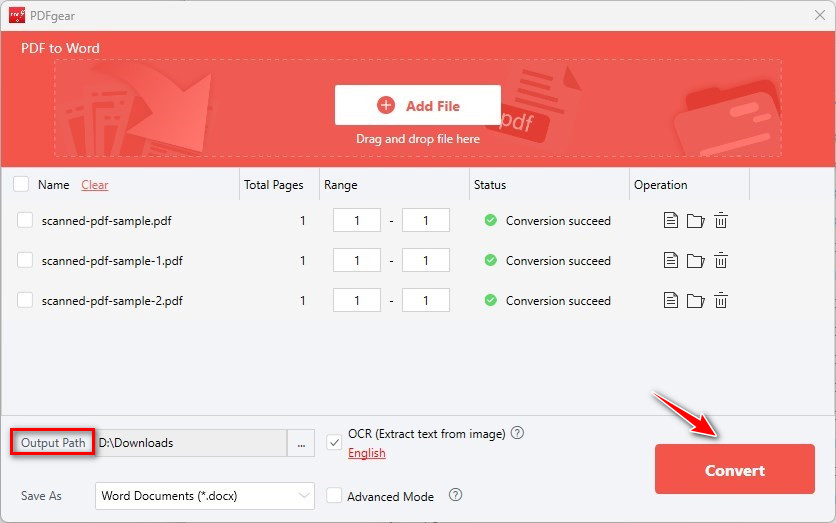
Batch Convert Scanned PDF to Word
Step 6. Hit the ‘Convert’ button and relax while PDFgear converts your scanned PDFs to Word in batch
Once it’s done, PDFgear will automatically open the folder with your newly converted Word file!
Complex layouts, images, or tables in the scanned PDF may not convert perfectly and may require manual adjustments.
How to Convert Scanned PDF to Word with Adobe
Adobe Acrobat uses OCR to turn scanned PDFs into editable Word documents. This feature is in Adobe Acrobat Pro and needs a subscription.
When you convert a scanned PDF to Word, it keeps the layout and formatting as much as possible. Diagrams, charts, and embedded images will also stay the same. Here’s how it works:
Step 1. Launch Adobe Acrobat and click the File > open the scanned PDF file you want to convert.
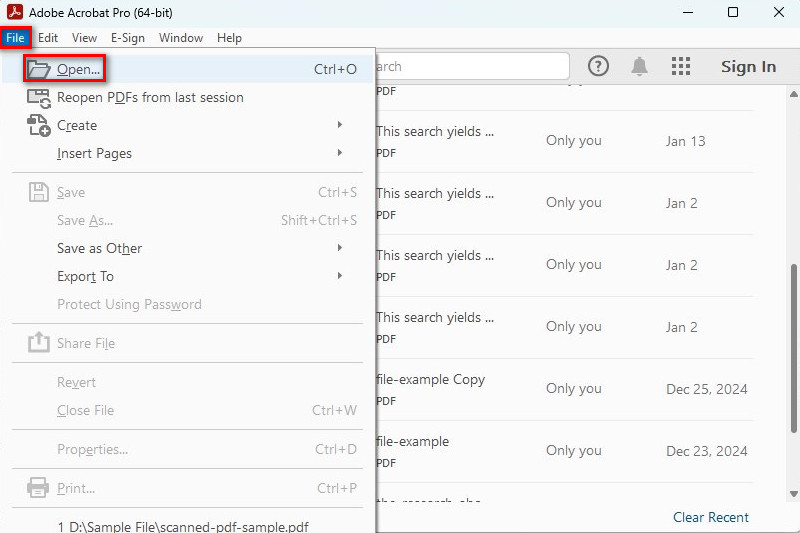
Open a Scanned PDF in Acrobat
Step 2. Go to the “Tools” menu and select “Scan & OCR”.
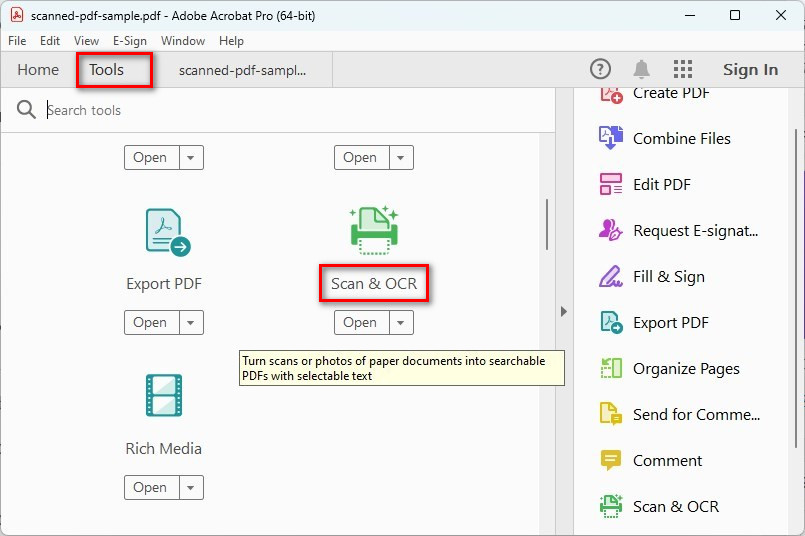
Scan and OCR PDF
Step 3. Click “Recognize Text” > and choose the language and settings as needed.
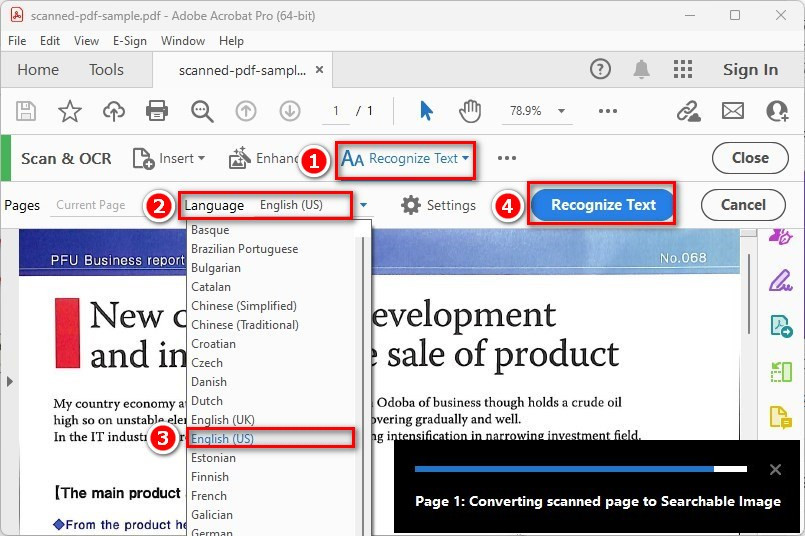
Recognize Text in Acrobat
Step 4. Once the OCR process is complete, go to “File” > “Export To” > “Microsoft Word”.
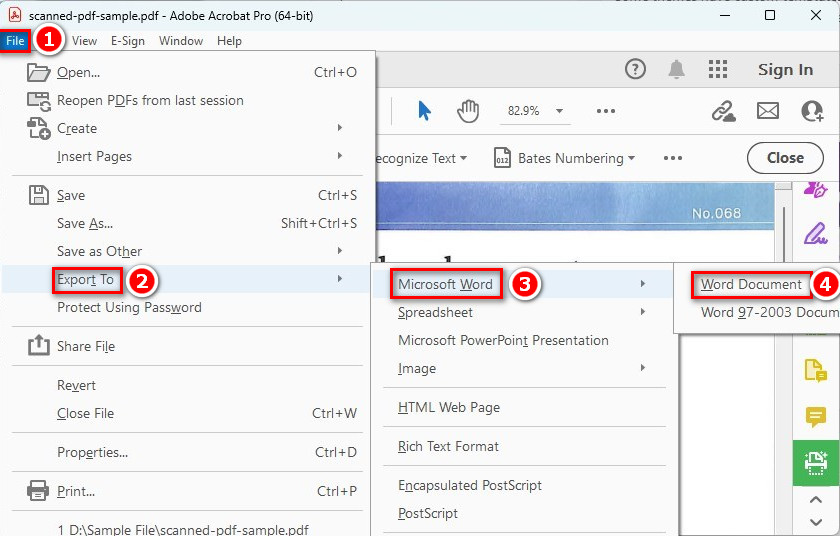
Export Scanned PDF to Word
Step 5. Choose “Word Document” and save the file.
How to Convert Scanned PDF Directly in MS Word
Microsoft Word works well for converting simple scanned PDFs with linear text (e.g., letters or plain reports) to Word.
If you already have a Microsoft Word license on your device, here’s how to use it to convert a PDF to Word:
Step 1. Open Microsoft Word. Click “Open” > Browse to select the scanned PDF file.
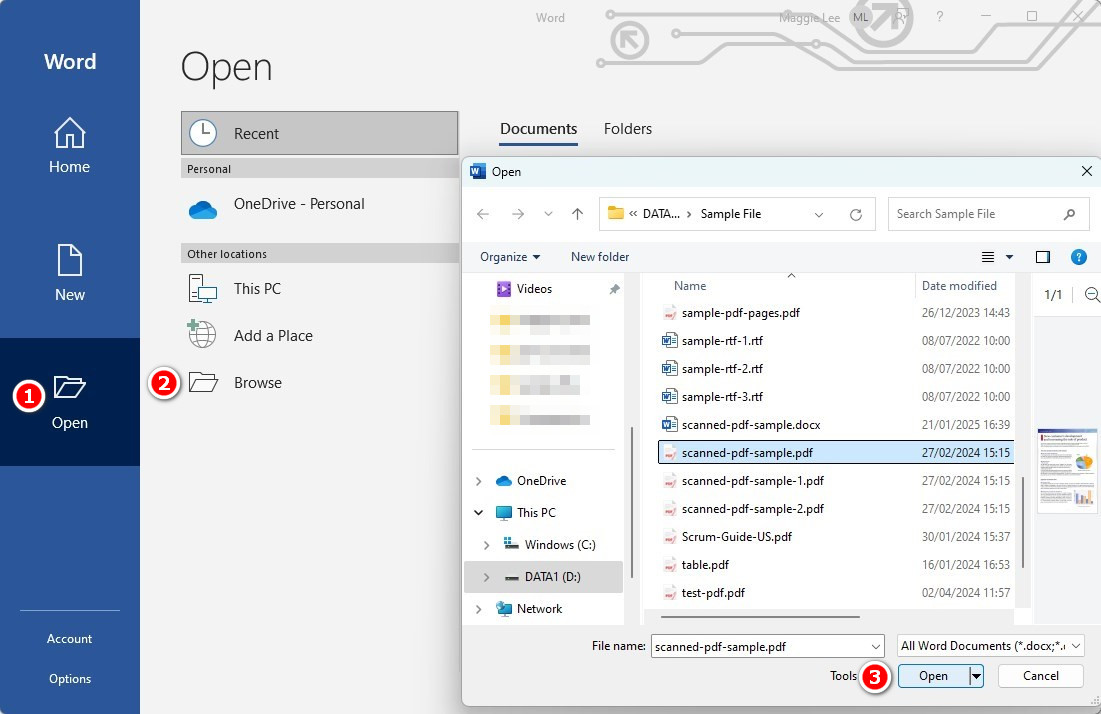
Open a Scanned PDF in MS Word
Step 2. Word will display a message that it will convert the PDF into an editable Word document. Click “OK” to proceed.

Convert PDF in Microsoft Word
If the PDF is a scanned image, Word will attempt to use its built-in OCR technology to recognize and convert the text.
If OCR is not applied, the content may remain as an image.
FAQs
What is OCR?
OCR stands for Optical Character Recognition. It’s a technology that converts different types of documents—such as scanned paper documents, PDFs, or images of text—into editable and searchable data. Read on to learn more about what is OCR.
How OCR works?
1. Scan or Capture an Image: You scan a document or capture an image of the text.
2. Text Recognition: The OCR software analyzes the image and recognizes the shapes of the letters and words.
3. Convert to Text: It then converts those shapes into actual text that you can edit, search, or copy.
What’s the best tool to convert scanned PDF to Word?
The best tool to convert scanned PDFs to Word depends on your specific needs. Here are some suggestions from us:
If you need to convert multiple scanned PDF files at once for free, PDFgear is the best tool. It’s easy to use and includes a batch conversion feature.
If you want to convert a scanned PDF to Word without losing formatting, Adobe Acrobat is the best choice. It works well to maintain the layout, graphics, and images.
If you just need a fast way to convert scanned PDF with simple text, Microsoft Word is a good option. It’s quick and easy, but it might not preserve all the details.
