How to Convert PDF to Word in Laptop for Free

Summary :
This post shows how to use PDFgear and Microsoft Word to convert one or more PDFs to Word, both online and offline, on your laptop.
Table of Contents
When you’re working on your laptop, you may want to convert a PDF to Word to easily select and edit the text. You can also send it to your coworkers to collaborate more easily.
Learn how to quickly convert PDF to Word on your laptop. Let’s get started with how to use PDFgear’s online PDF to Word converter.
Convert a PDF to Word on Laptop Online for Free
Easily turn a PDF into an editable Word document with PDFgear. No sign-up required, just upload and convert!
PDFgear online PDF converter is free, secure, and works on any device. Try it now on your laptop!
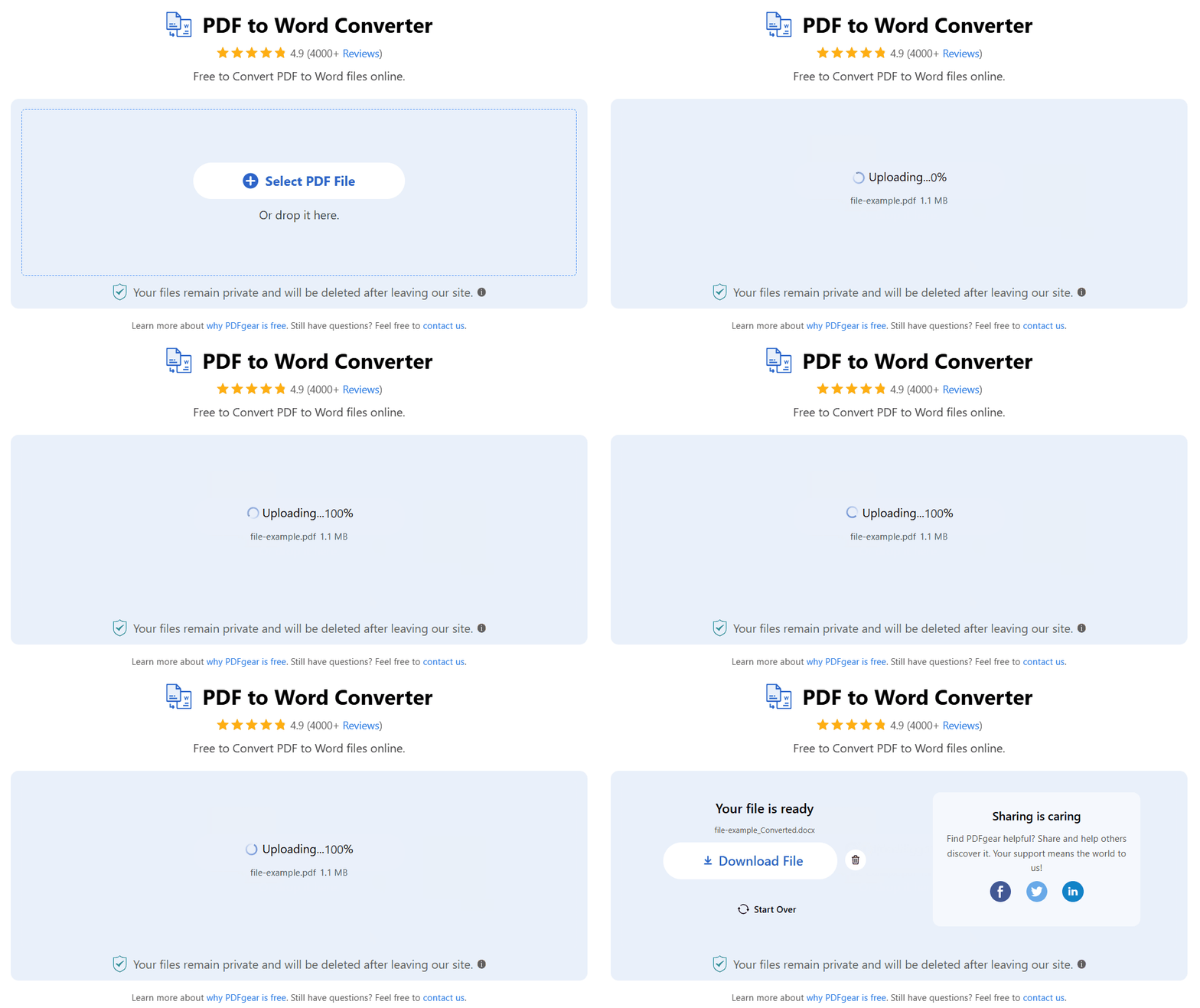
Step 1. Go to the PDFgear online PDF to Word converter on your browser.
Step 2. Click the “Select PDF file” button or drag and drop your PDF into the drop zone.
Step 3. PDFgear will your file from PDF to Microsoft in a snap.
Step 4. Voilà! Click the Download button to save the PDF to your laptop.
Convert PDFs to Word Offline on a Laptop
For better privacy, PDFgear also offers free software that lets you convert PDFs to Word offline on your laptop. It uses OCR to keep the text, tables, and images the same as in the original document.
PDFgear is completely free and works with Windows 10/11 and macOS 10.14 or later. Download it on your laptop and start converting PDFs to Word without losing formatting.
PDFgear lets you convert PDFs to Word in bulk without losing formatting.
Step 1. Launch PDFgear on your Lenovo, Dell, HP, or Mac laptop.
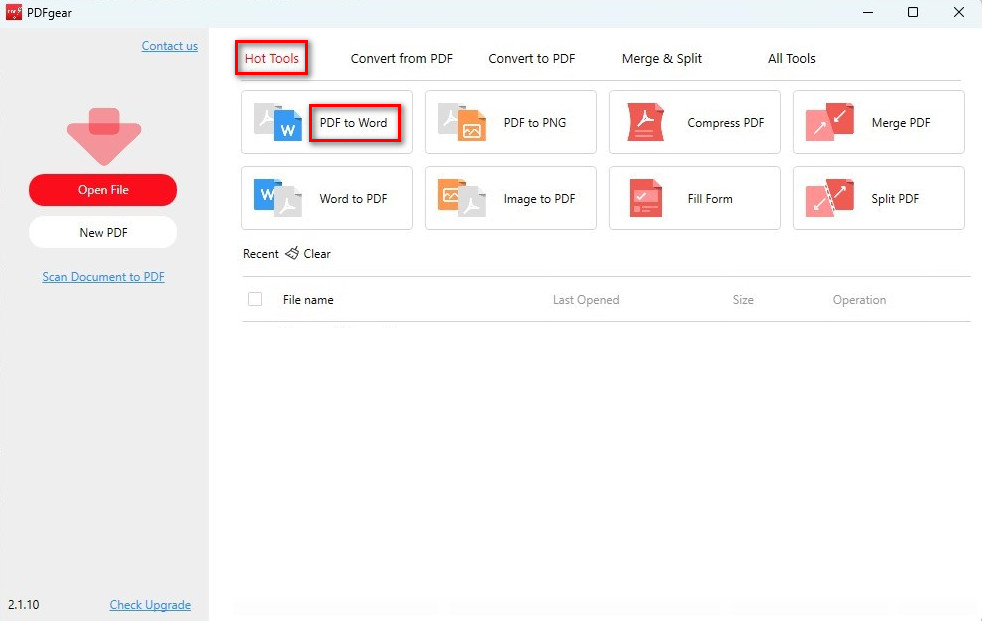
Open PDF to Word Converter
Step 2. Find and select the “PDF to Word” tool under Hot Tools.
Step 3. Click the “Add File” button to upload your PDFs, or simply drag and drop them into the converter.
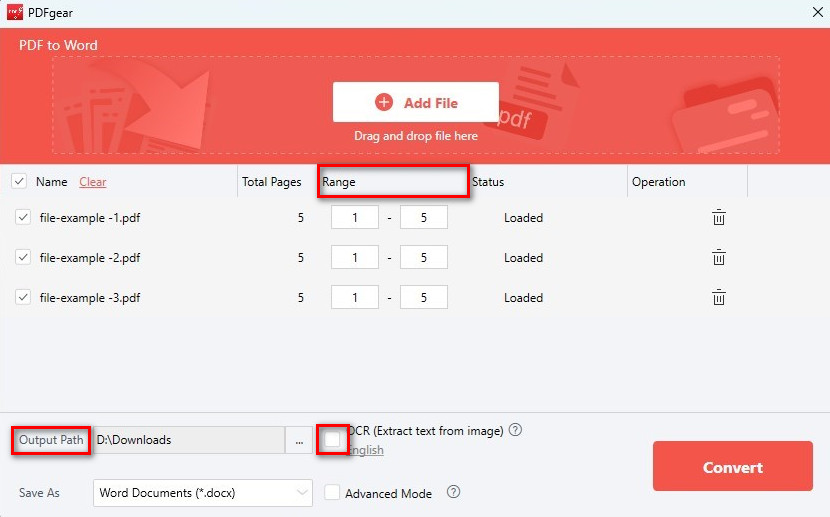
Customize the PDF to Word Conversion Settings
Step 4. Set the output path and page range, check the OCR box (if your PDF is image-based), and select the document language for better results.
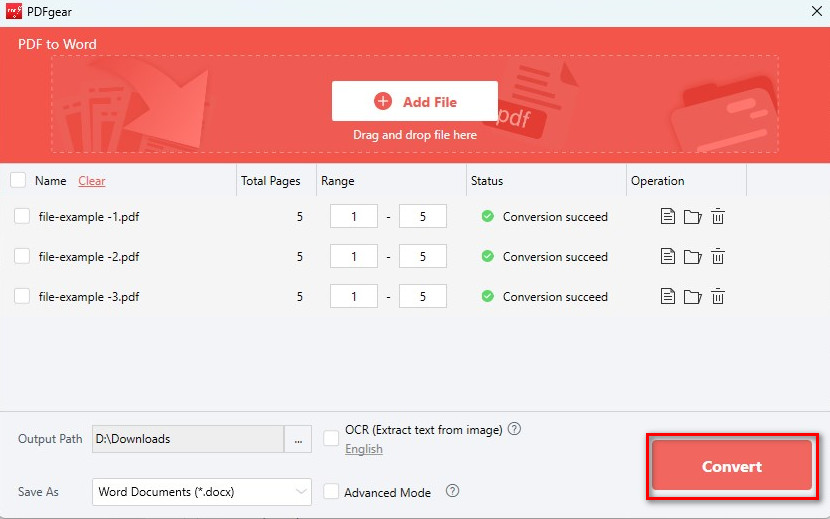
Batch Convert Secured PDF to Word
Step 5. Press the “Convert” button to begin. Then, relax and let PDFgear handle the conversion.
Convert a PDF to a Word in Laptop Using MS Word
If your laptop has Microsoft 365 installed, you’ll have access to the latest versions of Word. Word added the feature to open and convert PDF files starting with version 2013.
The conversion works well with simple PDFs, but more complex ones (with tables and columns) might not convert perfectly.
Step 1. Open Microsoft Word. Click File in the top-left corner, then click Open. Find the PDF you want to convert on your computer and select it.
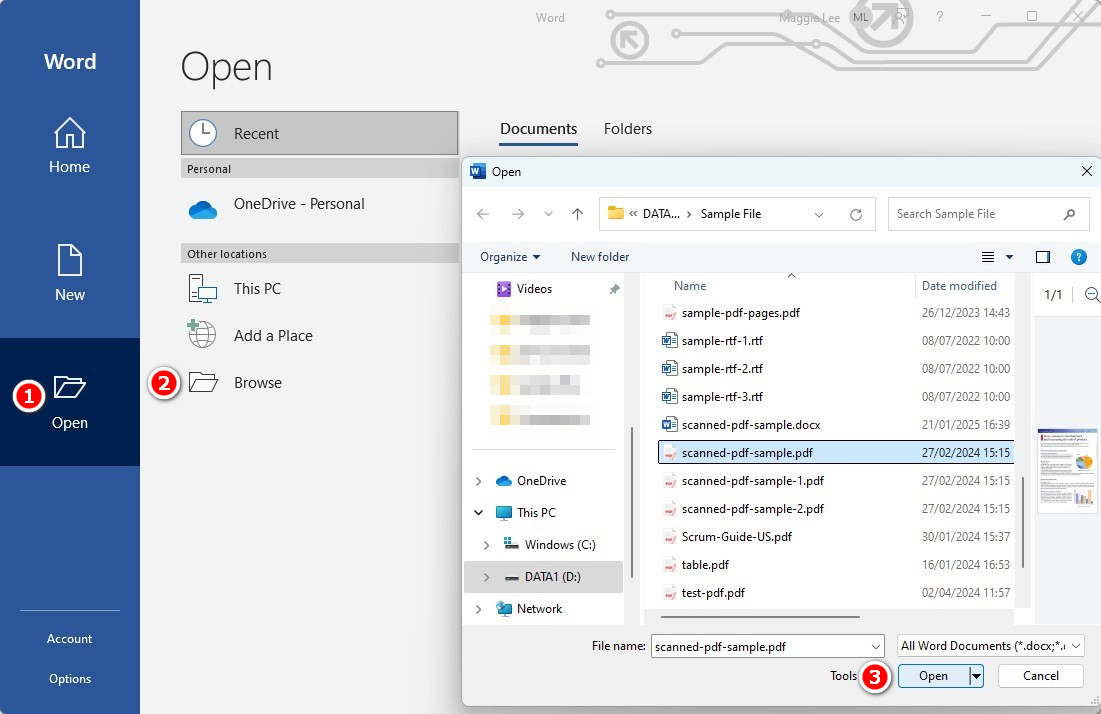
Open a PDF in MS Word
Step 2. Word will show a message saying it will convert the PDF into an editable Word document. Click OK to proceed.
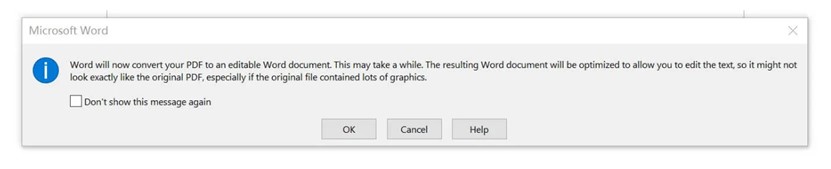
Wait for the Conversion to Complete
Step 3. You can now edit the document as needed. To save the document, click File > Save As and choose a location to save it as a .docx or .doc file.
FAQs
How to convert PDF to Word in laptop without Acrobat?
PDFgear is the best free alternative to Adobe Acrobat. It lets you convert one or more PDFs to Word online and offline for free. Simply try the PDFgear online PDF to Word converter, or download PDFgear to convert PDFs to Word on your laptop.
How to edit a PDF without converting it to Word?
PDFgear allows you to edit a PDF as easily as a Word document. It lets you modify text, images, and links directly within the file.
How to convert a PDF to Word on a Lenovo laptop?
No matter what operating system your Lenovo laptop uses, the PDFgear online PDF to Word converter is here to help you convert PDFs to Word. No download, no signup, no watermark. You just need to drag and drop a PDF onto the online converter, and PDFgear will handle the rest.
How to convert PDF to Word in laptop Windows 7?
To convert a PDF to Word on a Windows 7 laptop, we recommend that you use the PDFgear online PDF converter. Just upload your PDF file, then download the converted Word document to your laptop.
