How to Convert PDF to JPG on iPhone: 4 Efficient Ways to Consider

Summary :
This article provides 4 instructions on how to change PDF to JPG on iPhone. Learn how to create a custom PDF-to-JPG workflow step-by-step with the Shortcuts app and discover a free alternative to Adobe Acrobat Reader.
Table of Contents
How to Convert PDF to JPG on iPhone
JPEG(or JPG) is a widely supported image format, whereas PDF is primarily for document viewing and printing. Changing PDF to JPG can make the file more universally compatible and easier to share with others, especially those without a PDF viewer.
What’s more, converting PDFs to the more compressed JPEG format can significantly reduce file size, saving the storage space on your phone.
In this guide, we will show you 4 effective methods to turn PDF into JPG on iPhone.
Let’s dive into the ways right away.
How to Convert PDF to JPG with Free PDF Converter for iOS
PDFgear for iOS is a free PDF editing app for iPhone and iPad, with comprehensive features to read, edit, convert, rotate, compress, and chat with PDFs. etc.
With PDFgear for iOS, you can easily conduct your business on the go by signing PDF files anytime, anywhere.
Additionally, converting PDFs is also no longer limited to computers or tablets, as you can now perform these tasks directly on your iOS device.
The amazing part is that PDFgear for iOS is completely free to download and use, with no sign-up, ads, or watermarks.
Step 1. Download PDF-to-JPG Converter from the App Store
Open the App Store on your iPhone, search for “PDFgear”, and then download the PDFgear app to your mobile device. Once downloaded, open the PDFgear app, and you will see the homepage of the application.
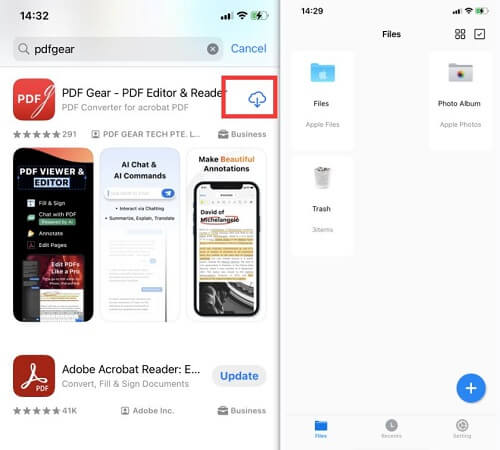
Run PDFgear on Your iPhone
Step 2. Change PDF to JPG
On the homepage of PDFgear, click Files to open a PDF document. Hit the Three Dots … in the upper right corner, select Convert in the menu, choose JPEG(*jpeg), and then hit the Convert button.
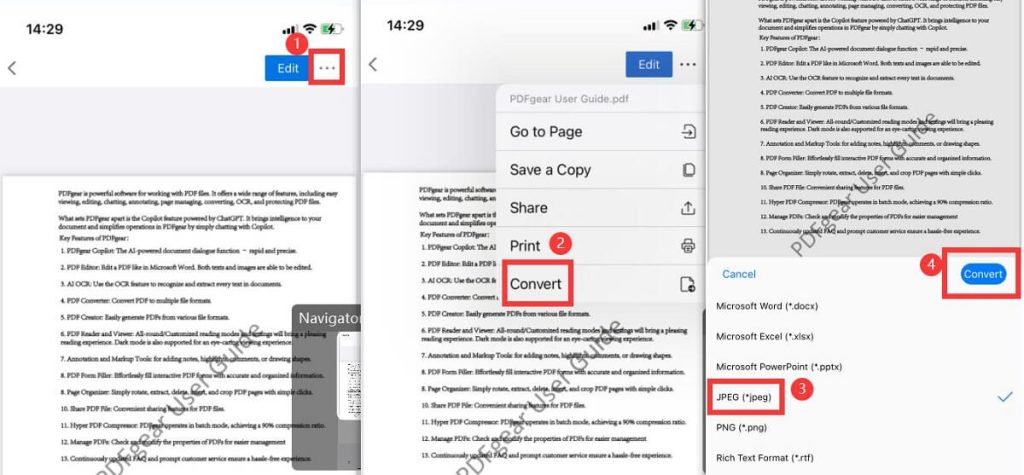
Remake PDF to JPEG with PDFgear for iOS
Step 3. Check Your JPG File
After you click Convert, PDFgear will generate a JPEG file for the PDF file. You can access the image on the homepage of the PDFgear application.
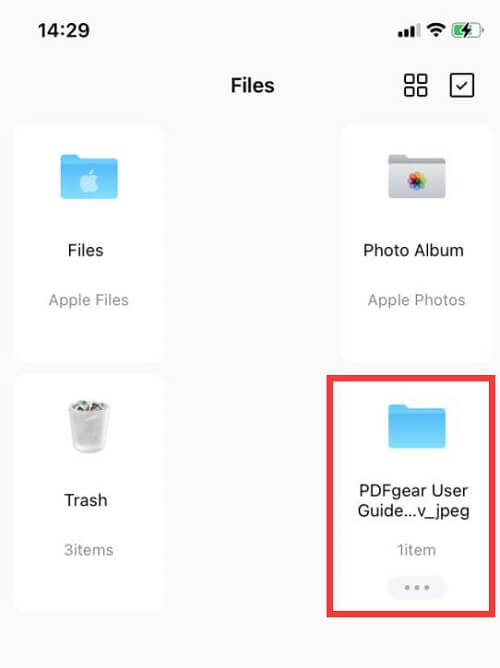
Check the JPEG File
How to Change PDF to JPG on iPhone via Adobe Acrobat Reader
If you’ve got the subscription version of Adobe Acrobat, you can convert .pdf to .jpg on iPhone with Acrobat Reader.
Step 1. Open a PDF Document
Run the Adobe Acrobat Reader app and open a PDF document.
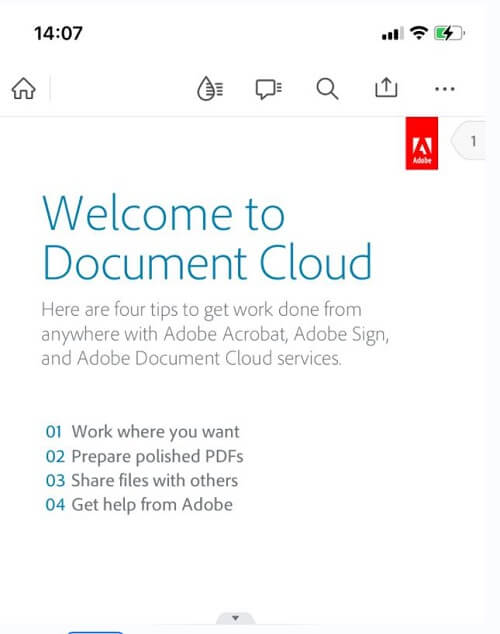
Open a PDF File with Adobe Acrobat Reader
Step 2. Export PDF to JPG with Adobe Acrobat Reader
Tap on the three dots in the upper right corner, select Export as…, choose JPEG(*jpeg) under the Image section, and click Continue to go on. Select the pages needed and click Save to Photos to save the converted JPEG files to your phone.
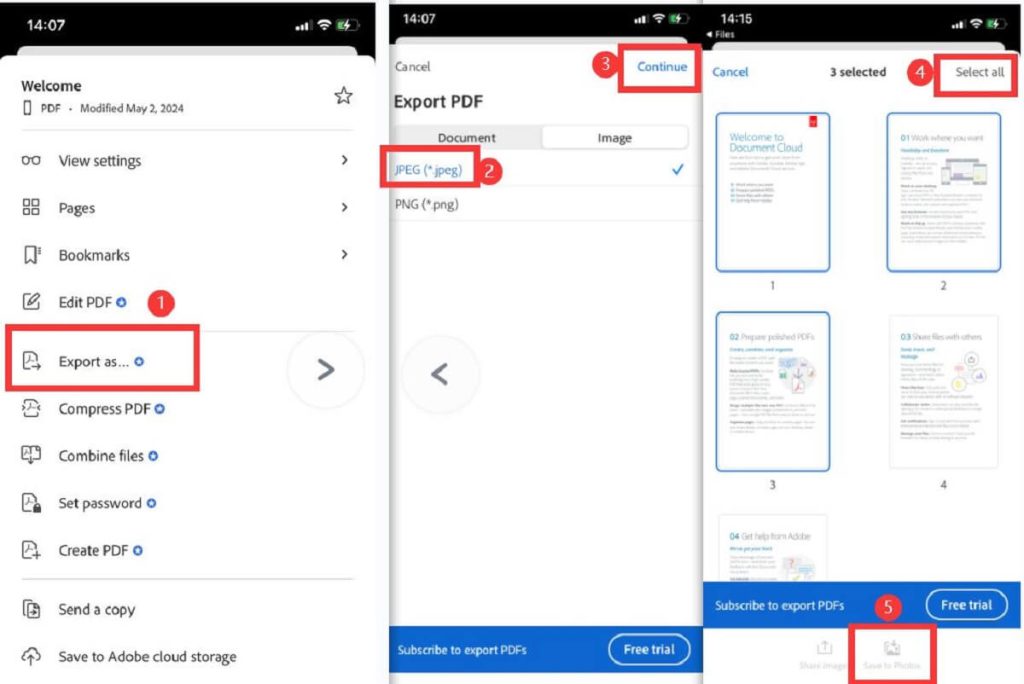
Change PDF to JPG on iPhone with Adobe Acrobat Reader
How to Transform PDF to JPG on iPhone Using Built-in Shortcuts App
Shortcuts is a powerful app on the iPhone that allows you to create custom “shortcuts” to change PDF to JPG without additional software download.
The steps to create a shortcut are a little bit frustrating, but you can follow the detailed steps below to generate a custom PDF-to-JPG workflow on your iPhone.
Step 1. Open Shortcuts App on Your iPhone
Open the Shortcuts app on your iPhone, and tap + at the upper right corner. Click + Add Action, enter PDF in the search field, and scroll down to select Make Image from PDF Page.
Step 2. Customize the PDF-to-JPG Shortcuts
- Tap PNG image and choose JPEG image instead.
- Click PDF and select Shortcut Input.
- Tap Images and 18 more, then choose PDFs only, this step helps you to decide what types of content you want to receive for the shortcuts.
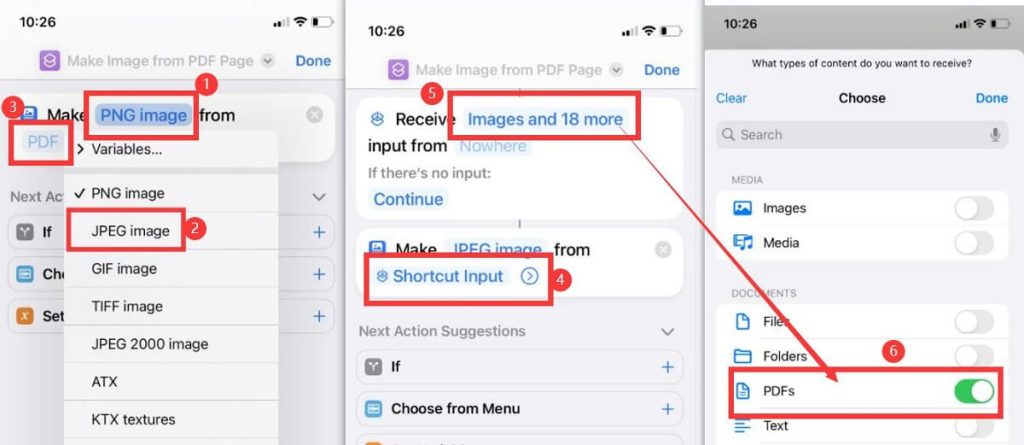
Set the PDF to JPG Shortcuts
- Click Nowhere, check Show in Share Sheet, and hit Done to continue.
- Type documents in the search field, choose Save File and select Ask Where to Save.
- Rename the shortcut, PDF to JPG, for example, and click Done to finish setting the shortcuts.
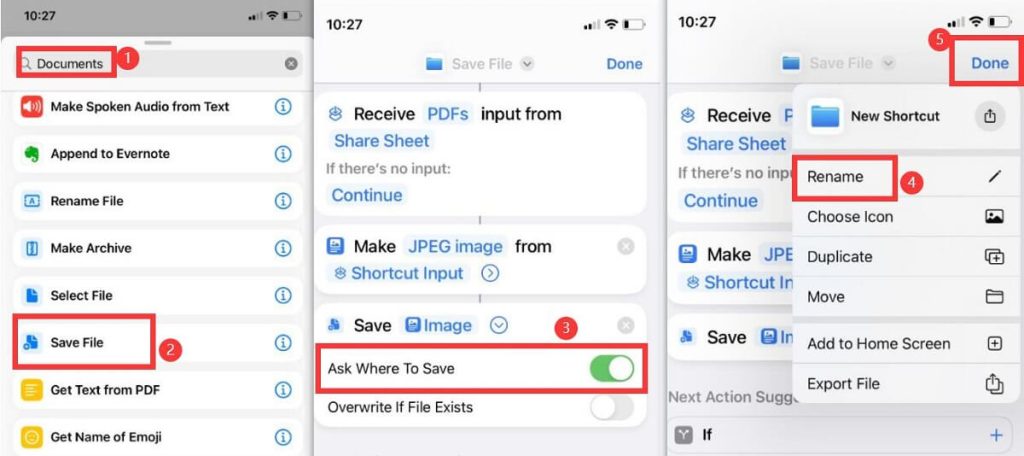
Save the PDF to JPG App
Step 3. Transform PDF to JPG with the Custom Shortcuts
Open a PDF file in the Files app, click the print icon, and scroll down to select the PDF to JPG shortcuts you created, choose a location to save the JPG file, and click Open, then you will see the JPG file in your chosen folder.
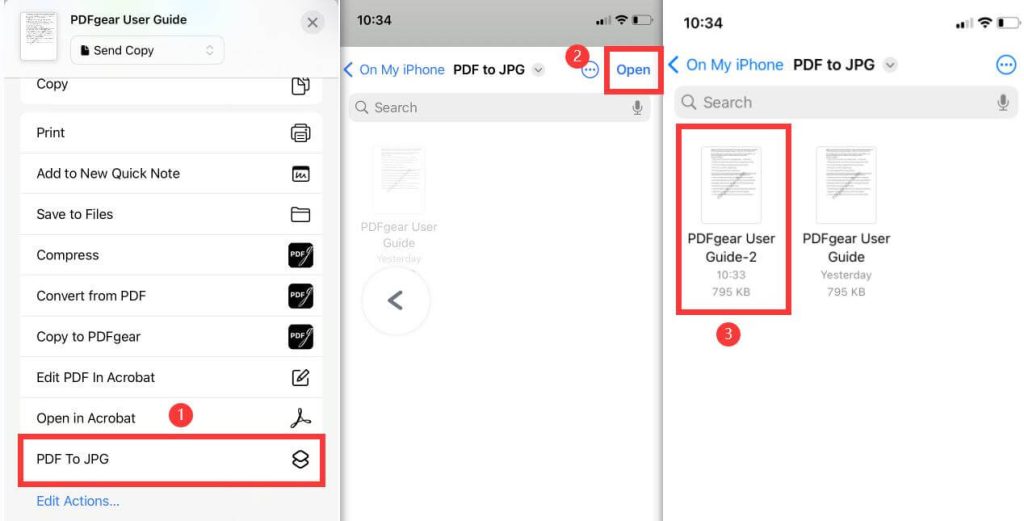
Transform PDF to JPG with iPhone Shortcuts
How to Turn PDF into JPG on iPhone Free Online
If you prefer download-free methods to remake PDF to JPG, or you find it frustrating to generate a custom shortcut, you may try to get PDF converted to JPG on mobile with free online tools.
PDFgear offers a suite of online tools that lets you make changes to a PDF document, such as editing, converting, compressing PDFs, and more.
No email registration, no watermarks for the exported files, and even no annoying ads. All you need is a stable internet collection.
Step 1. Upload a PDF File to Online PDF to JPG Converter
Open PDFgear online PDF to JPG Converter on your iPhone browser, and click Choose files to upload a PDF file to convert.
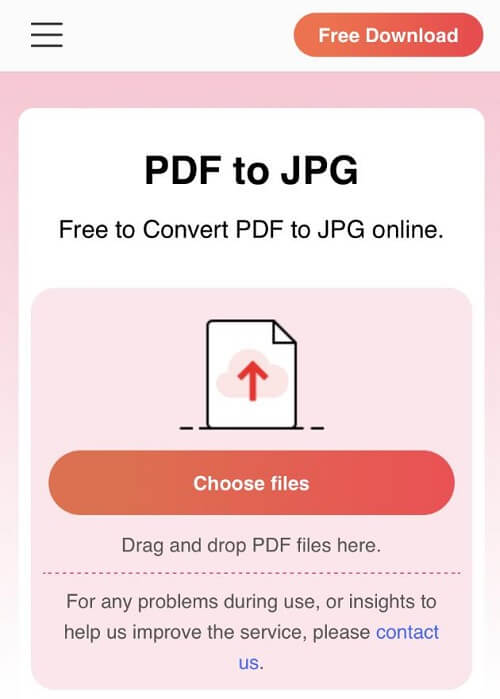
Upload a PDF Online
Step 2. Download the ZIP File
When importing a PDF online, PDFgear will automatically initiate the conversion process. Then hit the Download button to save the zip file.
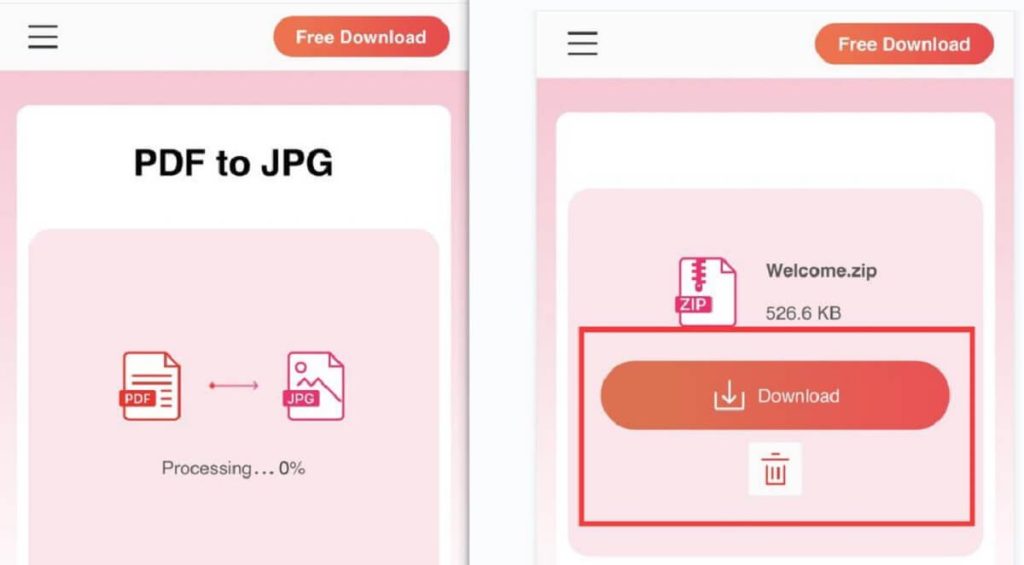
Download the Zip File
Step 3. Get Access to the JPG Files on Your iPhone
Once you download the Zip file, select Open it with Other Apps, and choose Save to Files. Then, go to the Files app on your iPhone, find the Zip file, and simply tap on the Zip file. This will generate a new folder that contains all the pages from the PDF file in JPEG format.
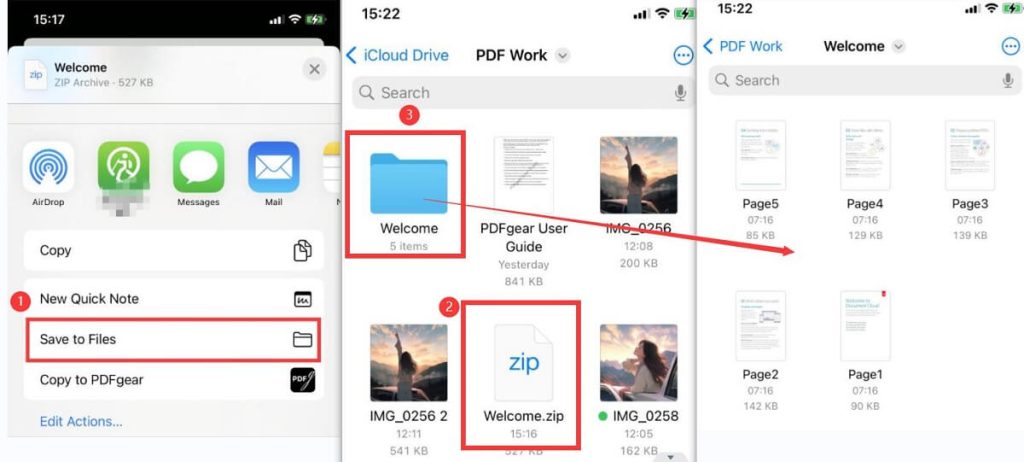
Get Access to the JPGs on iPhone
FAQs About How to Convert PDF to JPG on iPhone
What is the free app to alter PDF to JPG?
PDFgear, a comprehensive PDF editor and converter, is compatible with Windows, macOS, iOS, and Linux. It is completely free to download and use. Curious about why PDFgear is free of charge? Click here to learn more about it.
What is the fastest way to convert HEIC to JPG on iPhone?
Open the Photos app, and select a photo you want to convert. Tap the Share icon, and select Copy Photos.
Go to the Files app, create a new folder On My iPhone, open the folder, and hold on a space to Psate the photo, the HEIF photo will show up in JPEG.
How to convert PDF to JPG on Android mobile?
For Android users, you can use the PDFgear online converter, which allows you to turn PDF documents into JPG files for free, without the need to download any additional software. This online tool is completely safe to use.
Final Thoughts
To sum up, converting PDF to JPG on mobile is no longer a tough task, thanks to the availability of suitable conversion tools.
For iPhone users, you can either create a PDF to JPG converter with the powerful Shortcuts app or use an online PDF converter to address the issue.
Notably, PDFgear stands out as it is a versatile PDF converter and a comprehensive AI PDF editor. This allows you to work with your PDFs effortlessly, with a wide range of features beyond just conversion.
