How to Combine PDF Files on Mac for Free

Summary :
This article covers four easy ways to combine PDF files on a Mac, using either built-in tools or free third-party mergers.
Table of Contents
Merging PDFs on a Mac should be easy, but the built-in tools often fall short. Finder can only combine full files, and Preview makes it easy to overwrite your originals or lose track of page order.
Because of these limitations, many users look for a more reliable option. PDFgear provides exactly that. This free PDF toolkit lets you merge only the pages you need, arrange them effortlessly, and compress the final file without altering your source documents.
Combine Multiple PDFs on Mac with PDFgear Mac App
PDFgear for Mac is a free all-in-one PDF toolkit designed to make everyday tasks simple, and merging PDFs is one of its easiest features. Unlike Preview, you don’t need to drag pages around a cramped sidebar or worry about clutter. PDFgear lets you set custom page ranges in seconds, and you can even compress the final file immediately after merging.
Whether you’re looking to combine two PDFs on Mac or merge multiple documents into one, PDFgear offers two straightforward methods: a page-level editing workflow for full control, and a fast multi-file merge when you just need a quick result.
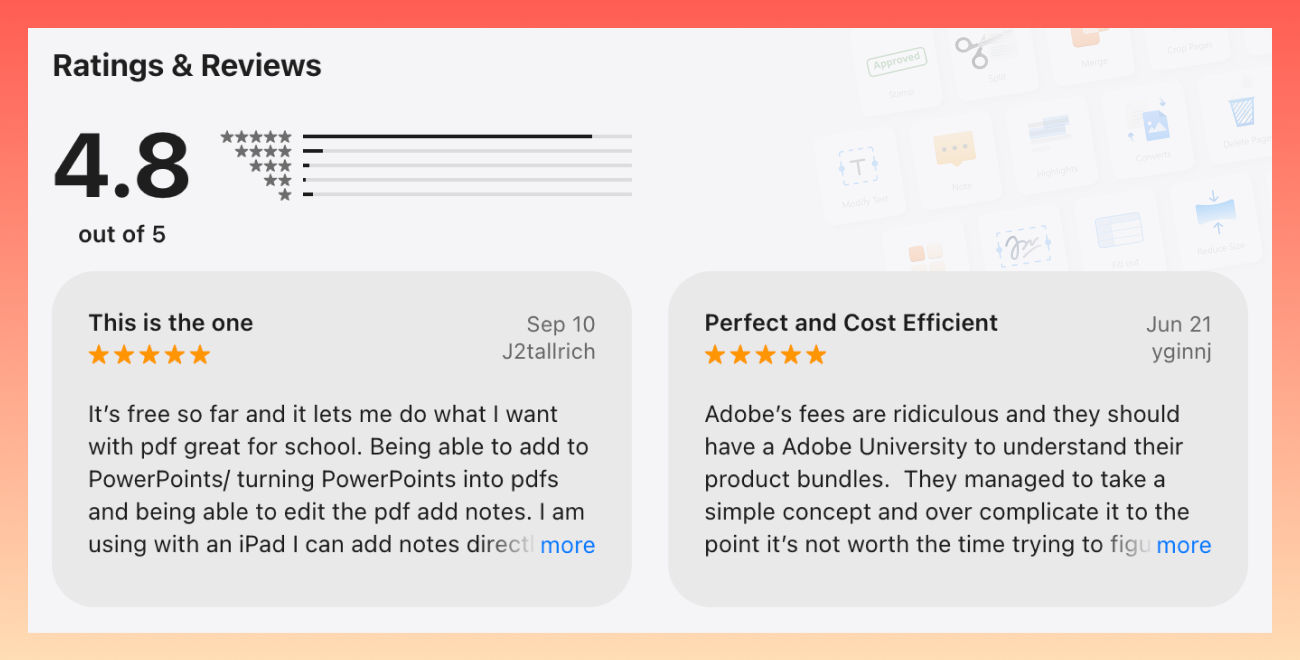
Before we walk through them, here’s a quick look at what real Mac users are saying about PDFgear.
Merge PDFs with Page-Level Editing
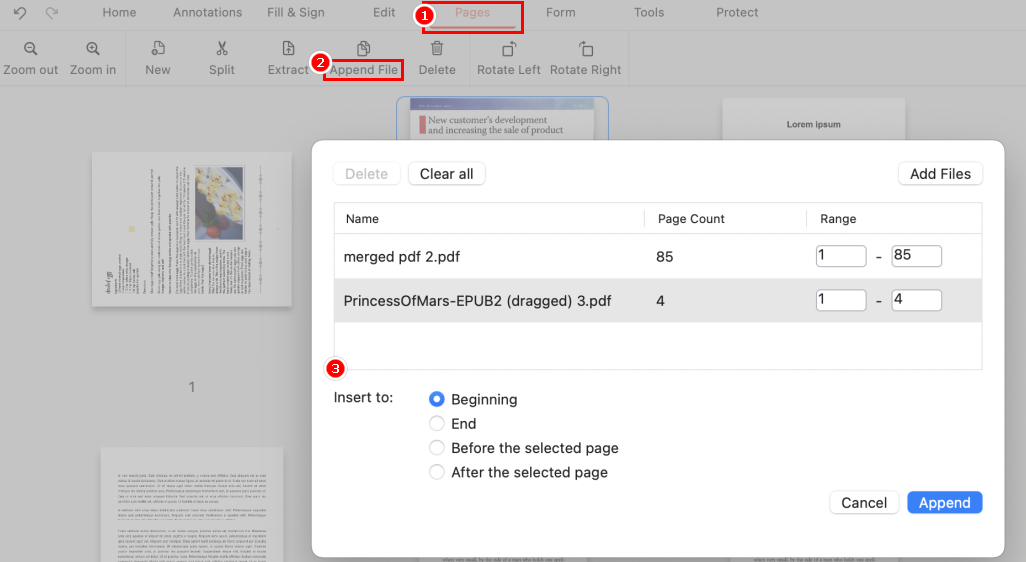
1. Open any PDF in PDFgear.
2. Go to the “Pages” toolbar and choose “Append File”.
3. Select one or multiple PDFs to add.
4. Choose where the new pages should appear and set custom page ranges.
5. After inserting, you can freely drag pages to reorder them or delete the ones you don’t need.
Combine Two PDFs on Mac for Free
Fast Merge for Multiple PDFs
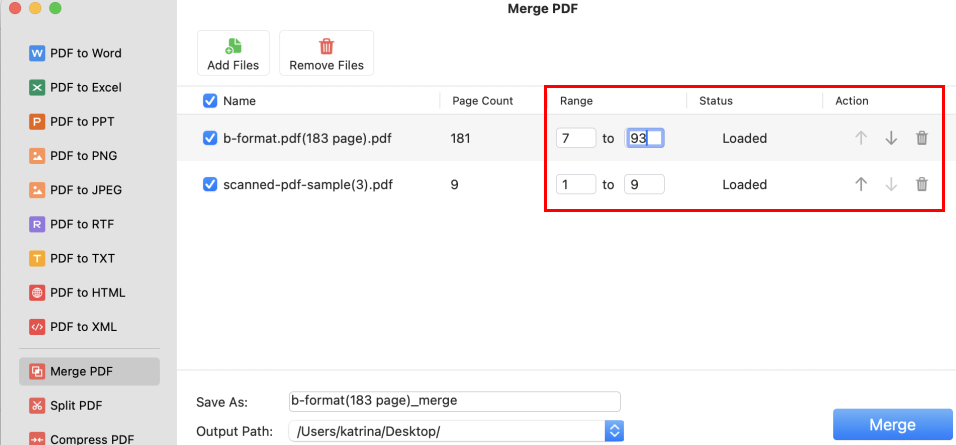
1. Download PDFgear and open it. Click the “Merge File” tool from the home screen.
2. Hit the “Add Files” button to import the PDFs. There are no limits on the number of files or their size.
3. PDFgear gives you full control: choose page ranges for every file and adjust their order in seconds.
PDFgear is more than a merge tool. If your combined file turns out too large, you can instantly compress it within the app to make sharing easier.
Combine PDF Files with PDFgear for Mac
If you’d rather not install any software on your Mac, you can use PDFgear’s online tools instead. They provide the same simple workflow, along with advanced options for merging PDFs.
Merge PDFs Online on Mac without Signing In
With the PDFgear online merger, you can combine whole PDFs or select only the pages you want. Each page is shown in a clear tiled view, making it easy to see what you are working on and to reorder pages with a simple drag.
Most online PDF tools upload your documents to a server, but PDFgear works differently. It performs front-end processing, which means all tasks run locally in your browser with no server uploads. Since your files never leave your device, there is no risk of data leaks, and your privacy stays protected.
Here’s how it works:

1. Go to PDFgear online merger, click “Select PDF file(s)” to choose a PDF. You can press “Command” to add multiple files at once.
2. To add more files, click the “+” icon. Drag files to change their order. For more control, turn on the “Show Pages” option to expand every page in each PDF. You can then drag to reorder pages or delete the ones you don’t need.
A user-friendly design: highlight each file in different colors, making it easy to tell pages apart.
3. When you’re done, click the “Export” button to finish and save your merged PDF.
How to Combine PDF with PDFgear Online Merger
Combine Two PDFs on Mac in Preview
If you still want to use the built-in app on Mac, Preview can assist. Besides viewing and annotating, it also lets you merge PDFs quickly. You can combine entire files or select pages.
Follow these steps:
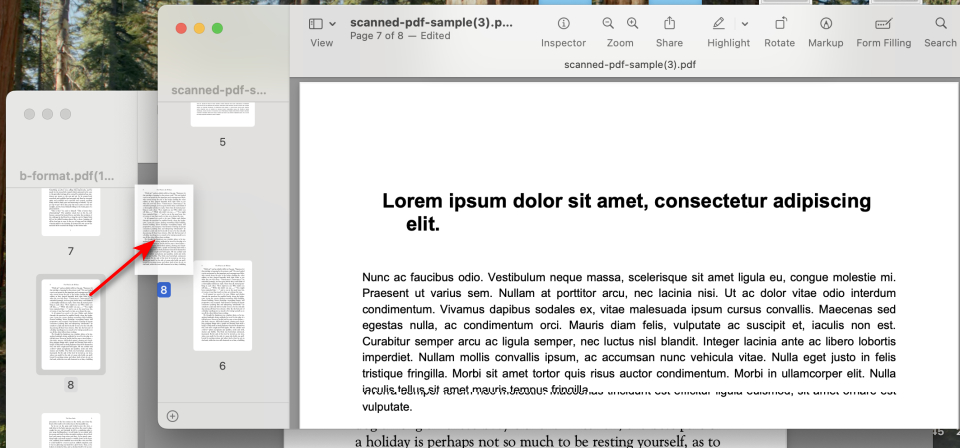
1. Open the two PDFs with Preview. Go to “View” > “Thumbnails” to show page thumbnails.
2. To merge a whole PDF: Select “Edit” > “Insert” > “Page from File”, choose the PDF you want to add, and click “Open”.
To merge only certain pages: Open another file in Preview as well. Select the page in thumbnail view that you want, then drag it into the sidebar of the other PDF. Drop them in the position you prefer.
3. When finished, go to “File” > “Export as PDF” to save your combined document.
Merge PDF Add Files
Note:
Preview does not provide a second confirmation step. Once you merge, the files are overwritten immediately, which puts your originals at risk if you make a mistake. Always create a backup before using it.
Since combining in Preview relies only on dragging from the thumbnail bar, it’s also easy to misplace pages.
Additionally, the merge process may strip out a file’s directory, bookmarks, or annotations, which can negatively impact the reading experience.
Merge PDFs on Mac with Finder
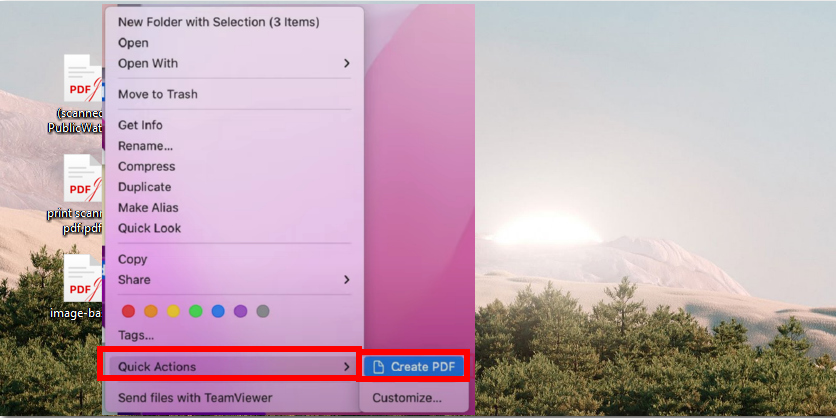
When you just need a quick merge without rearranging or deleting pages, Finder can be a simple solution: Place all the PDFs in one folder, hold Command to select them, right-click, choose Quick Actions, then select Create PDF.
Merge Multiple PDFs with Finder
However, Finder only stitches files together in sequence. It does not allow any page-level editing, such as deleting, rotating, or inserting pages during the process.
Why Choose PDFgear
For a quick overview, here’s a comparison table showing the key features and advantages of each tool.
| Feature | Preview | Finder | PDFgear Software | PDFgear Online Merger |
| File merging | ||||
| Selective merging | Difficult to operate | Custom page ranges | ||
| Page reordering | Manual thumbnail drag | Tiled view | ||
| File compression | Unstable results | Three levels available | ||
| Password protection | ||||
| Cross-platform use | macOS/iOS only | macOS only | All Platforms | All Platforms |
| Cost | Free | Free | Free | Free |
| Data security | Local processing, high security | Local processing, high | Local processing, high | Front-end processing, high |
In conclusion, Finder and Preview only cover the basics. PDFgear delivers more: flexible merging, built-in tools, and complete privacy. It’s the free all-in-one solution that makes managing PDFs on Mac effortless.
FAQs
Why Can’t I Combine PDF Files on Mac?
If you are in Preview, aside from technical issues, mistakes in dragging pages can also prevent files from merging. When you drag a page thumbnail above or below another, dividers may appear. To insert correctly, drag the thumbnail onto the exact spot, not beyond the divider.
How Do I Combine PDF Files on macOS Sierra?
On macOS Sierra or earlier, you can combine PDFs by dragging a page thumbnail directly onto a thumbnail in another PDF.
How Do I Combine PDF Files on A Mac for Free?
The easiest free option is to use Preview, which comes built into macOS. If Preview doesn’t work as expected, you can try a dedicated and free PDF merger on Mac. As an online alternative, PDFgear online merger also lets you merge PDFs quickly and securely on your Mac.
