How to Change Font Size in PDF

Summary :
This article shows you how to effectively increase or decrease font size in PDF files using PDFgear’s free tools and Adobe Acrobat Pro.
Table of Contents
Adjusting font size helps improve readability, keeps things looking neat, and ensures important details stand out.
On this page, you’ll learn the effective ways to increase or decrease font size in PDF documents on computers and mobile phones.
Change Font Size for Existing Text in PDF for Free
PDFgear is a free and powerful PDF text editor on Windows and Mac computers. With it, you can easily edit PDF files as you would with Microsoft Word.
From an easy-to-use interface, you can intuitively select and edit existing PDF text, including font type and font size. You can also replace or delete PDF text if needed.
PDFgear is free to use, now get it to get started!
Video Tutorial

Identify and change PDF font type, edit PDF text, and increase/decrease font size for free.
Step 1. Download and install PDFgear on your device. Fire up PDFgear, and click Open File to open the PDF you need.
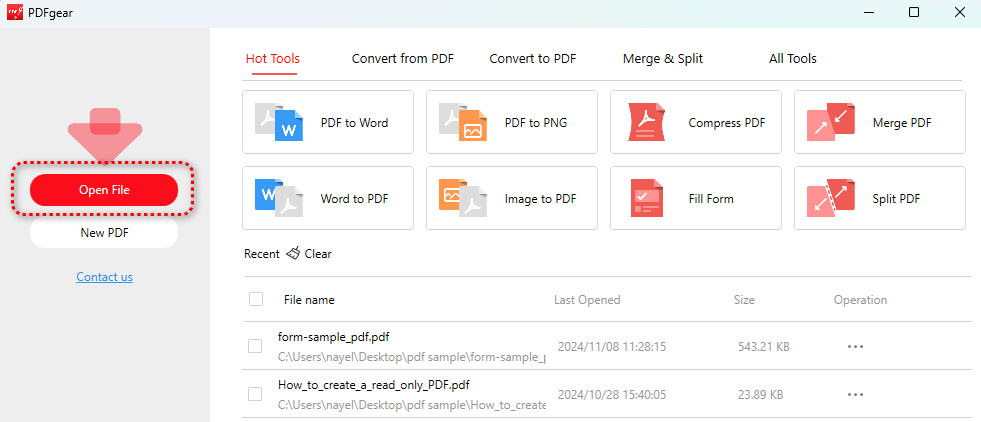
Open File
Step 2. Go to the Edit section and click the Edit Text tool from there.
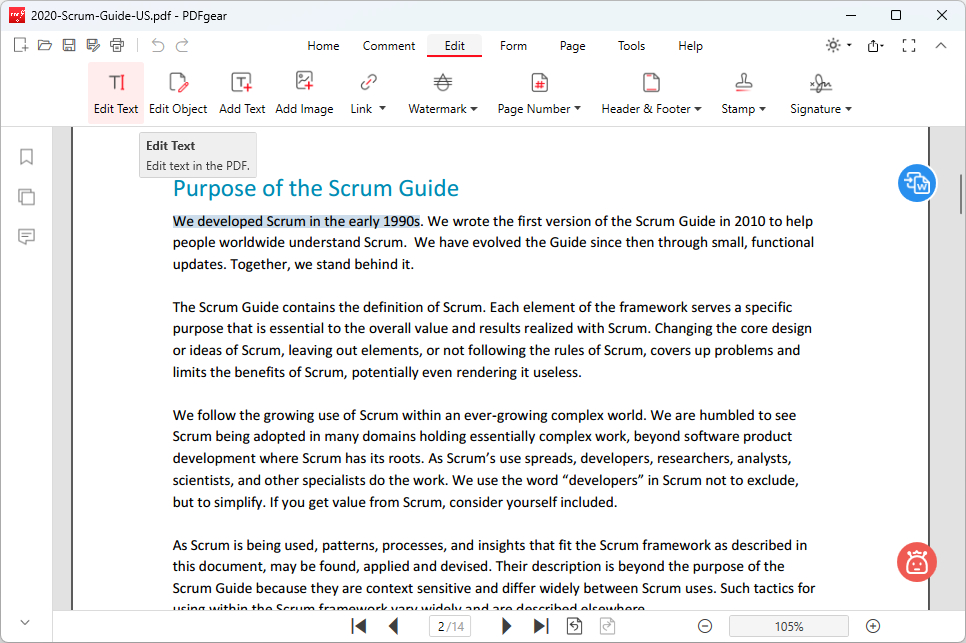
Click Edit Text
Step 3. In the text editing mode, select the PDF text you need to modify, click the font size button above, and choose a preferred font size from the dropdown list.
As you can see, you can increase or decrease font size with a dozen options.
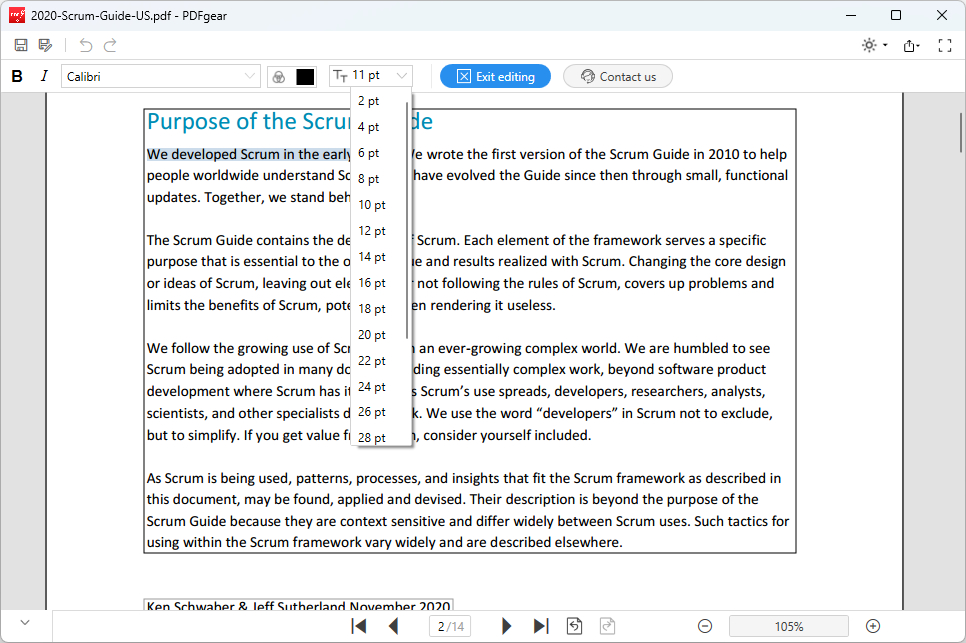
Change Size
Step 5. Once done changing the text font, click the upper Exit editing button to exit the text editing mode.
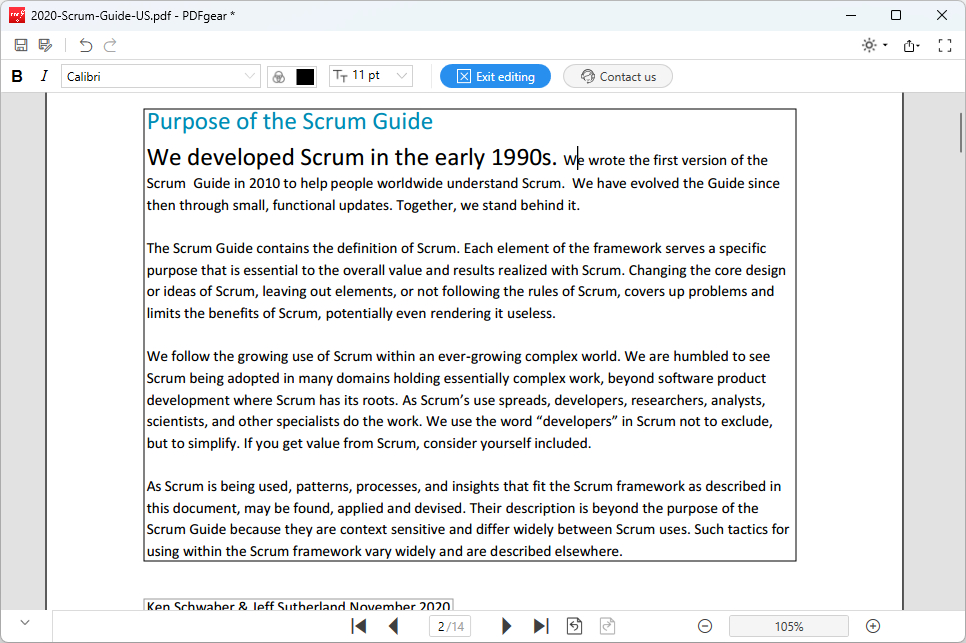
Exit Editing
Step 6. Review your document to see if you’re satisfied with the result. If yes, click the upper-left Save as button to save the new PDF.
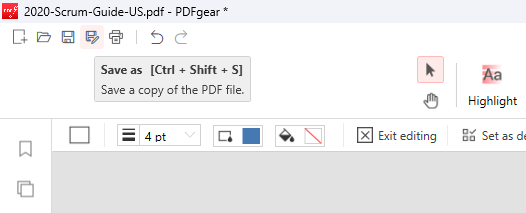
Click Save as
Change Font Size in PDF Online for Free
PDFgear online PDF editor is a practical tool for you to increase or decrease font size in PDF files.
It works by whiting out PDF text and adding additional text boxes with customizable font sizes.
It works in a web browser, it’s free to use, and there’s no signup.
Step 1. Go to PDFgear online PDF editor, and click Select PDF File to open the PDF you need.
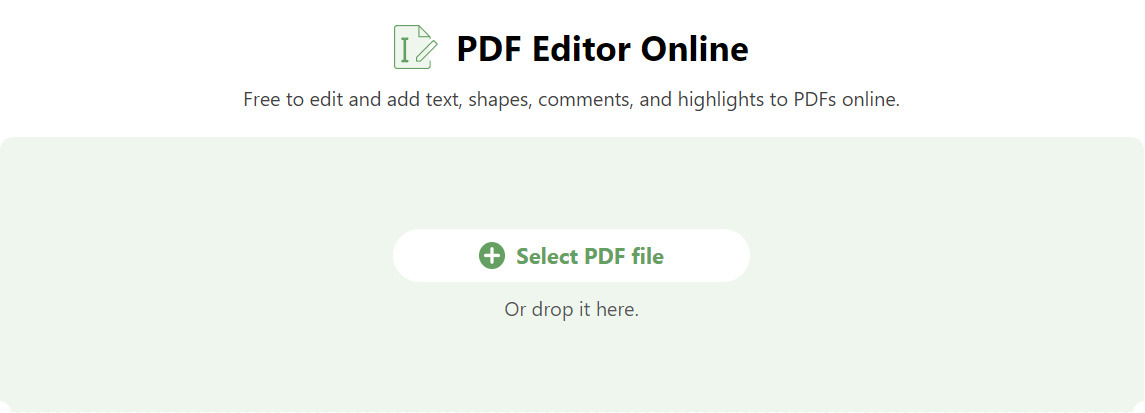
Select PDF file
Step 2. Once the PDF file is opened, go to the upper menubar and click Shapes > Rectangle. Then draw on the PDF text you need to change font size for.
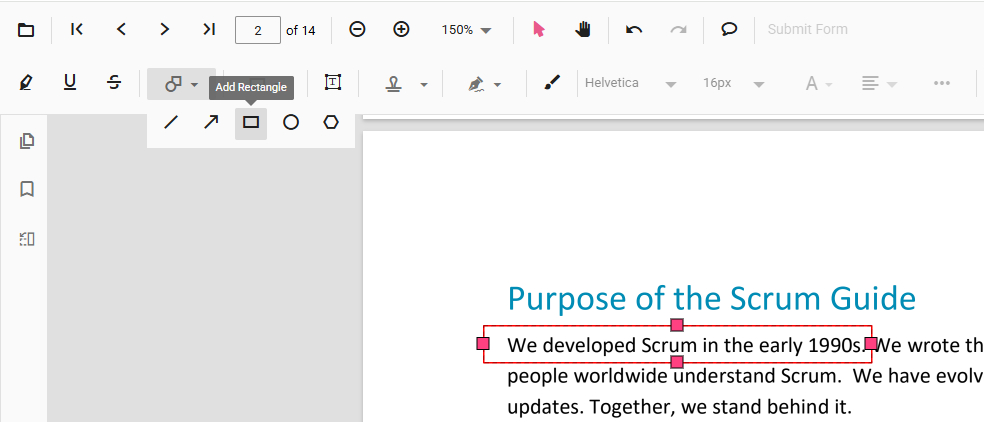
Add Shape
Step 3. Click Change Color and Change Stroke Color and change them both to white.
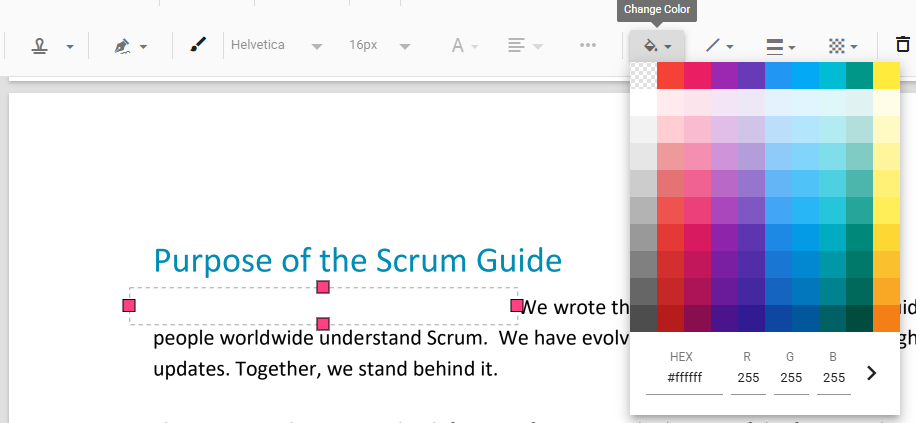
White Out Text
Step 4. Click the Free Text button above and click on the whitewash to add a textbox to the PDF, then type in the missing text.
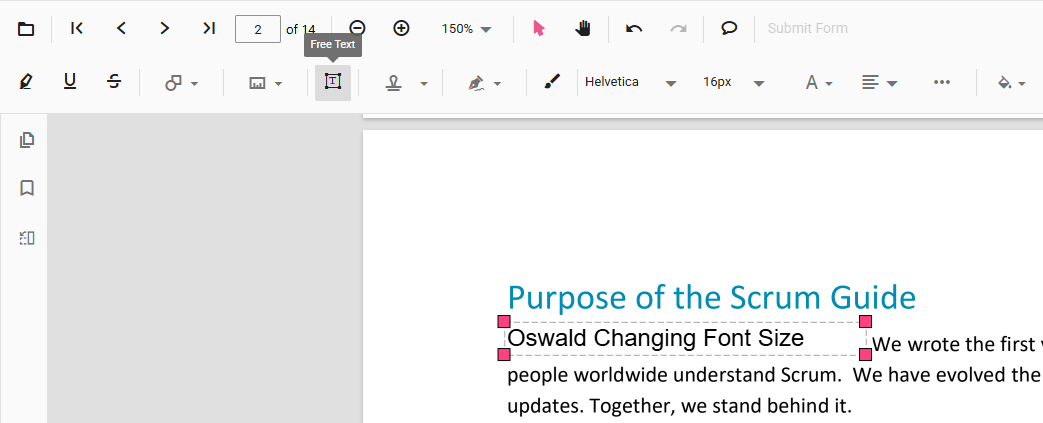
Add Text
Step 5. Select the added textbox and click the Font Size button above to increase or decrease the font size.
For consistency, you may also need to change the font type to match the original document.
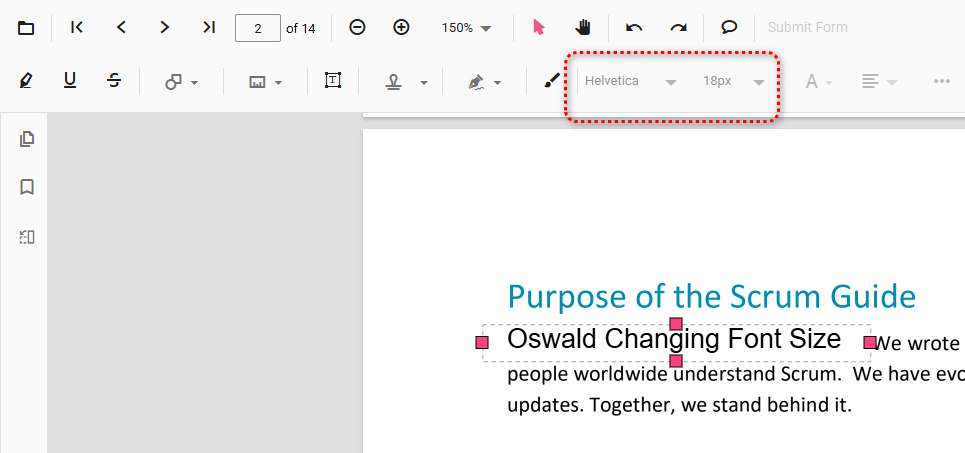
Change Font Size
Step 6. Lastly, go to the upper-right corner and click Download file to save the modified PDF.
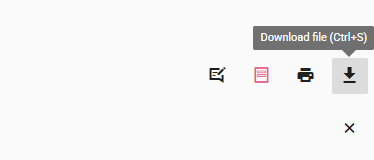
Click Download File
Change Font Size in PDF on Mobile for Free
PDFgear also offers a portable and practical mobile app that allows users to edit PDF text font easily on iPhones and Android phones.
It allows you to use one simple tap to increase or decrease the font size for paragraphs in PDF, which are recognized as text blocks.
PDFgear app is free to use, now get it from the Apple App Store or Google Play!


Step 1. Open the PDFgear app on your mobile phone, tap the lower-right Plus icon to add a PDF file to PDFgear, and tap on it to open it.
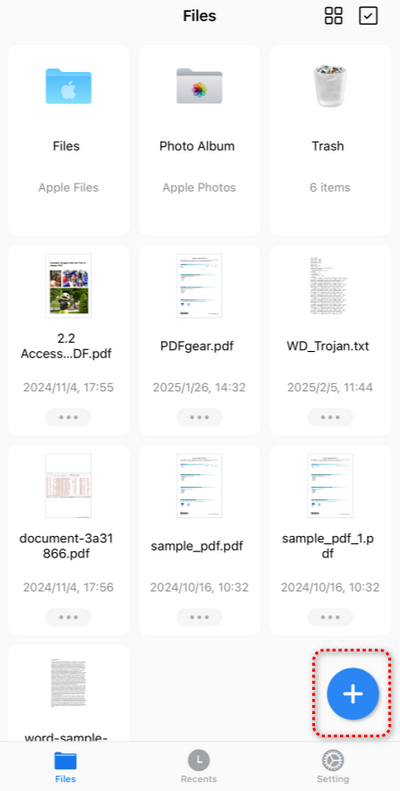
Tap Plus
Step 2. Tap the upper-right Edit button.
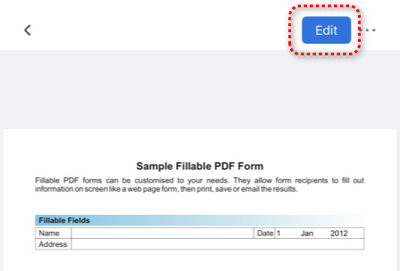
Tap Edit
Step 3. Tap the top Annotate button and select the Edit Text option.
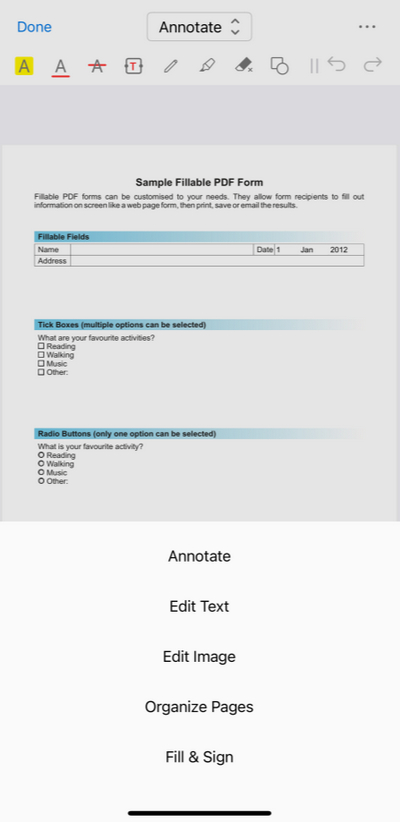
Go to Edit Text Mode
Step 4. Tap on the text block of the paragraph you need to change, and tap Increase or Decrease from the pop-up menu as needed.
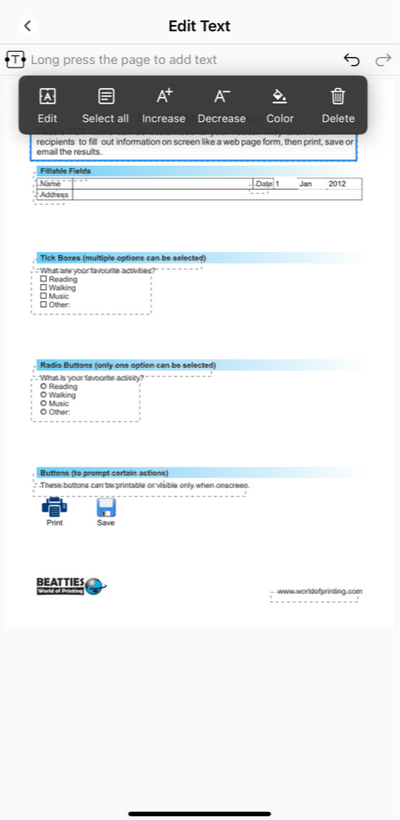
Increase Font Size
Step 5. When the PDF font is changed as desired, tap the upper-left < button to exit the text editing mode.
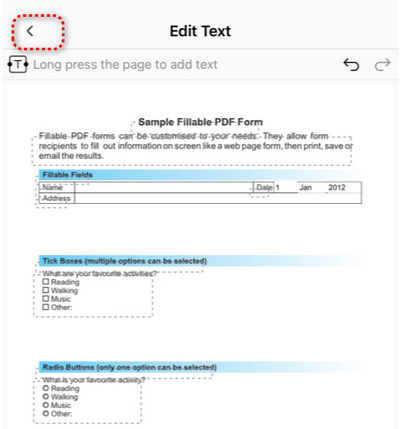
Exit Editing
Step 6. When you’re done editing, tap the upper-right triple dots button to save or share the PDF.
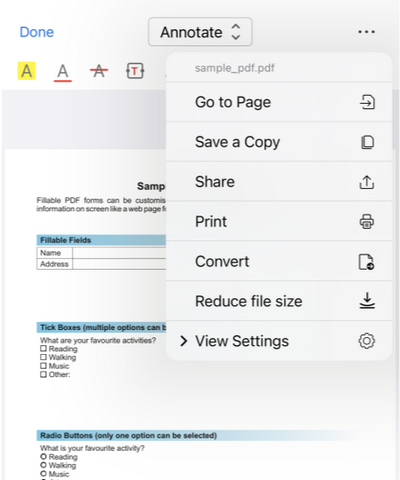
Save or Share
Change Font Size in PDF in Adobe Acrobat
Adobe Acrobat Pro offers a practical text editing feature in the Edit a PDF tool. It allows you to select and change PDF text with ease.
However, you should note that the text editing feature is only available in the pro version, instead of the free Acrobat Reader.
Step 1. Open Adobe Acrobat Pro, go to Menu > Open to open the PDF you need to edit.
Step 2. Click on the Edit a PDF button from the All tools section.
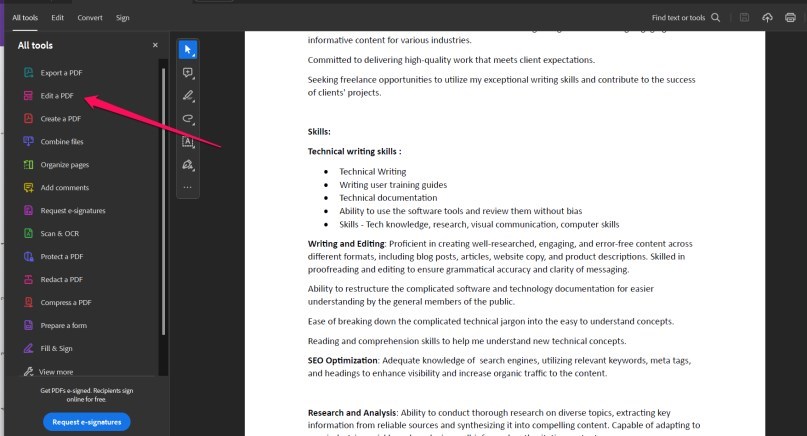
Edit a PDF in Adobe Acrobat
Step 3. Click on the text in the PDF file that you want to edit. This will make the Edit properties window appear on the left side.
Change the font size until you reach the one that you find comfortable.
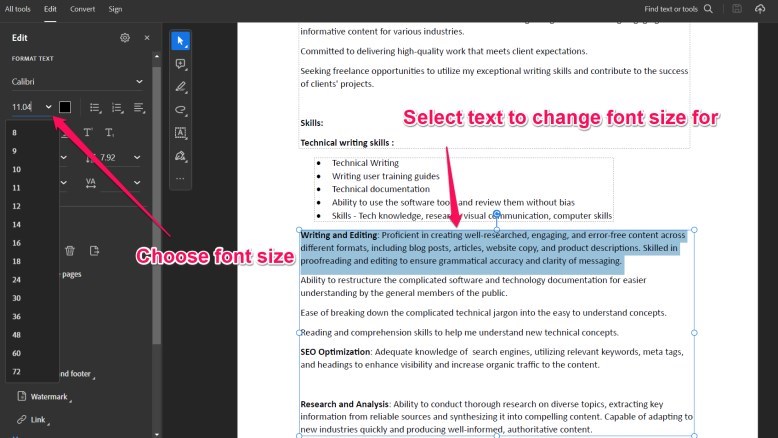
Select the Text to Change Font Size
Step 4. Click on Save once you are done to save the modified PDF.
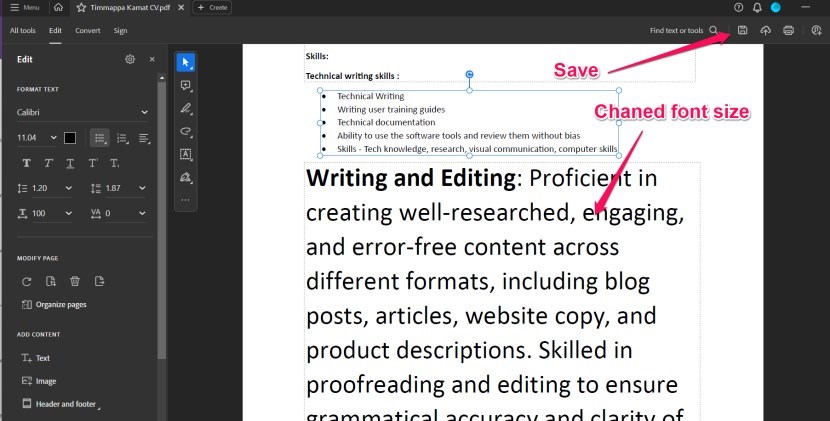
Change Font Size in Adobe Acrobat
FAQs
Why can’t I select or edit text in my PDF to change its size?
PDFs that were scanned or created from images do not contain real text but rather an image of the text. In these cases, text selection is impossible without first converting the image into editable text using OCR technology.
Will changing the font size affect the layout of my PDF?
When using the text editing feature in PDFgear, changing the font size usually doesn’t affect the layout of your PDF, but you can manually resolve formatting issues if occurred.
Can I change the font size of all text in the PDF at once?
No, you can’t. You can only change the font size of all text in one text block at a time.
Is it possible to change the font size in a scanned PDF?
Scanned PDFs are essentially images of text, so you can’t directly change the font size. However, you can use Optical Character Recognition (OCR) software to convert the scanned image to editable text, after which you can adjust the font size.
