How to Align in PDF: 4 Easy Methods

Summary :
This comprehensive guide explores specific methods for aligning PDF text using LibreOffice and Adobe. Helps you quickly align in PDFs to make them more beautiful.
Table of Contents
How to Align in PDF
Ensuring the aesthetics of PDF is very important for PDF reading. But have you ever encountered a skewed PDF or a PDF with misaligned text? The reading experience in this case is very poor.
Therefore, deskew PDF or align in PDF is crucial to ensure the clarity and beauty of the document. In this article, we’ll explore effective ways to align text in PDF, giving you the tools you need to edit your document with ease and precision.
How to Align in PDF for Free
LibreOffice is an excellent choice for those looking for a free way to align text in PDFs. LibreOffice is an open-source document editing software that provides a variety of professional PDF text editing functions.
With the help of LibreOffice, aligning text in PDF can become very simple and efficient. Users can choose to align text relative to each other or relative to the page. No account is required, LibreOffice provides a complete solution for your PDF editing needs.
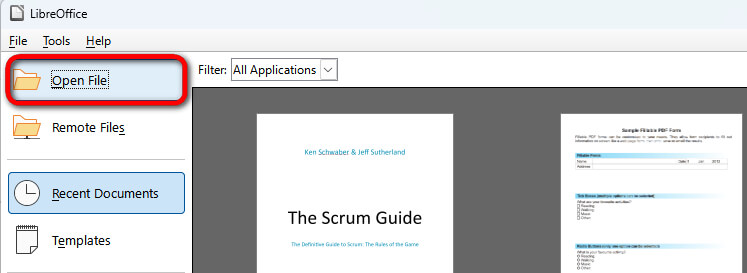
Step 1. Open LibreOffice > click “File” > “Open” to open the PDF text that needs to be edited.
Open PDF in LibreOffice
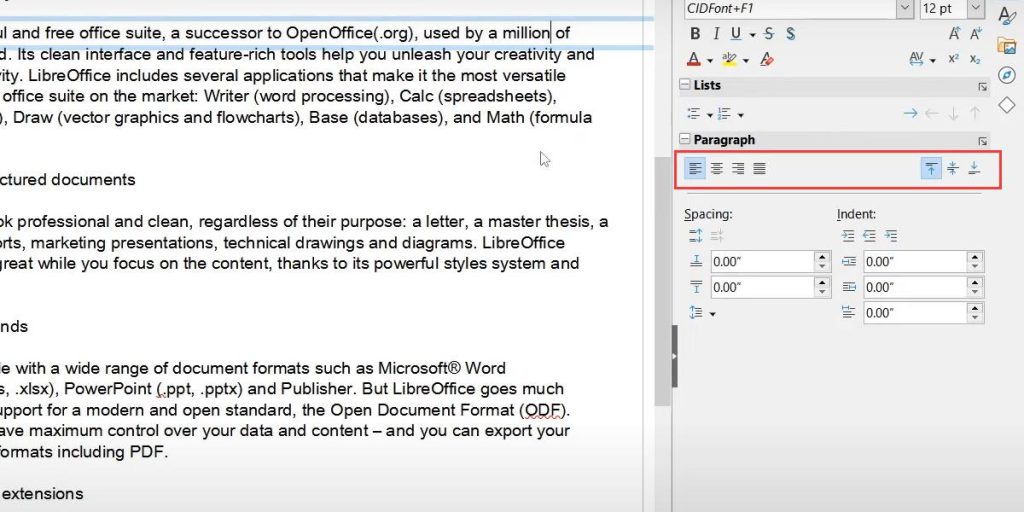
Step 2. Select the text that needs to be aligned > Click the alignment tool in Paragraph in the left toolbar. You can choose left align, center align, right align, justify align, align top, align horizontally, and align bottom.
Align Text in LibreOffice
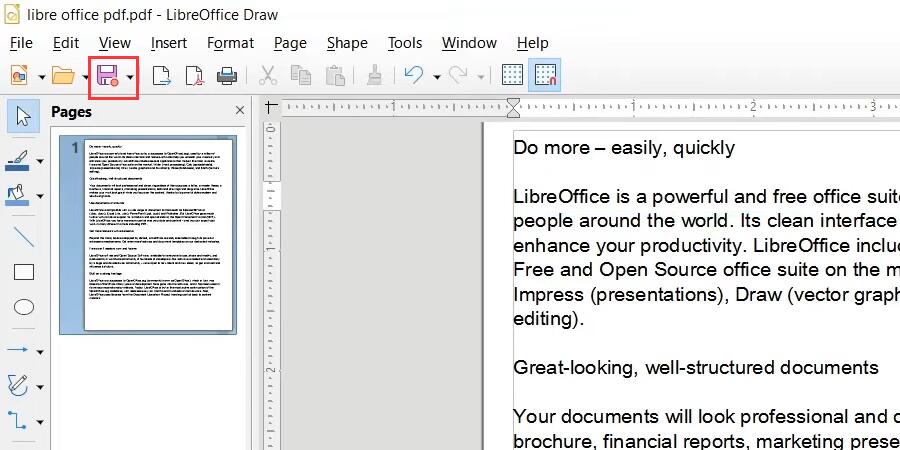
Step 3. Click the “Save” icon in the upper left corner, or use the shortcut “Ctrl+S” to save changes.
Save Edited PDF
Align Text in PDF with Adobe
Adobe Acrobat Pro DC is a popular choice for those who prefer a more powerful and professional solution. Adobe provides many advanced tools for PDF editing, including drawing on PDF, PDF page organization, and PDF text alignment.
Adobe Acrobat Pro DC provides four text alignment methods to meet almost all needs. With its intuitive interface and powerful editing tools, Adobe Acrobat Pro DC makes the process of aligning PDF text quick and easy.
Step 1. Open Adobe Acrobat > Click “File” > “Open” to open the PDF that needs to be edited.
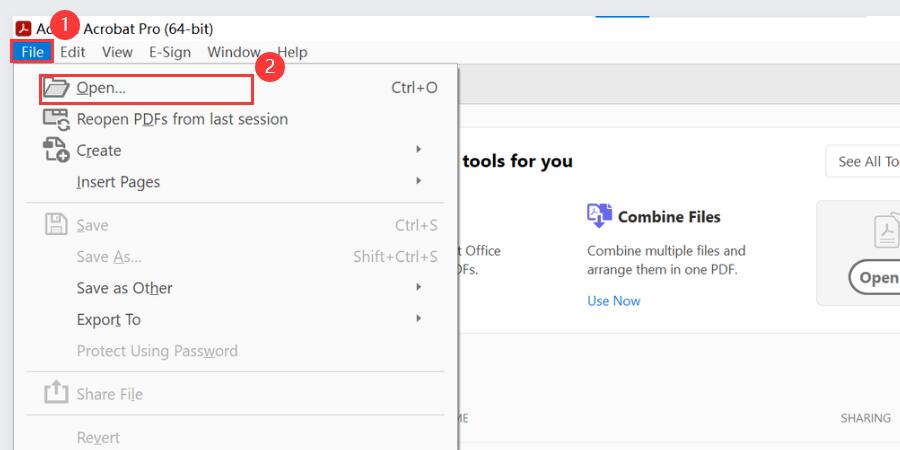
Open PDF in Adobe Acrobat
Step 2. Click “Tools” > “Edit PDF” to start editing PDF.
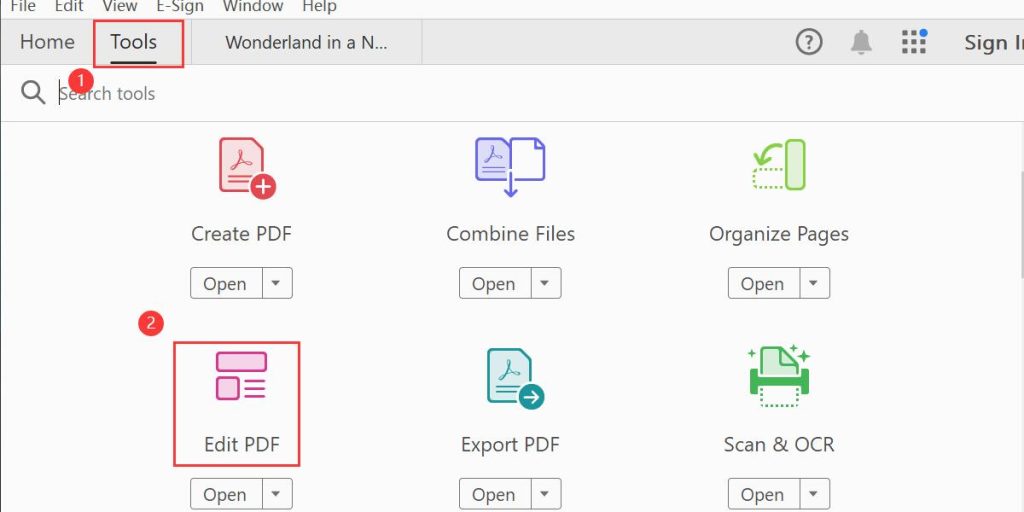
Enter Edit Mode
Step 3. Select the text that needs to be aligned > Select the text alignment method in the right menu bar. You can choose left align, center align, right align, and justify align.
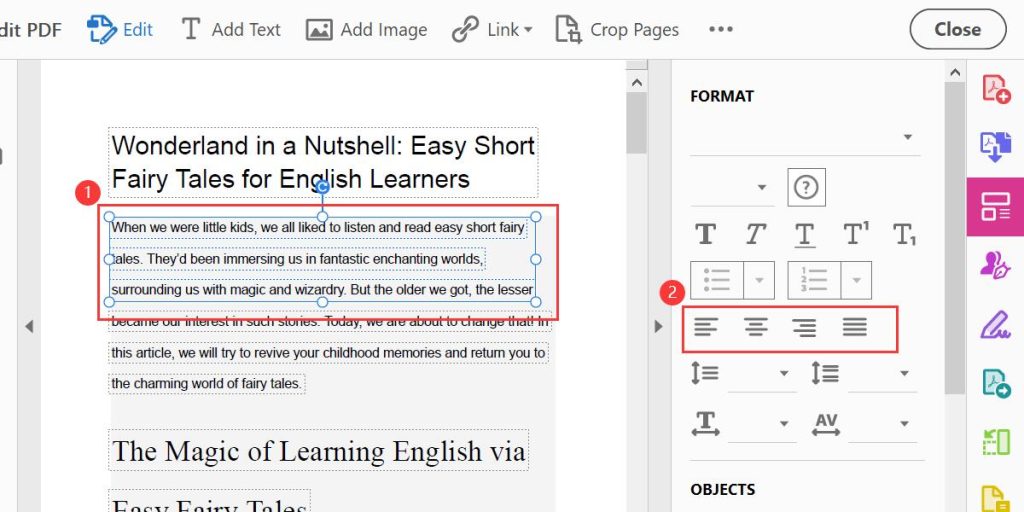
Align Text in PDF
Step 4. Click the “Save” icon in the upper left corner to save the edited PDF.
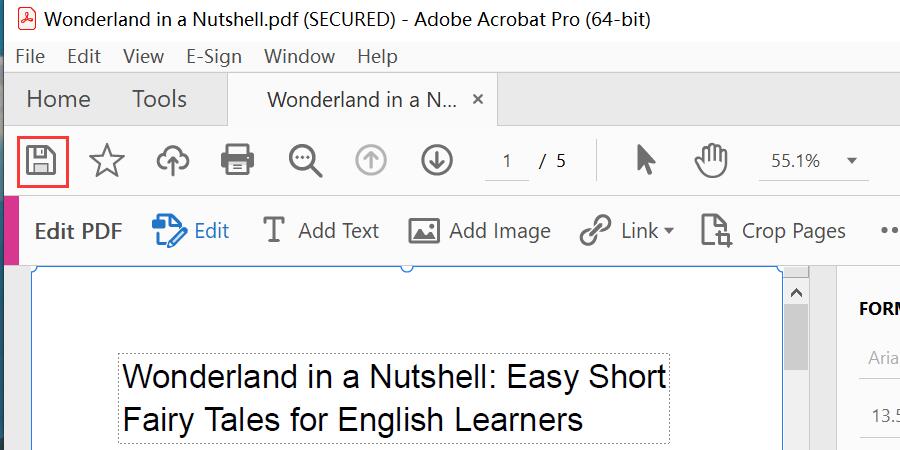
Save PDF Locally
Align in PDF Using Adobe Prepare Form
Above, we discussed two free and paid methods to align text in PDF. But in addition to standard text, we often need to align some other objects, such as text boxes.
In this regard, Adobe Acrobat Pro DC also provides professional solutions to adjust and align the position of text boxes in PDF documents to ensure a clean and professional layout.
Step 1. Open Adobe Acrobat > click “Tools” > “Prepare Form”.
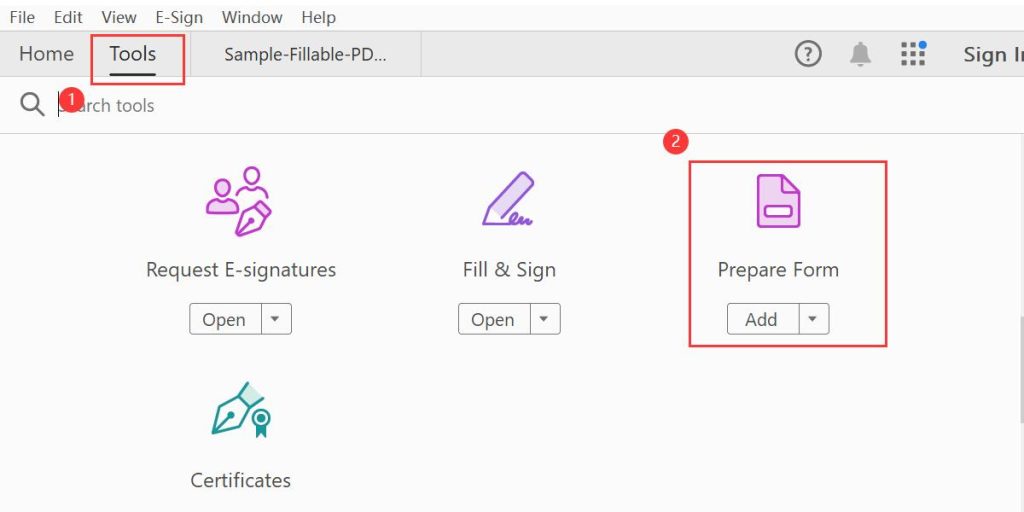
Prepare Form in Adobe Acrobat
Step 2. Click “Select File” > “Start” to start editing PDF.
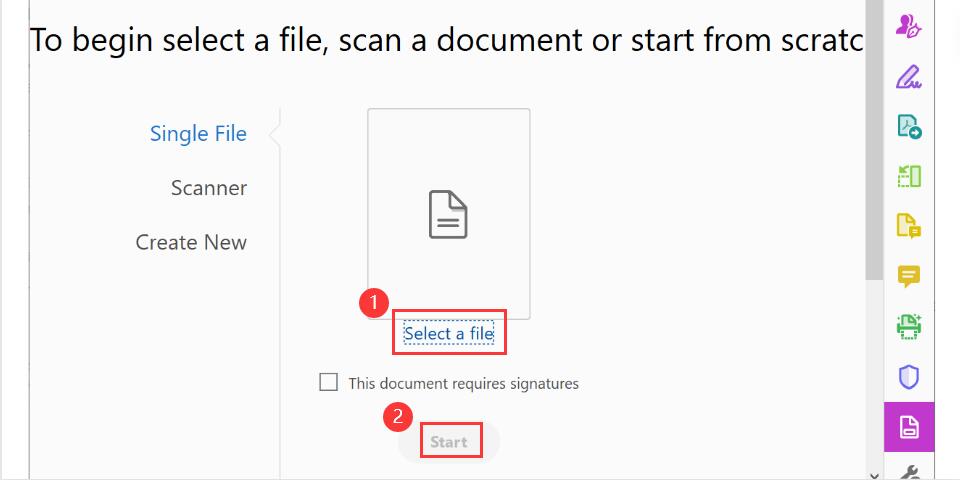
Start Editing PDF Form
Step 3. Select the text box that needs to be aligned > Select the text alignment method in the right menu bar. You can choose align left, align vertically, align right, align top, align Horizontally, and align bottom.
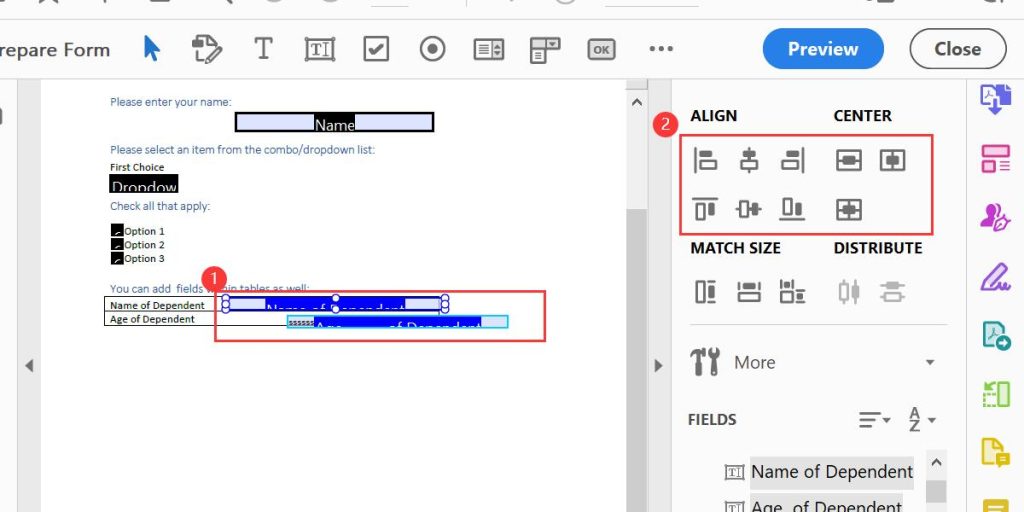
Align Text Boxes in PDF
Step 4. Click the “Save” icon in the upper left corner to save the edited PDF.
Align Text in PDF Text Box Using Adobe
When editing a PDF form, it is very time-consuming and laborious to adjust the position of the text in the text box one by one. However, the professional PDF editor, Adobe Acrobat Pro DC, can also come in handy to help you quickly align text in PDF text boxes. It’s easy to operate and can be implemented in just a few steps.
Step 1. Open the PDF in Adobe Acrobat > Click “Tools” > “Prepare Form”.
Step 2. Select the text box where the text needs to be aligned > Select the text alignment method in the right menu bar. You can choose left align, center align, right align, and justify.
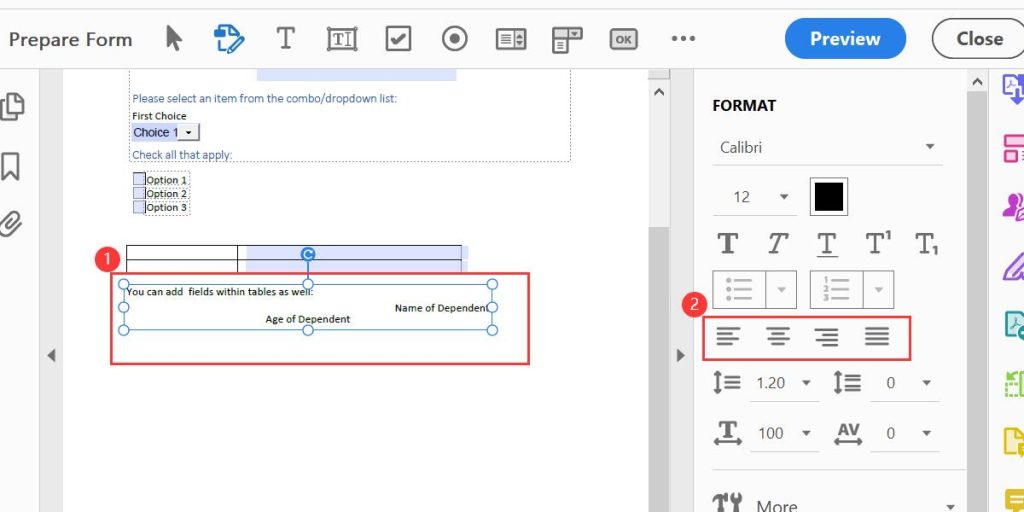
Align Text in a Text Box
Step 3. Click the “Save” icon in the upper left corner to save the edited PDF.
Conclusion
Aligning text in a PDF is an important task to ensure document clarity and aesthetics. Through this article, you can easily align standard text, text boxes, and text in text boxes in PDF using free methods such as LibreOffice and advanced options provided by Adobe Acrobat Pro DC.
