How to Add Text to a Scanned Document

Summary :
Unlock the secrets to adding text to scanned documents with our user-friendly guide. Explore online tools, Adobe Acrobat Pro, and Microsoft Word.
Table of Contents
How to Add Text to a Scanned Document
The need for copying scanned PDF text and scanned documents, while invaluable, can pose challenges when it comes to editing. In this article, we’ll explore three user-friendly methods to add text to scanned documents. If you haven’t got the digital copy of your scanned document, you need to first scan it to PDF.
👉To save time, directly download PDFgear, the free PDF editor software used to add, edit, or extract text in scanned PDFs.
Add Text to a Scanned Document Online
Adding text to scanned documents is made easy with PDFgear. This free online versatile tool offers customizable and fillable text boxes, and it’s suitable for various scenarios. Follow these steps:
Step 1. Access PDFgear
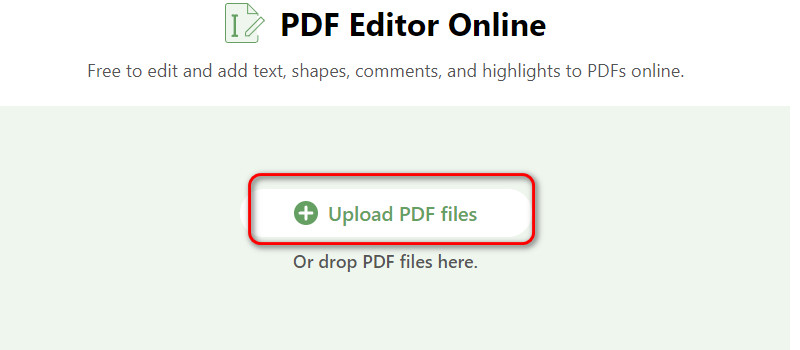
Visit the PDFgear Online PDF Editor in your web browser. Drop your PDF file or click the “Upload” button to select and upload your scanned document to the platform.
Access PDFgear
Step 2. Insert Text Boxes
Once your document is uploaded, click ‘Add and Edit Annotations’ in the top right corner, then click on ‘Free Text’, which will appear in the top left corner.

Insert Text Boxes
Step 3. Edit Text
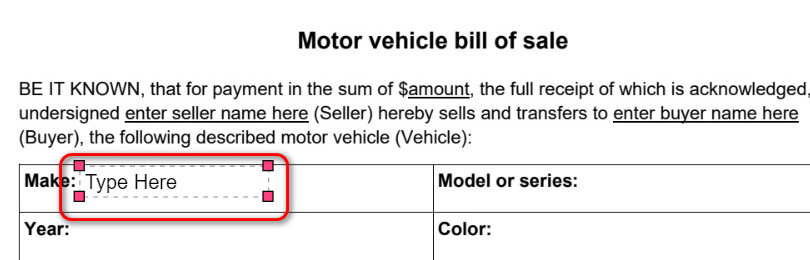
Click on the space where you would like to insert your desired text and start typing. You can also change the font, size, and formatting as necessary.
Edit Text
Step 4. Save Your Document
After adding the text, save your edited document as a PDF file. PDFgear typically allows you to download your edited document without adding watermarks.
Step 5. Download and Share
Once you’re satisfied with the changes, download the PDF file to your device and share it as needed.
Add Text to a Scanned Document with Adobe
Adobe Acrobat Pro DC offers capabilities for editing PDF scanned documents and adding fillable text boxes in PDF, allowing direct change and replacement of existing text. Please note that Adobe Acrobat Pro requires a paid subscription. Here’s how to add text using this software:
Step 1. Install Adobe Acrobat Pro DC
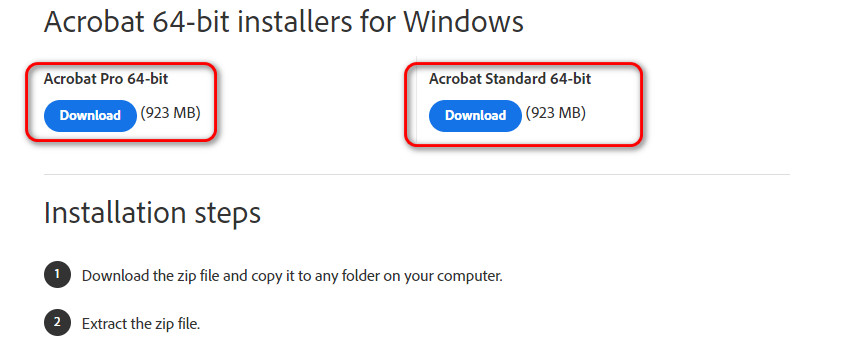
If you don’t have Adobe Acrobat Pro DC, purchase and install it on your computer from Adobe’s official website.
Install Adobe
Step 2. Open Your Scanned Document
Launch Adobe Acrobat Pro DC and open your scanned document by clicking “File” and then “Open.”
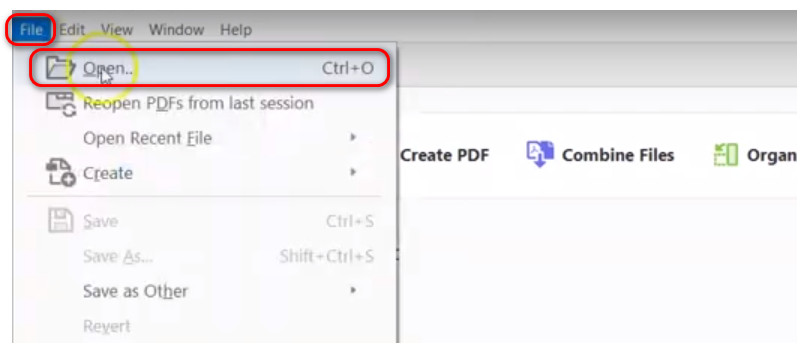
Open PDF
Step 3. Edit Existing Text
To modify existing text, select the “Edit PDF” tool. Click on the text you want to change, and you can edit it directly.
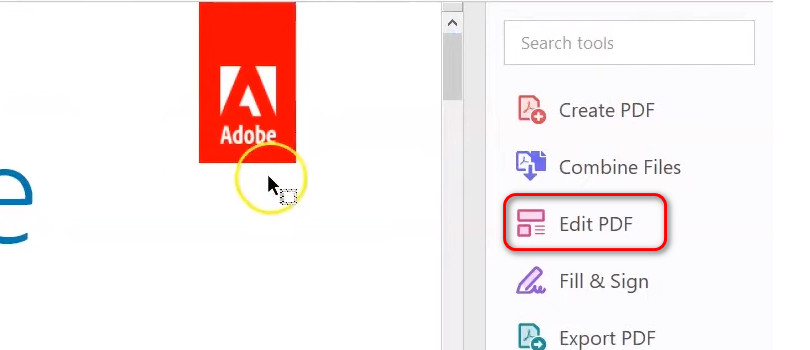
Edit Existing Text
Step 4. Insert New Text Boxes
To add new text, select “Add Text” from the “Edit PDF” menu. Click where you want to add text, and a text box will appear. Type your text and format it as needed.
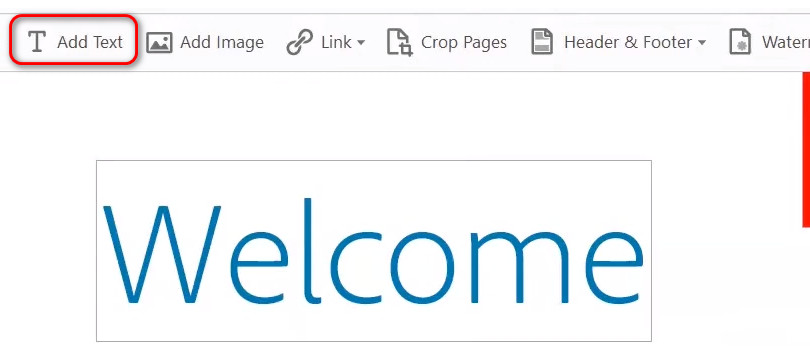
Add Text in Adobe
Step 5. Save Your Document
After making changes, save your document by clicking “File” and “Save.” If your document is not already in PDF format, export it as a PDF file.
Add Text to a Scanned Document in Word
Microsoft Word is a convenient option for adding text to scanned documents that work on both Windows and Mac devices. Here’s how you can do it:
Step 1. Open Microsoft Word
Launch Microsoft Word on your computer.
Step 2. Open Your Scanned Document
Click on “File” and select “Open” to open your scanned document in Word. A small window will pop out mentioning the system will convert the PDF file to an editable Word document. Select ‘OK’ to proceed.
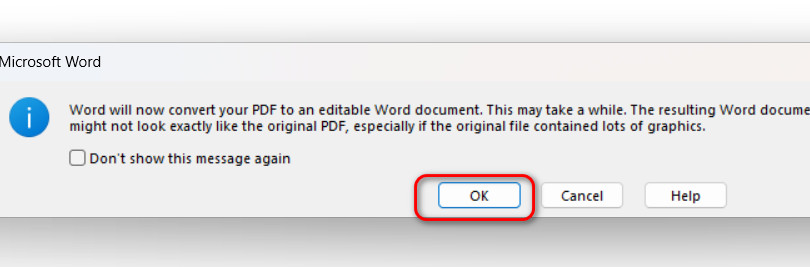
Open PDF in Word
Step 3. Add New Text
Use the “Text Box” tool in the ‘Insert’ ribbon to insert a text box where you want to add text. After selecting a horizontal or vertical text box, click and drag on the designated space to create the text box, then type your text inside it.
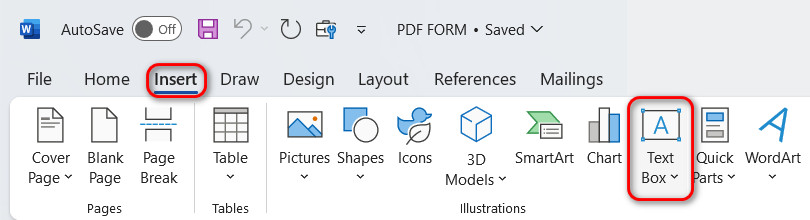
Add New Text
Step 4. Edit Text
You can format and edit the text within the text box just as you would with regular text in Word with the ‘Shape Format’ ribbon.
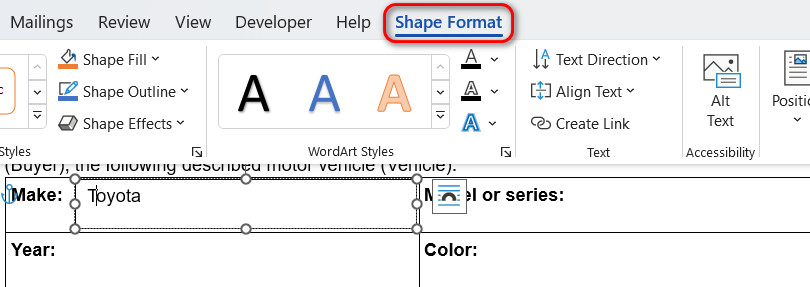
Edit Text
Step 5. Save Your Document
After adding and editing text, save your document. If your document is not already in PDF format, you can save it as a PDF from Word.
Step 6. Share Your Edited Document
Once saved, you can share the edited PDF document with others as needed.
FAQs
Can I add searchable text to a scanned document?
Yes, using OCR (Optical Character Recognition) software like PDFgear, you can convert scanned text into a searchable and editable format, making it easier to find specific information within the document.
How do I convert a scanned document into an editable format?
You can convert a scanned document into an editable format with PDFgear Online PDF to Word Converter. Upload the document to PDFgear which enables you to edit and modify the content as needed, providing a seamless conversion to an editable format.
Can I edit the text of a scanned PDF in its original format?
No, you typically cannot edit text in the original format of a scanned PDF. However, you can convert the scanned PDF with PDFgear into an editable format before directly editing the text in the original format of a scanned PDF.
How to make scanned text fillable and interactive with form fields?
By using PDFgear, upload your scanned document and use the form field tools to add text fields, checkboxes, or dropdowns. Customize the fields to suit your needs, creating a dynamic and interactive document experience for your PDF files.
Conclusion
In this article, we explored three methods to add text to scanned documents. PDFgear is perfect for online and free use, while Adobe Acrobat Pro DC offers advanced capabilities for a paid subscription. Microsoft Word is a user-friendly option for those with Microsoft Office.
Choose the method that suits your needs best and start enhancing your scanned documents with ease.
