How to Add Clickable Hyperlinks to a PDF

Summary :
This article shows you how to add clickable hyperlinks that links to a PDF page, a website, or a local file using PDFgear’s free tools and Adobe Acrobat Pro.
Content Table
Hyperlinks in PDFs help readers jump straight to what they need, such as a website, a PDF page, or an email, no copy-pasting is required.
On this page, you’ll learn some easy methods to add hyperlinks to a PDF to make a clickable PDF file.
Add Hyperlinks to a PDF on Windows for Free
PDFgear is a free PDF editor that allows you to add and edit hyperlinks in PDF on Windows PC and laptops.
PDFgear allows you to add hyperlinks that link to a specific page of the PDF, an external website, or a local file on your device.
The hyperlinks can be in the form of a rectangle shape or a URL text.
PDFgear is the best free PDF editor to insert, edit, or delete PDF hyperlinks on Windows and Mac.
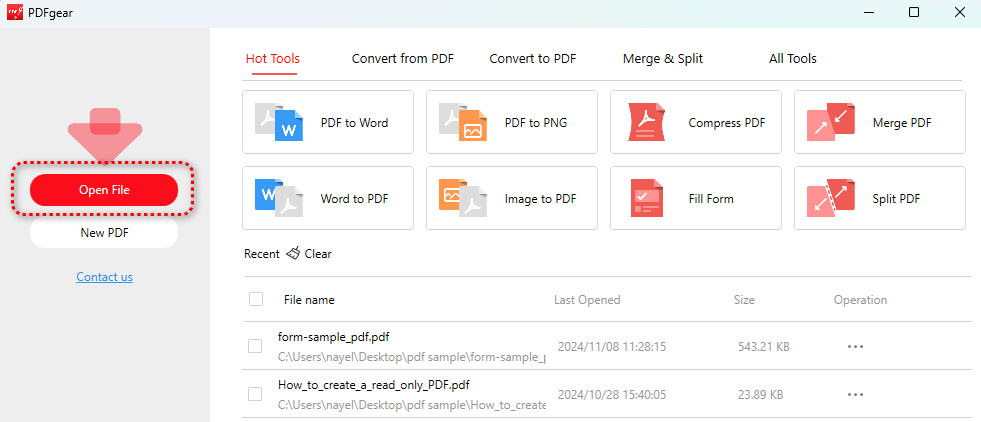
Step 1. Download and install PDFgear on your computer. Launch PDFgear, and click the Open File button to open the PDF you need to work with.
Open File
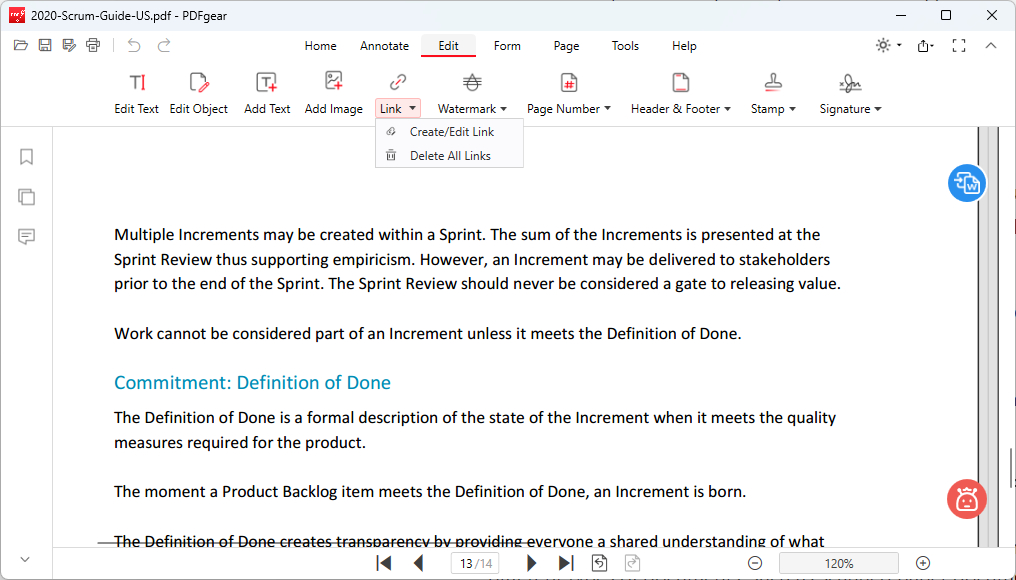
Step 2. Go to the Edit section from the upper menubar, click on the reverted triangle button ▼ on the Link option, and click Create/Edit Link from the dropdown.
Create Edit Link in PDFgear
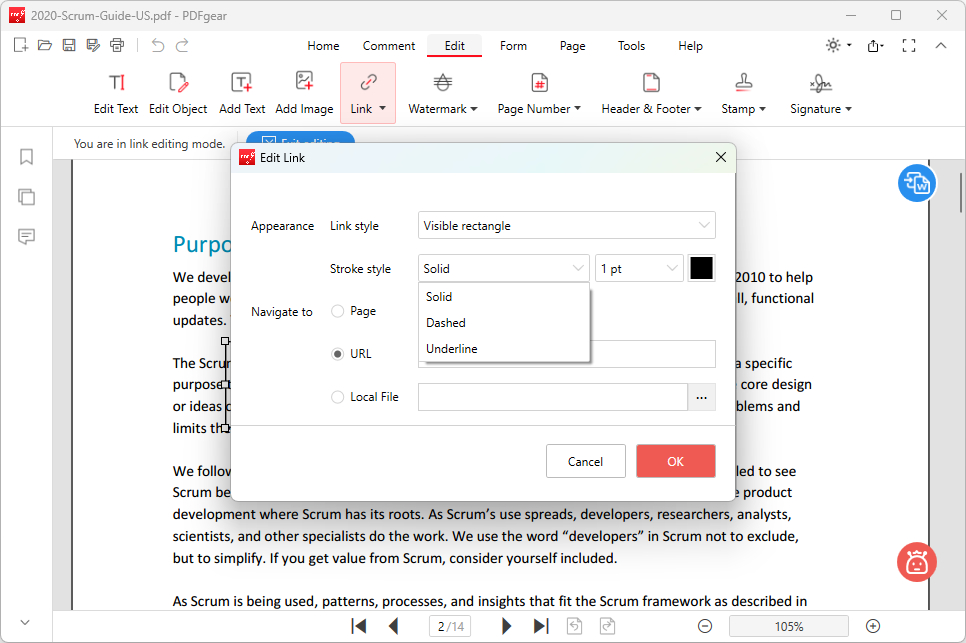
Step 3. From the Create Link window, you can set the link style as a visible or invisibsle rectangle, then use the stroke style, stroke size, and stroke color to define the way your rectangle looks.
Change Link Appearance
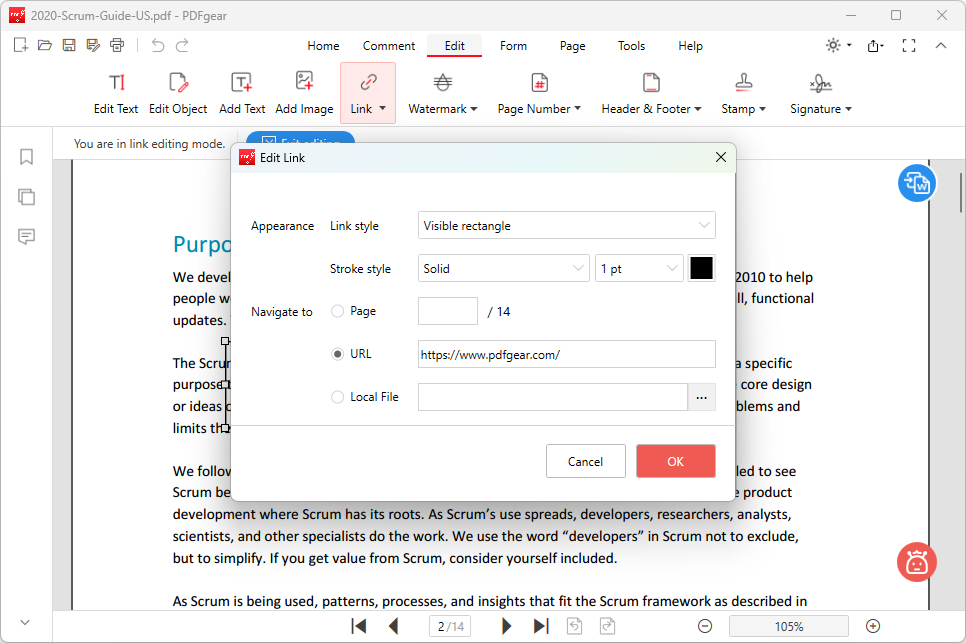
Step 4. Then you should decide where you want the hyperlink to link to upon click. When ready, click OK to proceed.
- Page: It goes to a specific page in the PDF.
- URL: It leads to an external website.
- Local File: It opens a local file on your computer.
Change Link Target
Step 5. Alternatively, if you intend to add a clickable hyperlink as plain text, go to Edit > Edit text.
Then simply paste your desired link and exit the text editing mode.
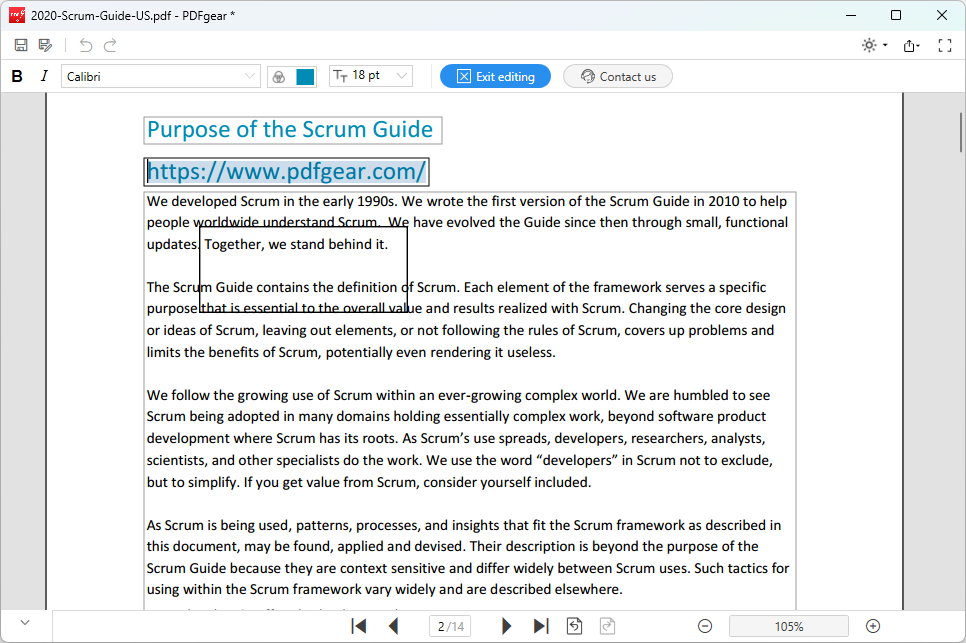
Add Link Text
Step 6. In that way, the URL text will automatically become clickable.
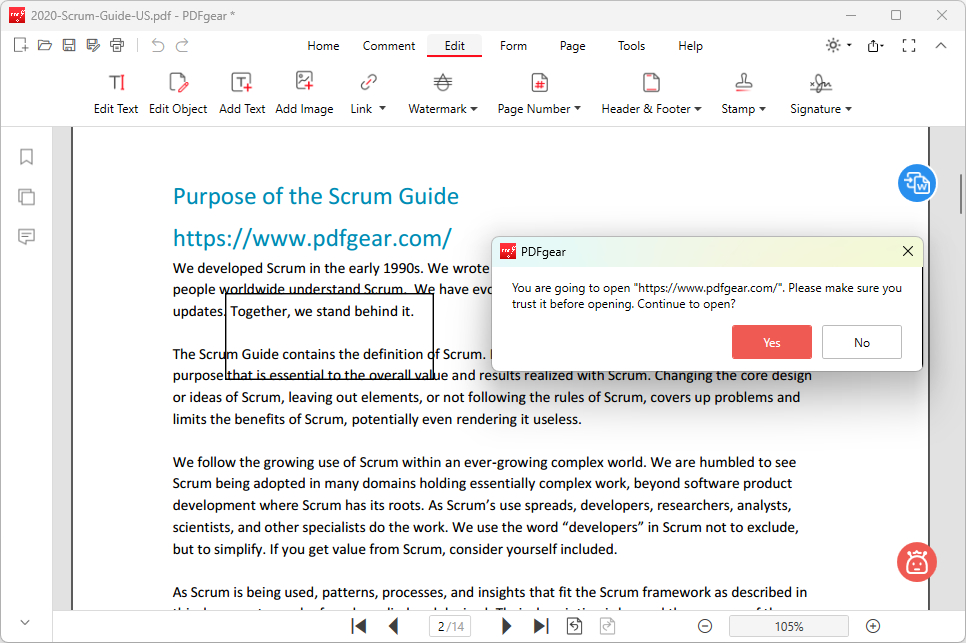
Click Link
Step 7. When you’re happy with the result, click the upper right Save as button to save the PDF with clickable links.
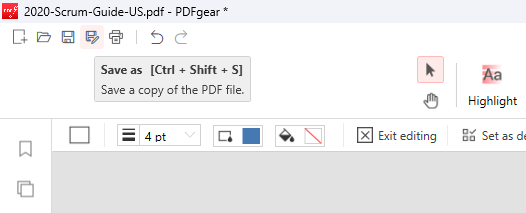
Click Save as
Add Hyperlinks to a PDF on Mac for Free
PDFgear also offers a free Mac app for you to intuitively add hyperlinks to a PDF on macOS for free.
PDFgear for Mac works in a similar way to PDFgear for Windows, with slight differences in software UI. However, it doesn’t support linking to local files, given the macOS’s unique file structure.
Now get PDFgear app for free from Mac App Store!

Step 1. Download and install PDFgear on Mac. Open PDFgear app, and click the Open File button to open the PDF.
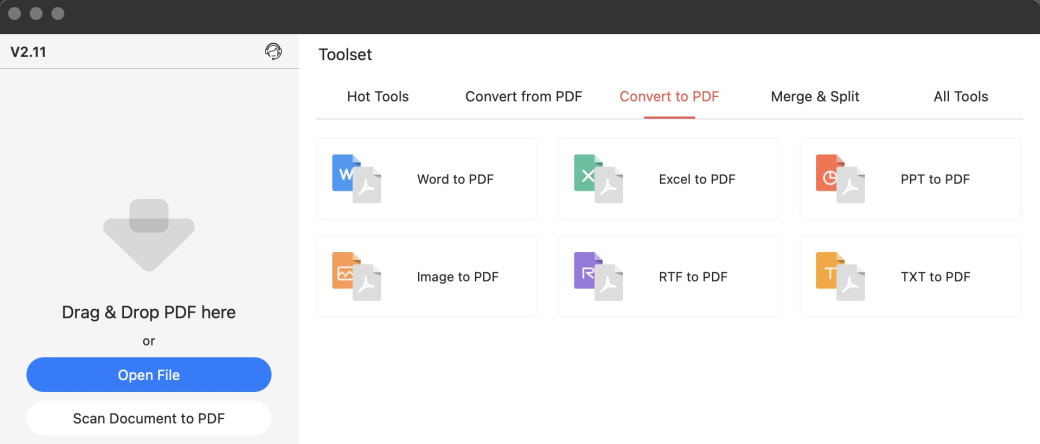
Open File
Step 2. In the Home section, click the Link button from the upper menubar. Then draw a rectangle shape on the PDF that represents the clickable hyperlink area.
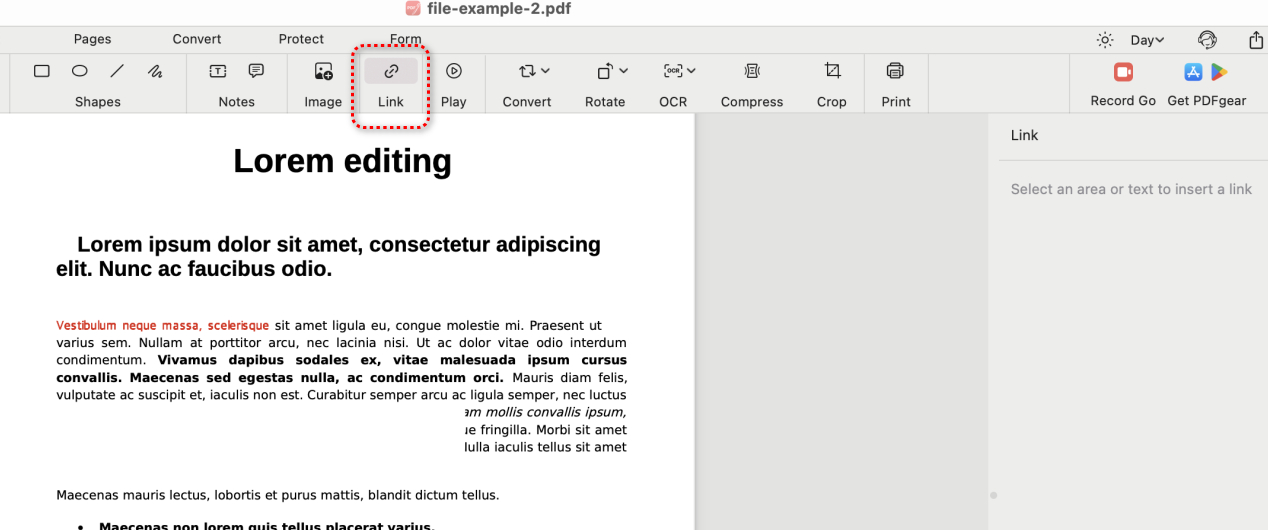
Add Link
Step 3. If you want to link to a page in the PDF, choose Link to Page in the Link menu on the right side, then scroll to the desired page and click on it.
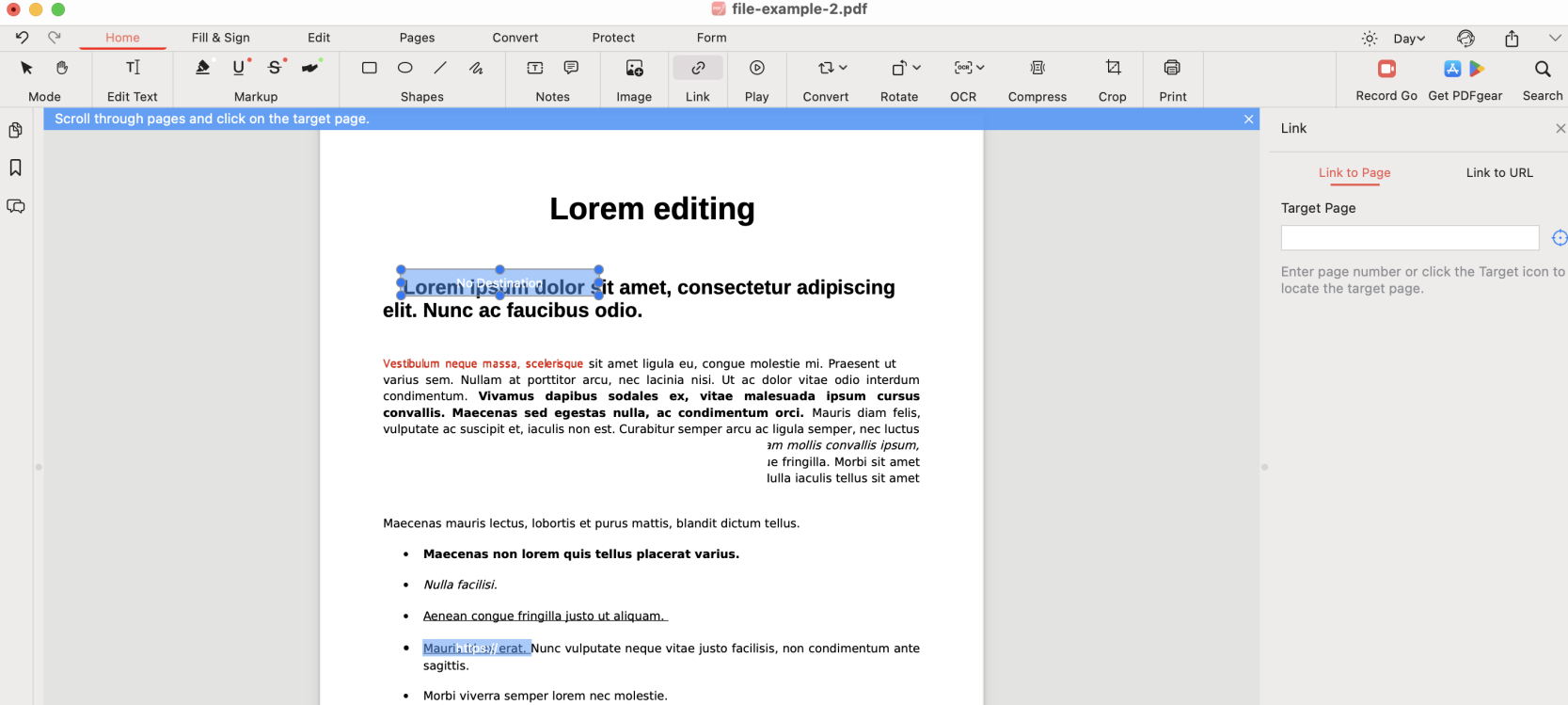
Link to PDF
Step 4. If you intend to link to a website, select Link to URL instead and type in the desired website address.
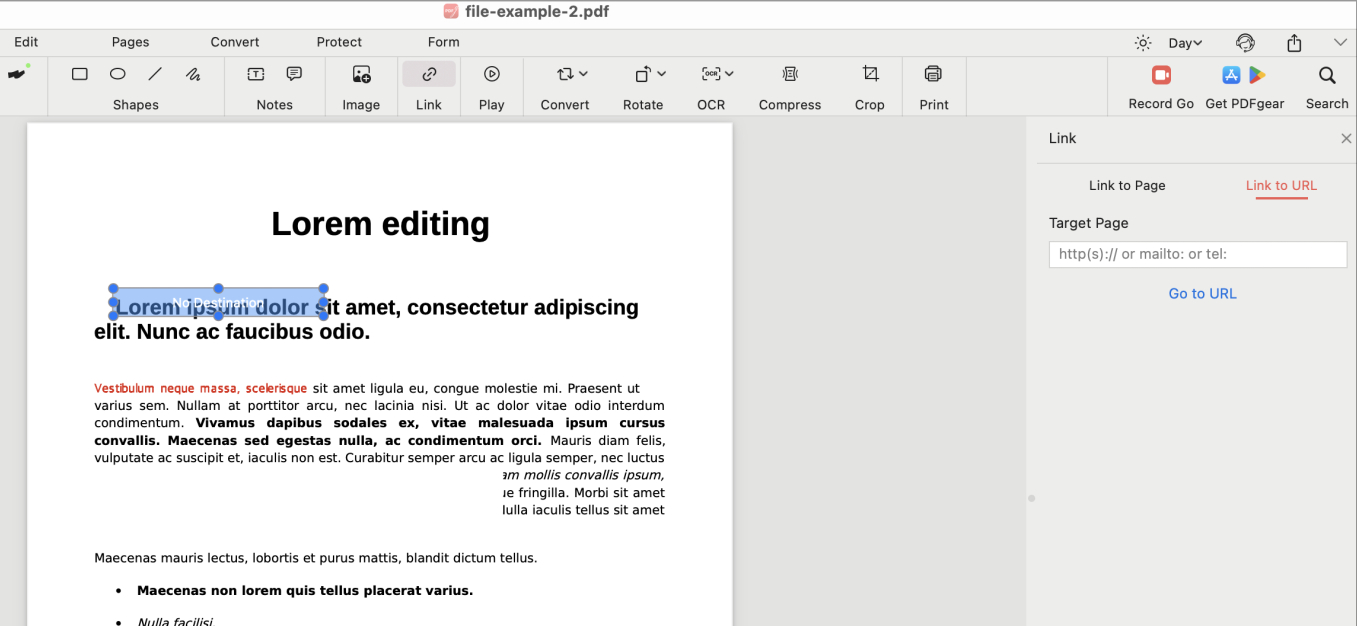
Link to URL
Step 5. Once done, go to the upper left corner and click File > Save as to save the PDF with link on Mac.
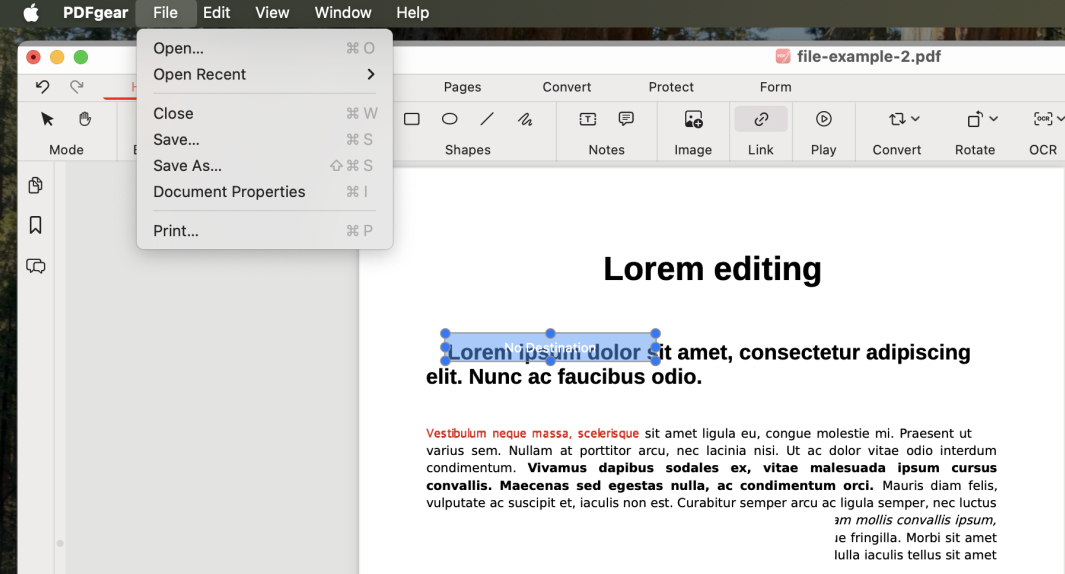
Save PDF
How to Add a Link to a PDF by Adobe Acrobat
Adobe Acrobat allows you to add links to a PDF that points to different kinds of destinations, however, you should note that you ‘ll need a pro subscription for this.
You can’t add link to a PDF in the free Acrobat Reader.
Step 1. First, open Adobe Acrobat Pro on your device.
Step 2. It he “Tool” select “Edit PDF” and open a PDF document that you want to add to the link.
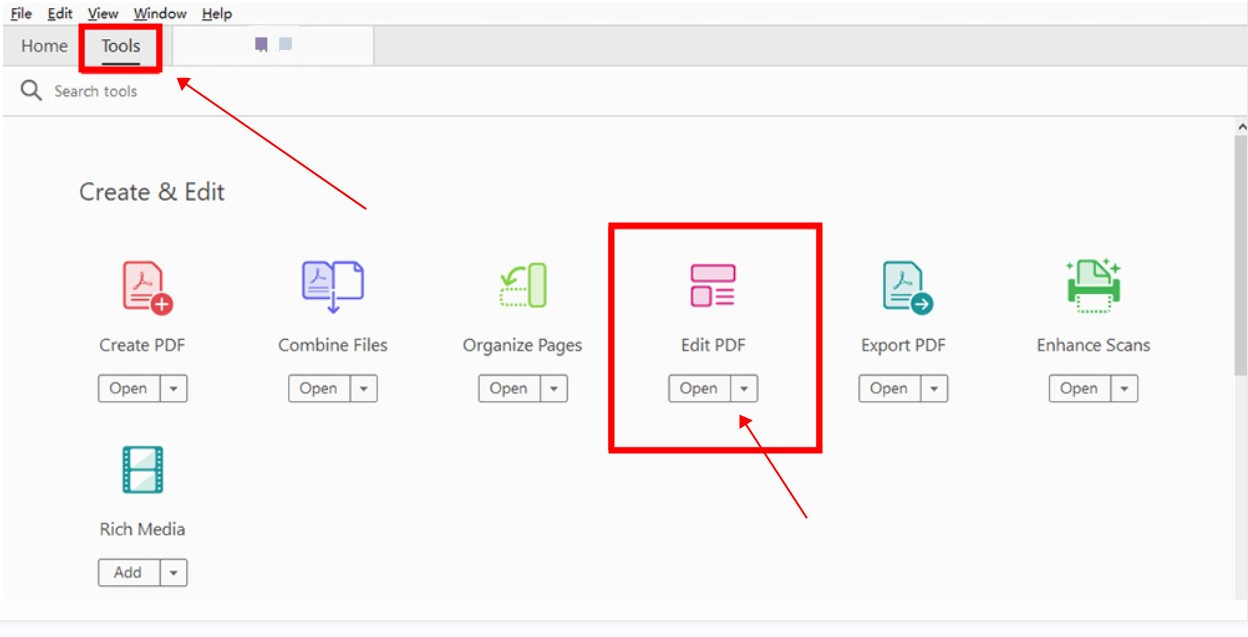
Import PDF Documents into Adobe Acrobat
Step 3. In edit mode, click the “Edit” tab and then select the “Link” drop-down menu, and then select “Add/Edit Web or Document Link” to add a hyperlink to your PDF.
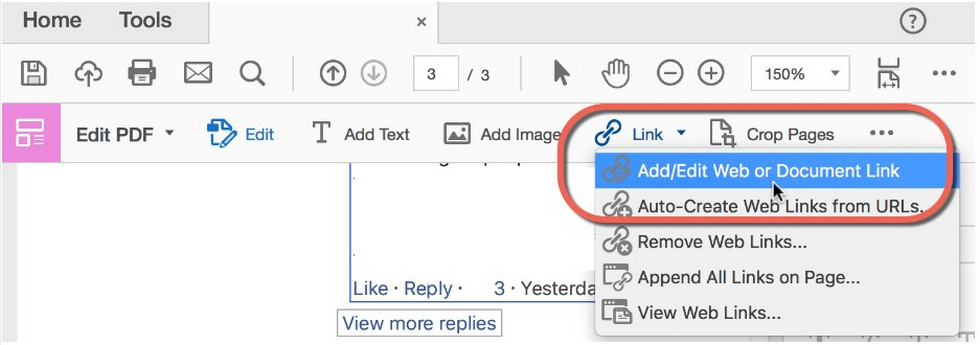
Add Links in PDF in Adobe Acrobat
Step 3. Draw a shape on the PDF and you can customize the link appearance like link type and highlight stype.
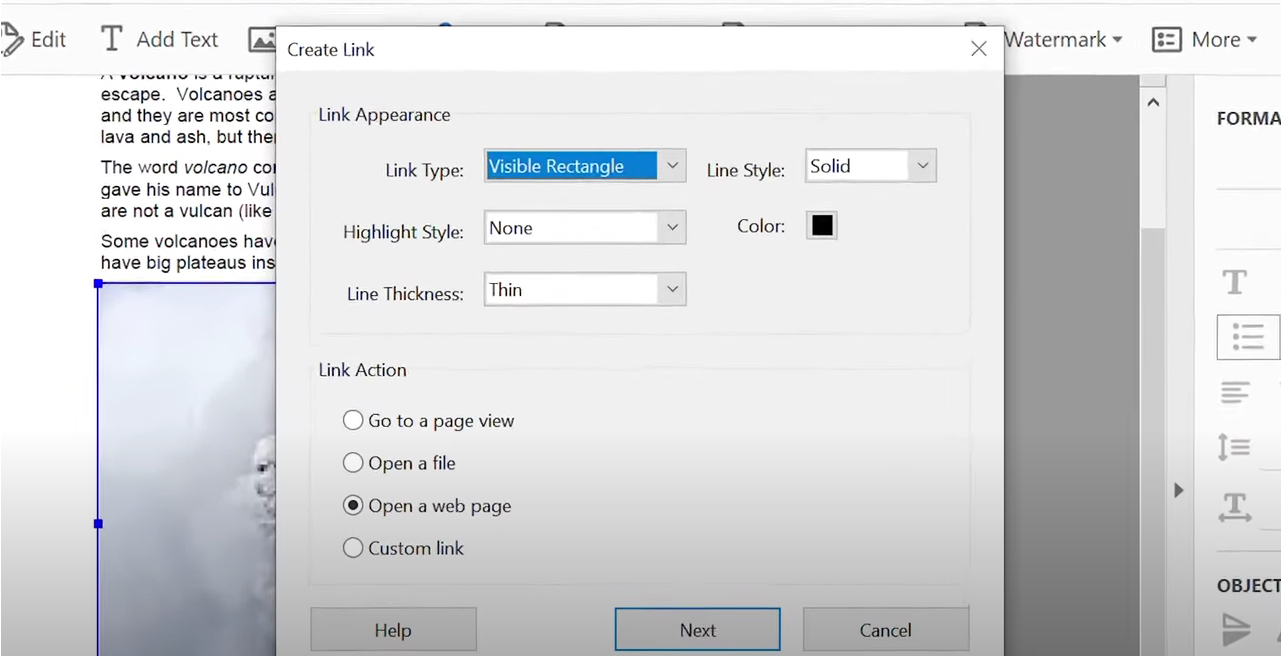
Create Link
Step 4. Just like in PDFgear, you can link to a page view, open a file, or open a webpage.
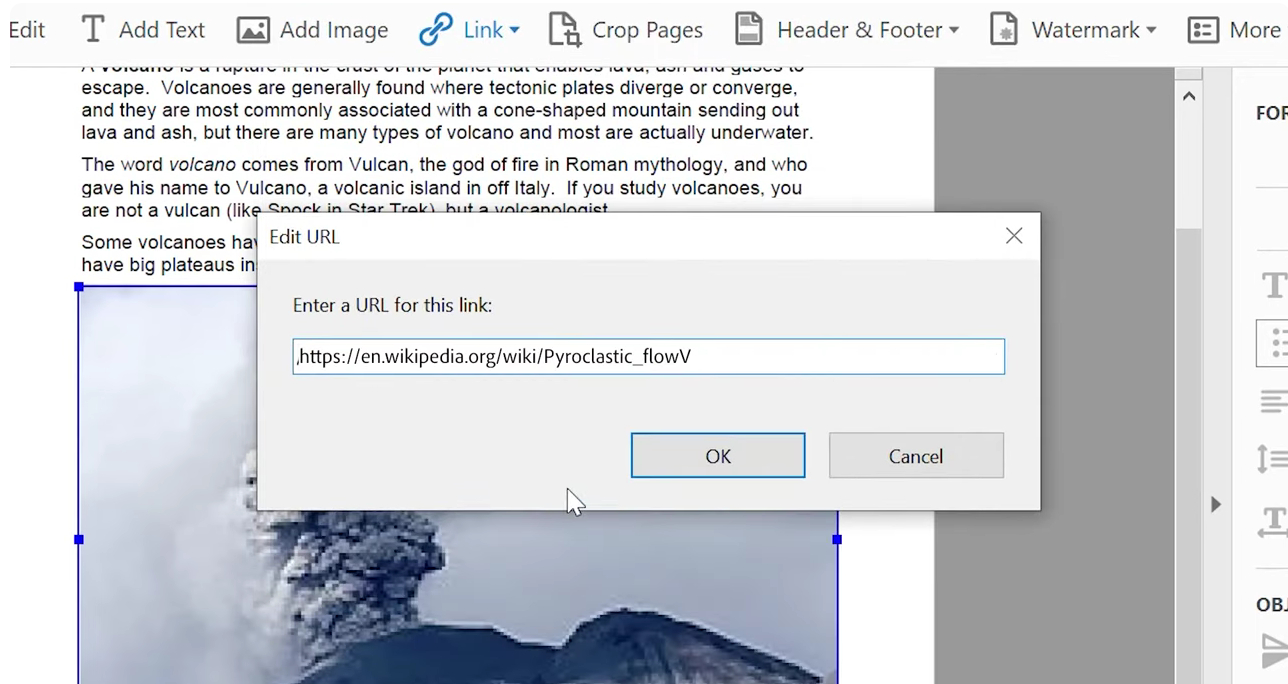
Change Link Destination
Step 5. Lastly, go to File > Save As to save the PDF in Adobe Acrobat.
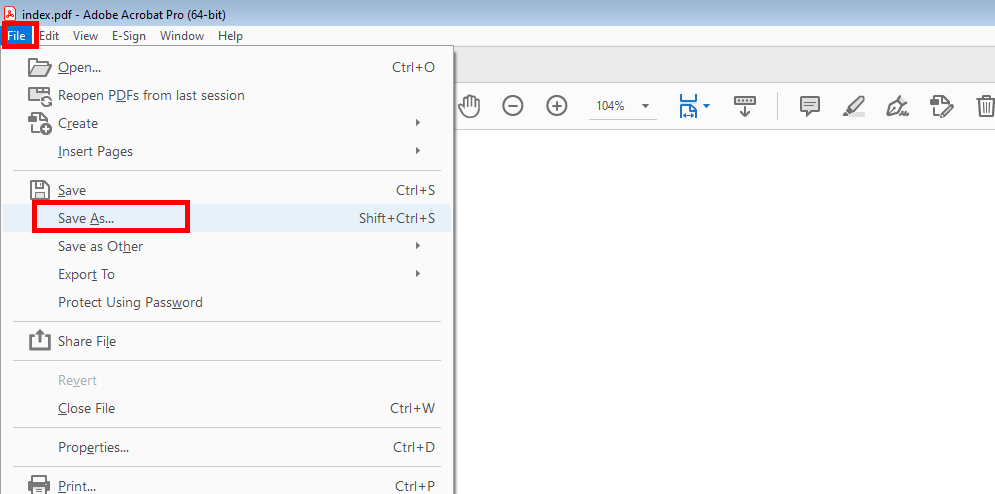
Save PDF
FAQs
Is it possible to add a hyperlink to a PDF for free?
Yes, it is. PDFgear software for Windows and Mac allows you to add hyperlinks to PDF files as a rectangle shape or a line of text. You can edit or delete existing hyperlinks as well.
Do hyperlinks in a PDF work on all devices?
Yes, hyperlinks usually work on any device that supports interactive PDFs, including computers, tablets, and smartphones.
Will hyperlinks work if I convert a Word document to PDF?
Yes, if you insert hyperlinks in Word and save it as a PDF document, they will remain clickable in the PDF.
How do I edit or remove an existing hyperlink in a PDF?
In PDFgear, you can click Create /Edit Link and then right click on existing links, or click Delete All Links to edit or remove existing hyperlinks in a PDF.
Why isn’t my hyperlink working in a PDF?
This could be due to incorrect formatting, a broken URL, or security settings in the PDF viewer blocking external links.
