How to Search for Words or Phrases in a PDF
If a PDF file contains a large amount of information spread across numerous pages, users can utilize the Find function to locate the information in PDF quickly.
Using the Find feature, click on the Find button in the View tab, or use the shortcut key Ctrl + F, then type in what you want to search for. Enable Case sensitive/Match all words option to search for precise results.
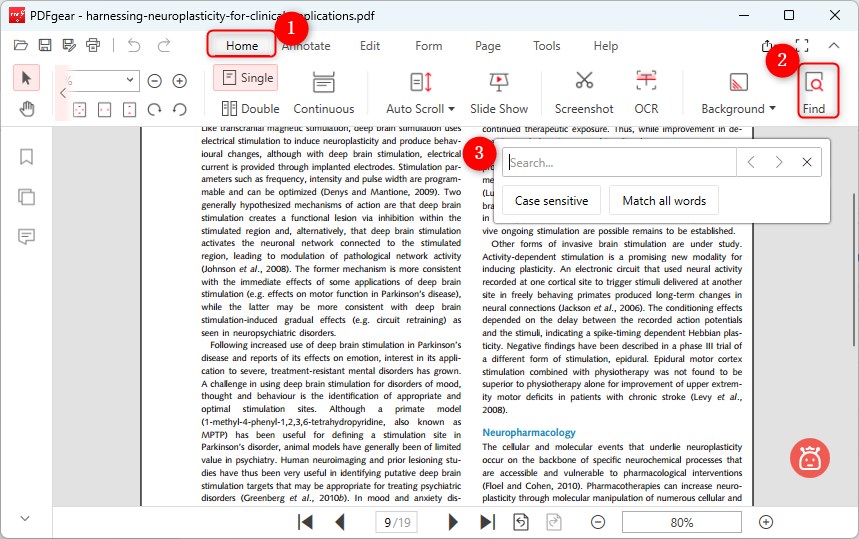
Open the Find Feature
If you search for ‘able’, you will get all the words containing the characters ‘able’, such as able, enable, disable, and capable, regardless of their case. When you choose the Case sensitive option, only words with ‘able’ in lowercase will appear. When you use the ‘Match all words’ function, only the word ‘able’ is displayed; other words like disable, enable, and capable are not searchable.
Users can navigate to the location where the search keyword exists by using the arrow on the right side of the input box.
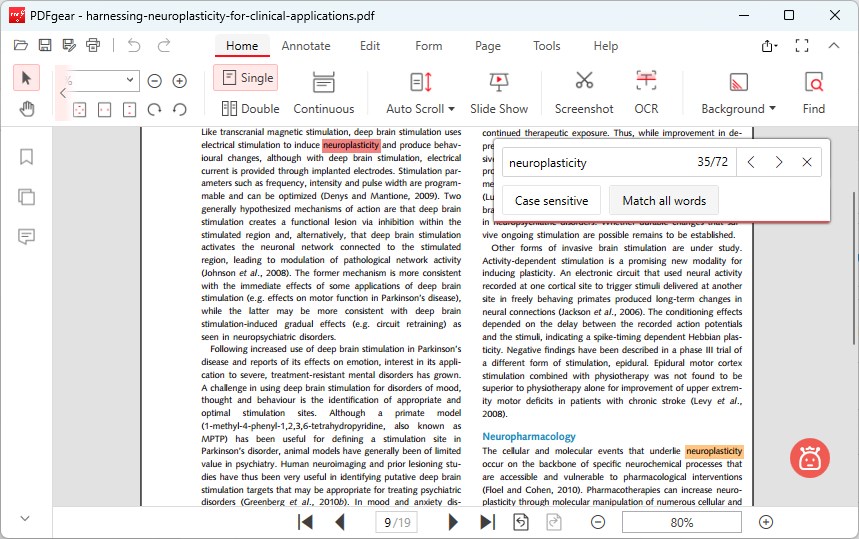
Search Text in the PDF
All of the keywords in the PDF will be highlighted in yellow, and the currently viewed keyword will be highlighted in red.
Only texts shown as characters are searchable.