How to Extract Text from PDF for Free

Summary :
Extracting text from PDFs isn’t one-size-fits-all. The best method depends on your document type—selectable or scanned.
Table of Contents
In this article, we’ll explore several effective ways to extract text from PDFs.
To get started, pick the right approach based on the type of document you’re dealing with.
1. Copy and Paste:
You can open the PDF in a browser or any PDF software, select the text, right-click, and choose “Copy.” Then, paste it into another document. If you’re unable to select the text, it likely means the PDF is a scanned image, and you will need OCR software to extract the text.
2. PDF Software with OCR:
If the PDF is a scanned image, use software like PDFgear (completely free) or Adobe Acrobat (paid) to apply Optical Character Recognition (OCR). This process will recognize the text and allow you to copy it. Learn the steps here.
3. Free Tools to Convert PDF to Text File
For lengthy PDF documents, you can also use PDFgear’s free OCR converter to convert PDF to Microsoft Word. Learn the steps here.
As a more convenient alternative, you can also opt for an online PDF-to-Word converter or PDF-to-Text converter.
*The difference is that Word format retains the fonts and formatting of the original PDF, while Text format provides plain text without any formatting.
Copy Text from Selected Areas Using OCR
If you’re trying to copy a small portion of text in a scanned or image based PDF, PDFgear also allows you to select a portion of a PDF page, and copy text from it.
Moreover, the OCR feature supports multiple languages, recognizing over 100+ global languages.
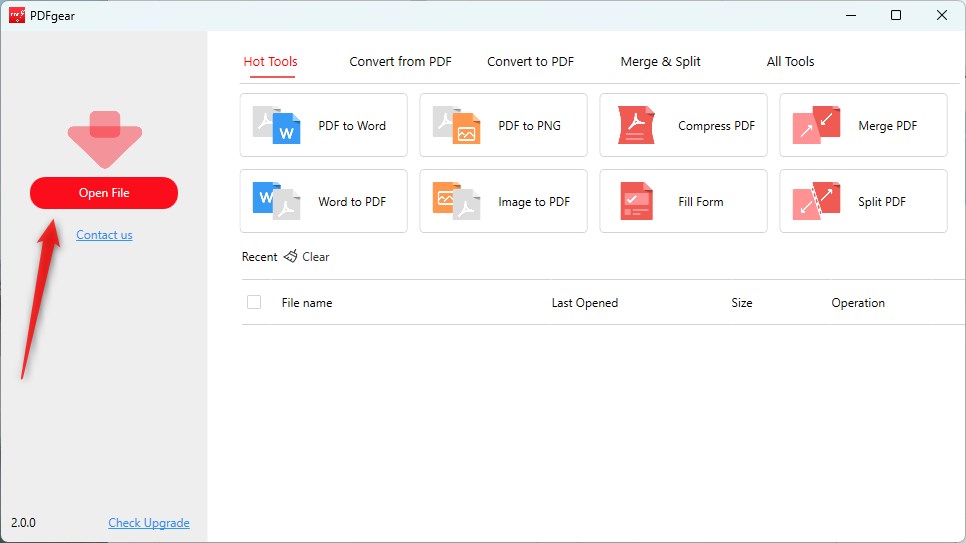
Step 1. Get PDFgear and go to the main interface. Select the PDF document you want to extract text from.
Open File in PDFgear
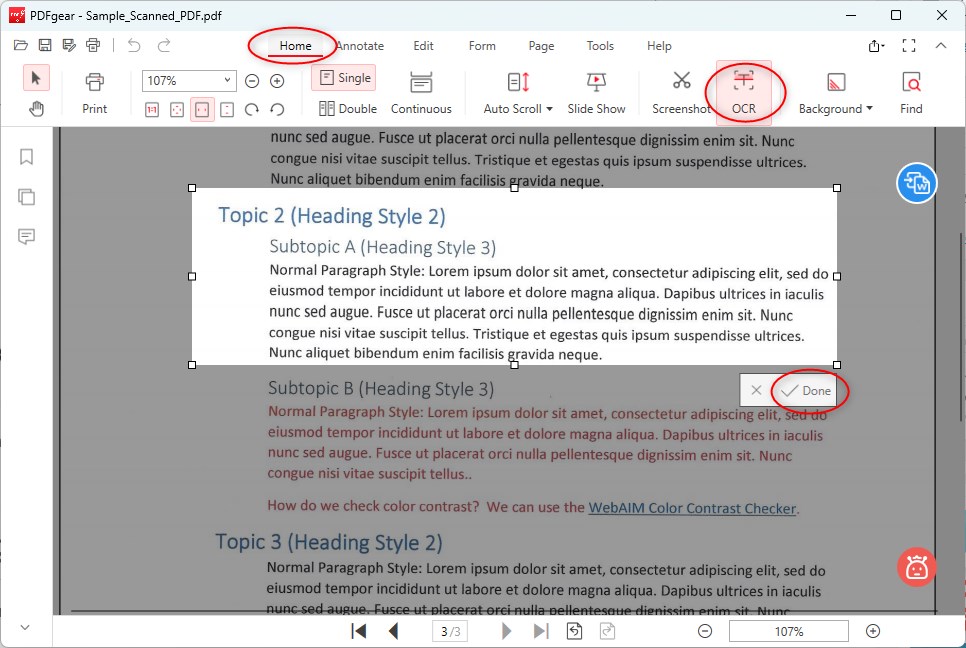
Step 2. Click the “OCR” button on the “Home” section, drag and hold the mouse to drag an area from which you intend to extract text. Then, click the “Done” button in the lower-right corner.
Extract Text from a Scanned PDF
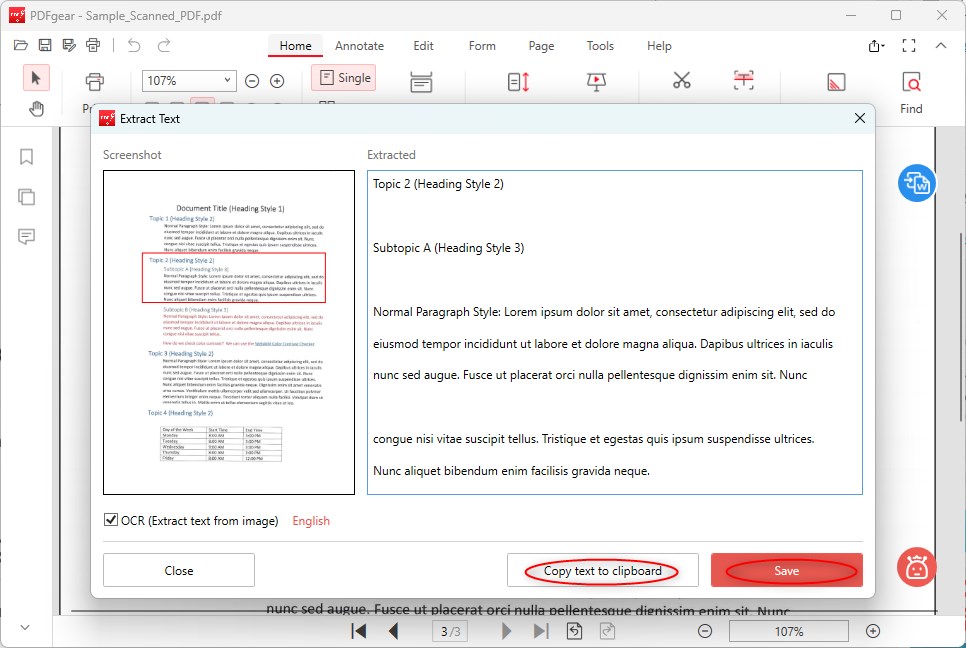
Step 3. A window will pop up to show you the extracted text, and you can choose to copy the text to the clipboard.
Save the Extract Text
Alternatively, click the ‘Save’ button to save the extracted text as a TXT document.
Free Tools to Convert PDF to Text
Convert Scanned PDF to Word for Free
If you’re trying to extract text from a scanned or image-based PDF, PDFgear’s free OCR PDF converter is your best choice.
With it, you can quickly convert any PDF into a fully editable Microsoft Word document. Compared to the TXT format, Word better preserves the original file’s formatting.
PDFgear is free to use—download it now to get started!
Step 1. Download PDFgear, install it on your computer, and open PDFgear.
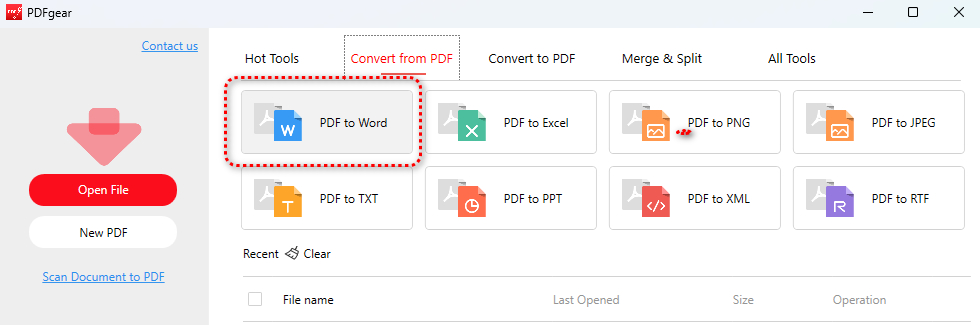
Step 2. Go to the Convert from PDF toolbox, and click the PDF to Word option from there.
PDF to Word
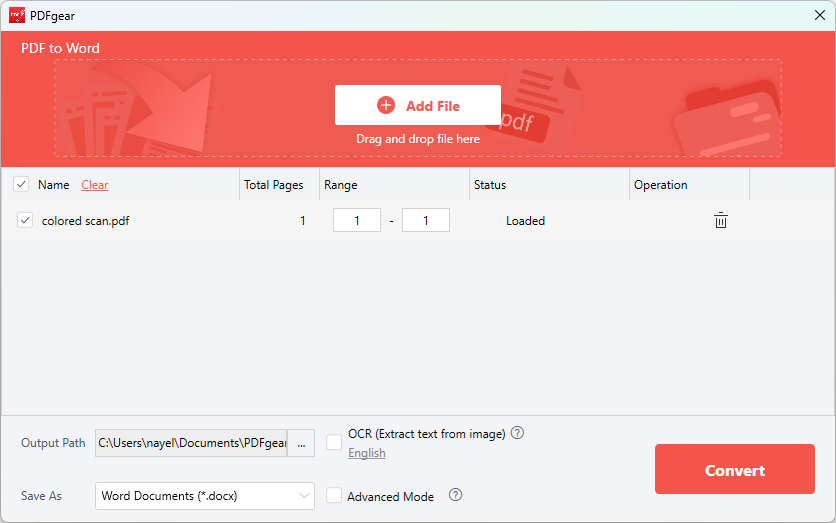
Step 3. Click Add File to add the PDF you intend to extract text from.
Add File
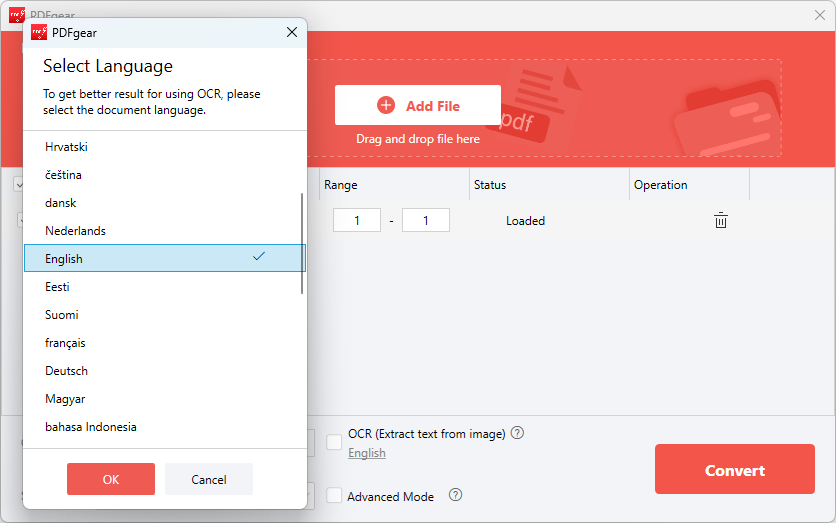
Step 4. Tick the OCR option below and select the document language. Then click OK.
Enable OCR
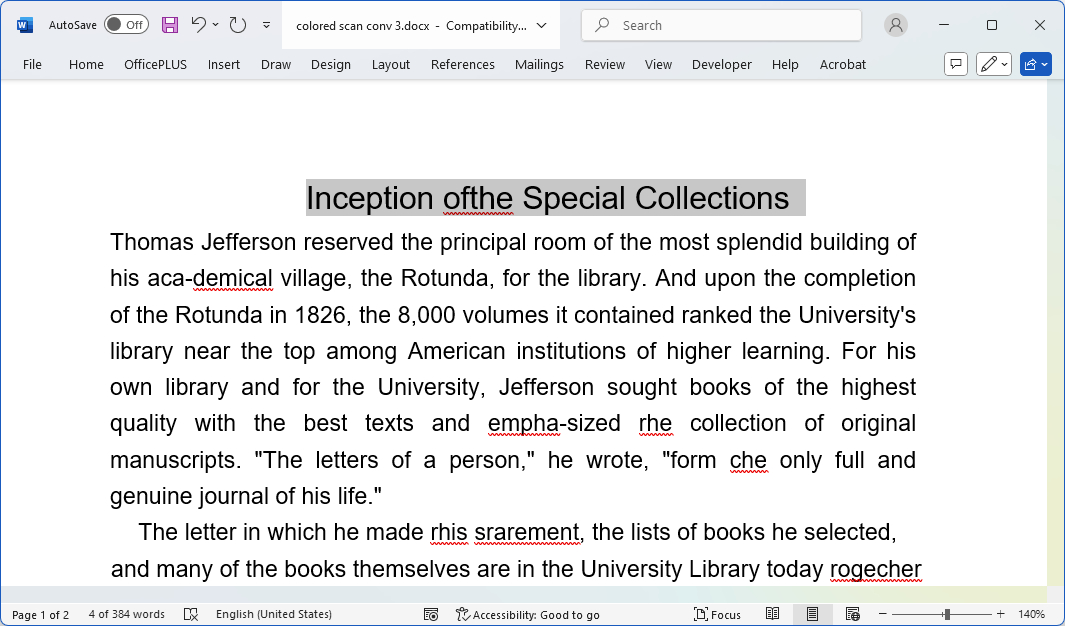
Step 5. Click Convert to start the conversion, you’ll be led to the output file folder when the conversion is done. The extracted text will be in the Word document.
Extracted Text
Convert Selectable PDF to Word Online
Instantly convert selectable PDFs to editable Microsoft Word documents online in a web browser, for free.
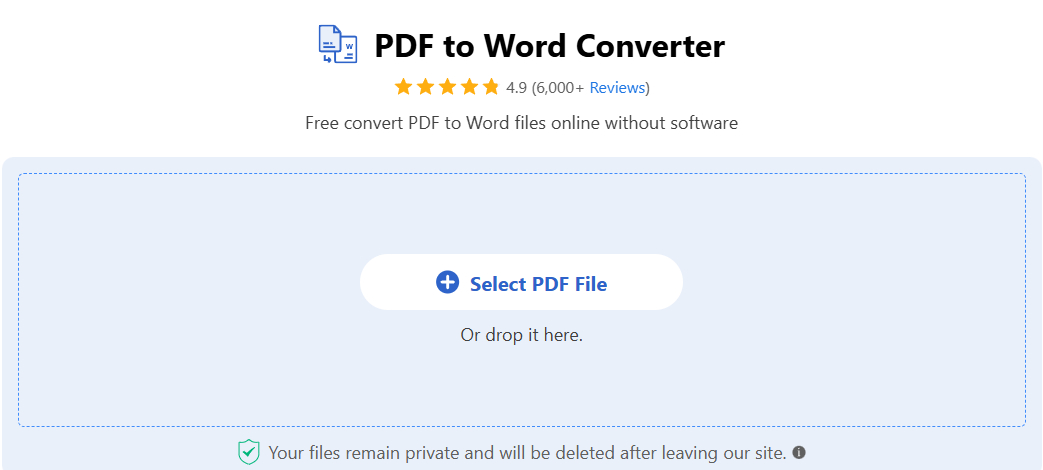
Step 1. Go to PDFgear online PDF to Word converter.
Step 2. Click Select PDF File to Open the PDF you need.
Step 3. Click Download File to download the Word document with extracted text.
PDF to Word Online
Common Issues & Fixes
Non-Selectable Text (Scanned/Image-based PDFs)
Fix: PDFgear has a built-in OCR function that extracts text from scanned PDFs accurately.
Encrypted/Password-Protected PDFs
Fix: PDFgear allows password removal (if you know the password) for easier extraction.
Extracted Text Has Unnatural Breaks
Fix: Use PDFgear to convert scanned PDF to Word with minimum line breaks. Then manually fix the occasional occurrence.
Headers/Footers Extracted as Main Text
Fix: PDFgear allows you to remove headers and footers from all PDF pages.
Additional Methods
Google Drive OCR (Free and Simple)
Google Drive offers built-in OCR functionality and is very user-friendly.
Steps:
- Upload your scanned PDF to Google Drive.
- Right-click the file and select “Open with Google Docs”.
- Google Docs will automatically apply OCR to the scanned PDF, converting it into editable text.
- Save or copy the text as needed.
Microsoft OneNote
Microsoft OneNote has a simple “Copy Text from Picture” feature that works well for scanned PDFs.
Steps:
- Open Microsoft OneNote (available for free).
- Drag and drop your scanned PDF (or its converted images) into a notebook.
- Right-click on the image and select “Copy Text from Picture”.
- Paste the extracted text wherever you need it.
FAQs
How to extract text in PDF in Microsoft Word?
Simply open the PDF with Microsoft Word, and allow it to convert your PDF file. This will turn your PDF into an editable Microsoft Word document. However, note that there’re potential formatting issues for you to manually fix.
Can all PDFs have their text extracted easily?
No, PDFs created from digital sources usually allow straightforward text extraction. However, scanned PDFs or image-based PDFs require OCR to recognize and extract text.
What is the difference between extracting text from a searchable PDF vs. a scanned PDF?
Searchable PDFs contain embedded text data, making extraction simple. Scanned PDFs are images of text and require OCR technology to convert the image to editable text.
Are there limitations or accuracy issues when extracting text from PDFs?
Yes, formatting can be lost, text may be jumbled or out of order, and OCR can introduce errors, especially with poor scan quality or complex layouts.
What programming languages and libraries are popular for PDF text extraction?
Python libraries like PyPDF2, PDFMiner, and Tika are popular. Java has PDFBox, and .NET has iTextSharp. For OCR, Tesseract is widely used.
