Excel to PDF Converter Free Download – PDFgear PDF Converter Software

Summary :
Free download the best free Excel to PDF converter software for your Windows and Mac computer. PDFgear software is a free, safe, and easy-to-use desktop PDF converter.
Table of Contents
Excel to PDF Converter Free Download
PDFgear software is a renowned (originally for its free online service PDFgear.com) desktop PDF converter that works on Windows 7, Windows 10, Windows 11, all versions of Mac, etc.
With it, you can easily change formats between PDF, Excel, documents, and images no matter where you are, without an internet connection – as long as you have gotten a laptop with your trip, with PDFgear Desktop installed.
For example, PDFgear helps you fast and effortlessly convert Excel to PDF, Word to PDF, PPT to PDF, JPG to PDF, PNG to PDF, and vice versa. Read on to learn more about PDFgear Desktop’s features.
Free Download Excel to PDF Converter
PDFgear is now available for free, without any usage limitations whatsoever. Click the Download button below to install the top-notch Excel to PDF converter software PDFgear on your Windows and Mac computer!
Choose PDFgear as your primary solution for seamlessly converting documents from Windows and macOS to iOS. Install it without the need for registration, subscription, or any limitations.
PDFgear Excel to PDF Converter Highlights – Not Just Any Excel Converter
See the highlights of the PDFgear Excel to PDF converter below to learn why PDFgear stands out to be the best free Excel to PDF converter.
- Supports 20 + different types of Excel conversions such as Excel to Microsoft Word, Word to Excel spreadsheets,
- Convert PDF to/from 30 + document or image formats including Excel, Word, PPT, JPG, PNG, etc.
- Drag and drop to convert your Excel and PDF documents in an intuitive way
- Converts 500MB Excel document to PDF in less than 5 seconds
- No conversion times or imported file size limitations for free users
- Various types of Excel documents supported XLS Excel (97-2003) and XLSX (Excel 2007 and later)
- Batch conversion supported to save your precious time
- Convert Excel to PDF without quality loss, no watermark
- Completely free Excel to PDF conversion, no restrictions
- Functions without an Internet connection
- Password-protected Microsoft Excel supported
How to Convert Excel to PDF Using PDFgear
PDFgear is the best free Excel to PDF offline converter that converts in seconds. Additionally, with PDFgear, you can also change other Microsoft documents Word/RTF/PPT, JPG/HEIC/PNG images, and other formats like EPUB into PDF documents.
Moreover, with the PDFgear offline OCR tool, it’s easy to convert unselectable/unsearchable PDF documents to editable Microsoft Excel/Word as well.
The tutorial below shows you the 3 simple steps to convert Excel to PDF offline using PDFgear. To get started, download and install PDFgear on your Windows or Mac computer.
Step 1. Go to Excel to PDF Converter Tool
Launch PDFgear > Locate the Convert to PDF toolbar > Enter the Excel to PDF Converter tool.
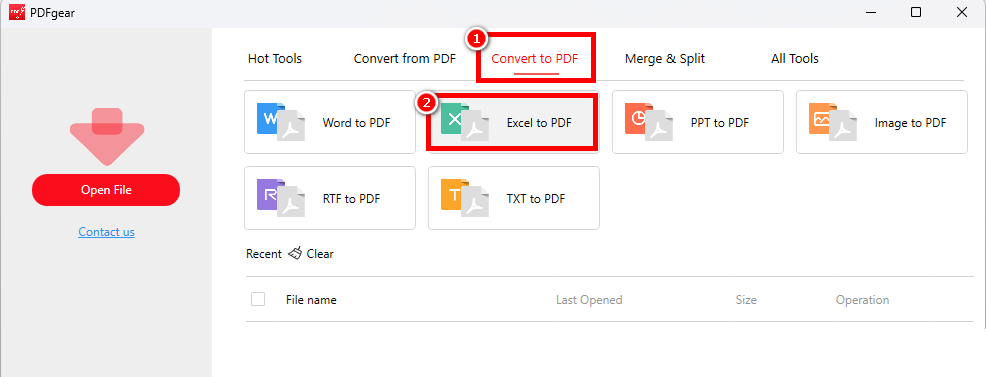
Go to PDFgear Excel to PDF Converter Tool
Step 2. Import Excels to PDFs with PDFgear
Drag and drop the files, or hit the Add File button to import your Excel documents into the PDFgear Excel to PDF converter tool. Then design a preferred destination path underneath.
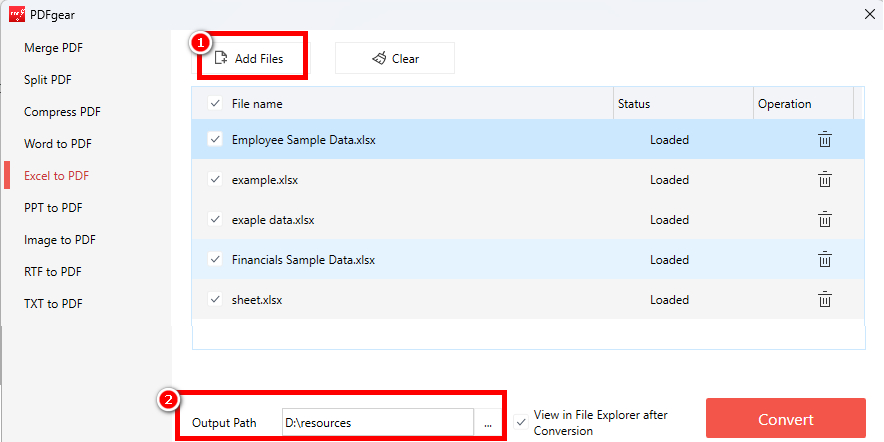
Import Excel Files to PDFgear
Step 3. Convert Excel to PDF with PDFgear
Hit convert to convert all imported Excel documents to PDFs, you can convert multiple Excel documents at once. Then you’ll be led to the output file folder.
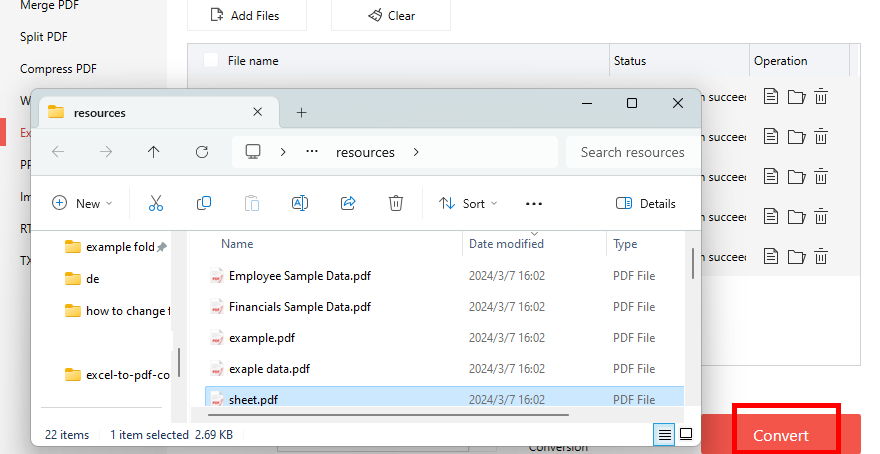
Convert Excel to PDF Using PDFgear
How to Convert PDF to Excel Using PDFgear
In a likewise manner, PDFgear allows you to transform a PDF document into an Excel document. And then you can process data in your PDF document using Microsoft Excel formulas.
With the advanced Excel converter module in PDFgear, it’s possible to convert PDF to Excel with or without losing formatting or convert PDF to Word with/without formatting.
The tutorial below shows you the 3 simple steps to convert PDF to Excel offline using PDFgear. To get started, download and install PDFgear on your Windows or Mac computer.
Step 1. Go to PDF to Excel Converter Tool
Launch PDFgear and enter the PDF into the Excel Converter tool.
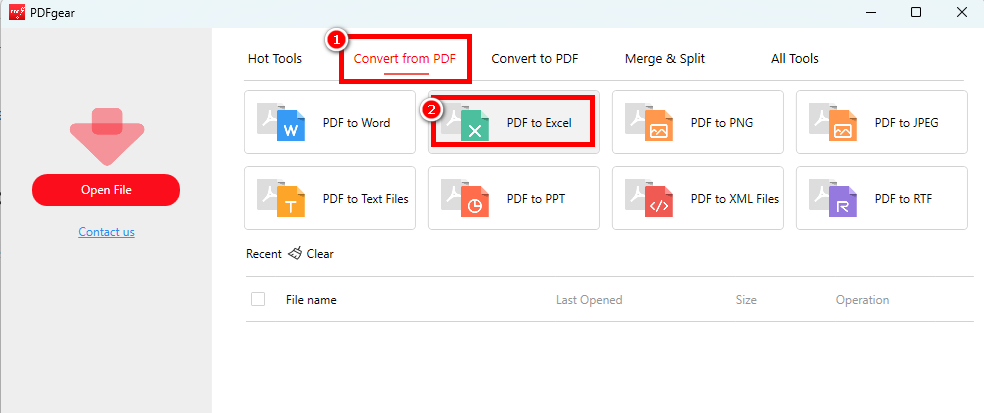
Go to PDFgear PDF to Excel Converter Tool
Step 2. Import PDFs to PDFgear
Drag and drop the files, or hit the Add File button, to import your PDF documents into the PDFgear PDF to Excel converter tool. Then design a preferred destination path underneath.
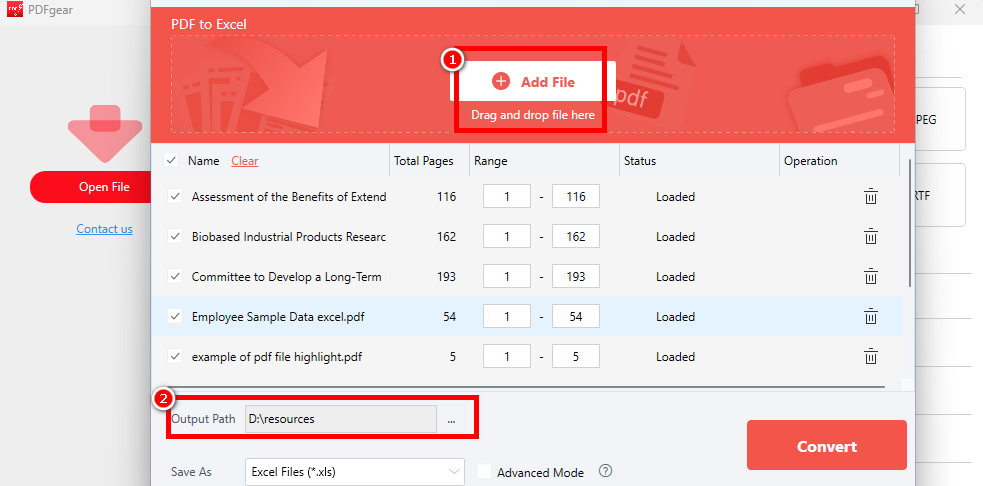
Import PDF Files to PDFgear
Step 3. Convert PDF to Excel with PDFgear
Hit convert to convert all imported PDF documents to Excel documents, you can convert multiple PDF documents at once. Then you’ll be led to the output file folder.
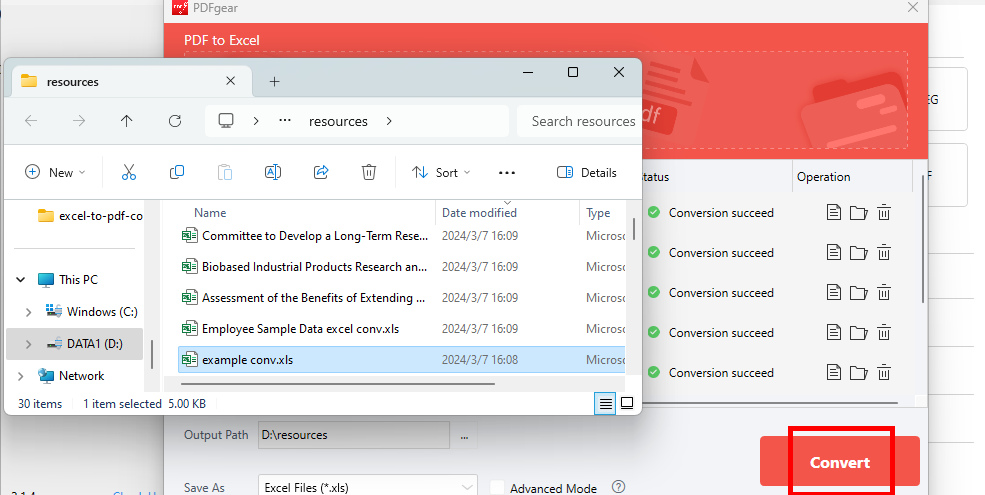
Convert PDF to Excel Using PDFgear
More to Anticipate from PDFgear – Why it’s Worth
So it converts, but is there anything else fancy that I should know? You may ask. PDFgear is a complete PDF management tool that does much more than converting Excel to PDF.
To answer your questions more clearly and explain why PDFgear is worth your installation, check out below to see what other things PDFgear is capable of.
PDFgear is an all-in-one PDF management toolkit whose features include but are not limited to the following:
- Fast and steadier conversion compared with the PDFgear Excel to PDF online tool
- Add annotations, comments, shapes, calibrations, or stamps to documents
- Extensive Excel editing features like inserting PDF into Excel
- Highlight, underline, and strikethrough text in a document
- Print to PDF, OneNote, or Microsoft Print to PDF
- Incredibly swift document conversion and compression
- Simple and intuitive conversion/compression manners
- An extensive range of supported input/output formats
- Future updates for advanced document management features
The Conclusion
As you can see from the PDFgear using guides above, it’s such as powerful and practical PDF management toolkit that is undoubtedly worth your installation. Besides, most of the features that PDFgear offers are completely free to use, so you don’t have to worry about forking out.
There are many reasons that PDFgear is worth your downloading and installation, and the more important ones are that it’s free and safe, it’s clean and lightweight, and it doesn’t contain foreign software.
Now it’s time to give PDFgear a try!
