How to Deskew PDF to Straighten Scanned Pages

Summary :
Discover the best ways to deskew PDF and straighten scanned PDF pages in one minute.
Table of Contents
Deskew PDF
Nowadays, more and more users prefer to scan documents and save them as digital PDF files. However, sometimes when you open a scanned PDF file, you will find that the file is skewed, which is not beautiful and affects readability.
So what should you do if your scanned PDF file becomes skewed? Is there any way to remove skew from PDF? This article will teach you how to quickly deskew PDF.
The 4 best PDF correction tools are waiting for you to explore, covering various requirements you need.
Deskew PDF Online for Free
First of all, online tools must be the fastest and most convenient way to deskew PDFs. Sejda Deskew PDF is an online tool that allows you to straighten and deskew PDF pages accurately, automatically, and quickly.
PDFgear is the best PDF editor software to edit, convert, organize, split, and sign on PDFs for free.
Simply upload a PDF and Sejda utilizes a skew correction algorithm to automatically rotate the PDF to ensure they are perfectly aligned.
Its free service can handle documents up to 200 pages or 100 MB and allows for three corrections per hour.
The most special thing is that it supports multiple file input methods including Google Drive, Dropbox, URL, etc.
Step 1. Visit the Sejda Deskew PDF tool and upload the PDF that needs correction.
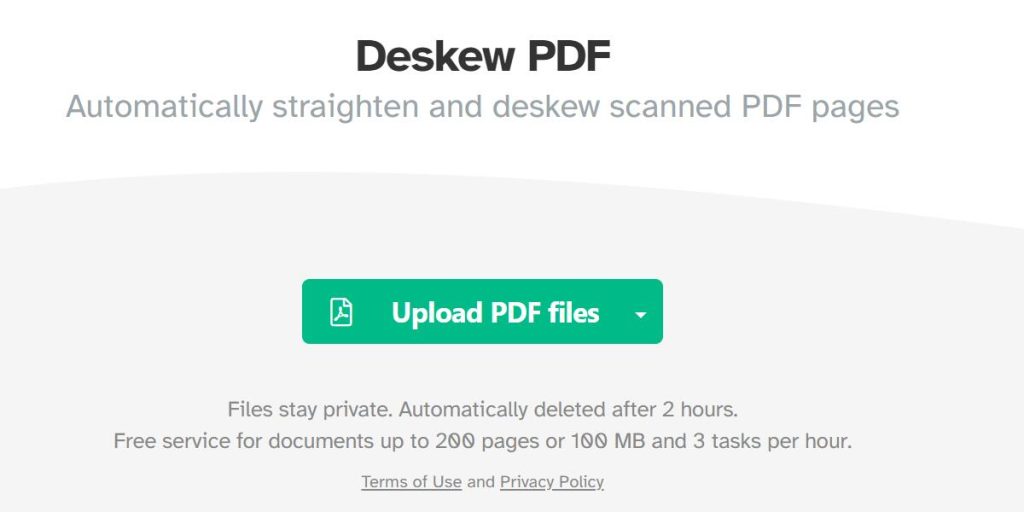
Upload PDF Online
Step 2. If you want to correct the entire document, click “Deskew PDF” directly.
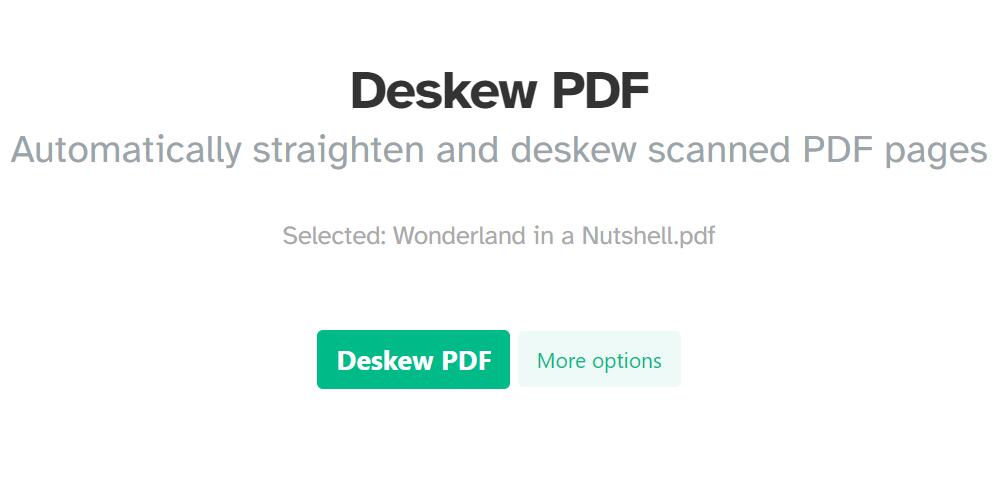
Deskew Whole PDF
If you want to correct some specific pages, click “More Options” and enter the specific page number. Then click “Deskew PDF”.
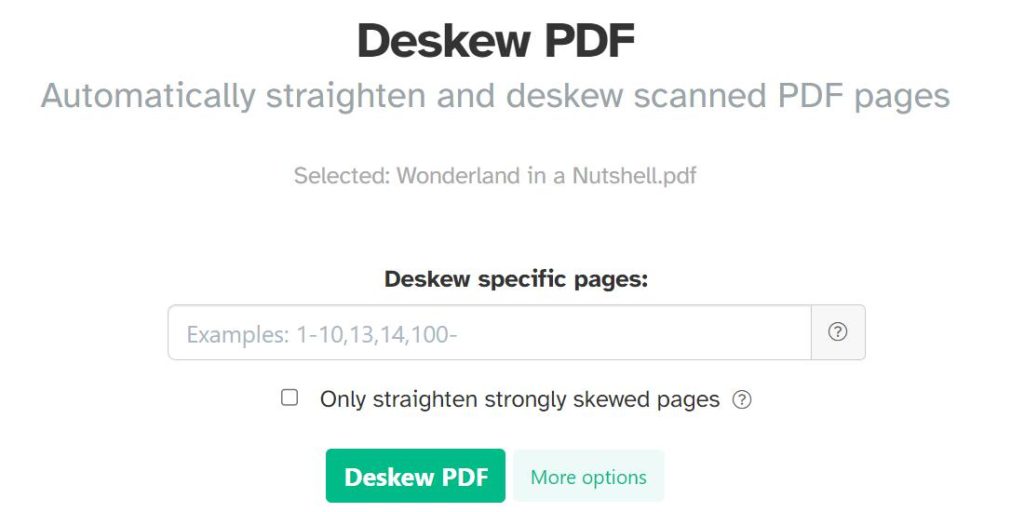
Deskew Specific Pages
Step 3. After the deskew is completed, click “Download” to save the PDF.
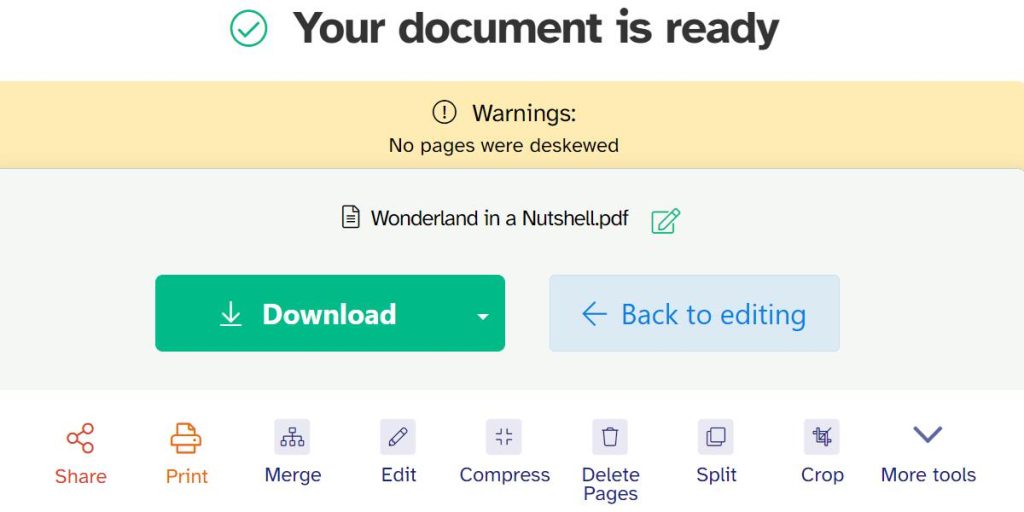
Download deskewed PDF
Deskew PDF Using GIMP
GIMP is a free and open-source image editor that is usually used to manipulate image files, but it can also be used to process image-based scanned PDF files. It is available for GNU/Linux, macOS, Windows, and more operating systems.
GIMP can complete interesting functions such as rotating PDFs, deleting/adding scanned PDF pages, cropping PDFs, etc. Correcting a scanned PDF with GIMP becomes easy as long as you understand that editing a PDF with Gimp is actually modifying the page image.
However, it should be noted that GIMP is not a professional PDF editor after all, so errors may occur during PDF processing. Therefore, during the process of correcting the PDF, please be sure to save it at any time.
Step 1. Download and install GIMP from official websites and open it on your device.
Step 2. Click “File” > “Open” > select the target PDF file.
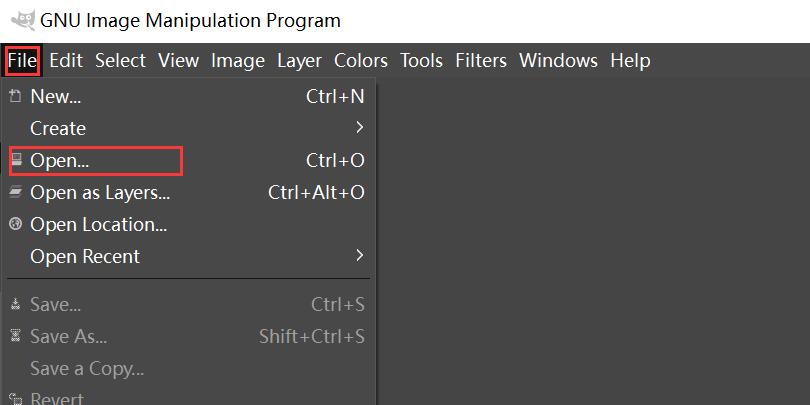
Open PDF
Select Open Pages as “Layers” > click “Import”.
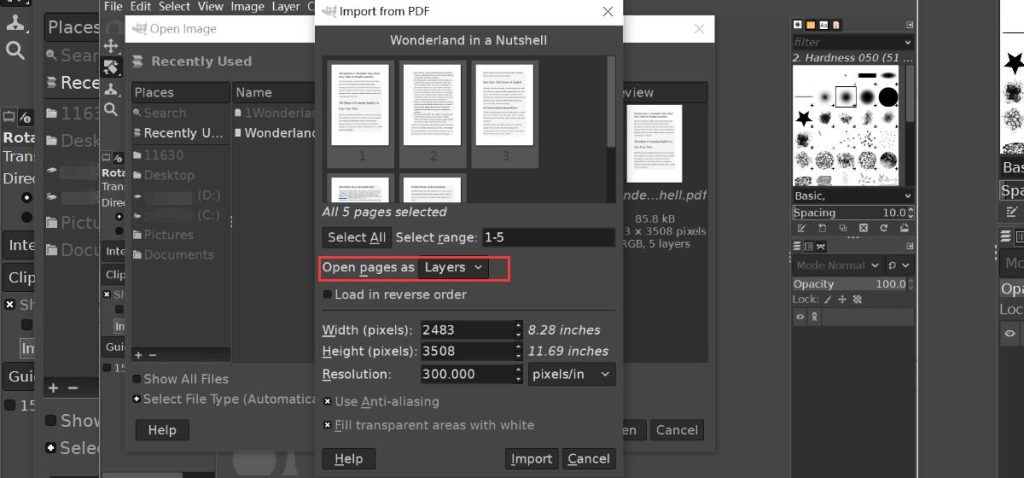
Import PDF as Layers
Step 3. Select Tools > Transform Tool > Rotate from the image menu bar. Or use the shortcut “Shift + R”.
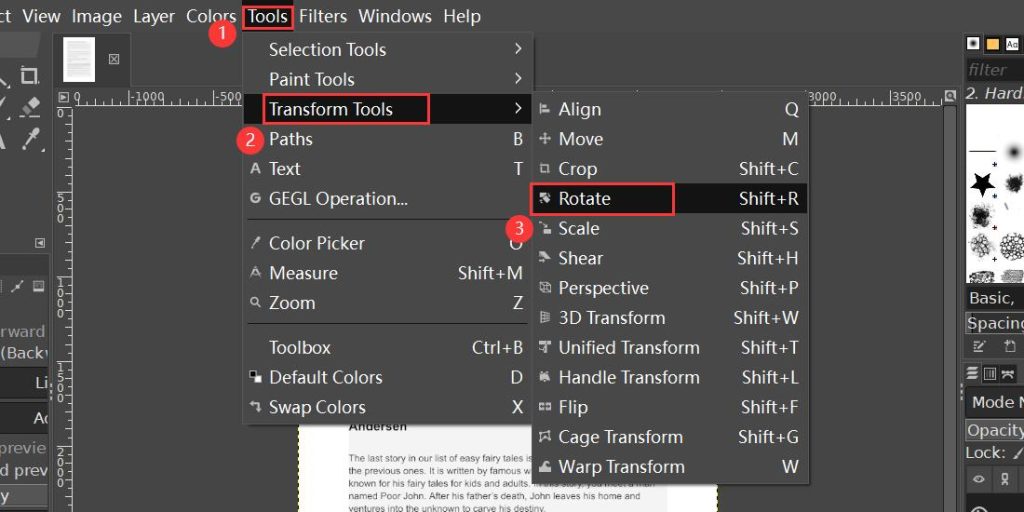
Select Rotation Page
Step 4. Use the mouse to rotate the page image or set the value to correct the PDF. Click “Rotate” after the rotation is complete
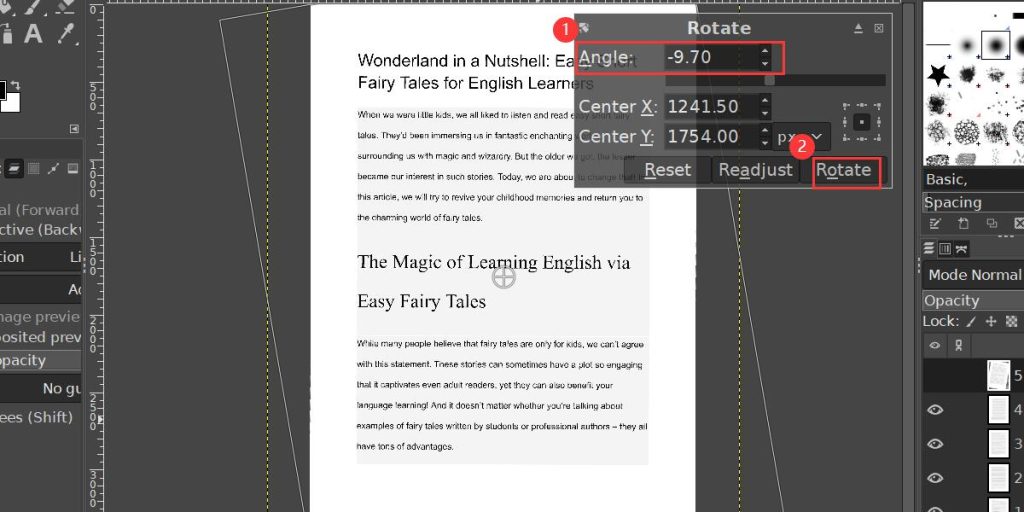
Deskew PDF
Step 4. After correcting the PDF, click “File” > “Export As” > select the appropriate location and save the PDF.
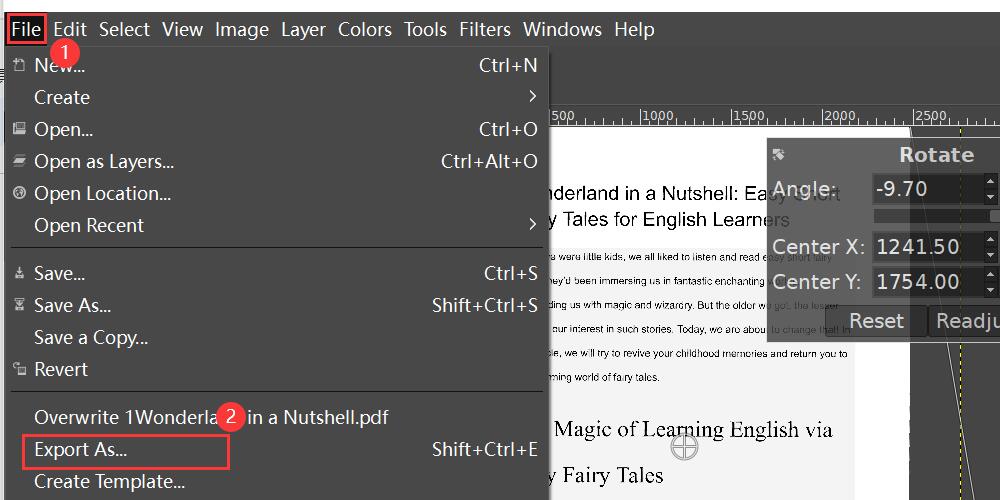
Save Deskewed PDF
Deskew PDF During OCR Using Tesseract
If you don’t want to open a PDF every time and are looking for a way to automatically “correct PDF” via a script, then you can give Tesseract a try.
Tesseract OCR is an open-source OCR engine for identifying and extracting text from various types of images, including scanned PDFs. It can remove text skew during the OCR process. Tesseract is helpful if you plan to extract text from a PDF and process it further.
However, this method is more suitable for simple PDFs. If the PDF has too much content or the tilt angle is too large, Tesseract OCR may not be able to recognize it or may recognize it incorrectly.
Step 1. Download and install the latest Tesseract on your computer from GitHub.
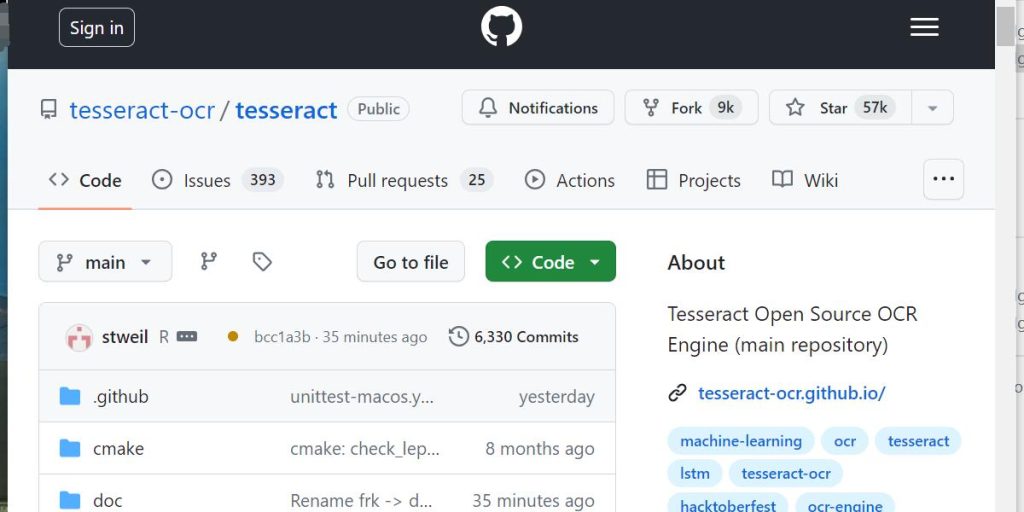
Download and Install Tesseract
Step 2. Integrate it into C++ and Python applications using the Tesseract API.
Step 3. Run the OCR PDF command.
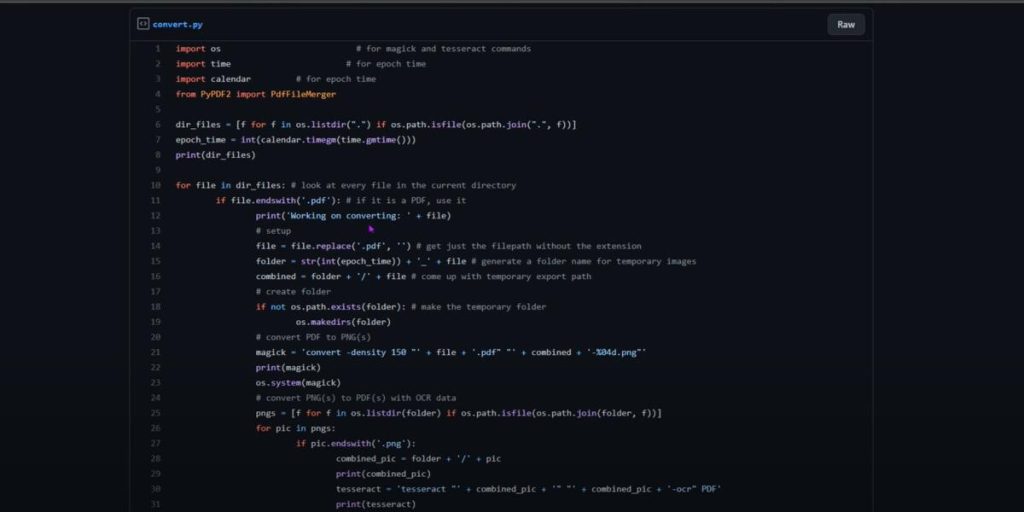
OCR and Deskew PDF
Deskew PDF Using Adobe Acrobat Pro
The final tool for correcting PDFs is Adobe Acrobat Pro, the leader in PDF editing and management. Adobe Acrobat Pro can not only complete PDF editing, scanned PDF conversion, and other tasks, but also provides two methods for correcting PDF. Both methods are very simple and easy to operate.
Adobe Acrobat Pro is a paid tool, but it is also a good choice for its excellent PDF processing capabilities.
Method 1. Using the Scan & OCR tool.
Step 1. Launch Adobe Acrobat Pro and open the skewed PDF.
Step 2. Click the “Scan & OCR” tool in the toolbar.
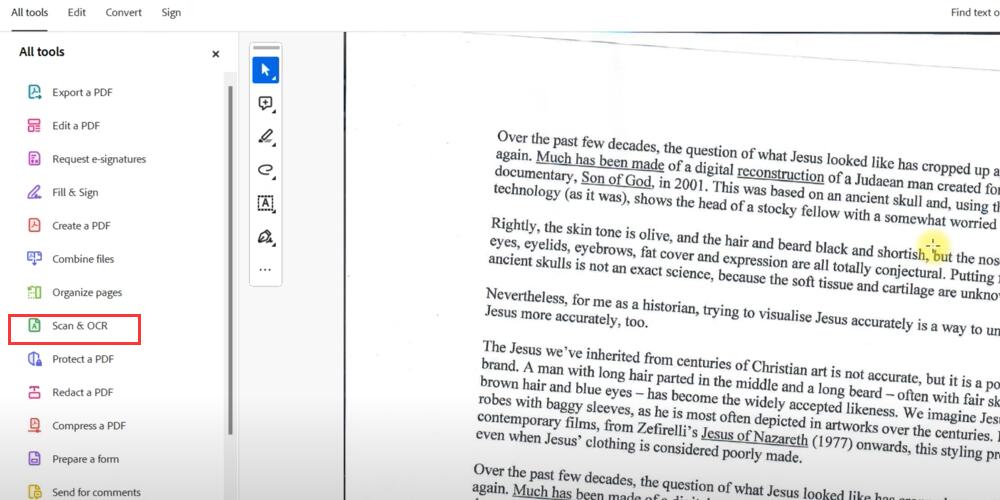
Use OCR tools
Step 3. Click “In this file”. In the drop-down menu, click “Recognize Text”. Adobe Acrobat Pro DC will automatically use its OCR functionality to correct document skew.
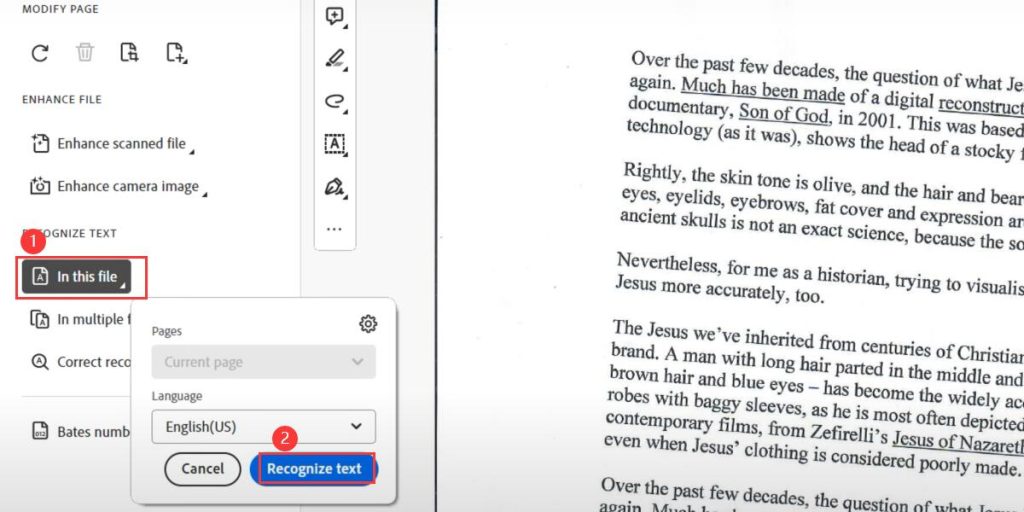
Recognize and correct text
Method 2. Using the Optimize PDF tool.
Step 1. Download and install Adobe Acrobat Pro and open the skewed PDF.
Step 2. Click “Tools”> And select “Optimize PDF”.
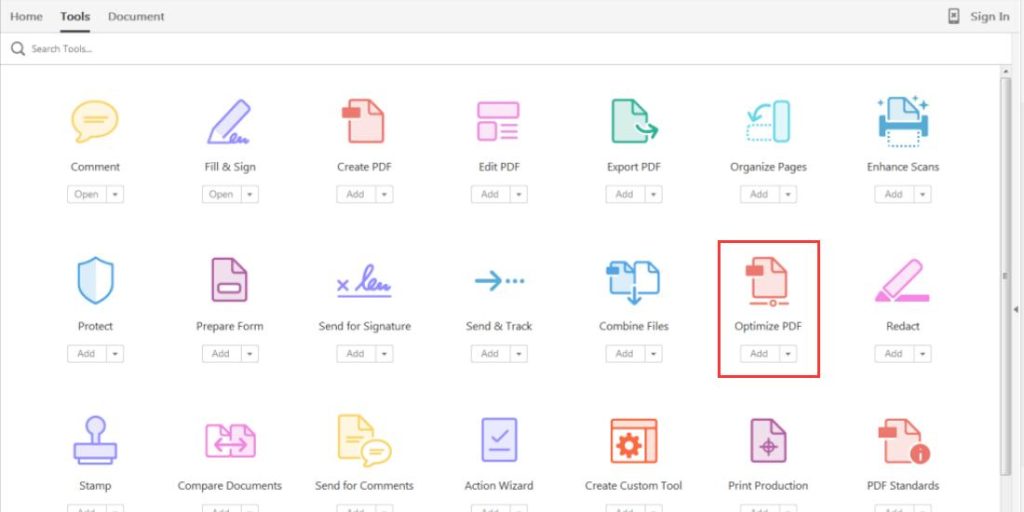
Enter Optimize PDF Mode
Step 3. From the 3 optimization options displayed, click “Optimize Scanned Pages”.
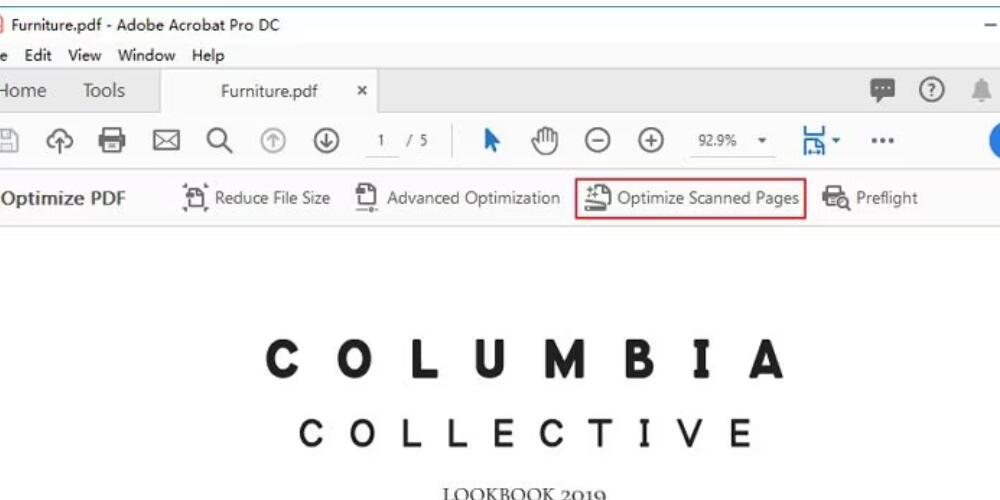
Optimize scanned PDF pages
Step 4. Click “Edit” in the Filters column of the “Enhanced Scanned PDF” pop-up window.
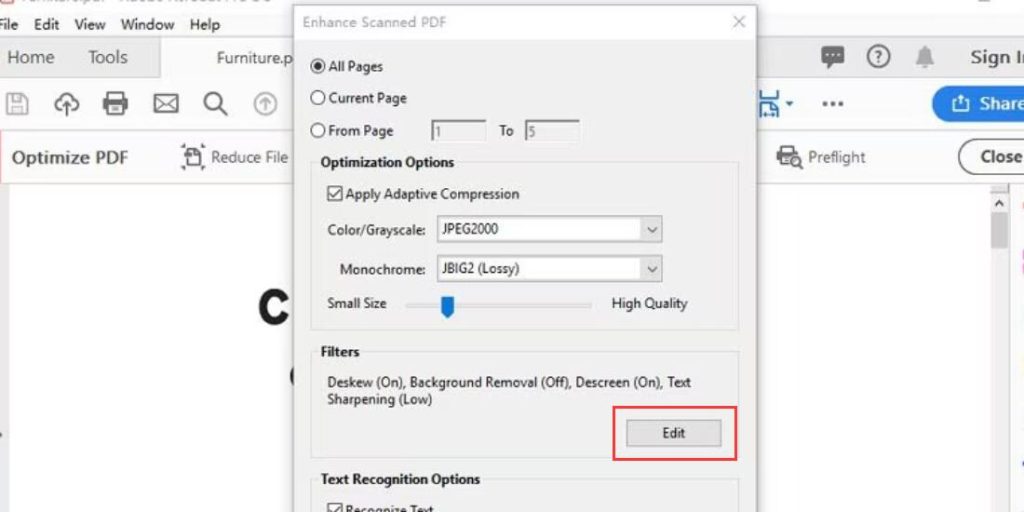
Edit Filters
Step 5. Select “On” in the Deskew drop-down bar and click “ok”. Finally, Adobe Acrobat Pro will automatically start correcting the PDF immediately.
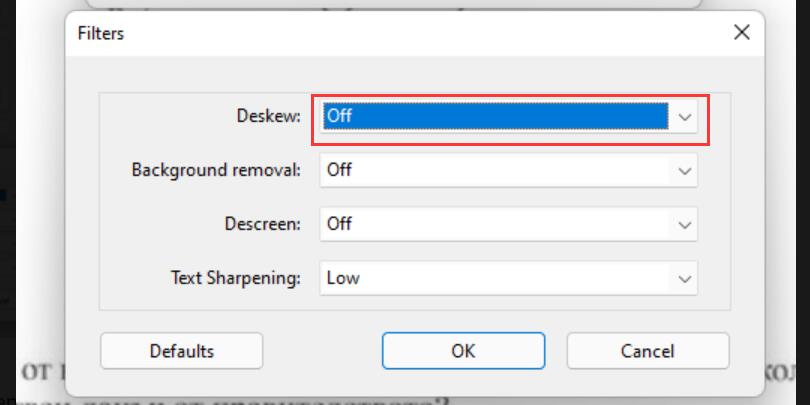
Automatically Deskew PDF
FAQs
What is a deskewed PDF?
A deskewed PDF is a document that has been straightened and aligned properly, removing any distortions or tilts that may have occurred during scanning or other processes.
Deskewing is a common step in document processing and OCR (optical character recognition) to improve readability and facilitate data extraction.
Why is deskewing important for PDF files?
Deskewing is important for improving the readability and appearance of scanned documents, making them more professional-looking and easier to work with.
Additionally, deskewing can enhance the accuracy of OCR software, which relies on clear and properly aligned text to recognize and extract data from documents.
Does deskewing a PDF affect the quality of the document?
Deskewing a PDF can slightly affect the quality of the document, as the process may involve resizing or repositioning the content.
However, most modern deskewing tools are designed to minimize any loss in quality, and the overall benefits of deskewing, such as improved readability and OCR accuracy, typically outweigh any minor quality issues.
Conclusion
Deskewing PDF files is not difficult, you just need to find the right tool. Whether you are rotating PDF or deskewing PDF through OCR, the four tools mentioned above are reliable choices.
Based on your needs, choose the most suitable tool to greatly improve your PDF deskewing efficiency and enjoy the PDF editing journey.
