How to Create Stamps for PDF & Free Template Stamps

Summary :
Learn how to effectively create and add customizable stamps into PDF using PDFgear or Adobe Acrobat. Or download our free PDF stamp templates.
Table of Contents
PDF stamps are perfect for giving feedback, signing off on documents, or just adding a little flair.
Learn how to add stamps to PDF or download free PDF stamp templates here.
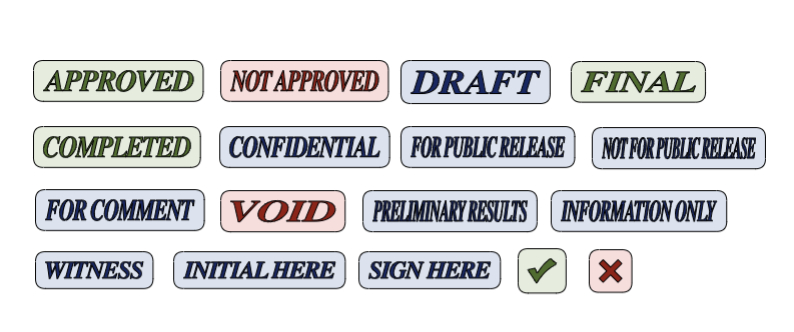
Create and Add Stamps to PDF Online for Free
PDFgear online editor is a full-featured and easy-to-use PDF editor for you to add customizable stamps into PDFs.
PDFgear is free to use, there’s no watermark, and there’s no sign up.
Step 1. Go to the PDFgear online editor. Click Select PDF file to open the PDF that needs to be stamped.
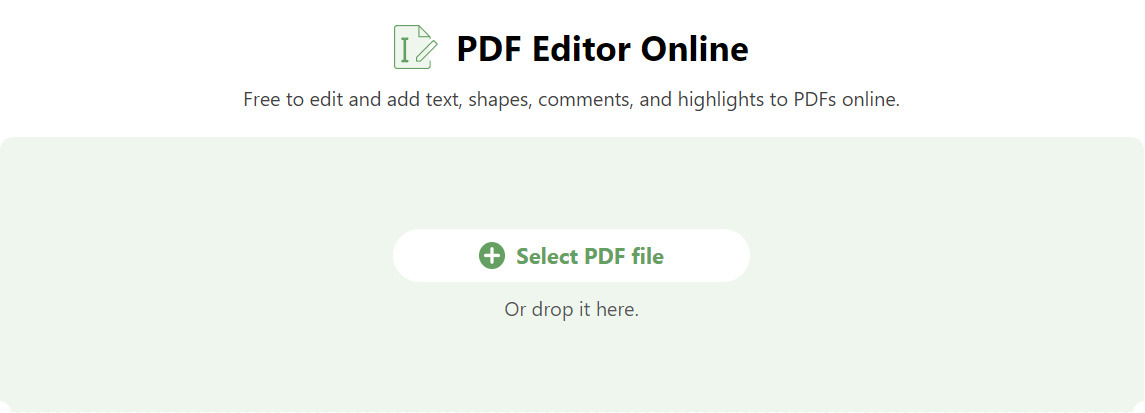
Select PDF file
Step 2. Click “Add Stamp” button from the upper menubar. There are 3 types of stamps to choose from: Dynamic, Sign Here, and Standard Business. Choose the category you need and find your preferred stamp.
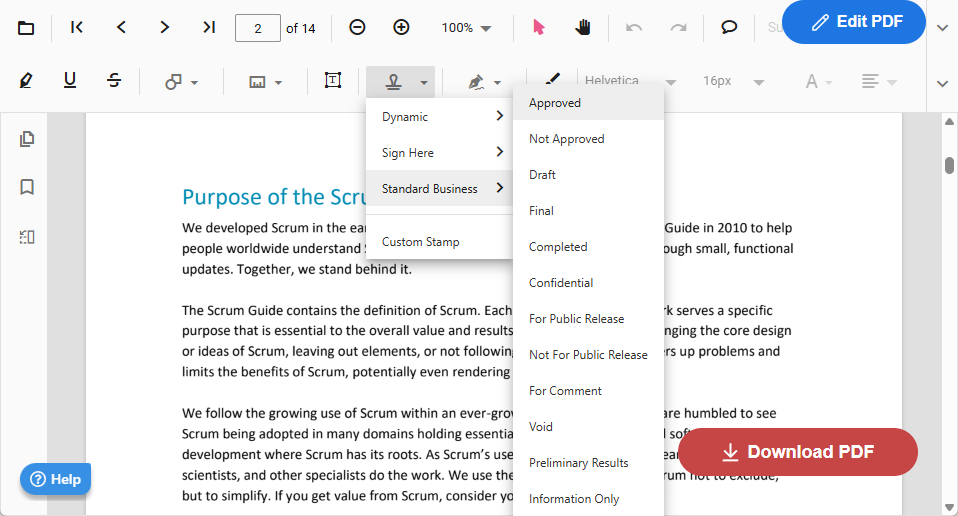
Add Stamp
Step 3. Click on the PDF page to place the stamp on any part of the PDF file.
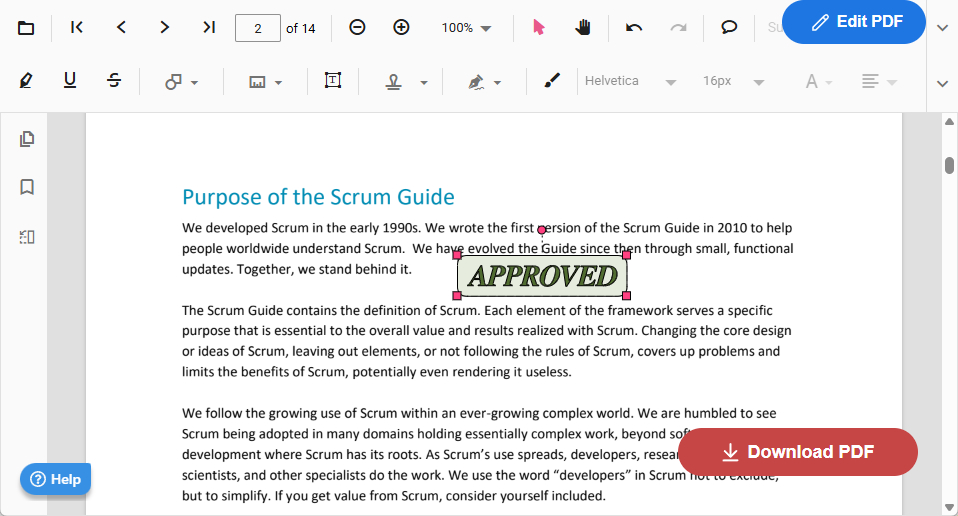
Place Stamp
Step 4. If you need to add a custom stamp, click “Add Stamp” > “Custom Stamp” > Select and upload the required stamp locally > Move the cursor to the appropriate position and click the mouse to add the image to the PDF.
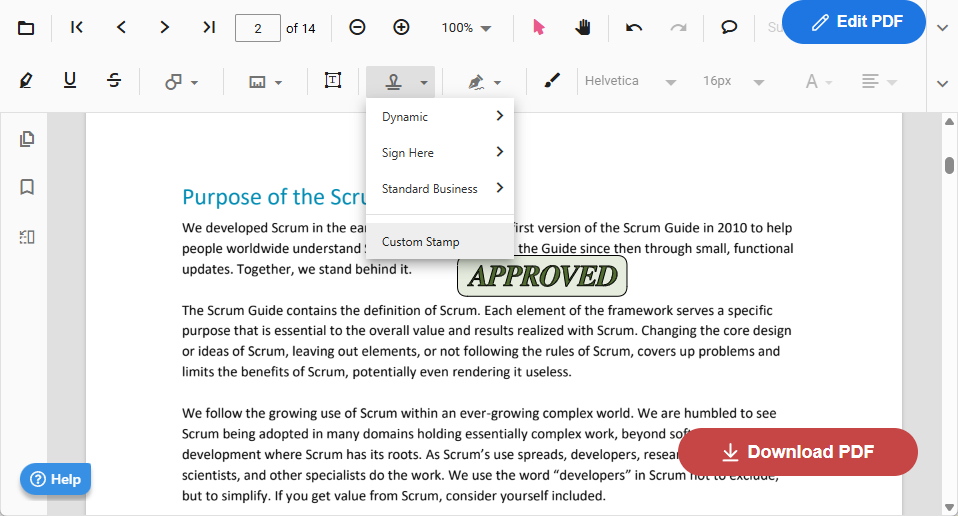
Custom Stamp
Step 5. Click the “Download PDF” icon in the lower right corner to save the stamped PDF.
Add Stamp in PDF with PDFgear Software
PDFgear is a fully free PDF stamp creator featuring a wide range of preset stamps for your convenience. Additionally, you have the option to customize stamps by adding text or uploading images.
Besides, there are plenty of editing tools that allow you to draw, type, and write on PDFs. Here are the simple steps to add a stamp to your PDF for free using PDFgear:
Step 1. Download PDFgear, open PDFgear, and click “Open File” to upload the PDF file.
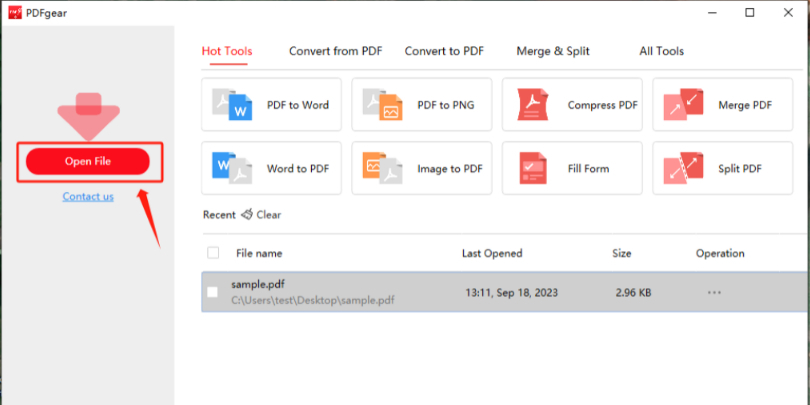
Open PDF in PDFgear
Step 2. Click “Annotation” in the upper menu bar > select “Stamp” > “Preset” > then select the appropriate stamp.
PDFgear provides multiple preset stamps to meet most of your needs.
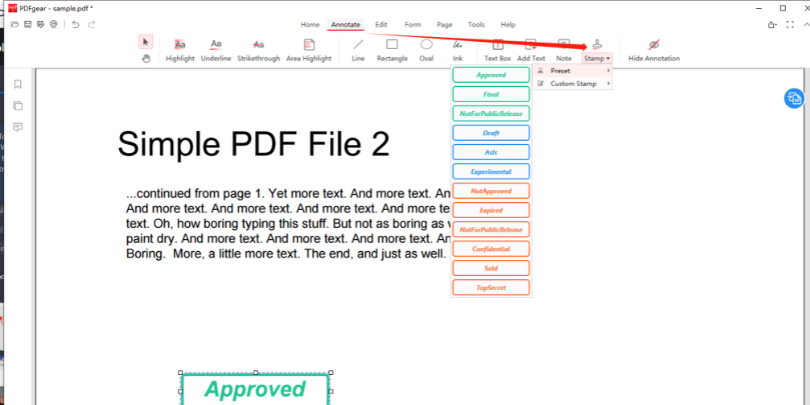
Add Preset Stamp
Step 3. If you need to add a custom stamp, select “Stamp” > “Custom Stamp“. You can add two types of custom stamps: custom text stamps and images.
Just enter the corresponding text or upload an image and click “OK“. If you want to save it as a frequently used stamp, just check the “Save custom icon“.
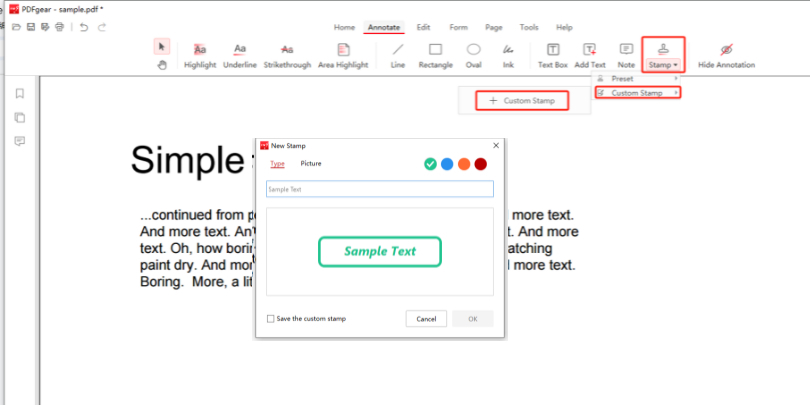
Add Custom Stamp
Step 4. Move the cursor to the correct position and click the mouse to add the stamp to the PDF.
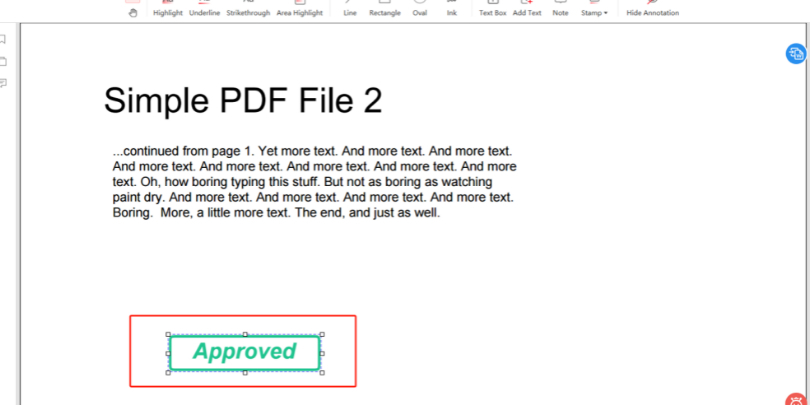
Add Stamp to PDF
Step 5. Click the “Save” icon in the upper left corner to save the PDF modifications.
Create Stamp in Adobe
Adobe Acrobat Reader is the world’s most trusted PDF reader and editor, allowing users to view, add notes, fill in, and sign PDFs to complete workflows quickly and efficiently. There are also plenty of customization options available to suit your needs.
Adding a stamp to a PDF is easy with Adobe Acrobat Reader. Please follow these steps:
Step 1. Open the PDF in Adobe Acrobat Reader.
Step 2. Click “Tools” in the menu above > Click “Comments”
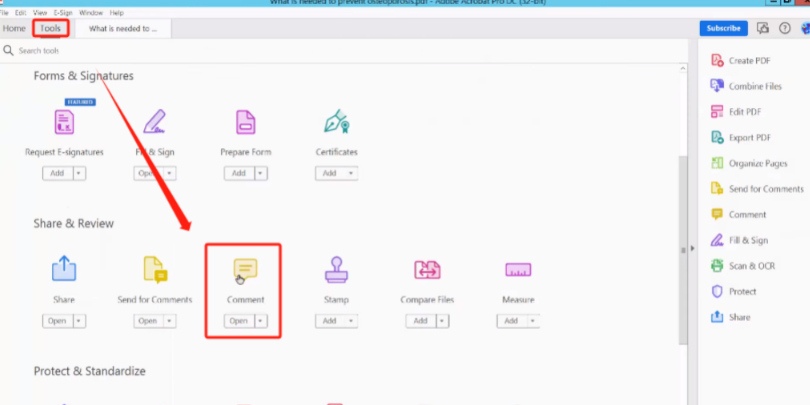
Enter Edit Mode
Step 3. Select the “Stamp” tool from the toolbar, and then select the type of stamp you want. There are three options: “Dynamic“, “Sign Here” and “Standard Business“.
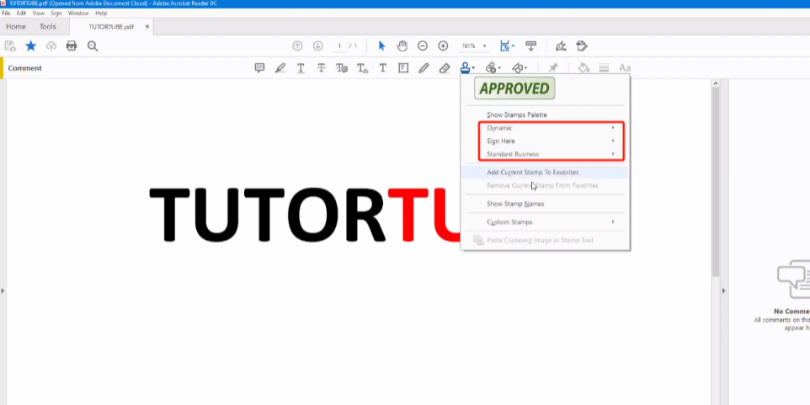
Choose the Right Stamp
Step 4. If you need to add a custom stamp, click “Stamp” > “Custom Stamp” > Click “Browse” in the pop-up window that appears to upload the stamp locally > Determine the location and name of the stamp and click “OK“.
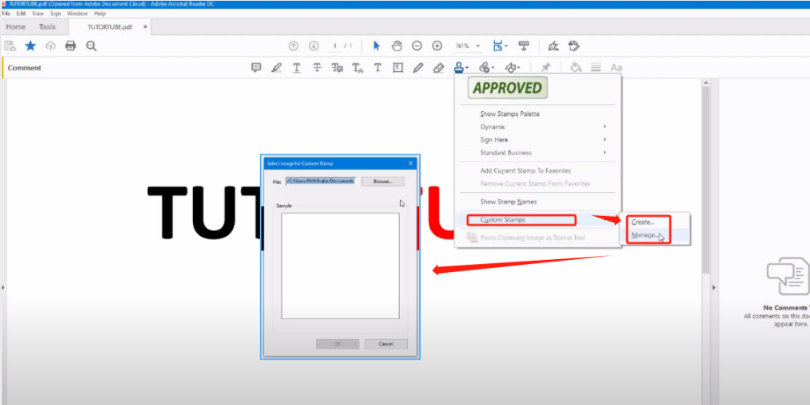
Custom Stamp
Step 5. After selecting the stamp you want, click the location where you want to add the stamp.
FAQs
How Can I Stamp a PDF for Free?
PDFgear provides both online and offline tools to help you add stamps to PDFs. Both tools are completely free.
How to Create a Dynamic Stamp in Adobe?
Steps to create a stamp containing dynamic information in Adobe Acrobat are as follows: Open PDF in Adobe Acrobat > Click “Tools”>”Comments” > Click the “Stamp” icon > “Dynamic Stamp” > Select the icon you need and add it to the appropriate location.
How Do I Create a Stamp for a PDF Online?
PDFgear online editor can create and customize stamps for your PDF online without editors downloading and logging in.
Step 1. Access the PDFgear online editor and open the PDF.
Step 2. Click “Add and Edit annotation” > “Add Stamp”.
Step 3. Select the required stamp or upload a custom stamp.
Step 4. Add the stamp to the appropriate location.
Conclusion
Discover 3 efficient ways to create and add stamps to PDFs in this guide. Offline and online editors provide flexible options for your needs.
Choose your preferred method for professional PDF customization, highlighting, and verifying digital documents with custom stamps.
