How to Create a Fillable PDF from an Excel Spreadsheet for Free

Summary :
Follow our guide to instantly turn your Excel spreadsheet into a fillable PDF form using our free online tool.
Table of Contents
Given the tabular nature, Microsoft Excel is a great tool for preparing forms that are specifically for data organization.
On this page, you’ll learn how to use our free online tool to make a PDF form with fillable text boxes, dropdown lists, check boxes, radio buttons, passwords, etc.
The output PDF form will be fillable in PDF editors or web browsers like Chrome when you send it to other people.
Prior to Starting
Before we get started, there are several things you need to know:
1. MS Excel doesn’t natively support creating fillable PDF forms, you can only use it to design design the form layout, and then turn it into a fillable PDF form.
2. There are several ways to turn Excel to PDF without losing formatting, you can either export it from Excel or use a dedicated converter like PDFgear.
3. ❗As with using Google Docs or Word, if you add form elements using Excel’s Format Controls feature in the Developer tab, the fillability of the elements will be lost after the format conversion.
4. Whatever the file conversion method, you’ll need a dedicated PDF form maker and manually insert fillable form fields.
Creating PDF Forms in Excel: Step by Step
Step 1. Prepare the form content within Excel. While you’re at it, input all the fields and labels you need to indicate where needs to be filled.
When it’s done, save the Excel spreadsheet as an XLS or XLSX file on your device.
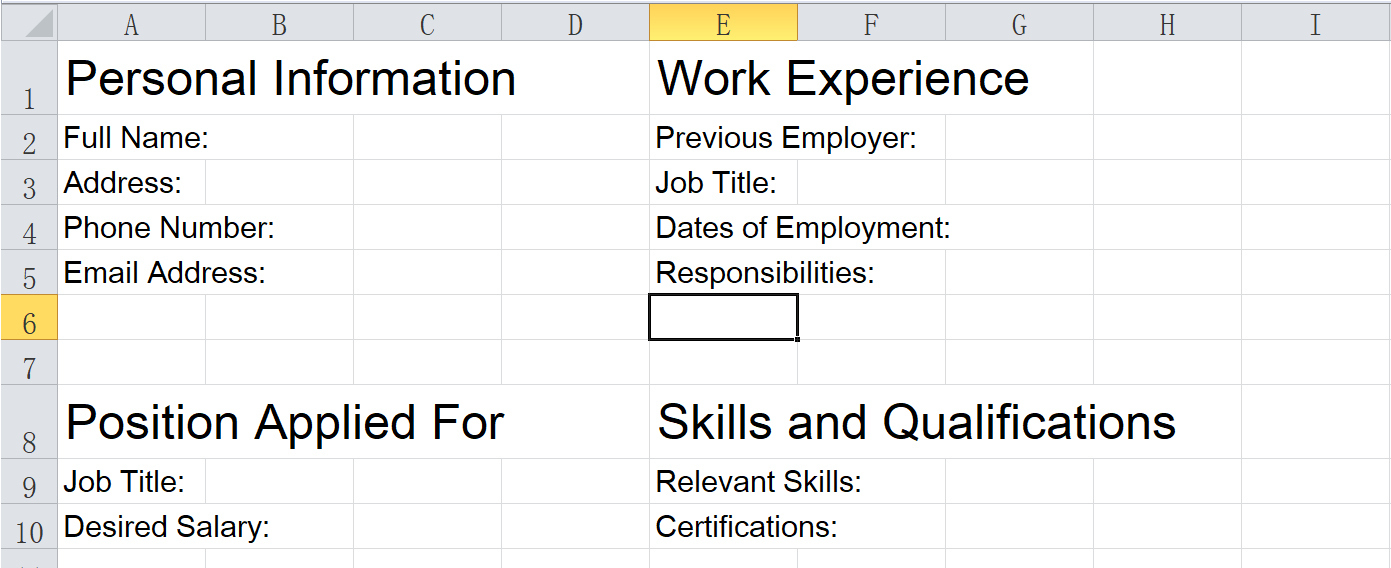
Prepare Form in Excel
Step 2. Go to PDFgear Excel to PDF converter, and click Upload Excel file to upload the Excel file we just created on your device.
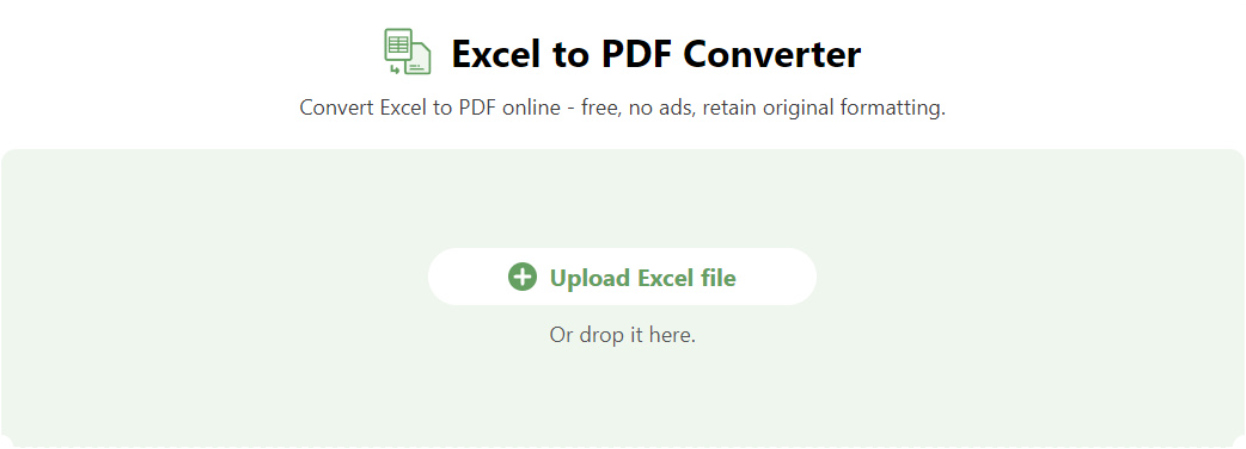
Excel to PDF
Step 3. PDFgear will automatically convert it into a .pdf file with original formatting and layouts preserved. When a Download button appears, click it to save the converted PDF.
As you can see, the form converted from Excel is not yet fillable.
Step 4. Go to PDFgear online PDF form filler, and click Upload the PDF file to upload the PDF we just converted.

Create PDF Form Online
Step 5. When the PDF is loaded in the online tool, go to the upper-right corner and click Add and Edit Form Fields.

Add and Edit Form Fields
Step 6. Then go to the left side where you’ll find options to insert fillable elements including textbox, password, checkbox, radio button, dropdown, list box, etc.
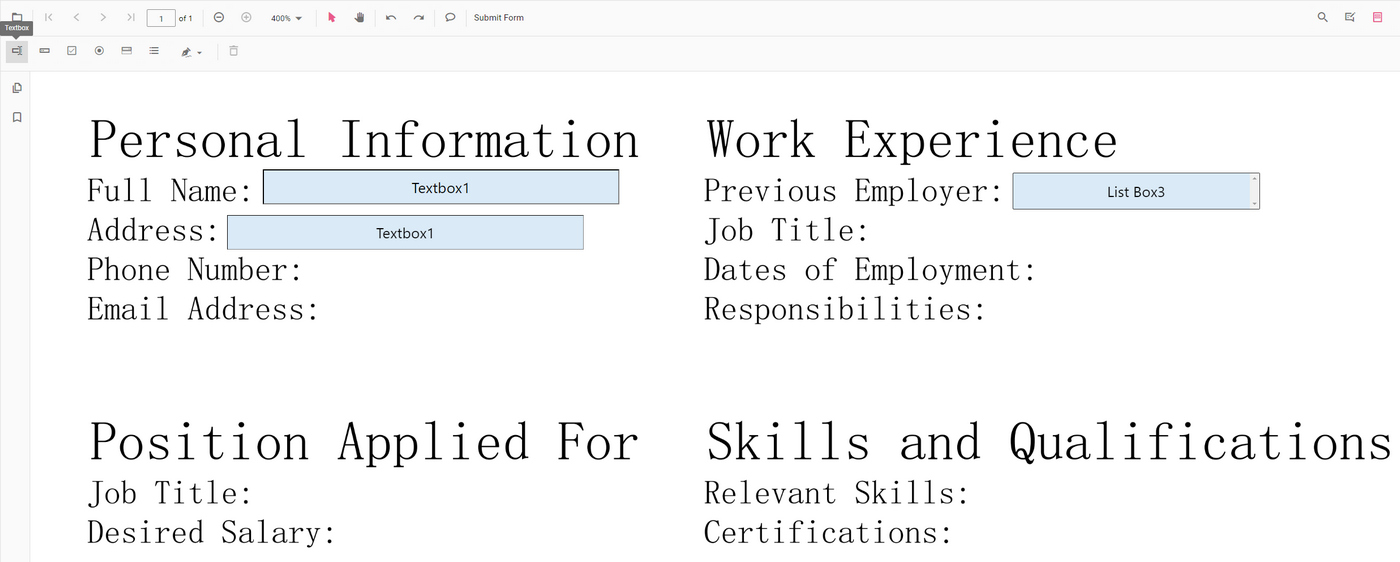
Insert Fillable Form Fields
Step 7. Once you’re done inserting form options, click the upper-right Download button to download and save the fillable form offline on your device.
Step 8. That’s it! Now you can open the downloaded PDF in Chrome, Edge, or Firefox, and you’ll find it fillable now.
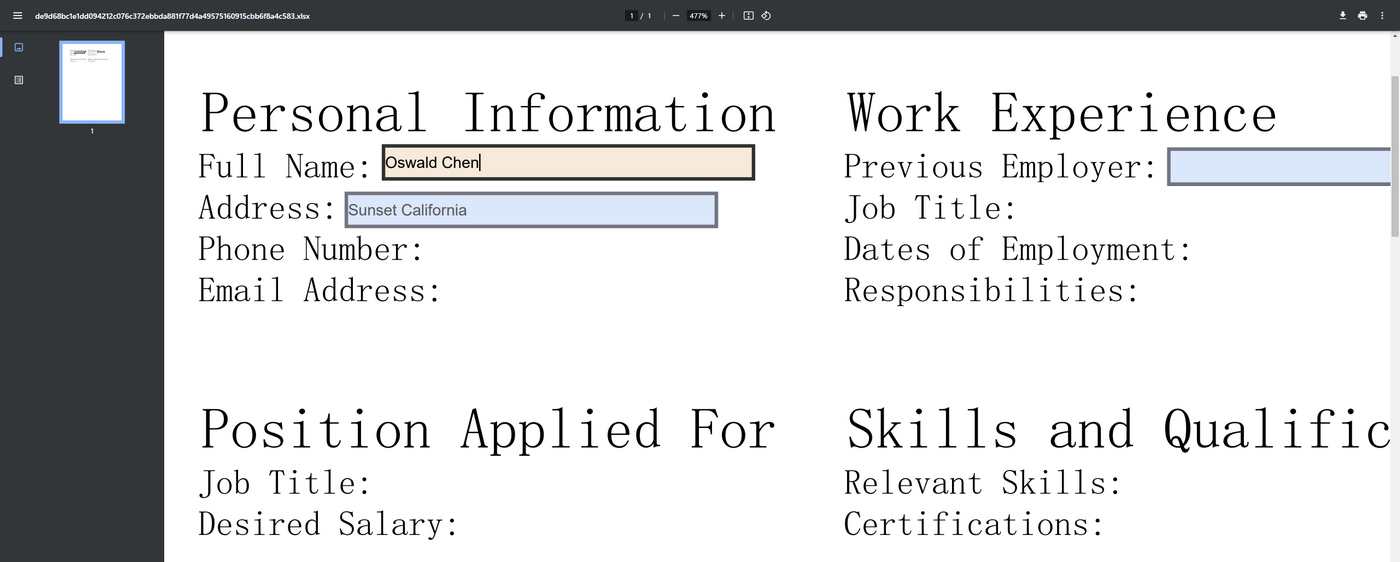
Fillable PDF Form Created
Different PDF Form Fields
There are a variety of PDF form fields (properties, elements, etc.) that you can insert into a PDF. Below you’ll learn what are these for.
- Text Box: Allows users to enter text.
- Password Box: Similar to a text box, but masks the input for security.
- Checkbox: Lets users select or deselect options; multiple selections are allowed.
- Radio Button: Allows users to choose one option from a group.
- Dropdown: Provides a list of options in a drop-down menu, users can select one.
- List Box: Displays a list of options where users can select one or multiple items.
FAQs
Can I edit a fillable PDF form after it has been created?
Yes, you can further edit a fillable PDF form after creation using PDFgear offline PDF editor, which includes a direct text editing feature. You can modify form fields, update text, and make other adjustments as needed.
Can I create a fillable PDF form directly in Excel?
No, Excel does not have built-in tools for creating fillable PDF forms. However, you can design the layout of your form in Excel, and then use PDFgear to make a fillable PDF with it.
How do I design a form in Excel that can be converted into a fillable PDF?
Design your form in Excel using cells, text boxes, and other elements to structure the layout. Make sure your form includes all the fields and labels you want.
What should I consider when designing my form in Excel for PDF conversion?
Ensure your form layout is clear and structured, with enough space for form fields. Use borders, shading, and alignment to make the form visually appealing. Consider using consistent fonts and sizes to maintain clarity.
