How to Copy a Table from PDF to Word without Losing Formatting

Summary :
Learn how to copy a table from PDF to Word using 2 easy and effective methods. Or instantly extract table from PDF to Word online free.
Table of Contents
Copy Table from PDF to Word
Copying tables from PDF to Word can be a challenging task due to the formatting issues it arouses. But with the right tools, it can be done flawlessly.
Keep on reading and learn about the 2 best ways to copy tables from PDFs into Word documents without formatting issues.
Copy Table from PDF to Word Online for Free
The most straightforward way of copying tables from PDF to Word is using a PDF to Word converter, and the most convenient solution is PDFgear online PDF to Word converter.
PDFgear is a free online tool that allows you to convert digital PDF to Word without losing formatting, so the table formatting and editability will be preserved after the conversion.
PDFgear is free, there is no watermark, no registration. Let’s get started with it right away!
Step 1. Click the Upload PDF file button to upload the PDF file with the tables you need.
Step 2. After a few seconds for the conversion process, when it’s done, click the Download file button that appears.
Step 3. Open the downloaded Microsoft Word document, and you can select and copy the table without issues.
Step 4. Open another Word document you need, and paste the copied table.
Before
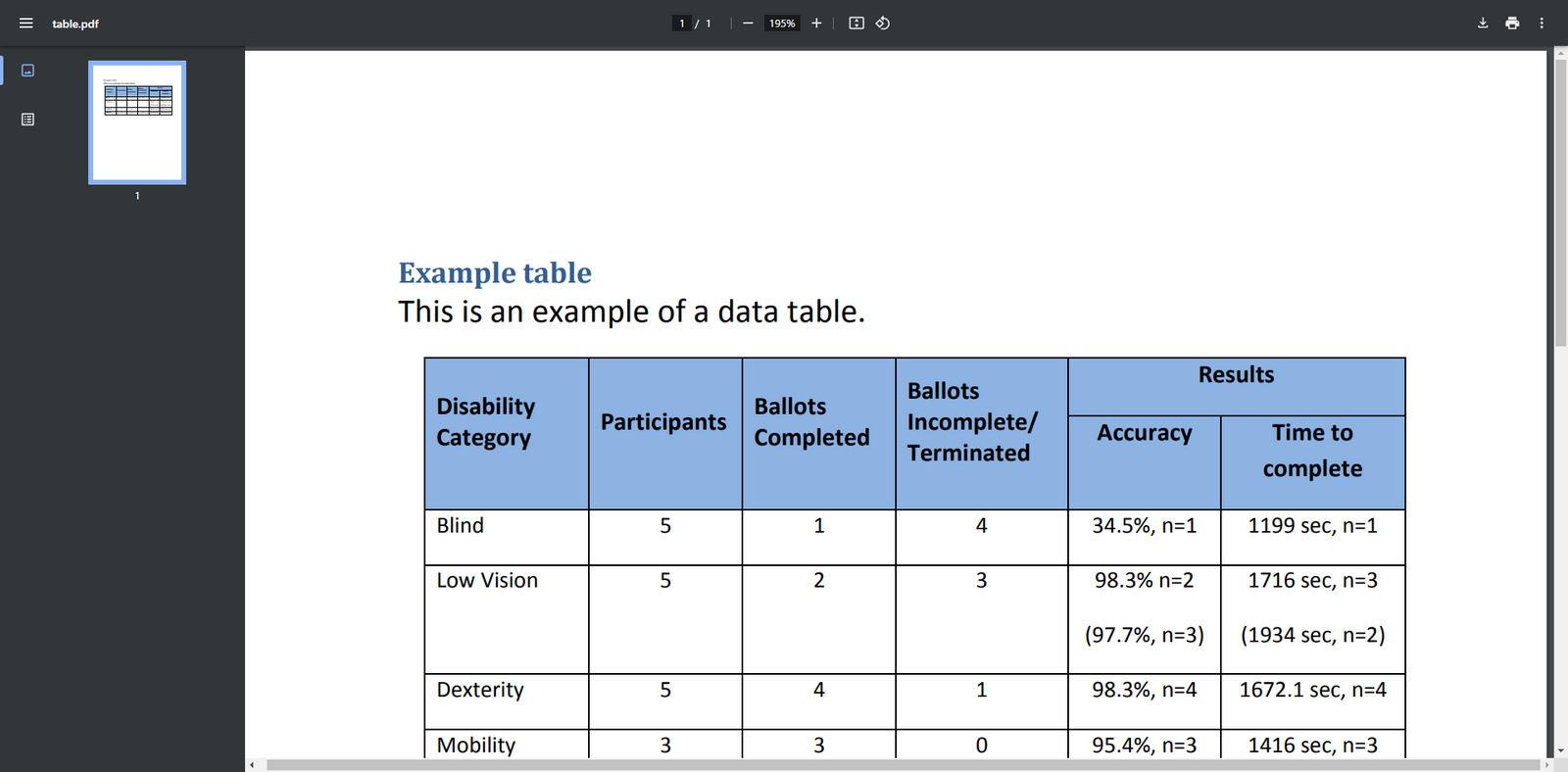
After
How to Copy Table from PDF to Word Using Microsoft Word
If you need to copy tables from a scanned PDF, then Microsoft Word is recommended. It offers a built-in PDF converter that allows you to import PDFs and extract tables from PDF to Word using OCR.
Given the image-based nature, there could be formatting issues when the scanned PDFs are opened in Word, but Microsoft Word is especially great at manually fixing formatting incorrect text, aligning columns, or adjusting cell sizes.
Step 1. Open Microsoft Word. Click File and select Open to load your PDF document.
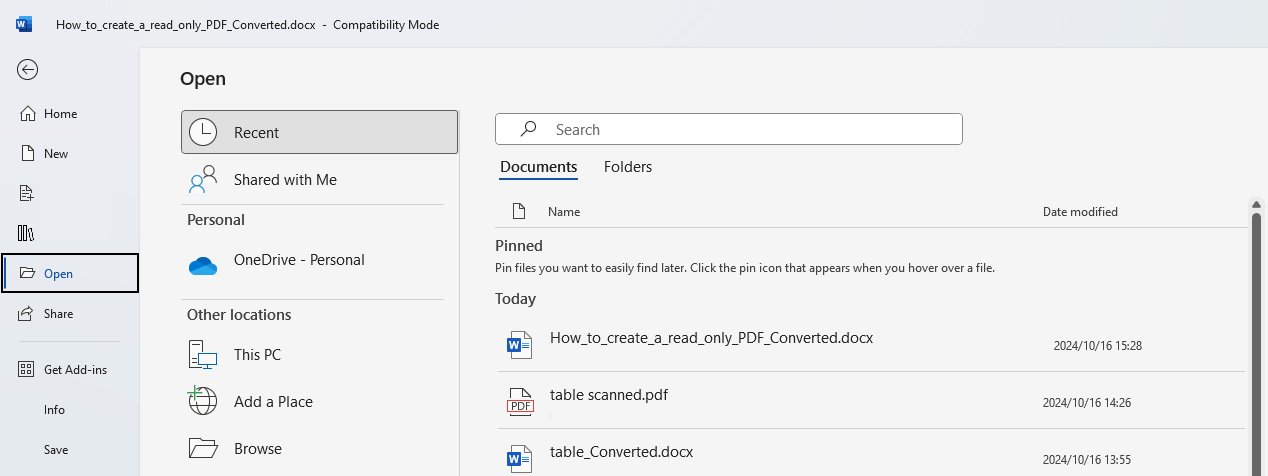
Open PDF in Word
Step 2. Click OK when prompted that “Word will convert your PDF to an editable Word document”.
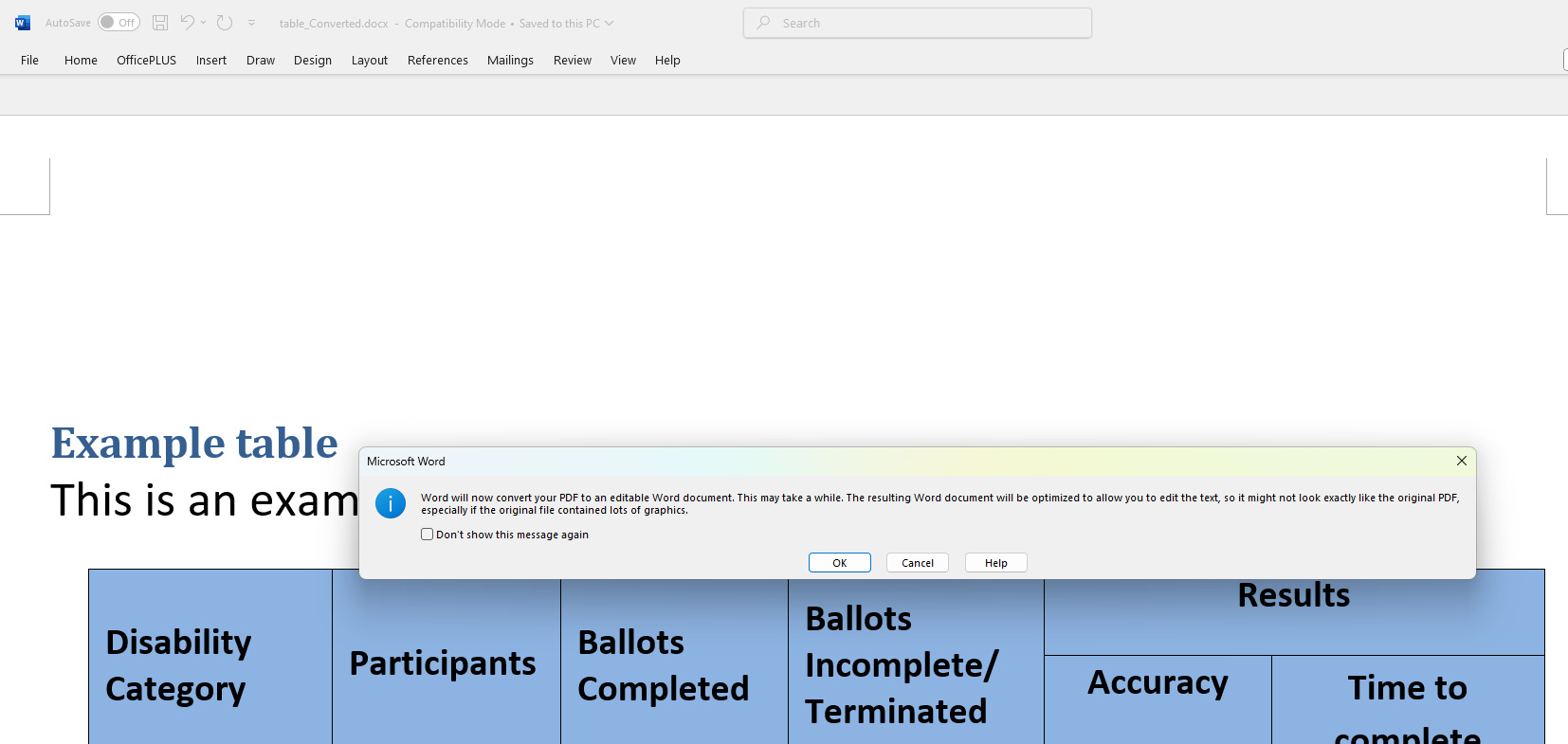
Click OK
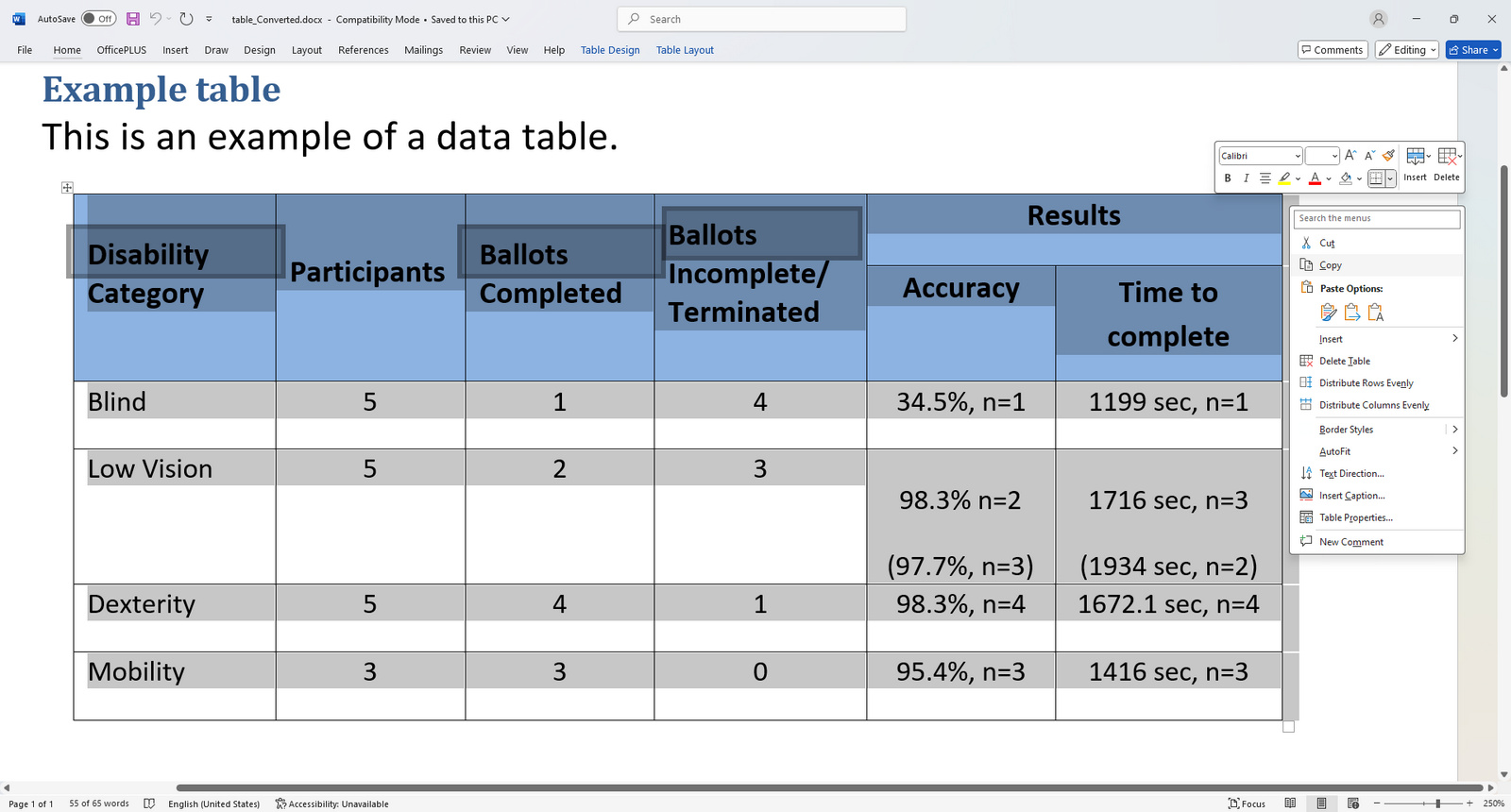
Step 3. Locate the table or chart you want to copy. Select the entire table, right-click, and click Copy to copy it to the clipboard.
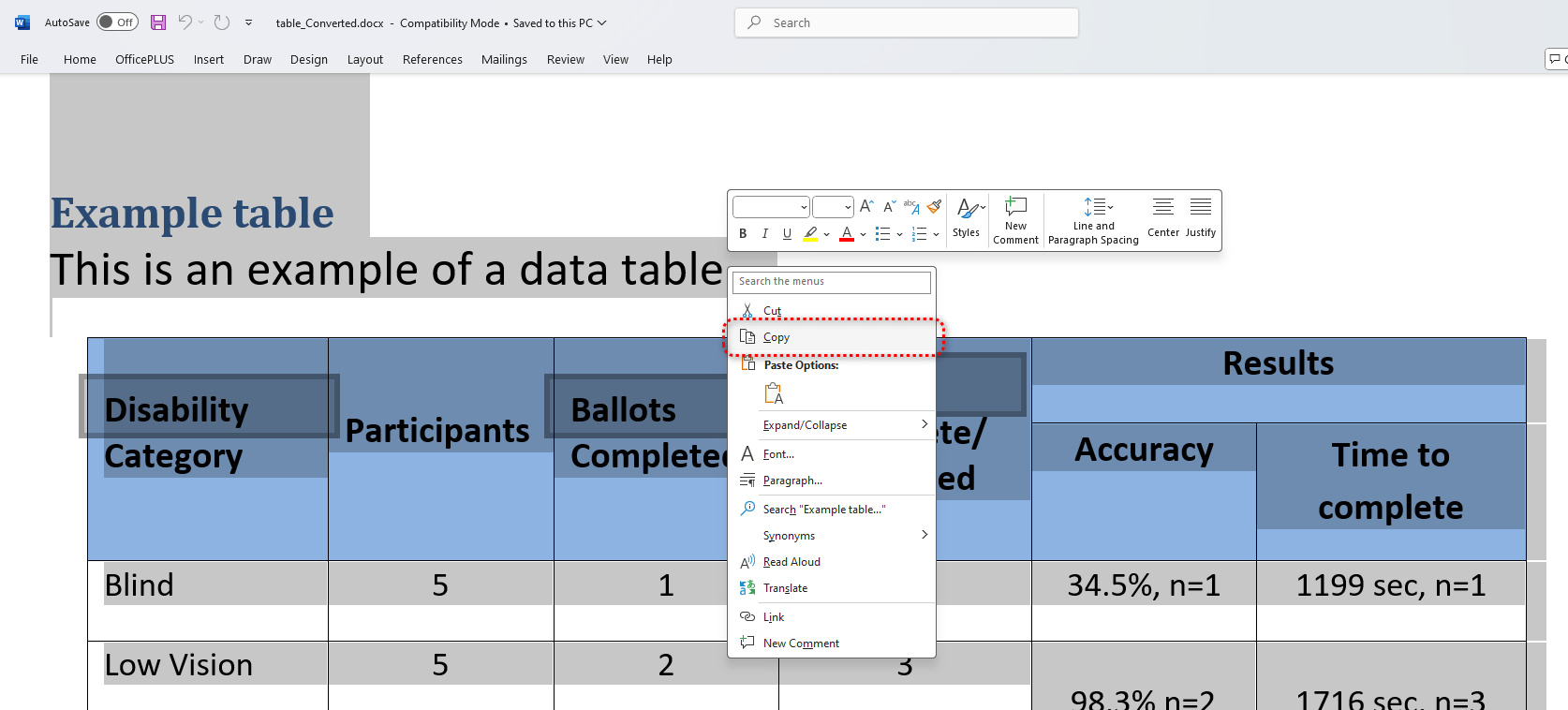
Copy Table
Step 4. Open another Word document, and use the keyboard shortcut Ctrl + V (Windows) or Command + V (Mac) to paste the copied table or chart into a target Word file.
In some cases, you may need to adjust the format or layout in Word to ensure the table looks as desired.
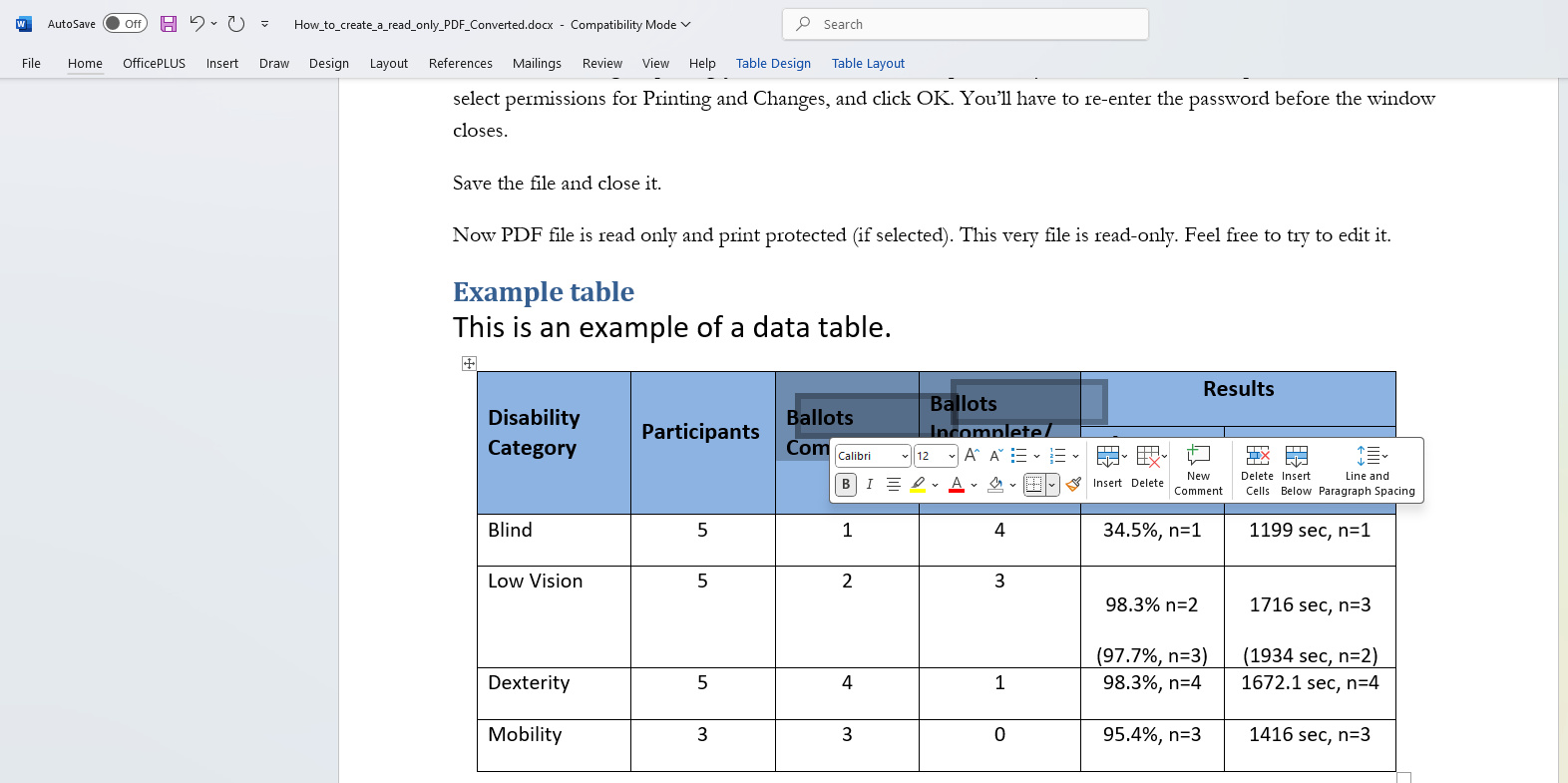
Paste in Another Document
FAQs
What is the best way to copy a table from PDF to Word without losing formatting?
The most effective method to maintain formatting is to use a dedicated PDF conversion tool, like PDFgear. It can convert PDF files directly to Word while preserving the layout and formatting of tables. It also includes features like Optical Character Recognition (OCR) for scanned PDFs, allowing for accurate table copying.
Can I copy tables directly from a PDF into Word?
Yes, you can copy tables directly from a PDF into Word, but results may vary based on how the PDF was created. If the table is simple and the PDF is not scanned, you can select the table, copy it (Ctrl+C), and paste it into Word (Ctrl+V). However, complex tables may lose formatting or not paste correctly.
What should I do if the table does not paste correctly?
If the table does not paste correctly, consider using a conversion tool instead of direct copying. PDFgear software can convert the entire PDF to Word format using OCR, allowing you to extract and format the table as needed.
How do I use Microsoft Word to copy a table from a PDF?
You can open a PDF directly in Microsoft Word by selecting “Open” from the File menu and choosing your PDF file. Word will attempt to convert the PDF into an editable document. Once opened, you can select the table, copy it, and paste it into your desired Word document. Note that this method may result in formatting issues.
What if my PDF is scanned or image-based?
For scanned or image-based PDFs, you’ll need a tool with OCR capabilities to extract text and tables accurately. Tools like PDFgear or Microsoft Word provide OCR features that recognize text within images.
Is it possible to copy multiple tables from different PDFs at once?
Yes, some advanced PDF conversion tools allow batch processing of multiple PDFs. For instance, PDFgear software offers a batch conversion feature that lets you select several PDFs containing tables and convert them all to Word documents simultaneously.
More Related Articles
