5 Easy Ways to Convert PowerPoint Presentations to PDF Files Without Changing Font

Summary :
Never let font changes ruin your PPT to PDF conversions. Here are easy and simple ways to save a PPT document as a PDF file without changing fonts. Check them out!
Table of Contents
How to Convert PDF to PPT without Changing
PPT is a popular format for sharing ideas, helping people understand, and encouraging teamwork. PDF files, on the other hand, can be easily shared across different messaging apps and are searchable by all search engines.
Yes, you can create a PDF slideshow that plays like a presentation, and it’s also simple to convert PowerPoint slides to PDF. However, some PPT to PDF converters might mess up the original fonts, images, or layout. Here are 5 reliable ways to save a PPT as a PDF without changing the fonts. Choose one and get started now.
Convert PPT To PDF Without Changing Fonts Offline for Free
PDFgear is a reliable software for converting PPT to PDF. It keeps your PowerPoint slides’ original layout, fonts, and images intact during the fast and stable conversion process.
Though free, PDFgear doesn’t limit PPT size or the number of conversions you can do each day. What’s better, PDFgear allows you to upload multiple PowerPoints and convert them to PDF in one go.
Additionally, PDFgear has other conversion tools. To name some of the most popular ones, PDF to Word, PDF to Excel, image to PDF, and PDF to PowerPoint. In short, PDFgear lets you easily switch between all major document formats.
Follow the 3 steps below to convert PPT to PDF without changing fonts with PDFgear.
Step 1. Get PDFgear to Your Computer
Download PDFgear to your desktop and launch it. It is completely free and green software. Feel safe to launch it.
Step 2. Access PPT to PDF Tool
Instead of sticking to the hot tools, switch to Convert to PDF. Now, click PPT to PDF.
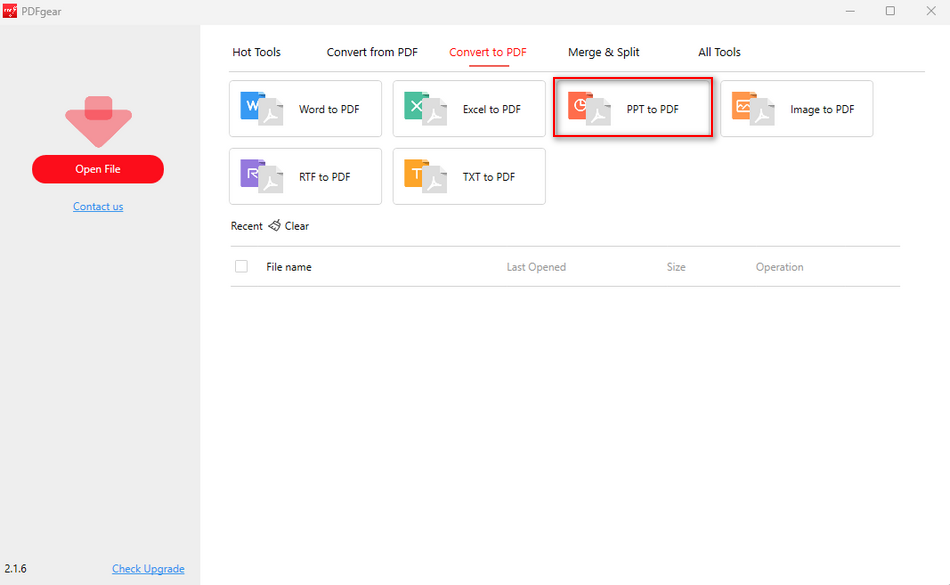
Open PPT to PDF Converter in PDFgear
Step 3. Convert PPT to PDF
Click on the Add Files button, select a PPT from a local folder. Confirm the selection and hit Convert. You will soon have a PDF ready to be shared.
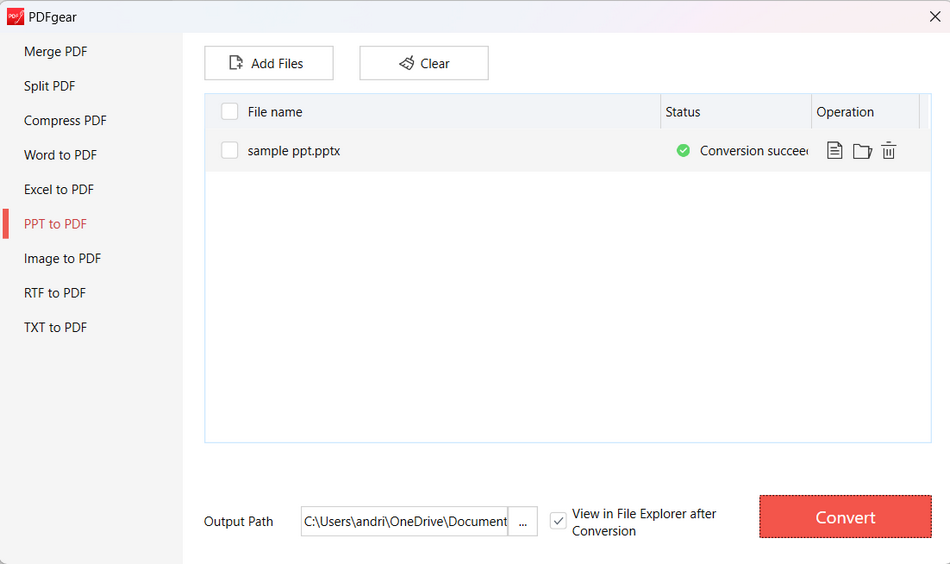
Batch Convert PPT to PDF with PDFgear
Convert PPT to PDF But Keep Original Font Online
If you don’t want to install extra software on your computer, PDFgear also has an online PPT to PDF converter. You can use it in any browser and get your converted files quickly without causing any burden to your device.
Similar to PDFgear desktop, PDFgear online is completely free. To be more specific, it neither charges you for the PPT to PDF conversion nor sets limitations on PPT size or conversion times.
Here’s how to use PDFgear to convert PowerPoint to PDF online for free.
Step 1. Access PDFgear’s Online PPT to PDF Converter tool with any browser you like.
Step 2. Click on the Upload PPT file button, then select a PPT from a local folder. You can also drag and drop the PPT to the upload section.
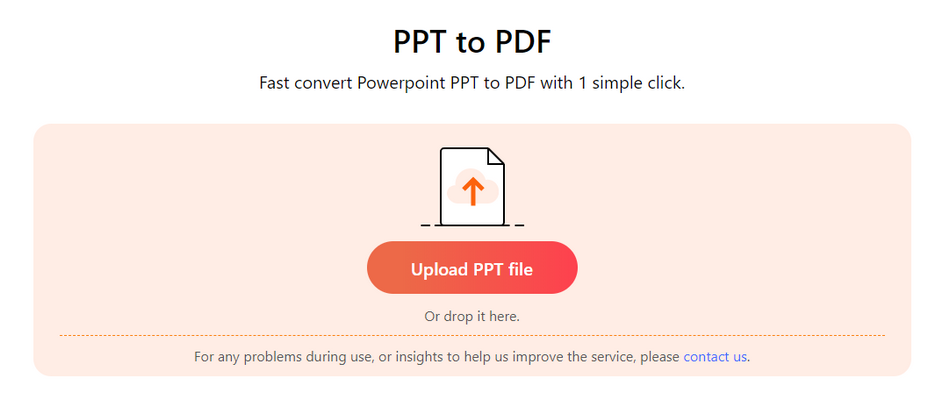
Upload PPT File to the Online Converter
Step 3. The conversion process should finish in a few seconds. After the conversion, download and save the PDF to your computer.
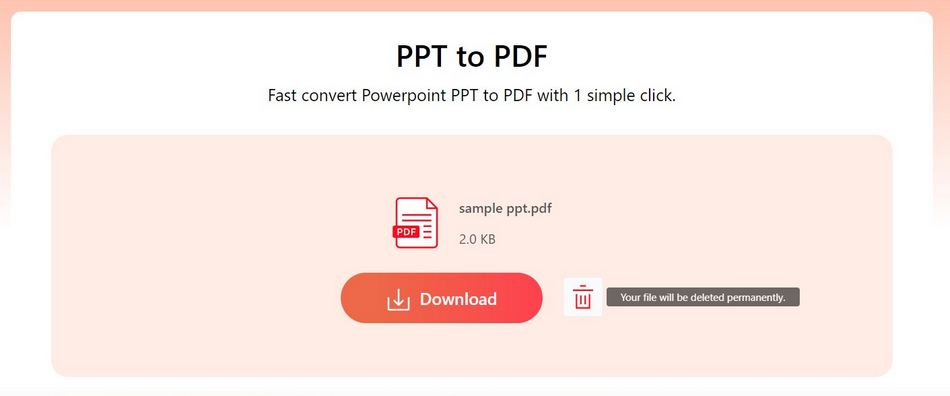
Convert PPT to PDF Online for Free
Save PPT to PDF Without Changing Fonts Using Office PowerPoint
PDFgear emphasizes file conversion and PDF editing. In terms of handling PPT files, MS PowerPoint is the mainstream tool. It can automatically play slideshows, add animations to your slides, and, most importantly, save your PPT as a PDF with minimal changes to the font and layout.
Here’s how to save a PPT as a PDF using Microsoft PowerPoint.
Step 1. Open your PPT file with MS PowerPoint, and click on the File icon in the top left corner.
Step 2. Go to Export > Create PDF/XPS Document. Click on the Create/PDF/XPS icon to confirm.
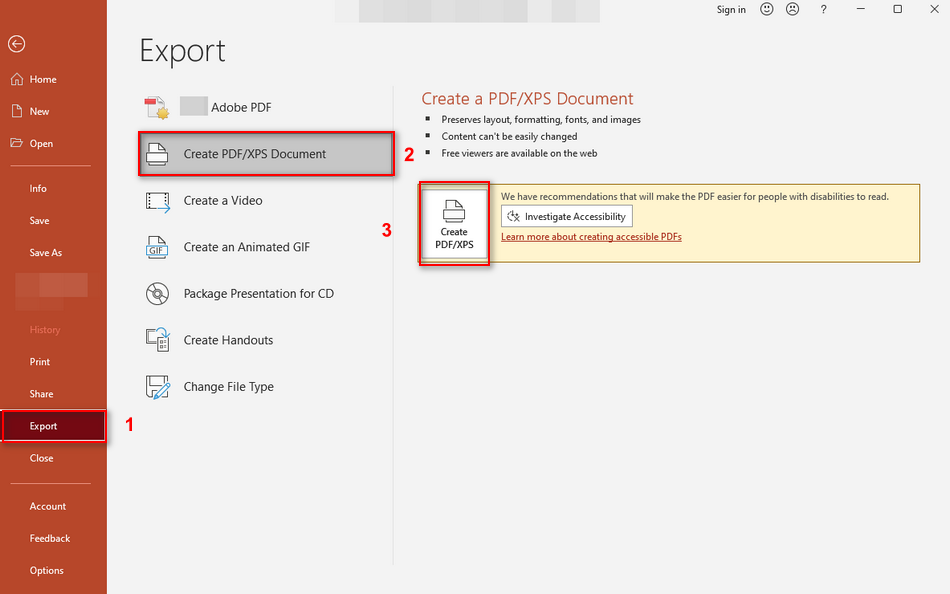
Create a PDF from PowerPoint
Save Google Slides as PDF without Changing Fonts
Feel like processing your PowerPoint online instead of using office suite on desktop? Google Slides is an easy tool for uploading, viewing, and converting PowerPoint presentations to PDFs. It not only keeps the original fonts but also makes sharing PDFs simple, thanks to its seamless integration with Google Drive.
Here are the 5 steps to convert a PPT to PDF using Google Slides.
Step 1. Access Google Slide associated with your Google account or email account. Upload your PPT to Google Slide and open it.
Step 2. Once your PowerPoint is successfully uploaded, click on File > Download. Select the output as PDF.
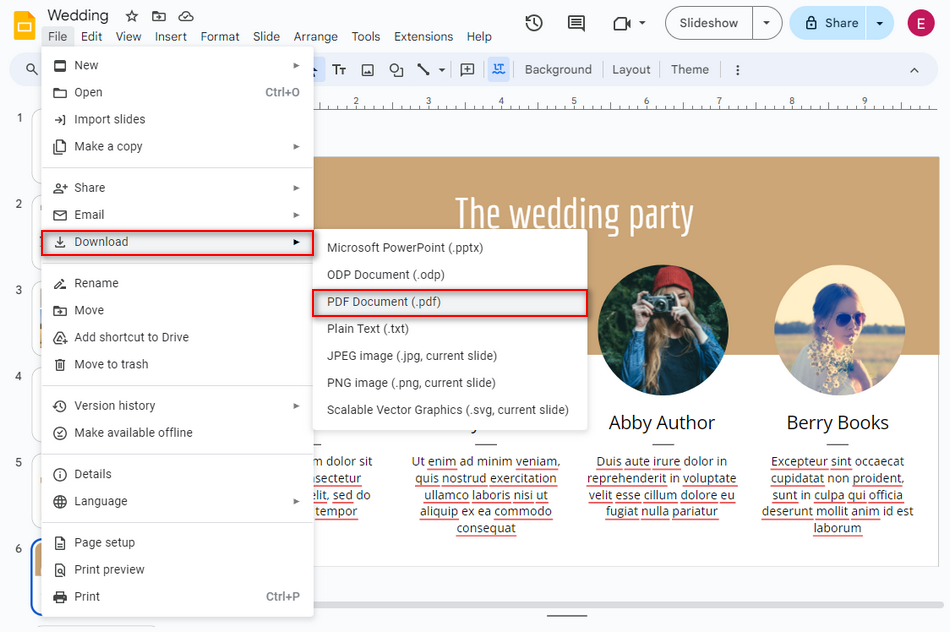
Download Google Sides as PDF
Convert PPT to PDF Without Changing Text Font with Adobe Acrobat
PDFgear, MS Office, Google Slides are free options. In case you need a more professional tool at hand, here we recommend you use Adobe Acrobat.
Adobe Acrobat offers precise PPT to PDF conversion. It converts your PowerPoint presentations into high-quality PDFs while keeping the original formatting, fonts, and design intact.
Additionally, Adobe Acrobat allows you to optimize your PDFs by organizing pages, adding password protection, and including interactive elements. Yet, all these powerful features will cost you $12.99 each month.
Now, let’s learn how to convert PPT to PDF with Adobe Acrobat.
Step 1. Download Adobe Acrobat to your computer and launch it.
Step 2. Click on the Create PDF button to start a new project.
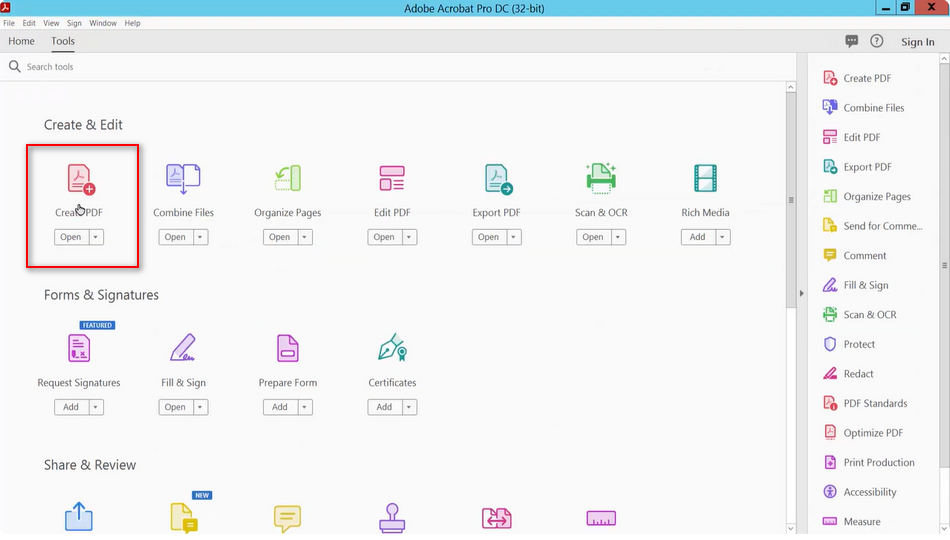
Create a PDF in Adobe Acrobat
Step 3. Click Single File. Upload a PPT file to Adobe Acrobat, and hit Create.
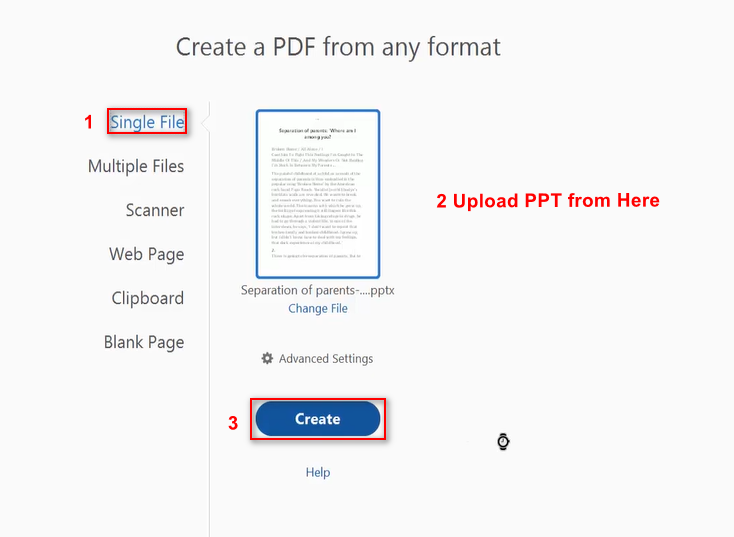
Create PDF from PDF in Acrobat
Step 4. Now you have converted the PPT to a PDF. Make necessary adjustments like reordering the pages, editing texts, adding annotations. Save the document as PDF.
FAQs
1. Why do fonts change when converting PowerPoint to PDF?
Fonts may change if the font used in the presentation is not embedded in the PDF or the font is not available for conversion.
2. Is there a difference between “Save as PDF” and “Print to PDF” for font preservation on MS?
Both methods can preserve fonts, but “Save as PDF” typically offers better control over font embedding and document quality compared to “Print to PDF.”
3. Can I prevent font issues when sharing the PDF with others?
If you haven’t encountered any font issues during conversion, you can ensure the PDF displays correctly on any device, regardless of the installed fonts.
