How to Convert Kindle Books to PDF Documents

Summary :
This article mainly introduces 2 ways to convert Kindle books and EPUB to PDF documents. Discover the top PDF editor for reading and annotating e-books in PDF format.
Table of Contents
Convert Kindle Books to PDF
Kindle books are mostly DRM-protected and saved as MOBI, AZW, and AZW3 files, making them inaccessible for reading on other devices except the Kindle APP.
If you wish to access your Kindle e-books on computers or mobile phones, or if you intend to highlight specific text or sentences, the initial step is to turn the e-books into PDF documents.
This article serves as your guide on how to convert Kindle books and EPUB to PDFs, helping you have access to your e-books easily shared and read on a PDF editor.
Using an E-book Converter to Convert Kindle Books to PDFs
Epubor Ultimate is a great e-book converter that allows you to convert Kindle books to PDF documents effectively and quickly like a breeze.
It seamlessly integrates DRM removal and format conversion, offering a user-friendly interface for a streamlined experience.
Unlike other methods, Epubor Ultimate enables you to change Kindle books to PDF files in just a few clicks without any ads or watermarks.
Step 1. Download the Kindle Book to PDF Converter
Go to Epubor’s official website > download the Epubor Ultimate software and launch it on your computer.
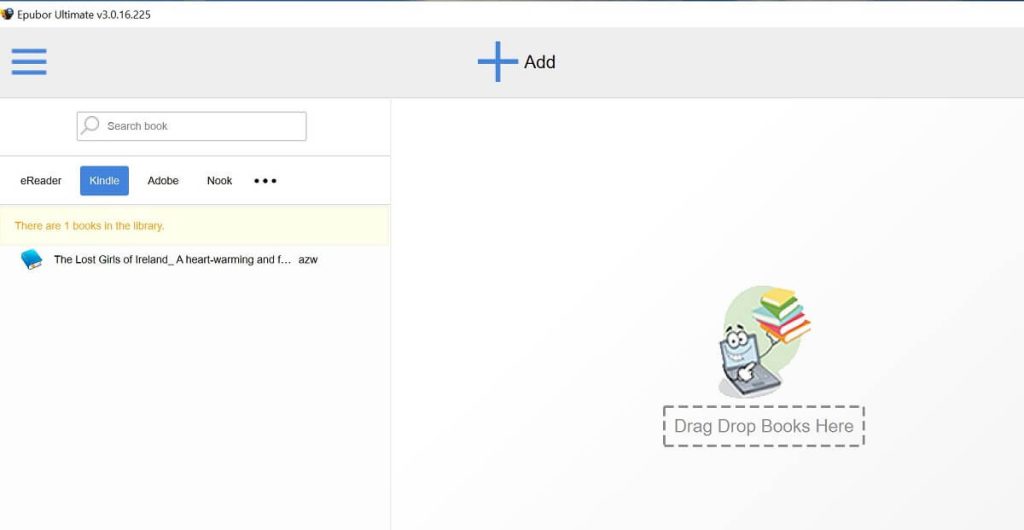
Launch the Epubor Ultimate Software on Your Device
Step 2. Remove the DRM Encryption
If you have installed the Kindle APP for PC, Epubor will detect all the ebooks automatically and display them on the left-side interface. Simply double-click on the Kindle books and the program will automatically remove the DRM encryption.
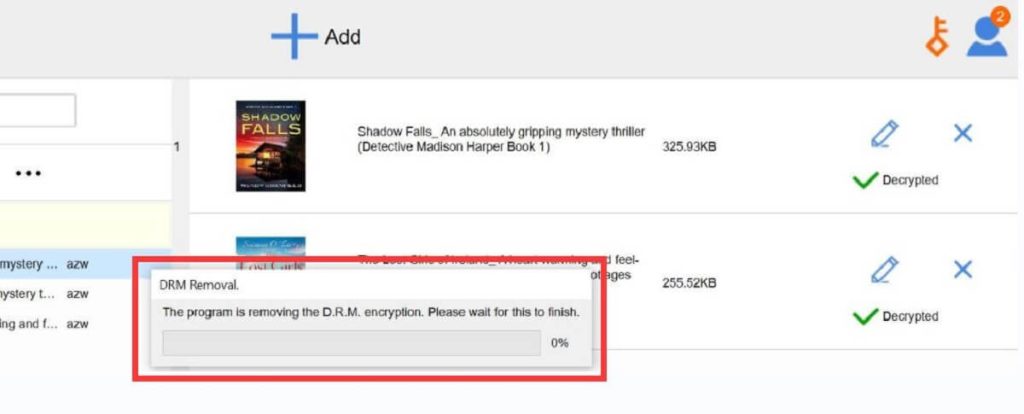
Decrypt DRM Automatically
Step 3. Convert Kindle Books to PDF Documents
Select the ebooks that need to be converted > Choose the output format as PDF from the “Convert To” button > Hit the Convert to PDF button and start the conversion.
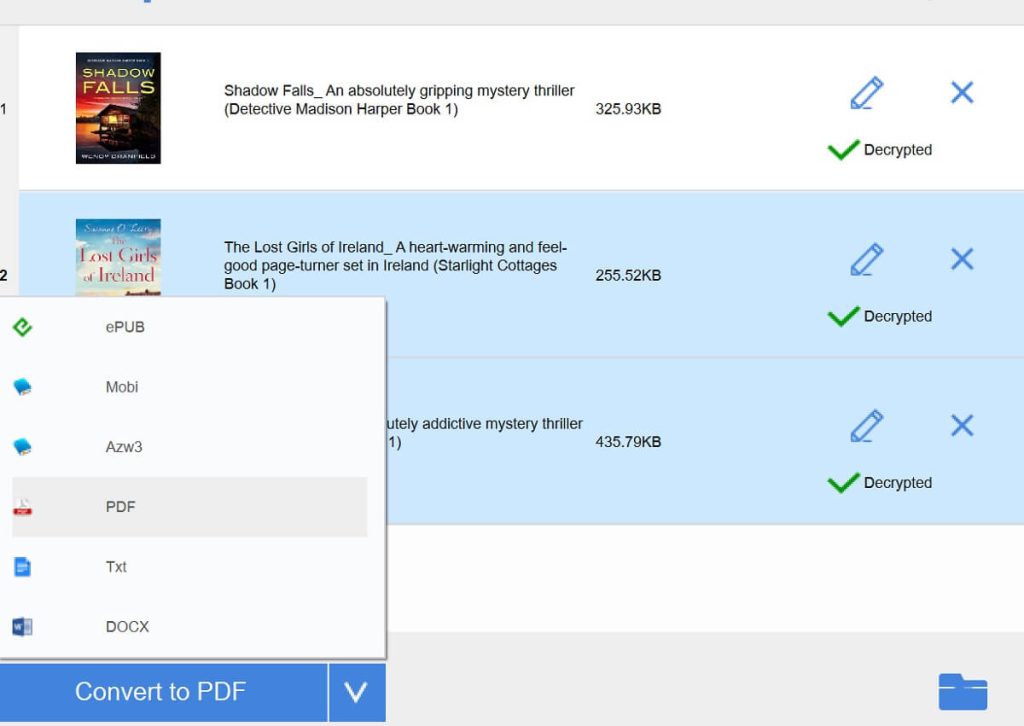
Choose the Output Format as PDF and Start to Convert
Step 4. Access the Converted PDF File
When the converting process is done, open the output path by clicking the Blue Icon in the lower right corner, you will see all the converted books in PDF format on your device.
As you can see from the detailed steps above, converting Kindle books to PDFs with Epubor Ultimate is quite easy. However, access to the conversion feature requires a payment of $29.99.
Besides the Kindle books with MOBI, AZW, and AZW3 formats, EPUB ebooks are also welcomed by people worldwide.
It is convenient to change EPUB to PDF for easy sharing, reading, and editing on a PDF editor with an online converter.
Keep reading to explore how.
Using an Online Converter to Convert EPUB to PDF
If your e-books are in EPUB format, the most straightforward way to convert them to PDFs is to use PDFgear online converter.
PDFgear is a cloud-based and cross-platform PDF editor that works on all mainstream devices including Windows, Mac, Linux, iOS, etc.
Its online tools cater to users’ fundamental requirements for PDF files, such as PDF viewing, text editing, file conversion, PDF annotation, and further features.
To change Kindle books in EPUB format to PDF files, you can use the PDFgear online converter. It’s a simple process that can be done in just 3 steps.
Step 1. Head to EPUB to PDF Converter
Open your browser > Directly go to PDFgear online EPUB to PDF converter.
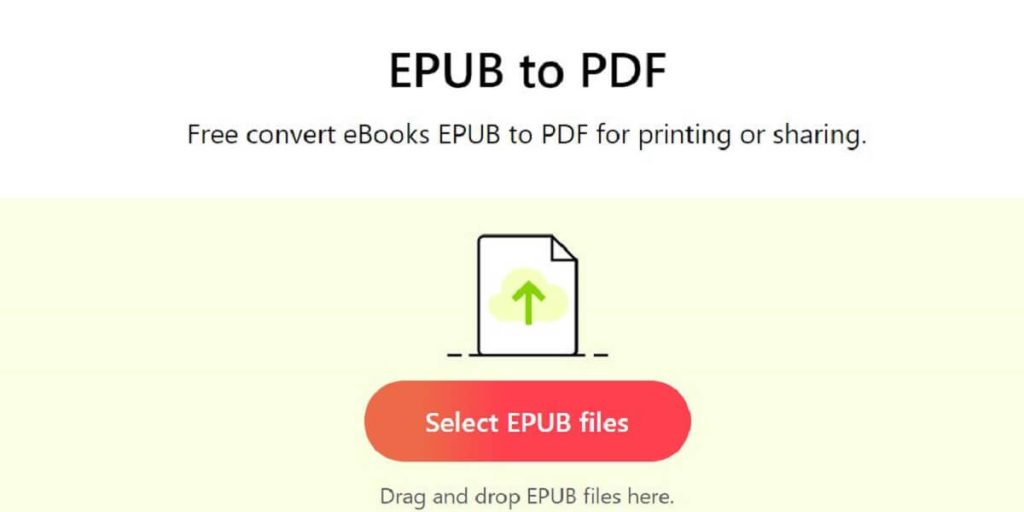
Head to PDFgear EPUB to PDF Online Converter
Step 2. Convert EPUB to PDF File
Select the EPUB file by clicking the red button, or simply drag and drop the file here > Convert EPUB to PDF automatically > Wait for the process to be finished.
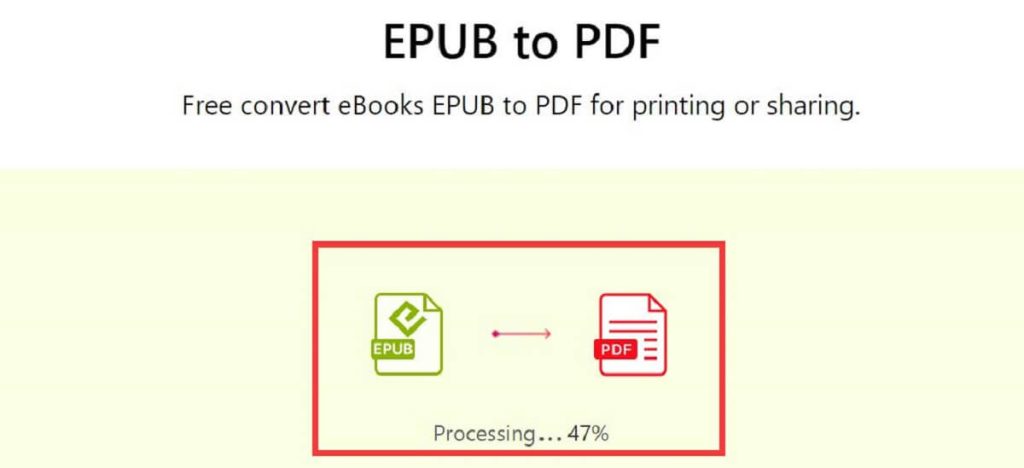
Convert EPUB to PDF File with PDFgear Online Converter
Step 3. Save the Converted PDF File
Once the converting process is done, simply click the Download button to save the converted PDF file to your computer.
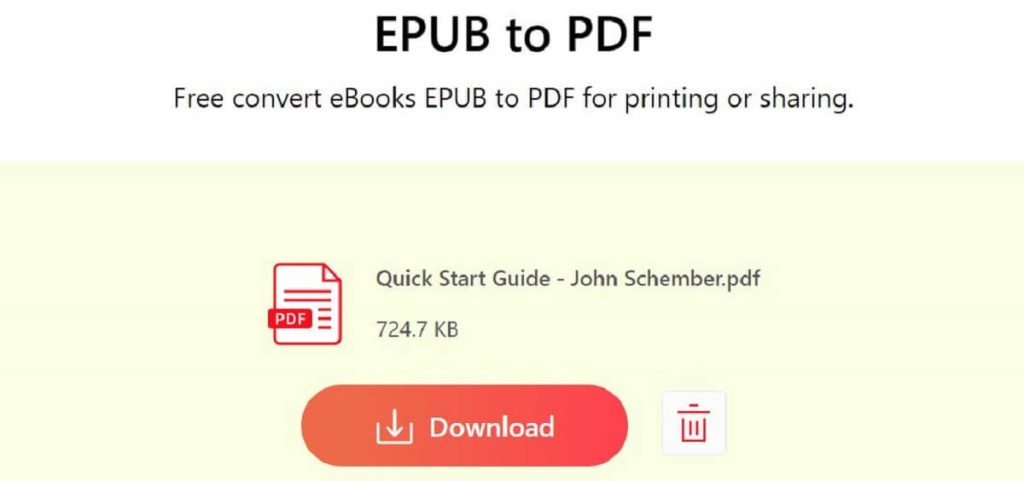
Save the Converted PDF to Your Device
After changing the format to PDF, you can read your e-books on your computer or mobile phone. If you happen to need a great PDF reader, editor, and converter, PDFgear stands out for its free-to-use feature and user-friendly interface.
With PDFgear, you can easily read, edit, annotate, and convert the PDF books. What’s more, PDFgear Chatbot, powered by ChatGPT AI reading assistant, can help you summarize, translate, analyze complex PDFs, and even rewrite PDFs.
FAQs
How to download Kindle books to my computer?
Here we can roughly offer you the steps to download the Kindle books to a computer: Open your Amazon account > Hit “Account” > Digital Services and Device Support > Manage Content & Devices > Select the books you want to download > Hit “More Actions” > Download or transfer via USB.
If you have installed Kindle for PC, you can simply click “Deliver to Device” and the selected books will be listed in your Kindle on PC.
Can I turn a Kindle book into a PDF with free software?
Another option to convert a Kindle book into a PDF is by using the open-source e-book management Calibre. Although Calibre allows for easy conversion of Kindle books to PDF at no cost, it’s important to note that an extra DeDRM plugin is required for DRM-protected e-books.
How can I modify my e-book after converting it to a PDF file?
You can modify PDFs with various PDF editors. PDFgear is a great free PDF reader, editor, and converter, you can download the software or simply use its online PDF tools without any cost.
Conclusion
In summary, this article primarily focuses on exploring two methods to facilitate reading e-books on various devices by converting them into PDF files.
After converting the e-books to PDF files, you are free to read, annotate, and organize PDF pages with the best free PDFgear PDF editor, with both offline software and online tools available.
Try PDFgear to customize your e-books now, share books with other people, annotate your favorite paragraph, add header & footer to PDF pages, and more.
