How to Convert HTML to PDF on Windows and Mac without Losing Formatting

Summary :
This article is the most comprehensive guide to convert HTML to PDF on Windows 10/11 and macOS devices. Five effective methods and tips on how to complete the conversion of HTML to PDF without losing formatting are introduced.
Table of Contents
Convert HTML to PDF Without Losing Formatting
HTML allows dynamic web experiences, while PDFs are ideal for static, print-friendly formats. That means changing a .html file to a PDF would ensure consistent content presentation across different platforms, making easier sharing of webpage content or HTML files.
This guide introduces various tools for high-quality conversions of HTML to PDF on Windows 10 and 11 and macOS devices, keeping the original layout and formatting, and managing CSS and JavaScript issues.
All the methods below are illustrated with detailed steps and high-quality screenshots, so you can easily turn HTML content into professional PDFs in different ways.
Convert HTML to PDF Online for Free with PDFgear
Changing the .html file to PDF online for free is convenient and efficient. Accessible from any device, online tools eliminate software installation, save storage space, and also deliver the ability to save web pages as PDFs on iPhone and iPad without email or ads.
Many free converters can’t maintain original formatting, or layouts, leading to poor-quality PDFs. PDFgear offers a free online HTML to PDF converter for quick and accurate conversion of .html or URL to high-quality PDF without losing formatting.
With user-friendly interfaces, it is easy to use, even for those with limited technical skills. Though it is free, you will not encounter file size limitations or watermark issues, and no security risks as all the information will be removed once you close the website.
Step 1. Access PDFgear online HTML to PDF Converter.
Step 2. If the input format is an HTML file, then go to the “Convert HTML File” tab > Click “Select HTML File” and upload the target file locally.
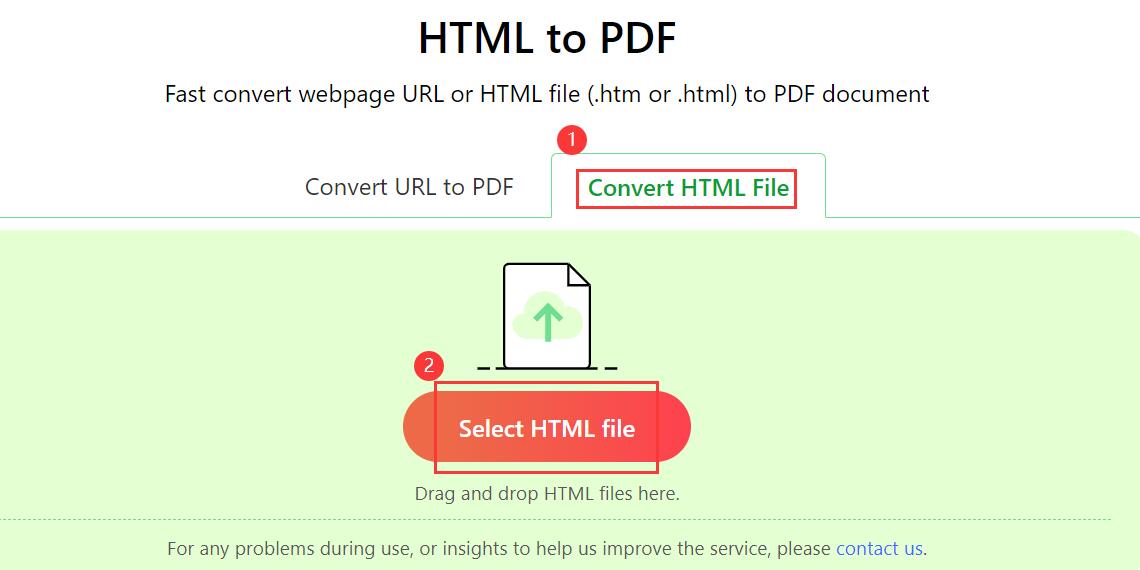
Convert HTML Files to PDF
If the input format is URL, then go to the “Convert URL to PDF” tab > Type in the URL of the web page > Click “ADD”.
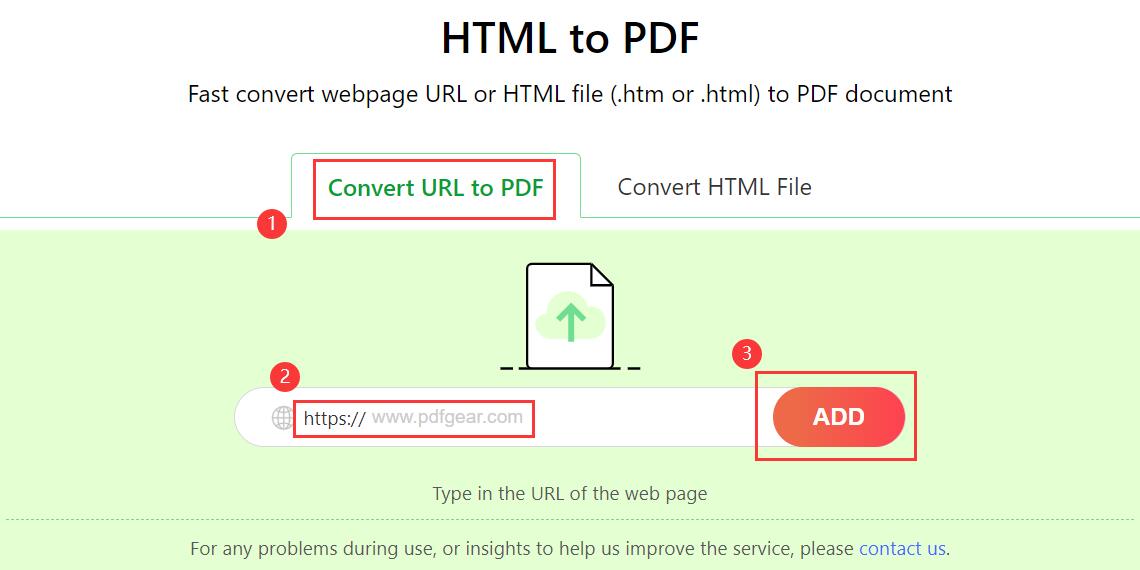
Convert URL to PDF
Step 3. After completing the conversion, click “Download” to download the PDF file converted from HTML.
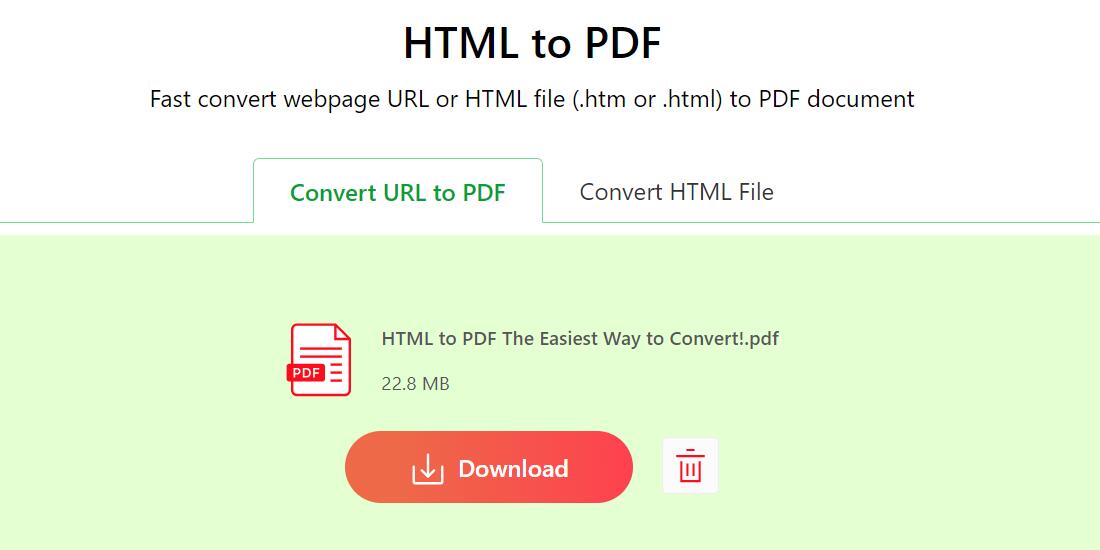
Download and Save PDF file
Change HTML Document to PDF on Windows 10/11 in Microsoft Edge
Enable the Microsoft Print to PDF feature on your Windows computer, and you can easily print files to PDF on Windows 10 and 11 without additional software download.
When saving web page content or HTML files as a PDF file, the default browser Microsoft Edge should be the primary choice. It is easy to use even for users with limited knowledge. Follow the steps below to check the explicit guide.
Step 1. Open the .html file you want to convert to PDF with Microsoft Edge.
Step 2. Press the shortcut Ctrl + Shift + P, choose Microsoft Print to PDF as the printer, customize the settings, and hit Print to continue.
Step 3. Select a location, name the file, and hit the Save button to store the PDF document.
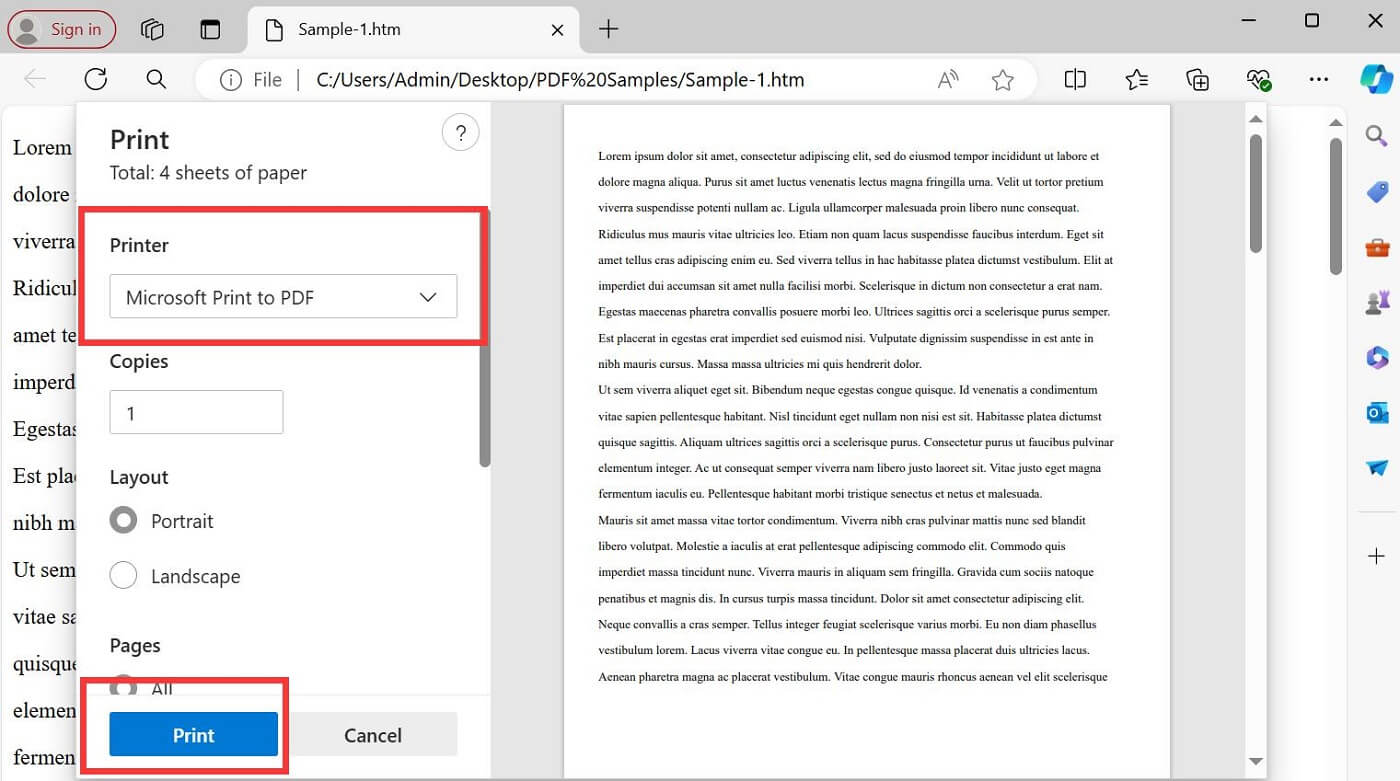
Print HTML to PDF in Microsoft Edge
Convert HTML to PDF on Mac in Safari
Mac users frequently use the default Safari browser to view webpage content or a PDF document, as you can save, manage, and easily share PDF files with other macOS features, such as AirDrop or iCloud.
Reading webpages or files with Safari enables you to add content to Bookmark, which allows you to quickly find the file you want to read in the future, but you cannot annotate or edit a PDF file within Safari.
Step 1. Open an HTML file with Safari on your Mac.
Step 2. Head to the File section, and select Export as PDF from the drop-down menu.
Choose a place to store the PDF file in the popping-up windows, and click Save to complete the conversion.
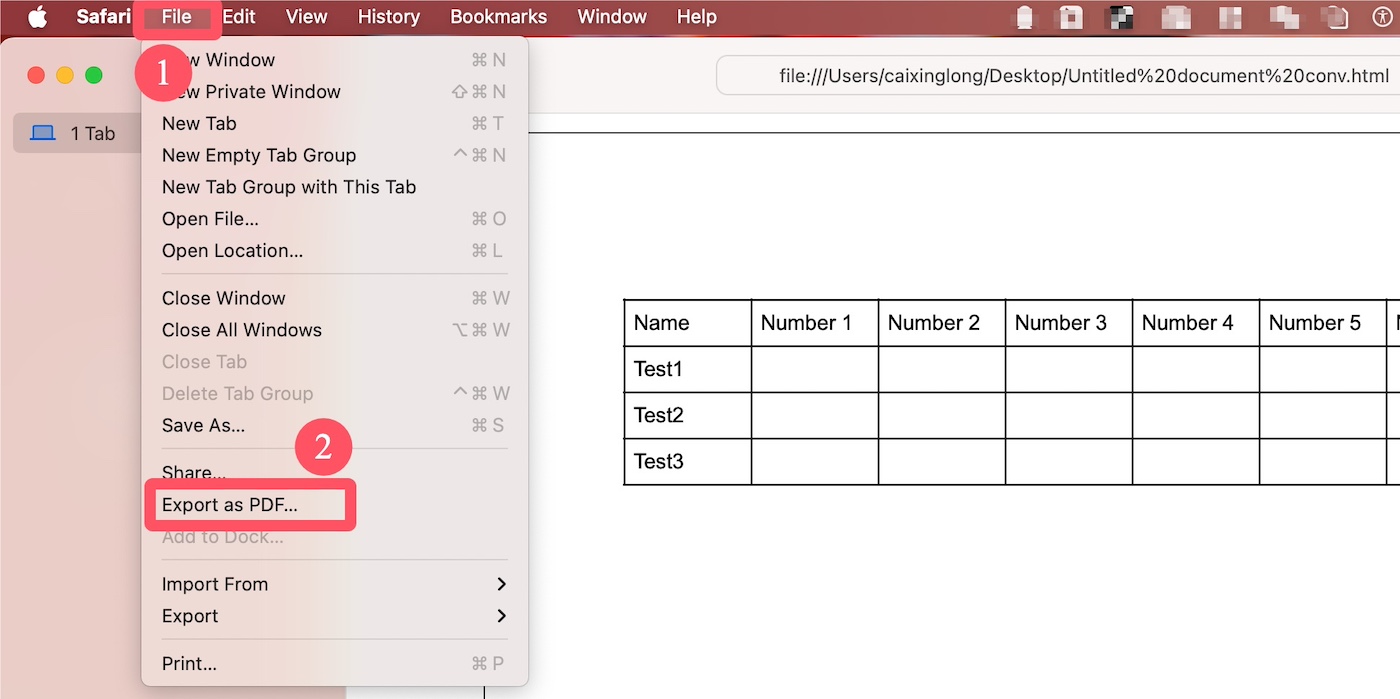
Export HTML as PDF on Mac in Safari
Save a .html Document as a PDF in Chrome
Google Chrome, as a free PDF viewer or converter, has a built-in print feature for converting Chrome to PDF online for free, eliminating the need for additional cost software or extensions.
When downloading PDFs from Chrome, you can customize PDF settings such as pages to save, page size, and margins before saving the file. You can save hyperlinks as PDFs, and add headers and footers in PDF on Windows and Mac in Chrome.
Using Chrome has no extra costs, but you have to install and update the app for optimal performance, making it less attractive for users with limited storage space. Additionally, the app will automatically flatten the PDF upon download, resulting in uneditable PDF files.
Step 1. Open the HTML file in Chrome.
Step 2. Click the verticle three dots in the upper right corner, select Print, or use the shortcut key Ctrl/Command+P.
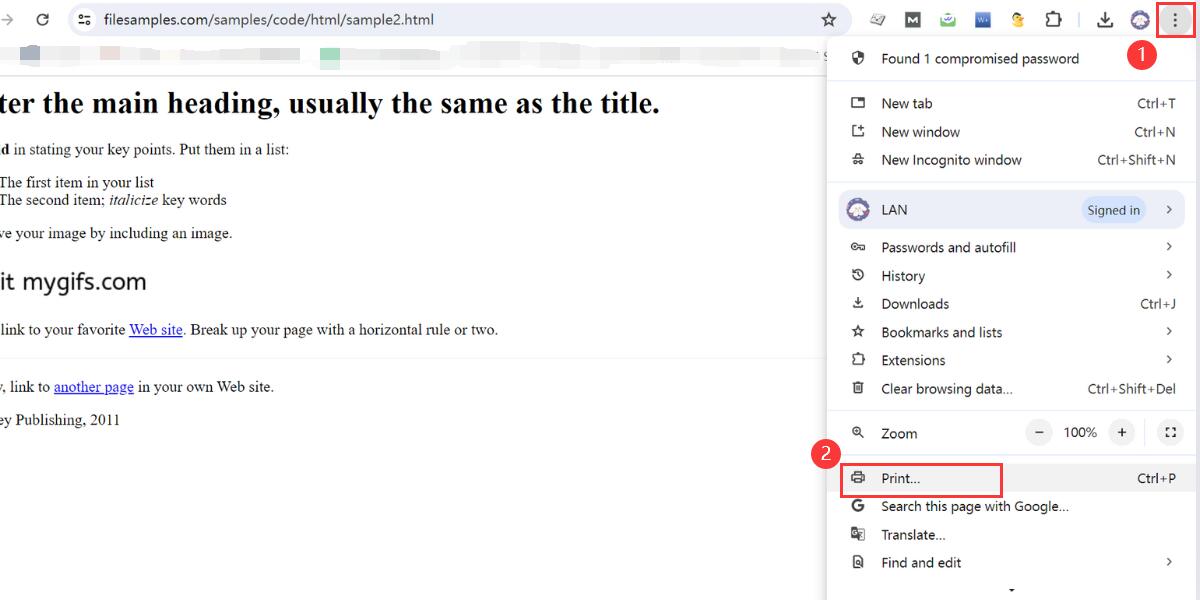
Print in Chrome
Step 3. Select Microsoft Print to PDF for Windows and Save as PDF for Mac in the Destination drop-down bar, complete other print settings, such as page orientation, paper size, etc., and click Print.
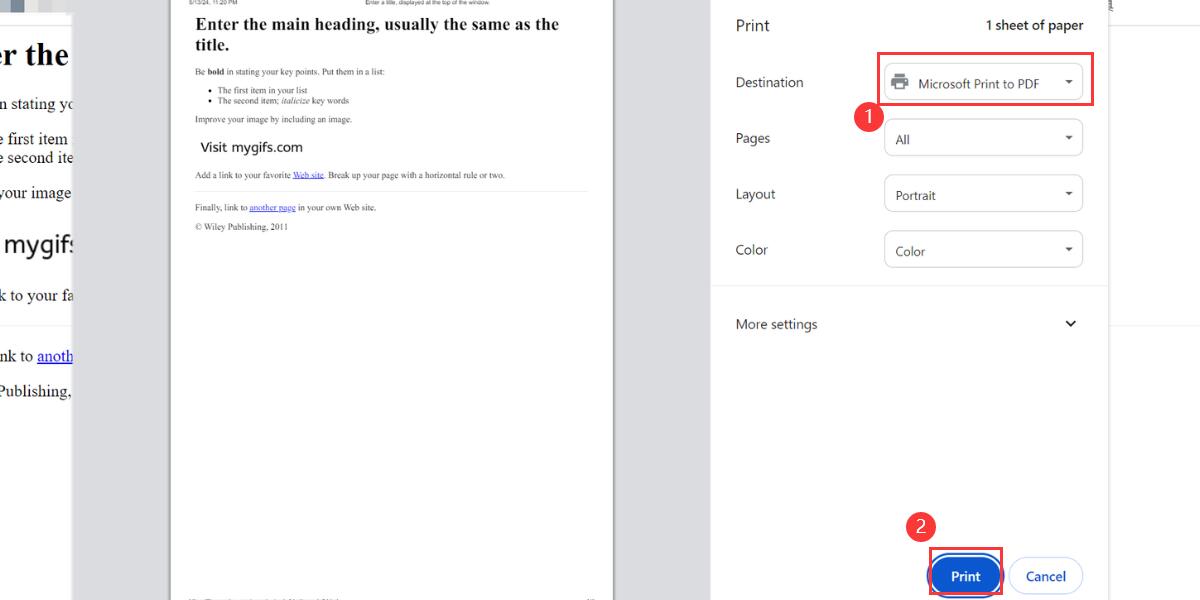
Print HTML as PDF with Chrome
Step 4. Select the save path and file name to save the PDF file.
Turn HTML Files into PDFs in Adobe Acrobat
Adobe Acrobat produces high-quality PDFs that closely match the original design and layout of the .html content. This app offers a straightforward method to create accessible PDF files from HTML, webpages, Word, and other formats.
This application is a paid software and the interface might be overwhelming for new users, which can influence the overall experience of converting HTML to PDF using Adobe Acrobat.
If you are already a subscriber of Adobe Acrobat or a new user who doesn’t know how to make a .html file a PDF, follow the steps below to complete the conversion quickly.
Step 1. Open Adobe Acrobat, click Tools in the toolbar and select Create PDF.
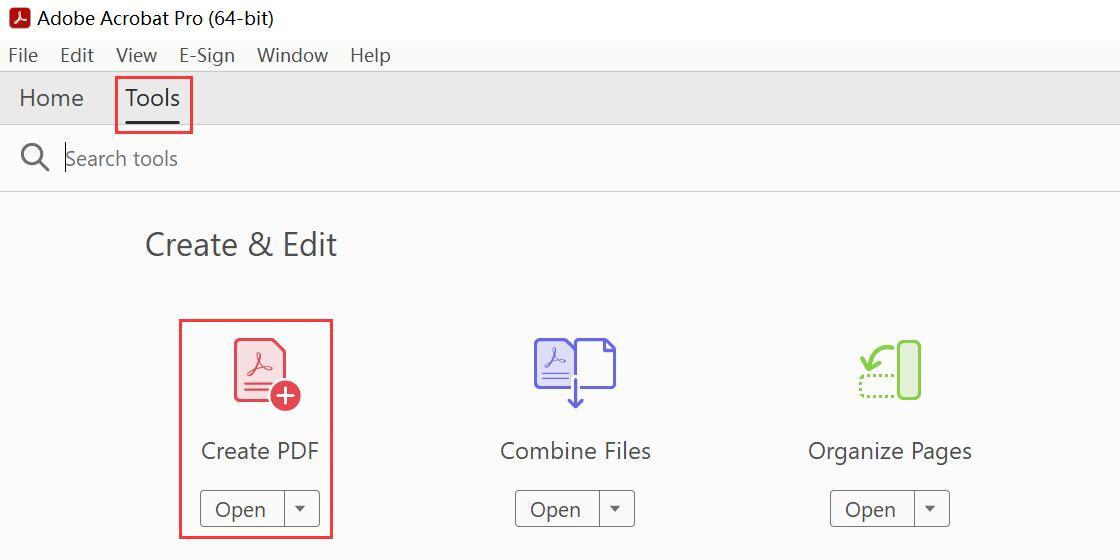
Create PDF using Adorb Acrobat
Step 2. Select Web Page in the format on the left, enter a URL, or select an HTML File, complete the custom settings, and click Create.
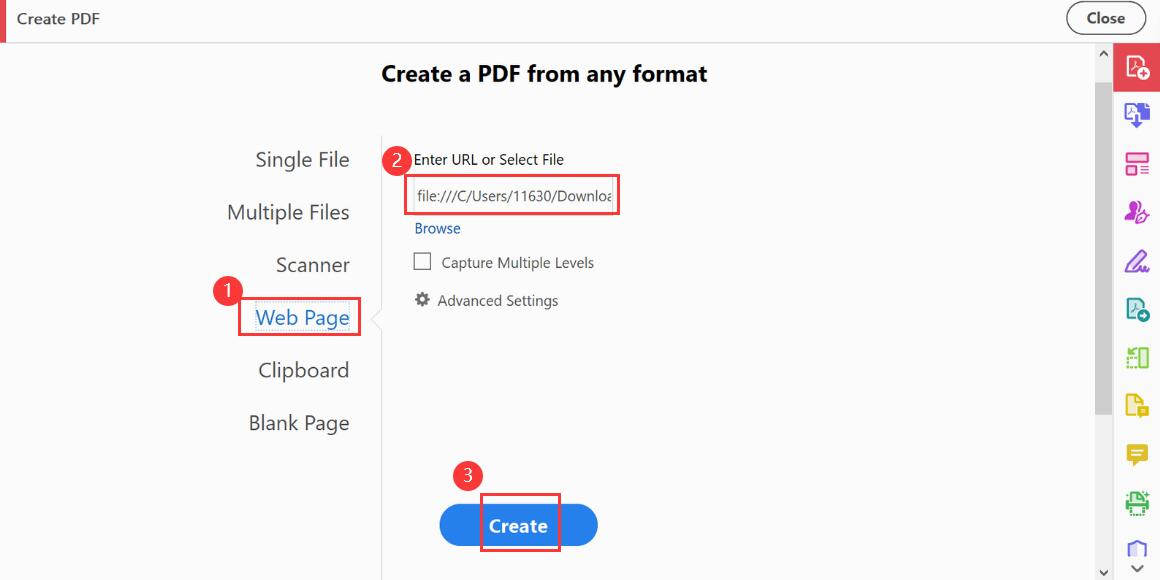
Create PDF from Web Page
Step 3. Click the save icon in the upper left corner to save the PDF.
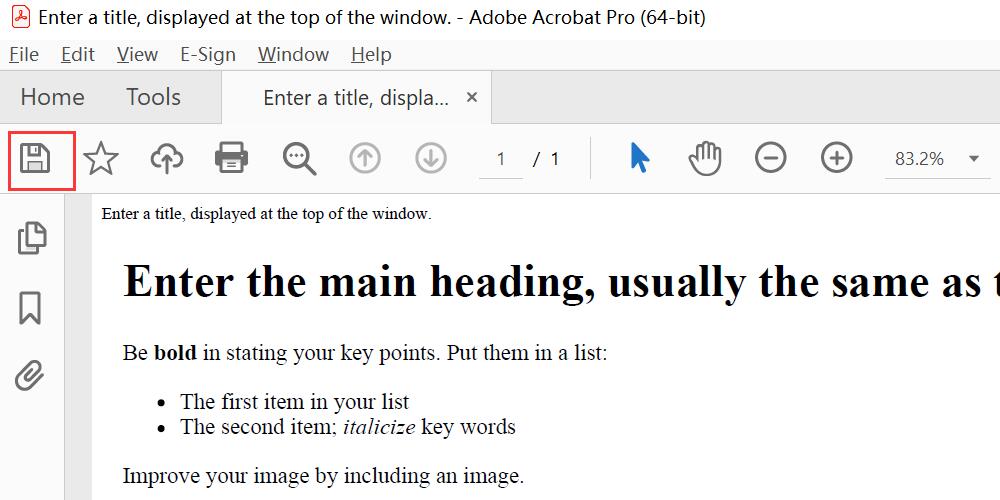
Save PDF Locally
Tips for Preserving Formatting
If you want to convert HTML to PDF and keep the original format for best results, please refer to the following tips.
- CSS Print Media Types: Ensure that the HTML uses print media types in CSS to control the layout on the printed pages.
- Vector Graphics: Use vector graphics (like SVG) for images when possible to ensure they scale without losing quality.
- Fonts: Embed all custom fonts to make sure they appear correctly in the PDF.
- Widths and Sizes: Use fixed widths and sizes where appropriate to ensure elements appear correctly on the fixed PDF page.
- Testing: Convert and check the PDF multiple times, tweaking the HTML and CSS as necessary to perfect the output.
Keep in mind that some interactive elements of HTML, such as animations or hover states, cannot be rendered in PDF. When converting, static layout and content are preserved as much as possible in the HTML.
Conclusion
This article introduces 5 efficient methods to change HTML to PDF on Windows and Mac. You can simply use the default browsers or any other mentioned ways to complete the task, but for more advanced annotation or editing needs, an additional dedicated PDF software would be preferred.
PDFgear offers a free online converter to save HTML as a PDF. Additionally, you can download the PDFgear software for free. It works on Windows, macOS, and iOS devices, and allows you to edit PDFs as you wish.
