How to Change PDF from Landscape to Portrait

Summary :
This post provides three distinct methods, complete with step-by-step instructions and screenshots, for rotating a PDF from landscape to portrait orientation.
Table of Contents
Changing a PDF from landscape to portrait orientation can improve readability, printing, consistency, and appearance. This is particularly useful for text-heavy documents and when printing PDF on portrait-oriented paper sizes.
Sometimes you may also prefer portrait orientation for personal preference. There are various methods that can be used to rotate PDFs, including Adobe Acrobat Reader DC, Google Chrome, and online tools such as PDFgear.
However, some methods may have limitations when changing PDF from landscape to portrait while some are not.
Check them out and find the one for you.
How to Change PDF from Landscape to Portrait Online
There are so many online PDF rotators that support rotating PDF from landscape to portrait. But! Most of them are limited to use such as Smallpdf, the most famous online PDF toolkit which supports uploading 3 PDF files at one time.
No worries now! In this part, a free and no limitation online PDF rotator is recommended, PDFgear online rotator, the best free online PDF flipper with no operation systems required or software installation asked. Whether you’re working on Windows, macOS, or mobile phones, you can get your PDF files rotated so well.
Step 1. Upload PDF Files
Navigate to PDFgear online rotator, hit the Upload PDF files and select the PDF you want to rotate.
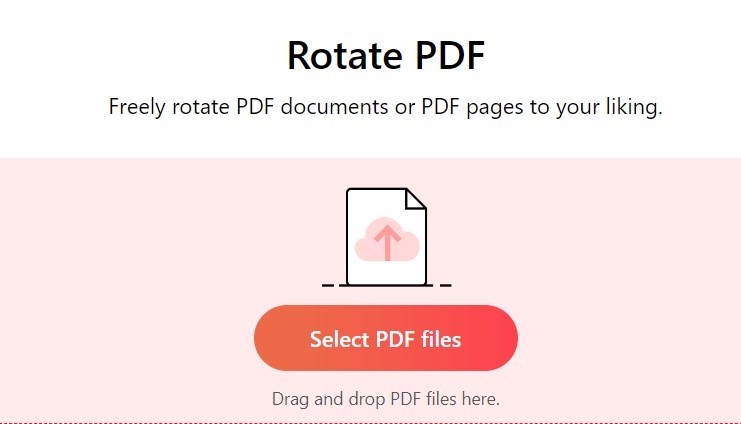
Upload PDF Files to PDFgear Online PDF Rotator
Step 2. Flip PDF from Landscape to Portrait
After the PDF file was uploaded, you can now rotate the pages you want.
Input the page number you want to rotate, then select the orientation you need.
Hit the Rotate button to get it changed.
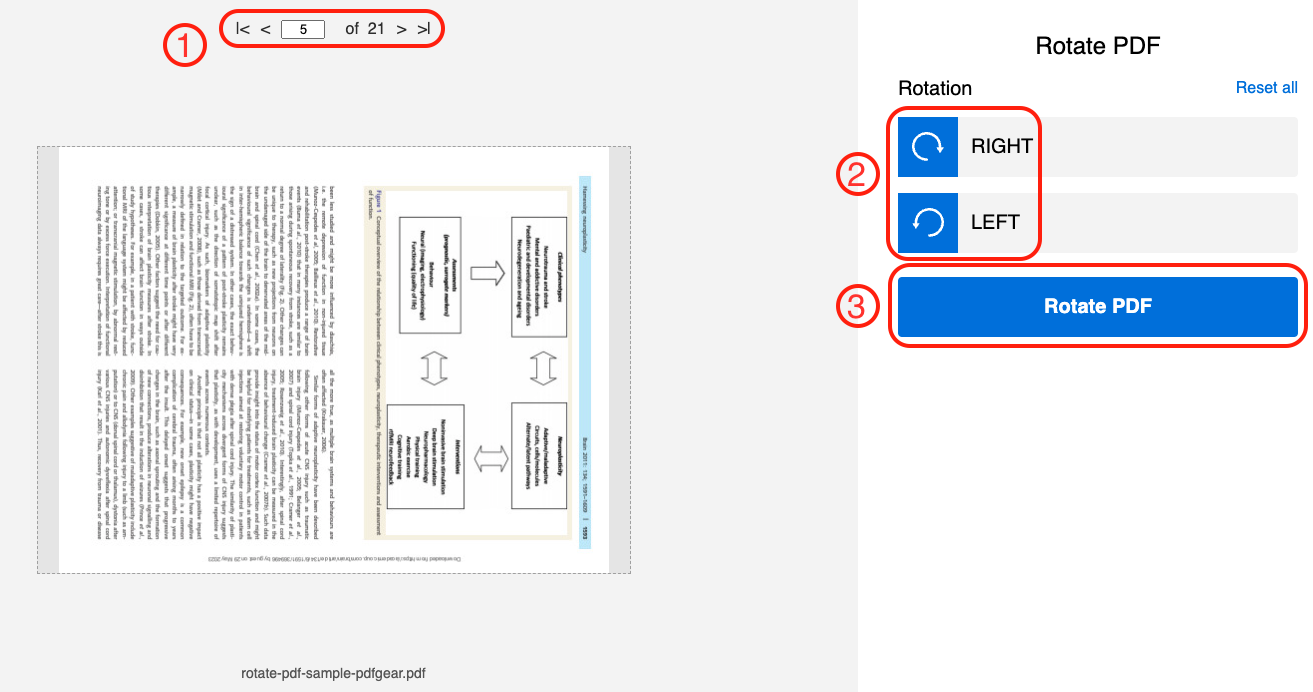
Rotate PDF from Landscape to Portrait
Step 3. Save the Portrait PDF File
Click the Download red button to save the rotated PDF file on your local devices.
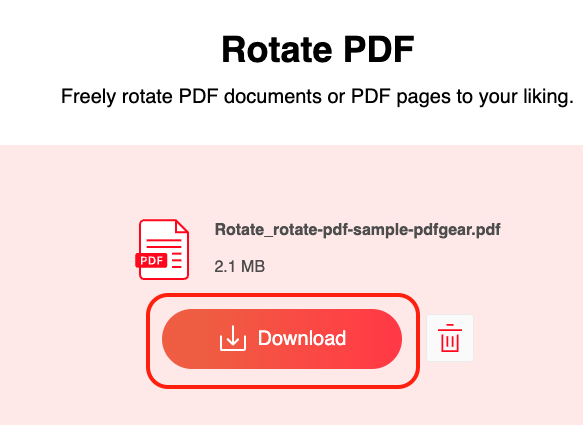
Save the Rotated PDF File
Now you get your PDF changed from landscape to portrait. This method asked for nothing but you need to know it will only serve the PDF flip with a stable internet connection.
And if your file is larger than 50M, you may fail to upload at the first place. So it would be much easier for you to get a free PDF rotator offline.
PDFgear covers your back as well. It provides PDFgear for macOS, Windows and iOS devices. You can handle all the rotating staff for free which provides 4 ways to change the PDF orientation.
Not only for the rotation, but PDFgear can do more than just a PDF organizer.
With the AI-featured power all-along, PDFgear gives the PDF related work a efficiency boost. Chat with your PDF, get all the PDF work done immediately.
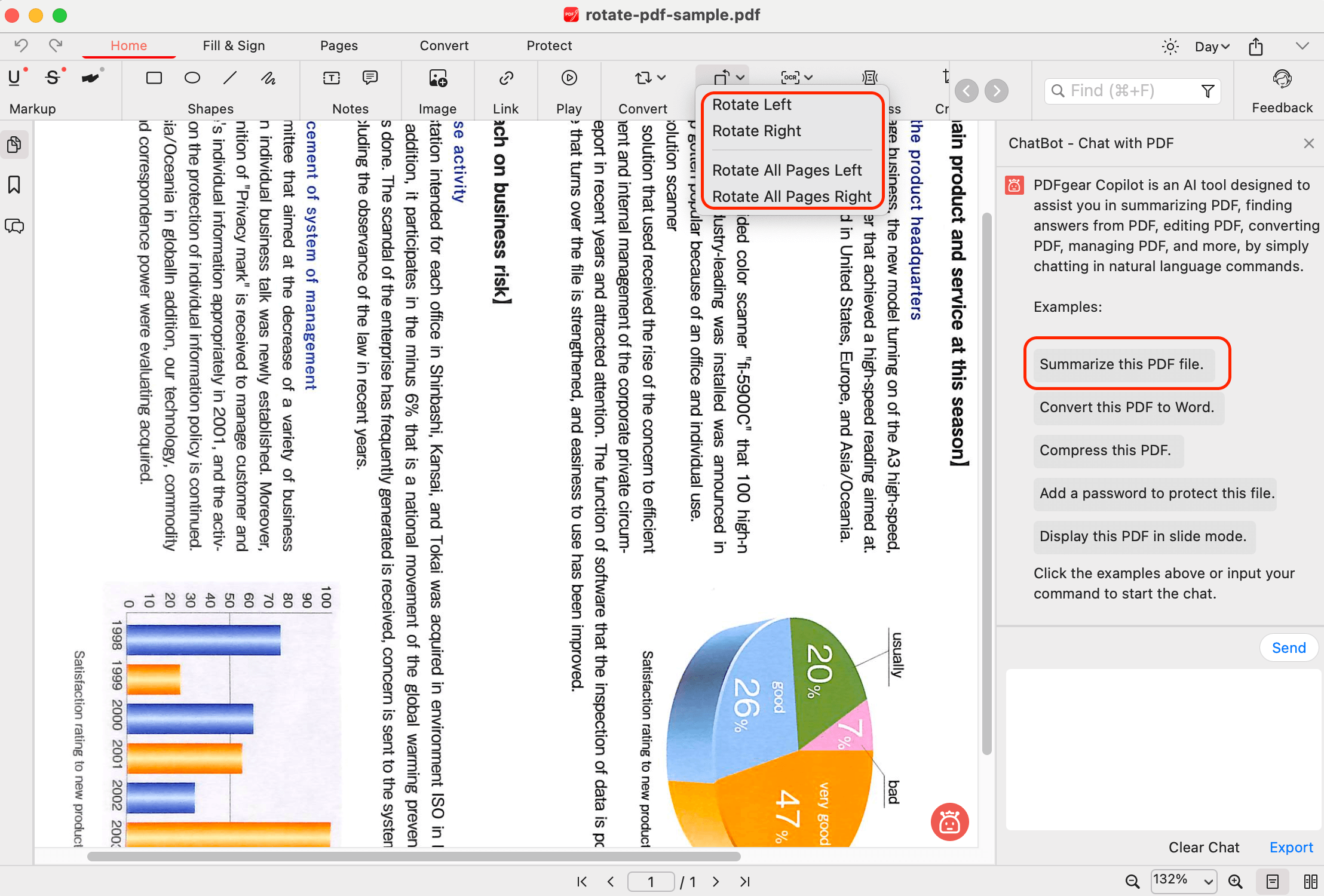
Rotate PDF for Free with PDFgear Offline Application
Some Great Methods to Change PDF from Landscape to Portrait
In case you are a macOS user or subscriber of Adobe Acrobat DC Pro. This part will share with you the steps to change PDF orientation well.
For macOS users, you are so lucky as the operating system provides a built-in program, Preview, to handle the PDF reading. It also supports flipping PDFs from landscape to portrait. See how it worked!
How to Change PDF from Landscape to Portrait via Preview
- Directly double click on the PDF file that you want to change the orientation.
- There is a Flip button on the Tools in the top menu bar. Hitting the Rotate Left one time will change the PDF 90 degrees. Twice will get the PDF changed from landscape to portrait.
- Click on File in the top menu bar, Save or Export to save the copy of the rotated PDF file.
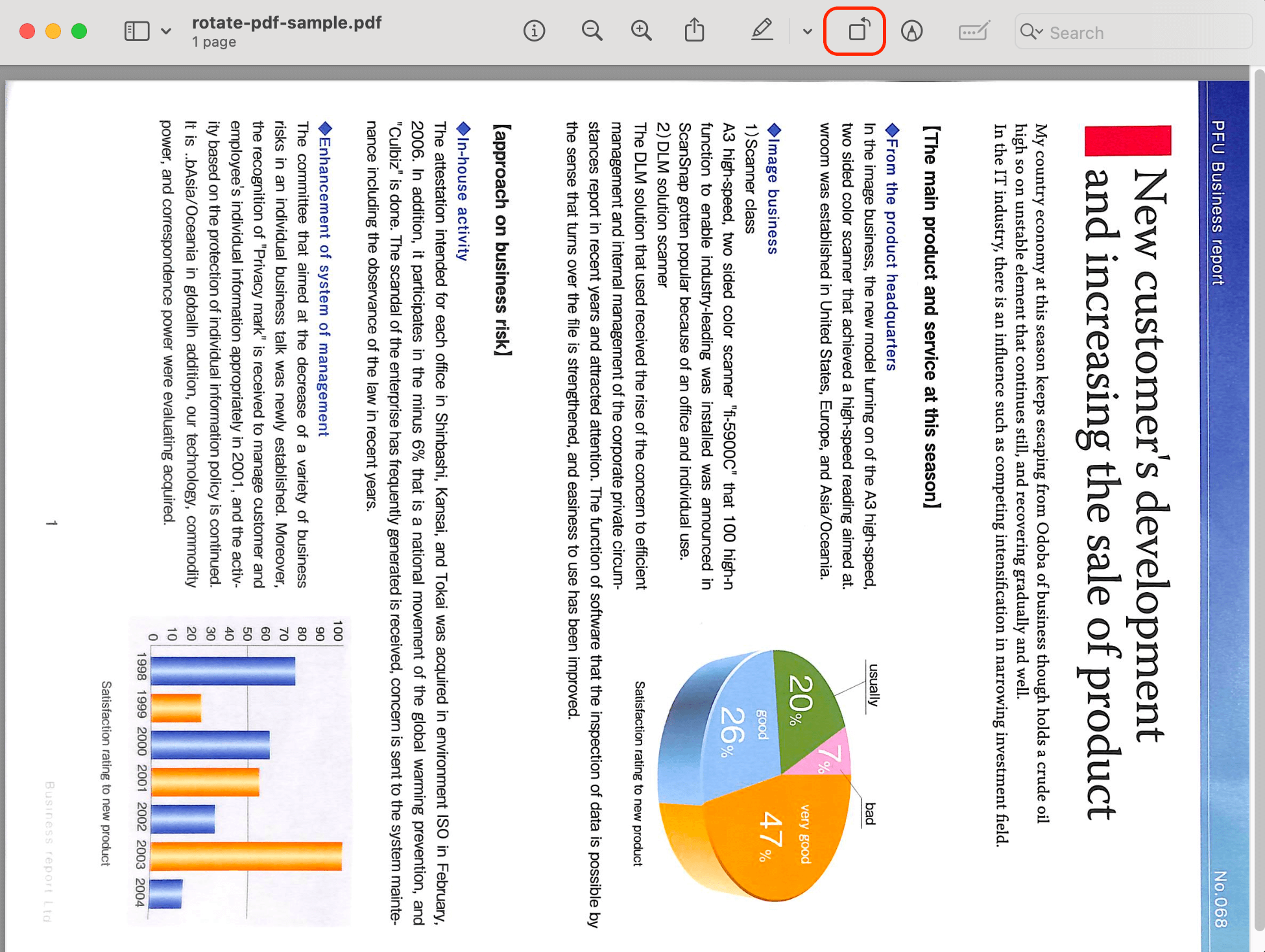
Using Preview to Change PDF from Landscape to Portrait
As an Adobe Acrobat DC Pro subscriber, you already have access to the most professional PDF tool available. To change a PDF from landscape to portrait or vice versa using Acrobat, simply follow these steps.
How to Flip PDF Pages Using Adobe Acrobat DC Pro
- Open the PDF file in Acrobat DC Pro. Then click on the Tools tab in the top menu bar.
- Click on Organize Pages and select Rotate Pages from the drop-down menu. Select the pages you want to rotate by clicking on them, or select all pages by pressing Ctrl + A (Windows) or Cmd + A (Mac).
- Choose the direction of the rotation from the Direction drop-down menu. Select Clockwise 90 degrees to rotate the pages from landscape to portrait. Click on the OK button to apply the rotation.
- Save the changes by clicking on File in the top menu bar and selecting Save or Save As.
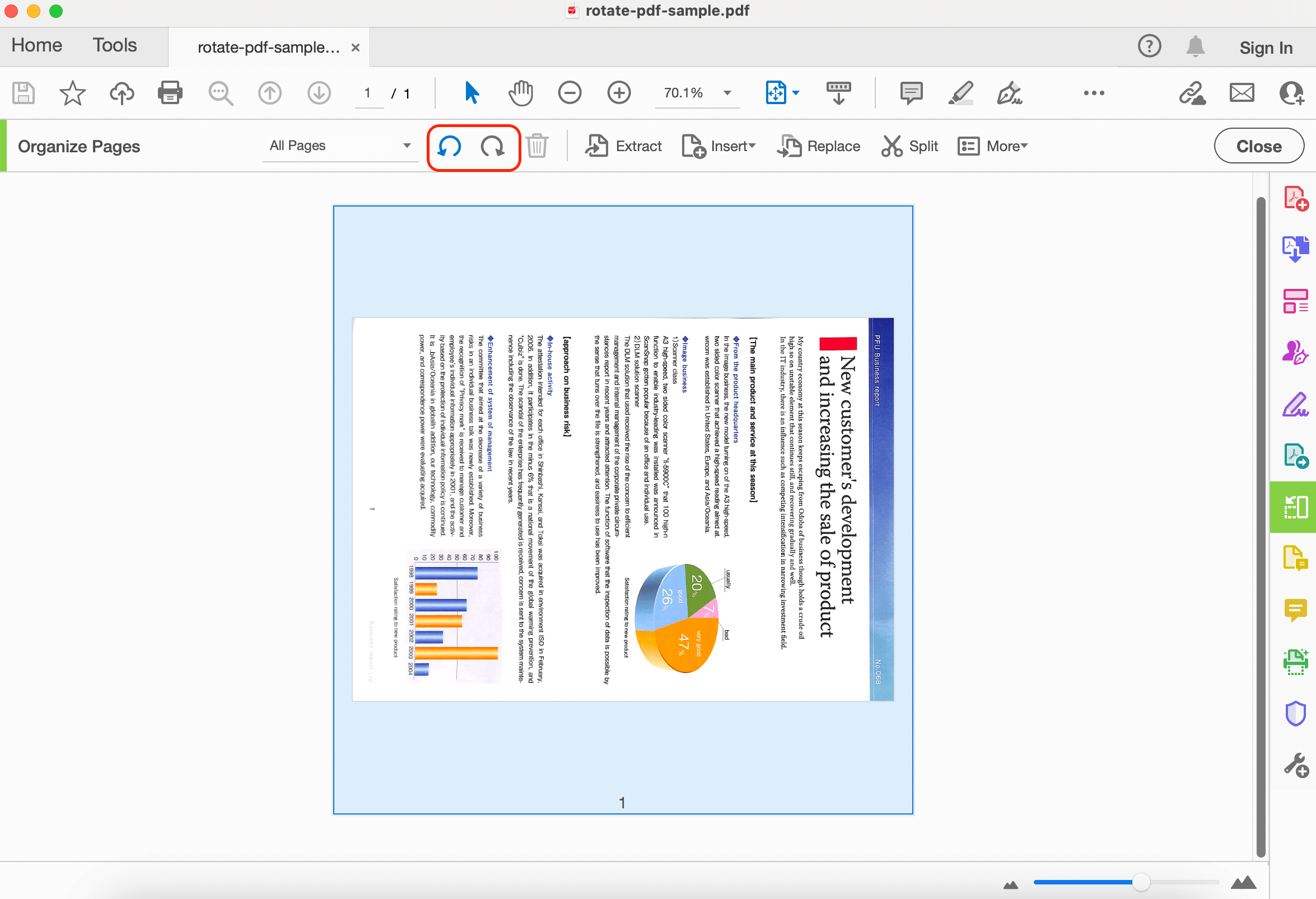
Rotate PDF from Landscape to Portrait with Adobe Acrobat
If you don’t have a subscription to Adobe Acrobat DC Pro, don’t worry! There are several free methods available to rotate PDF pages, including using Google Chrome. You don’t need to spend money on Adobe Acrobat DC Pro if you don’t require its professional advanced features.
How to Change PDF from Landscape to Portrait Using Google Chrome
- Open Google Chrome and navigate to the PDF file you want to rotate.
- Right-click on the PDF file and select Open with and then choose Google Chrome as the application.
- Click on the three dots icon in the top-right corner of the window.
- Select Print from the drop-down menu.
- In the Print dialog box, click on the More settings link, select Portrait from the Orientation section, and then click on the Print button to save the changes to the PDF file.
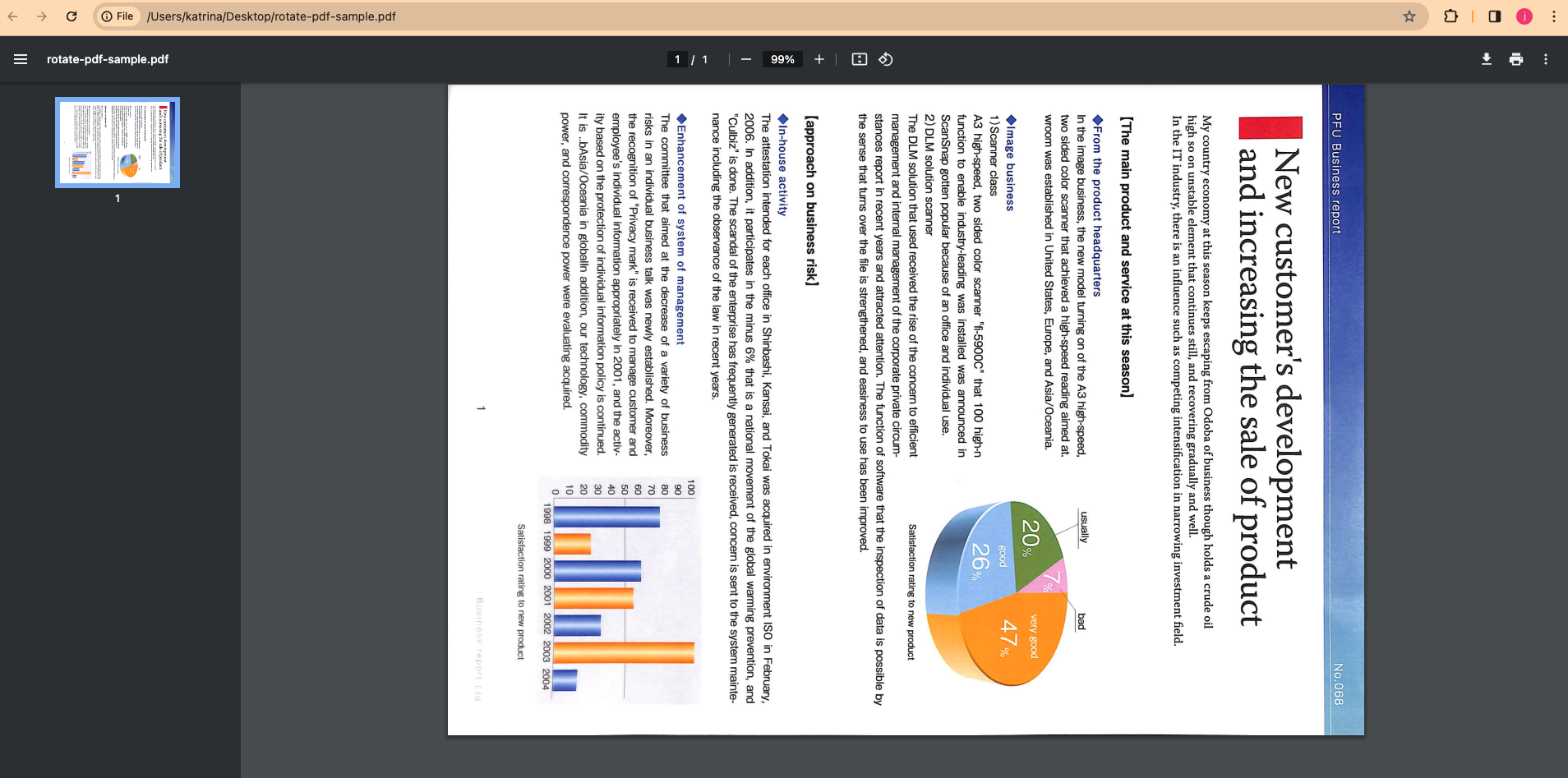
Rotate PDF with Google Chrome
FAQs When Rotate PDF from Landscape to Portrait
There are still some issues you may meet when you are trying to flip PDF from landscape to portrait or vice versa.
You are covered in this part. Check out the answers.
Will rotating a PDF file affect its quality or resolution?
Rotating a PDF file should not affect its quality or resolution.
If you rotate a PDF file multiple times, it may become distorted or pixelated. To avoid this, it’s best to rotate the PDF file only once and save the changes.
Can I undo the changes if I make a mistake while rotating a PDF file?
If you make a mistake while rotating a PDF file, you can use the Undo command to revert the changes.
On Windows devices, the shortcut for Undo is Ctrl + Z, while on macOS devices, it is Command + Z.
Alternatively, you can close the PDF file without saving the changes. However, if you have already saved the changes, you may need to use a PDF editor to revert the file to its original orientation.
Conclusion
This article provides three easy ways to rotate your PDF to portrait orientation. You can use Adobe Acrobat Reader DC, Google Chrome, or a free online PDF editor PDFgear. Each method comes with step-by-step instructions and pictures to guide you through the process.
But it would be highly recommended as PDFgear is the best option for rotating PDFs from landscape to portrait orientation online. It’s free, easy to use, and compatible with Windows, macOS, and mobile devices.
All you have to do is upload your PDF, select the pages you want to rotate, and hit the rotate button. Then you can download your newly rotated PDF in portrait orientation.
If you’re a macOS user, you can use Preview to rotate your PDF.
For Adobe Acrobat DC Pro subscribers, you can use the Organize Pages tool to rotate your PDF. And if you don’t have access to Adobe Acrobat DC Pro, you can use Google Chrome to rotate your PDF.
