How to Compress PDFs with Adobe and Its Alternatives

Summary :
Learn how to compress PDF files efficiently with Adobe Acrobat. And discover the best free alternative to Adobe for reducing PDF file sizes.
Table of Contents
Adobe Compress PDF
When it comes to compressing PDF files, Adobe Acrobat is undoubtedly one of the most popular tools out there. Its powerful PDF editing and management features have made it a leader in the industry.
However, there are times when we may need to consider other options, especially when we want to avoid paying or seek more flexibility. So, in this article, I’ll show you how to use Adobe Acrobat and alternative methods to compress PDF files.
How to Compress PDF Files Using Adobe Acrobat
Compressing PDF files using Adobe Acrobat is a straightforward process that can help you reduce PDF file size offline without compromising quality. Its powerful features for PDF editing and management have earned it a solid reputation in the industry.
However, there are drawbacks to using it, primarily its cost. While it provides advanced features, the price may deter some users, particularly those with limited budgets or occasional PDF compression needs. Here’s how to do it:
Step 1. To begin, open Adobe Acrobat and navigate to the Tools tab located in the upper left corner. From there, select Optimize PDF from the options available. With this tool selected, proceed to open the PDF document you want to compress.
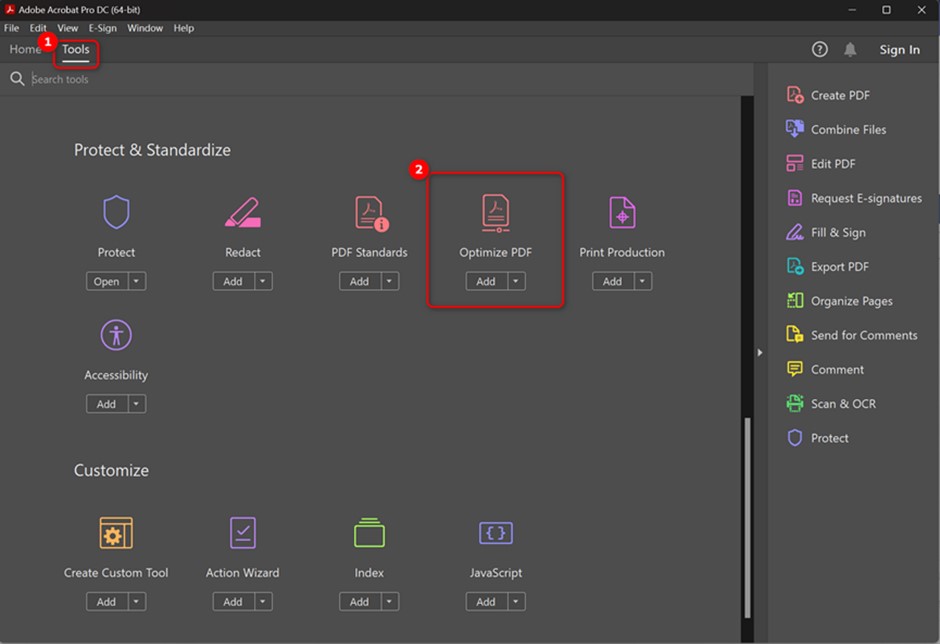
Upload PDF with PDF Optimizer
Step 2. Once the upload is complete, you can directly click on the Reduce File Size option in the top banner. If you only need to compress this specific PDF, please select Reduce Single file.
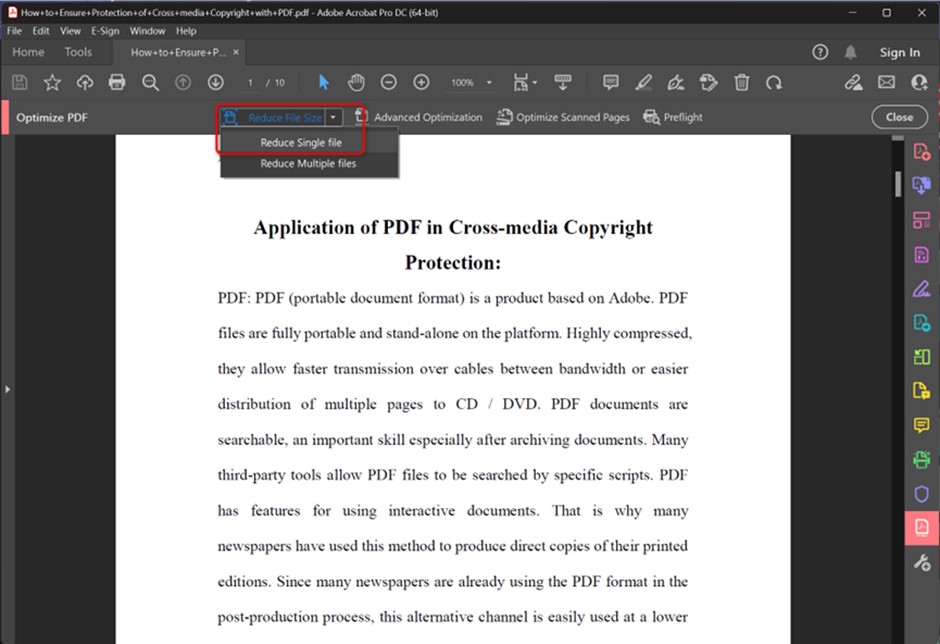
Reduce PDF File Sizes
If your version doesn’t have this shortcut option, there’s no need to worry. Click on File > Save as Other > Reduced Size PDF will trigger a pop-up window.
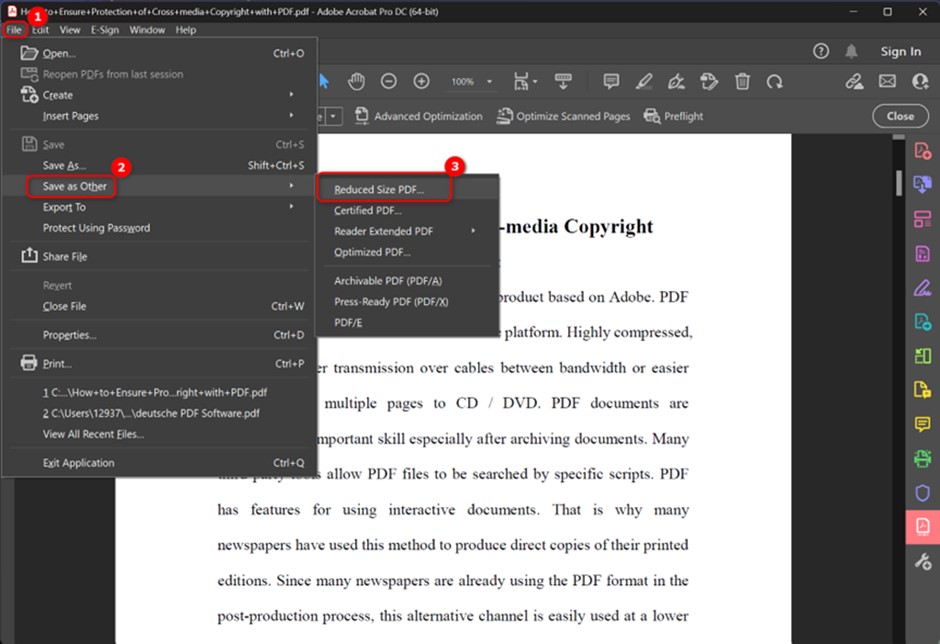
Save Your PDF as a Reduced One
The default option in the pop-up is the most suitable solution, simply click OK to save the compressed PDF.
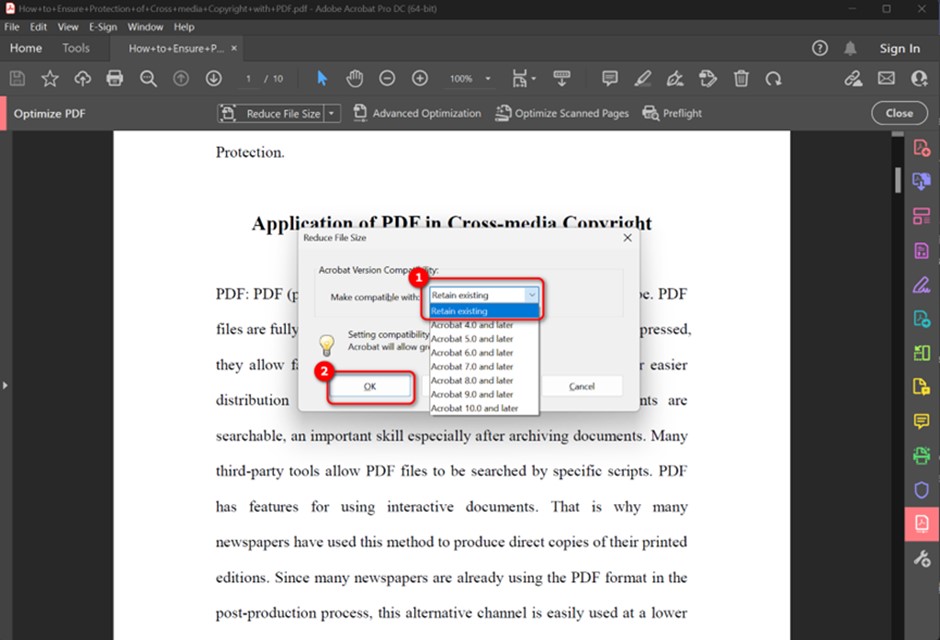
Adjust Compatibility of PDF
How to Reduce PDF File Size Online Using Adobe
If you don’t have Adobe Acrobat installed on your desktop or prefer to avoid installing additional software, you can use the online version of Adobe Acrobat to compress PDF files. It’s not only easy to use on any device, but it also saves you from high software costs. This method is particularly suitable for users who only occasionally need to compress PDF files.
Step 1. Go to the Adobe Acrobat website and navigate to the Compress PDF tool.
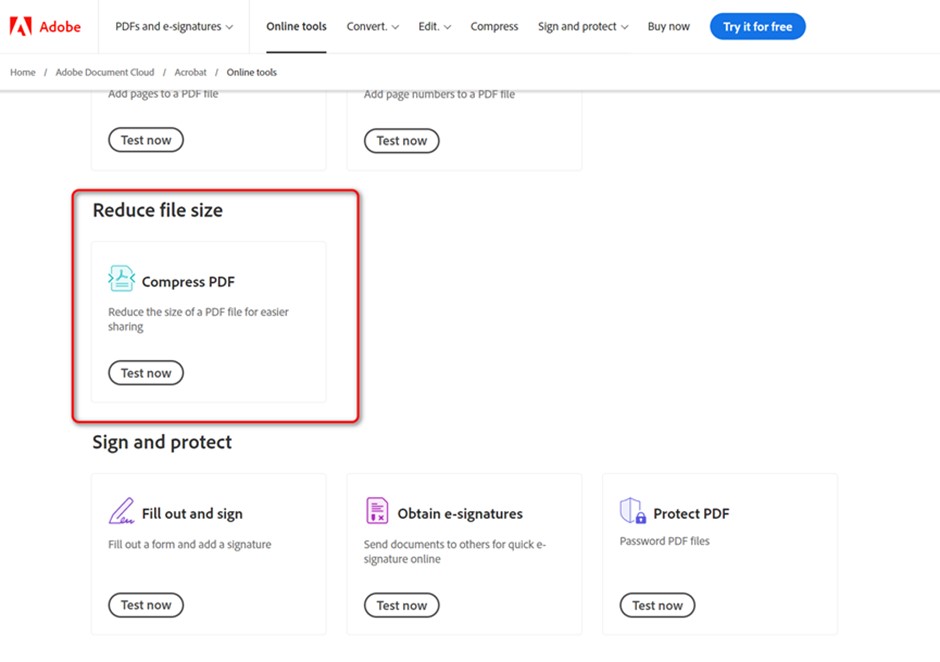
Open Online PDF Compressor
Step 2. Click on the Choose a file button or drag and drop your PDF file into the designated area on the webpage.
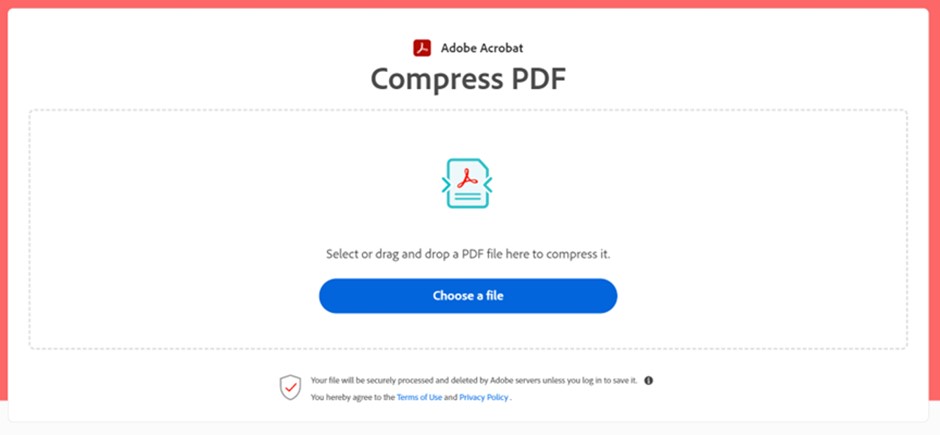
Upload Your File
Step 3. Adobe Acrobat online tool offers different compression settings to reduce the size of your PDF file. You can choose different compresses depending on your preference. Once you’ve selected it, click on the Compression button.
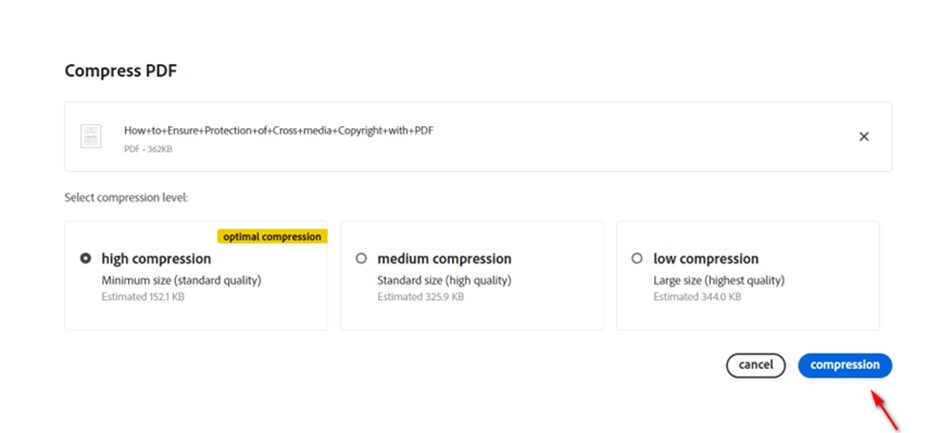
Start Compression
After the compression process is complete, you can either directly download the final file or log in to your Adobe account to share it for free.
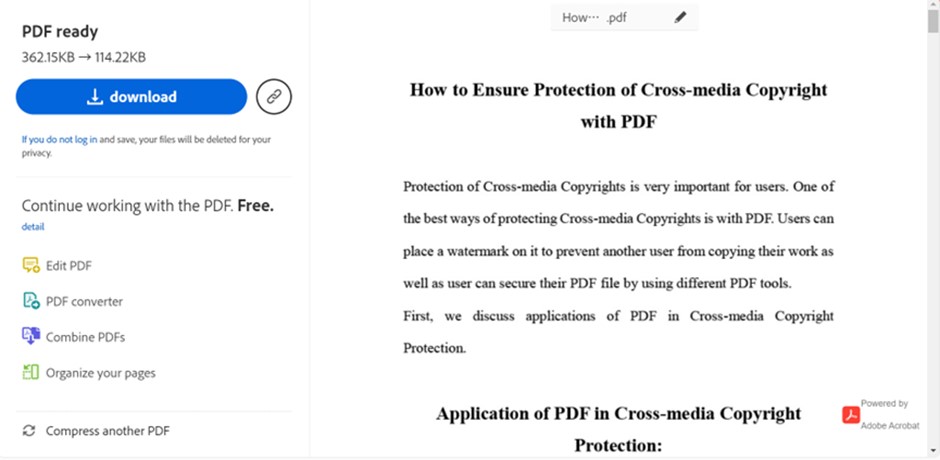
Save or Share Your PDF
How to Compress PDF Without Adobe Acrobat
Certainly, if you prefer not to rely on Adobe software or are looking for more free options, I’ll recommend a good alternative to help you compress PDF files.
Batch Compress PDFs for Free with PDFgear
If you’re looking for a more efficient way to handle large quantities of PDF files, I would recommend using PDFgear. Compared to importing files one by one in Adobe, PDFgear’s batch compression feature allows you to process multiple files at once, significantly saving time and effort.
Step 1. Navigate to the Compress PDF tool
Download and install PDFgear from its official website. Start by clicking on Compress PDF on the homepage.
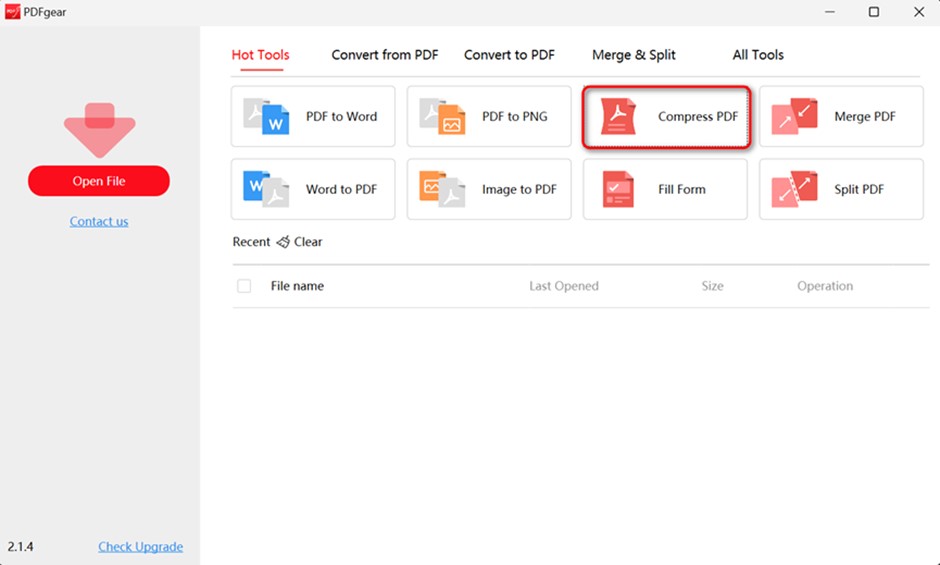
Compress PDF Files with PDFgear
Step 2. Upload PDF Files
Then, click on Add Files to upload all the PDF files you want to compress.
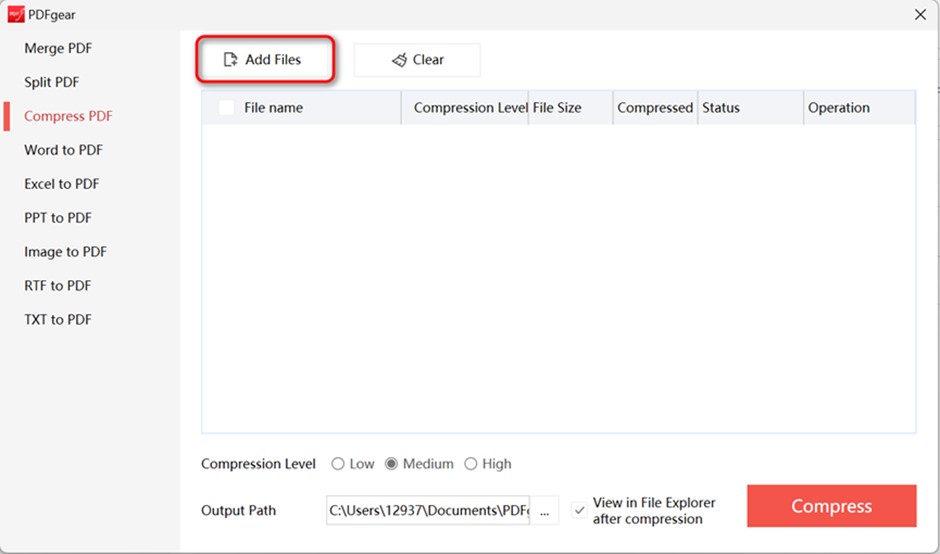
Add Files to PDFgear
Step 3. Start Compression
Choose the compression level for all files collectively, or you can adjust the settings individually for each file. Once settings are adjusted, click on Compress to start the process. The compressed PDF files will be automatically saved to the folder you selected.
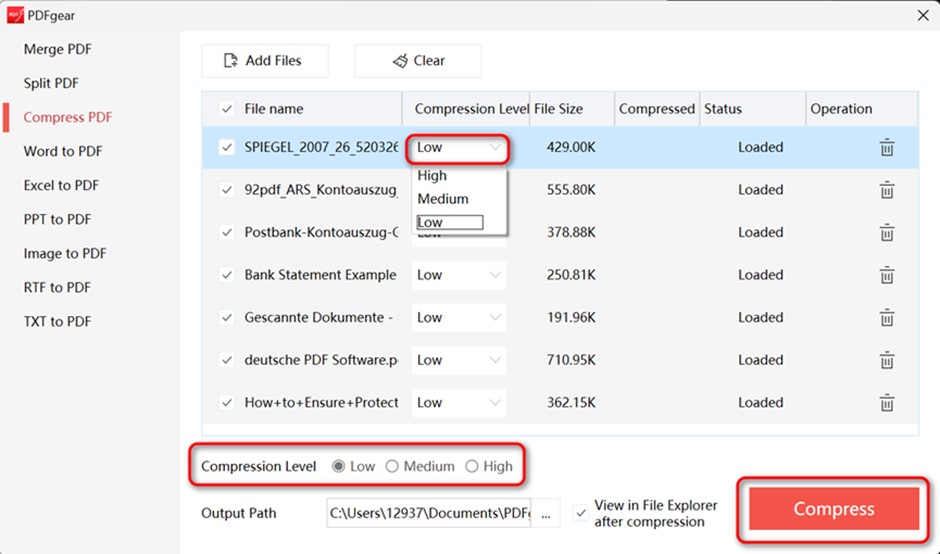
Get Your Compressed PDF Files
Compress a PDF Online without Limitation
Similarly, PDFgear also offers an online PDF compressor. As a free online tool, it shares the same advantages as Online Adobe, like no downloads and hyper-compression for PDF. However, online Adobe Acrobat sometimes encounters access denied issues, so PDFgear is more reliable and stable, reducing interruptions caused by access problems.
Step 1. Visit PDFgear’s Compress PDF online website, click Upload your PDF file, and select the file you want to compress.
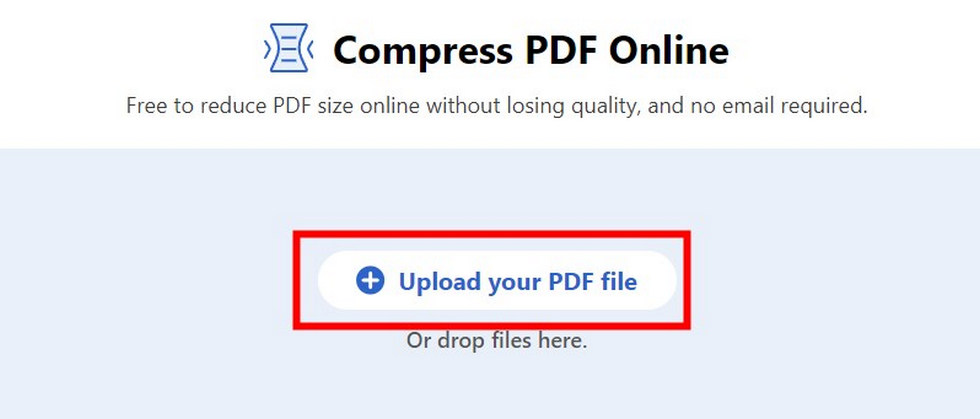
Upload the PDF to Online PDFgear
Step 2. Depending on your needs, you can find compression settings options on the page. Once settings are adjusted, click Compress to start compressing the selected PDF file.
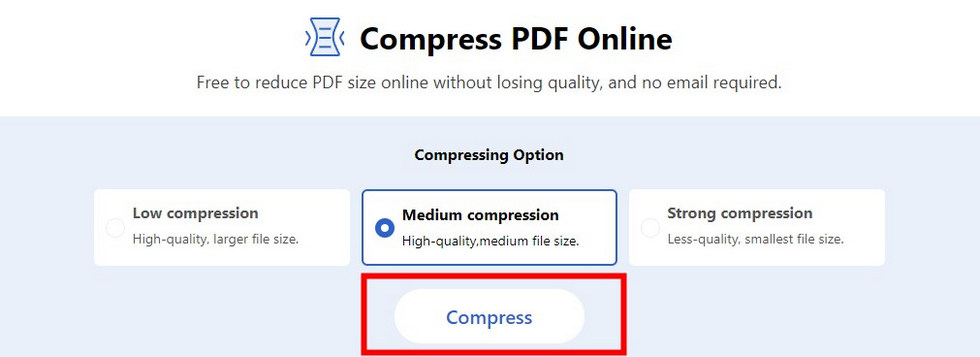
Adjust Compression Settings
Step 3. Click on the download button to save the compressed PDF file to your device.
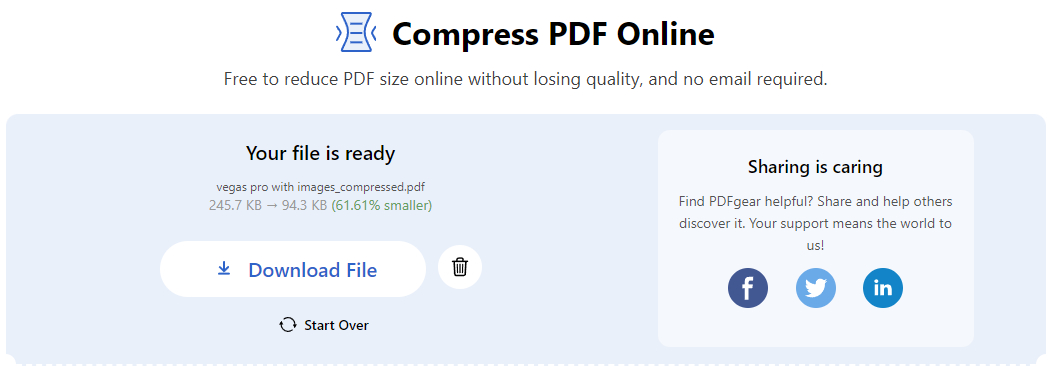
Download the Compressed File
FAQs
1. Can I reduce the size of a PDF in Acrobat Reader?
You can edit PDF files with Adobe Reader, but it can’t directly reduce their size.
2. What is the Best Free Alternative to Adobe Acrobat for Compressing PDFs?
If you’re looking for the best free alternative to Adobe Acrobat for compressing PDF files, PDFgear is the answer. It’s not only free but also supports batch operations, allowing you to compress multiple PDF files at the same time.
3. How do I compress a PDF to 200kb in Adobe?
To compress a PDF to 200kb in Adobe Acrobat, go to File > Save As Other > Reduced Size PDF. Choose the version compatibility and Adobe will automatically compress the file.
Conclusion
In conclusion, when it comes to compressing PDF files, Adobe Acrobat stands out with its robust features, but it may not be the most budget-friendly option.
Alternatives like PDFgear offer similar functionality for free, making them an attractive choice for users looking to save on costs. With its efficient batch compression capabilities, PDFgear emerges as the top recommendation for those seeking quality compression without breaking the bank.
