How to Add a Signature Image in a PDF

Summary :
Learn how to add a signature image to PDF files across platforms using free tools, with both online and offline methods available.
Table of Contents

How to Add Signature Image into PDFs
Tired of printing, signing, and scanning just to add your signature to a document? Say goodbye to the old-school hassle! Adding a signature image to a PDF is the fastest, most efficient way to sign documents—whether it’s a contract, an agreement, or an official form.
In this guide, we’ll show you step-by-step how to insert a signature image (.jpg, .png, .bmp, etc.) into a PDF using safe and no-fuss methods.
Add a Signature Image to PDFs Online
Online signature tools make life easier, and PDFgear does it flawlessly. It lets you add PNG or JPG signatures to your PDFs like a pro. And the best part? Once you save your signature, you can slap it onto any document with a single click—talk about efficiency!
Furthermore, PDFgear is free and ensures you won’t be bothered by watermarks once your signature is complete.
Step 1. Hop onto PDFgear Online Signer and choose a PDF to open.
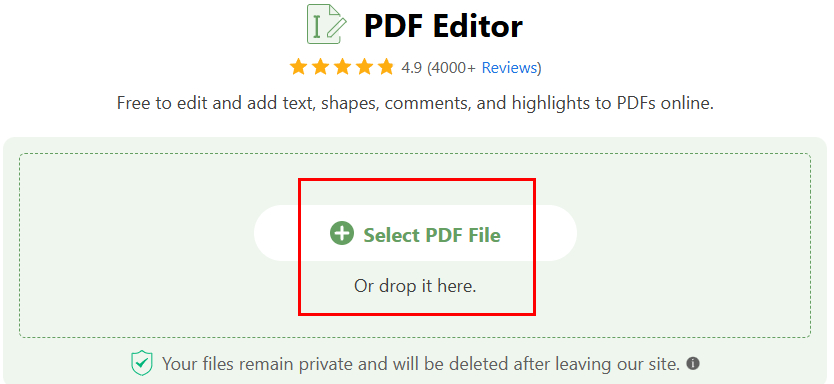
Open a PDF with PDFgear Online Signer
Step 2. Navigate to “Add or Edit annotations”, here is a Pen icon waiting for you, and click “ADD SIGNATURE”.
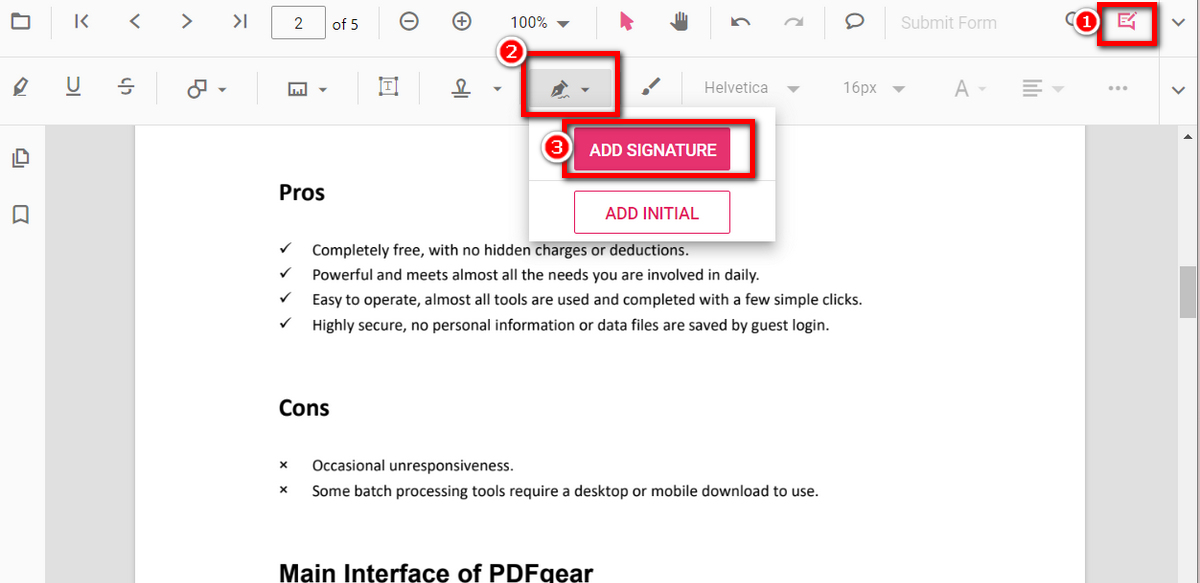
Find Signature Button
Step 3. Choose “Upload” > “Browse” > Select your signature file > “CREATE”. Voilà!
Note: Check “Save Signature” to store it in PDFgear’s signature vault for next time.
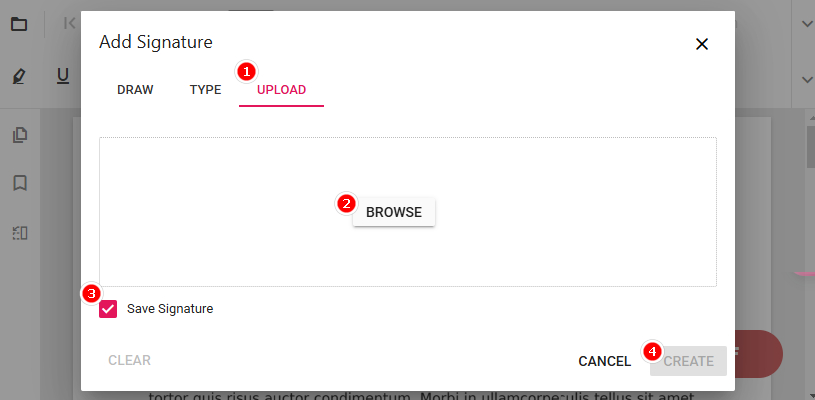
Add JPG/PNG Signature to PDFs
⚠️ Heads-up! If your internet decides to ghost you, no worries. Download PDFgear to keep signing without limits. Because nothing should stand between you and a perfectly signed document.
Add a Signature Image to PDFs for Free
Signing documents shouldn’t feel like a chore — and with PDFgear, it doesn’t! Effortlessly add signature images (.jpg, .png, .bmp, etc) with a few clicks (or taps), whether you’re on Windows, macOS, iOS, or Android. Because let’s be real, signing a PDF should be easier than finding a pen that actually works.
Want your signature to look crisp and professional? After uploading your signature image, PDFgear lets you remove the background for a sleek look without messy edges.
Let’s dive in with a video first.

How to Sign a PDF on Windows for Free
Step 1. Download PDFgear and click “Open File” to choose a PDF.

Open a PDF with PDFgear
Step 2. Head to the “Edit” tool from the tool menu, choose “Signature” and then hit “Create Signature”.
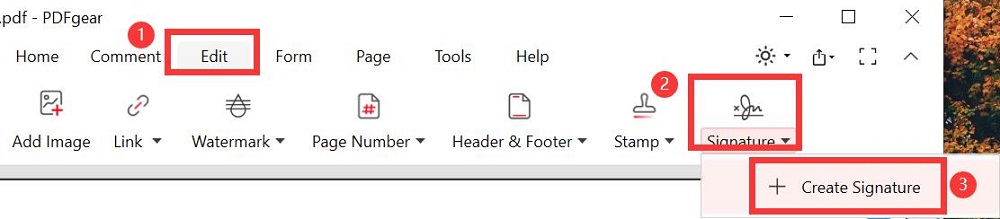
Steps to Add Signature to PDF in PDFgear
In the “Create Signature” window, click “Add Picture” under the “Picture” section. Select your signature image, hit “Open,” and click “OK.”
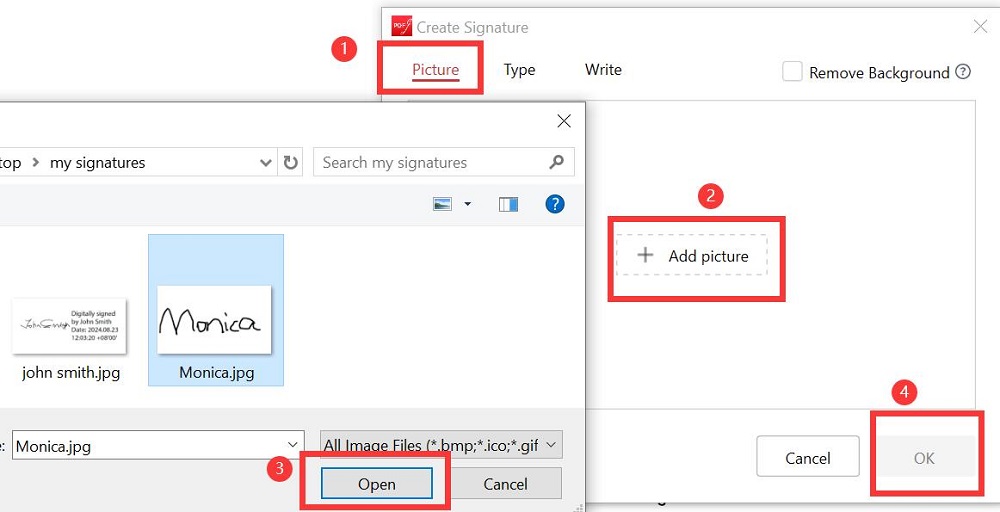
Import JPG Signature in PDF in PDFgear
Step 3. Adjust the size and position for that perfect placement. Need more options? You can Flatten, Delete, or even Place on Multiple Pages.
Pro Tip: Flattening your signature merges it into the PDF, making it nearly impossible to remove—perfect for when you want to keep things official.
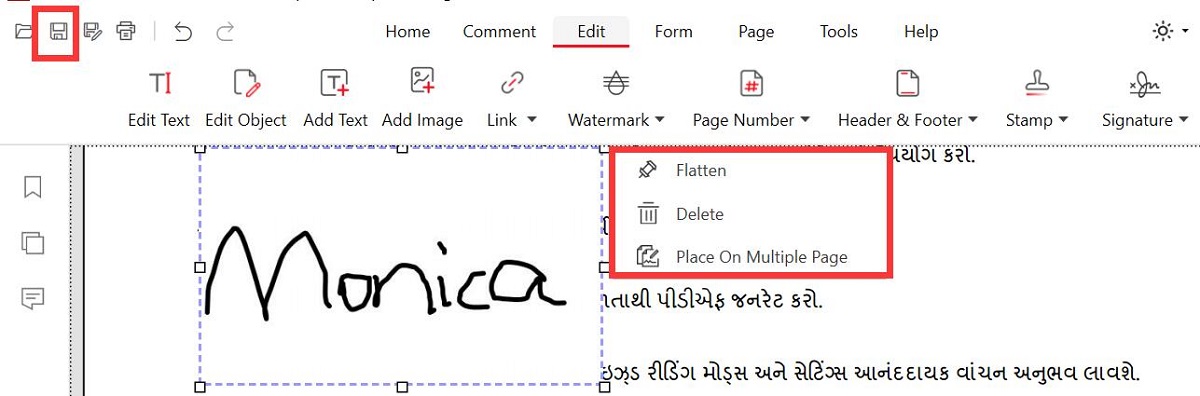
Save the Signed PDF
When you’re happy, click the Save icon, and boom—your document is signed and sealed!
Add a Signature Image to PDFs on Mobile
For iOS and Android users, PDFgear has you covered. You can easily add a signature image from your phone, whether in JPG, JPEG, or PNG format.
You can also capture a photo of your handwritten signature in real-time. This is a truly versatile and user-friendly solution.
Step 1. Grab PDFgear from the Google Play Store (Android) or the App Store (iPhone). It’s quick and free.
Step 2. Open a PDF in PDFgear and tap “Edit.” Find the center button (the dropdown one), tap it, and select “Fill & Sign.”
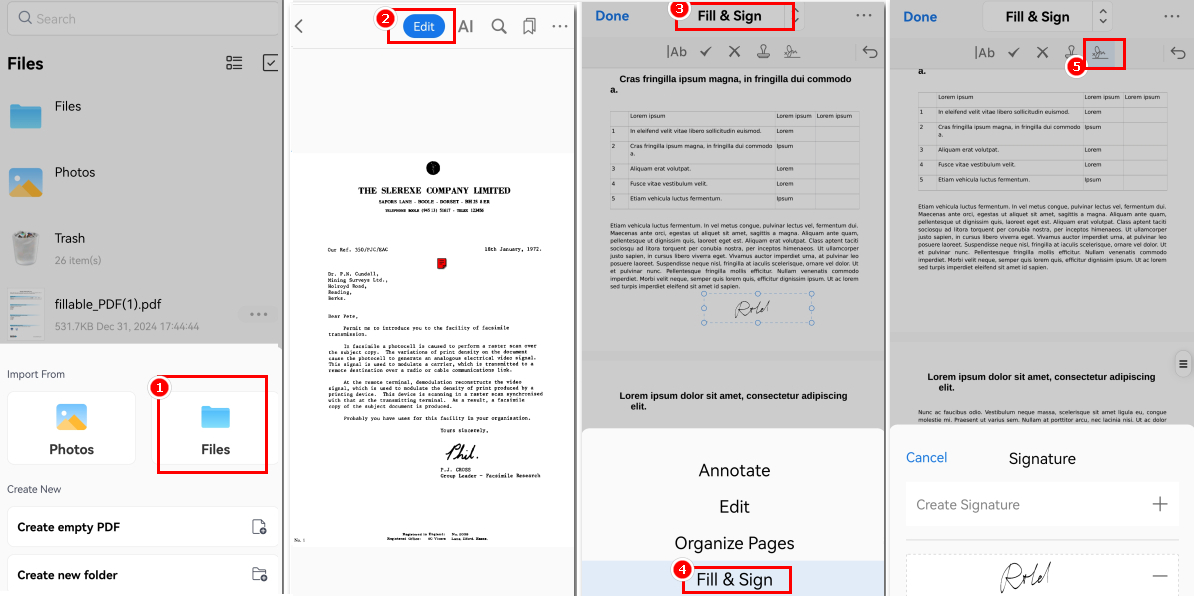
Find the Signature Button in PDFgear for Android
Step 3. Tap the “Signature” button, hit “Create Signature,” and pick “Image”. You can upload an image or snap a pic of your handwritten signature.
Save one for next time by checking “Save to Device.”
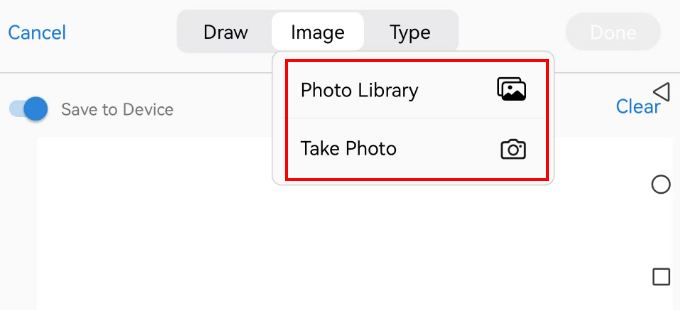
Upload an Image or Take a Photo of Your Signature
Step 4. Place your signature where you want it, and resize it like a pro. PDFgear will automatically flatten it.
Your PDF? Tamper-proof and good to go!
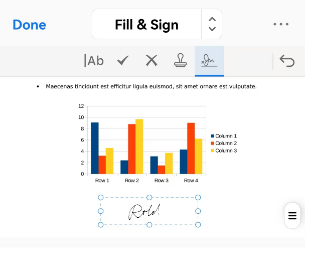
Place and Resize Your Signature Image in PDFs
Step 5. Tap “Done” to seal the deal. Share your PDF by hitting the three dots in the corner, or tap back and save your changes when prompted.
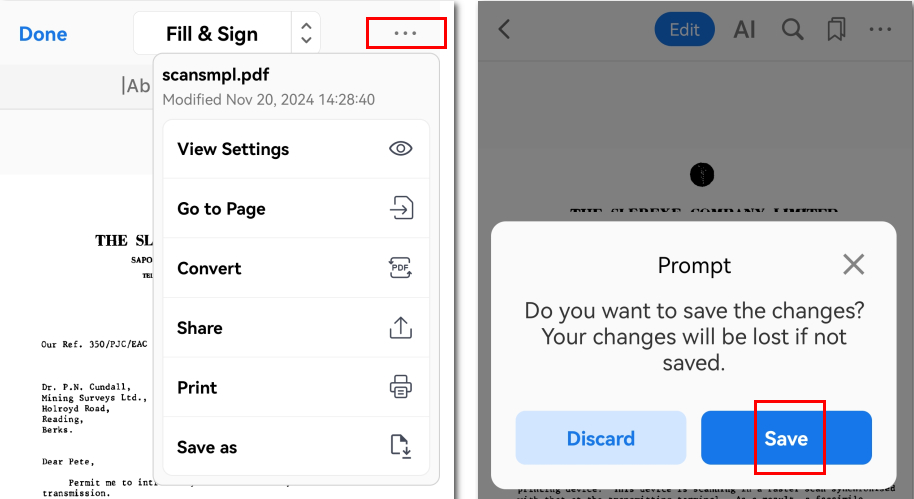
Save the Signed PDF or Share the Signed PDF
Easy-peasy! Now you’re a PDF-signing ninja—go impress someone!
FAQs
Can I Add a Signature Stamp to a PDF?
Certainly. PDFgear simplifies the process of adding a signature stamp to PDFs. You can create a text stamp or a signature image stamp and add it to a .pdf file with this free PDF editing tool.
How to Create a Signature Image?
If your signature is embedded into a PDF file, you can open the file with PDFgear. Use the Screenshot tool to capture the signature and save it as a PNG signature.
How Can I Paste My Signature Image into a PDF?
Open the PDF with Adobe Acrobat > Copy the signature image using the shortcut “Ctrl/Command” + “C” > Navigate through the PDF to locate the desired position > Paste the signature picture using “Ctrl/Command” + “V”.
Conclusion
In summary, this article outlines three free solutions for adding signature images to PDFs across all platforms, both online and offline. PDFgear remains a trustworthy option, addressing both security and cost considerations.
